Remove unused entities from your SketchUp model to reduce file size and complexity. When you delete entities, their definitions remain in the model for reuse. Unused materials increase component file sizes and slow uploads and downloads. Repeating these components across a design can increase the overall model file size.
The easiest way to remove unused entities is to use Purge Unused in the Statistics section of Model Info.
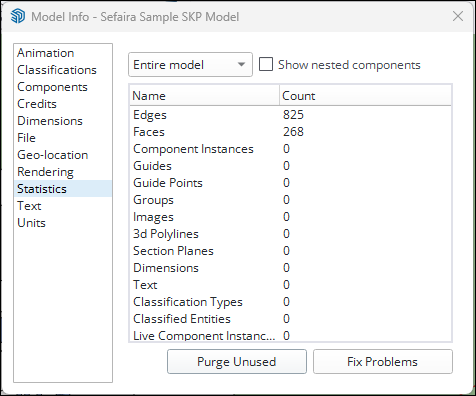
You can delete components, tags and materials individually, but this leaves their materials, subcomponents and tags behind. Follow the steps below for the type of entity you want to remove.
To remove a component:
- Open the Components Panel.
- Click In Model.
- Right-click the thumbnail of the component you want to remove.
- Click Delete.
- Click OK to delete the component.
- Repeat the process for any subcomponents left behind.
To remove a tag:
- Open the Tags panel.
- Right-click the tag you want to delete.
- Click Delete Tag.
- SketchUp asks what to do with entities that use the tag. Select Assign Another Tag and choose an existing tag, or select Delete the Entities to delete them.
- SketchUp removes the tag from the model.
To remove a material:
- Open the Materials panel (Color Picker on MacOS).
- Click In Model.
- Right-click a swatch and select Delete.
- Click Yes when asked to replace its use with the default material.