Skip to content
07-848 2005

SketchUp, 3D Warehouse and Extension Warehouse

Saved content in 3D Warehouse

Sign in to 3D Warehouse to save content for later. Your Liked Content page is part of your content library, with tabs for models, collections, catalogues or materials.

On this page
  1. Add and remove saved content
  2. Access saved content

When you are signed in to 3D Warehouse, you can save content to revisit later.

Your saved content appears on the Liked Content page in your content library. Use its tabs to find models, collections, catalogues or materials. You can open and use saved content as you would elsewhere in 3D Warehouse.

Add and remove saved content

Follow these steps to add or remove saved content.

  1. Open the Details page for the content you want to save.
  2. Click Add to Likes (Add to Likes heart icon.) to save the content to your Liked Content page.
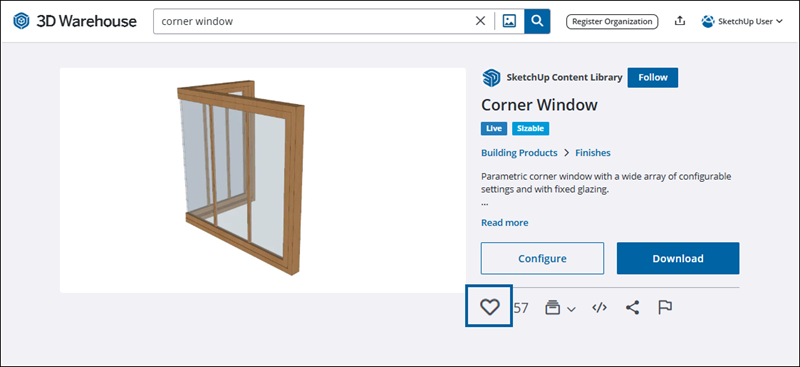
3D Warehouse Corner Window page with the Add to Likes heart icon highlighted below Download.
  1. To remove saved content, open it from the Liked Content page or 3D Warehouse home page and click Remove from Likes (Add to Likes heart icon.).

Access saved content

Follow these steps to access your saved content.

  1. Open your content library. See Accessing Your Content for details.
  2. Click Liked Content to open the page with the Liked Models tab selected.
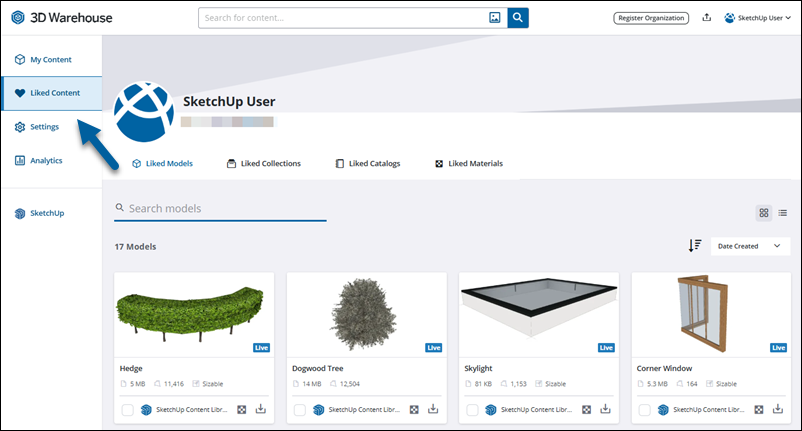
3D Warehouse Liked Content page with the Liked Models tab selected and saved models displayed.

Procadsys customer support

Still need help?

Licences, renewals and billing

Our New Zealand team looks after your SketchUp licences, renewals and invoices.

Monday to Friday, 9:00 am to 4:30 pm NZ time, excluding New Zealand public holidays.

Technical problems

Technical support from our New Zealand team is available with a current Procadsys SketchUp Plus subscription: Pro Plus, Pro Scan Plus, Pro Civil Contractor Plus, Pro Advanced Workflows Plus or Studio Plus.

Initial response within one business day.

On another SketchUp plan? Technical problems go to Trimble support.