Accessing Your Content Library
The My Content page functions as your 3D Warehouse Content Library. Through this page, you can: Upload models Create collections of models and materials Upload materials View your saved models and materials in the Liked Content page Manage your 3D Warehouse profile and settings View your analytics dashboard
Last updated 17 July 2026
The My Content page functions as your 3D Warehouse Content Library. Through this page, you can:
- Upload models
- Create collections of models and materials
- Upload materials
- View your saved models and materials in the Liked Content page
- Manage your 3D Warehouse profile and settings
- View your analytics dashboard
You can access your content library through the user menu or 3D Warehouse landing page.
To access your content library through the user menu, follow these steps:
- Go to 3dwarehouse.sketchup.com and sign in using your Trimble ID.
- In 3D Warehouse, click your display name.
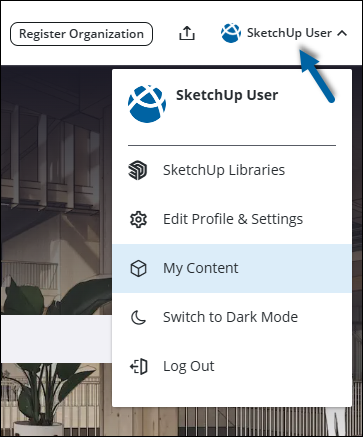
- Select My Content. The My Content page appears with the My Models tab selected.
To access your content library through the 3D Warehouse landing page, follow these steps:
- Go to 3dwarehouse.sketchup.com and sign in using your Trimble ID.
- On the landing page, clicking My 3D Warehouse opens a dashboard with an overview of the content on your account. It has links to your uploads, collections, and saved content.
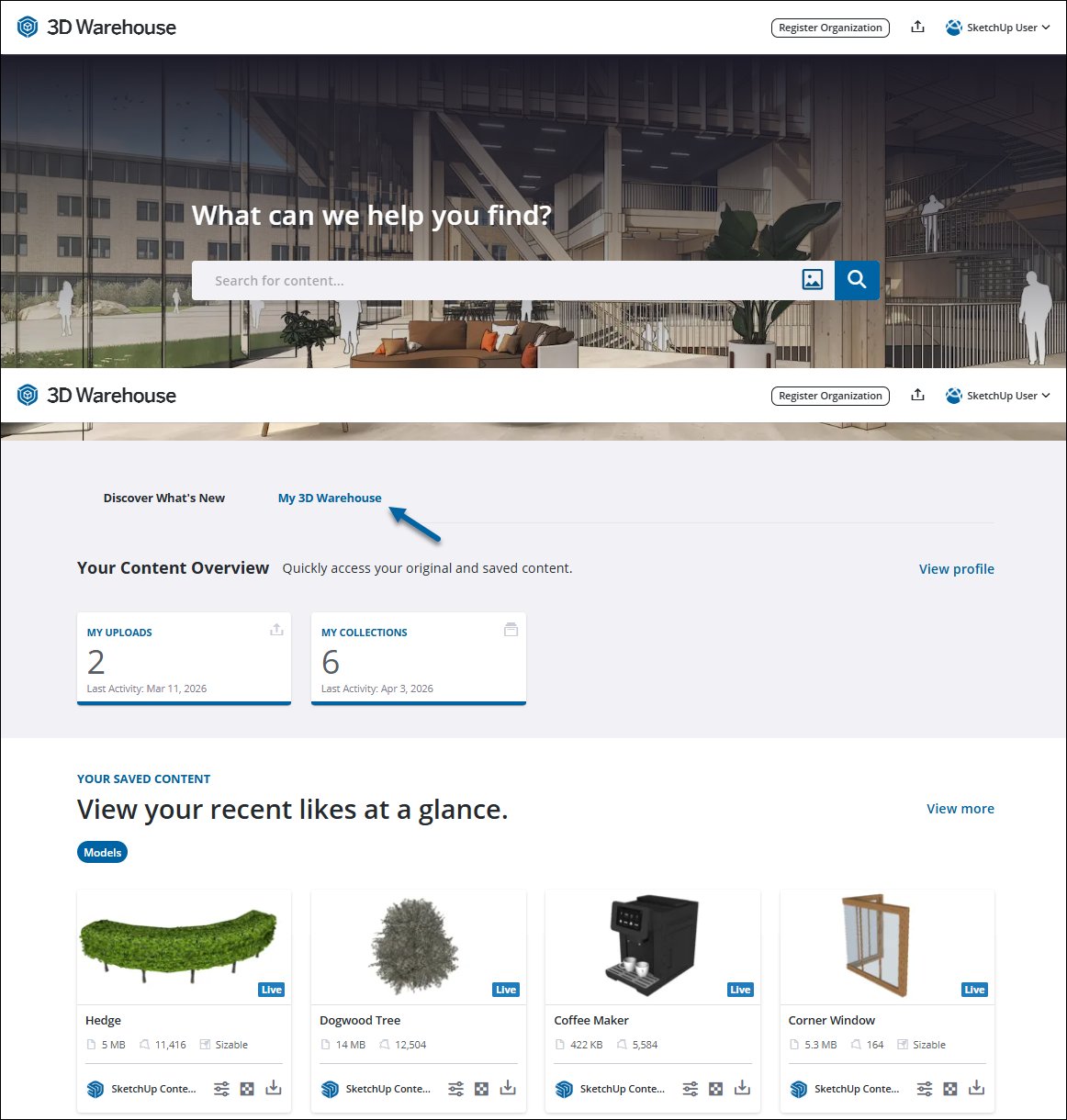
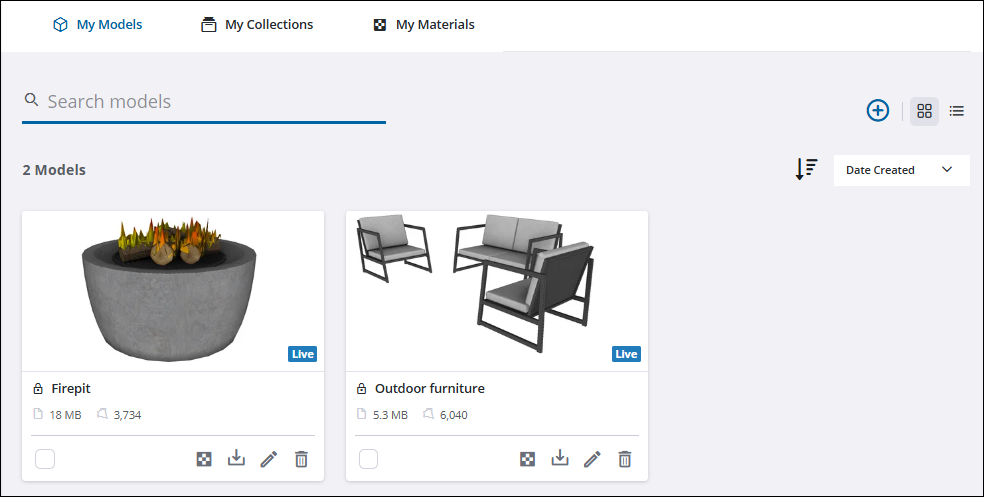
- To access the uploaded models or collection in your content library through the content overview, click My Uploads to open the My Content page with the My Models tab selected.
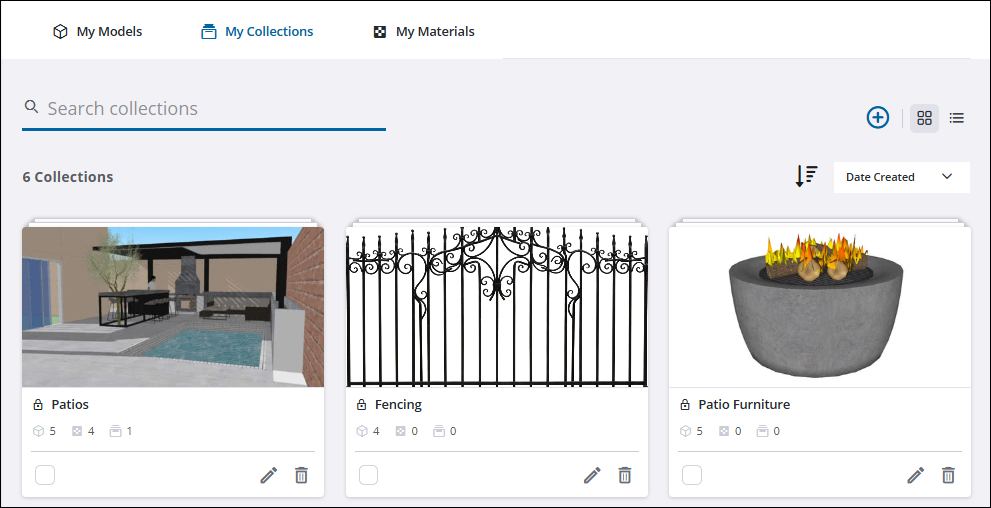
- To access your Collections, click My Collections to open the My Content page with the My Collections tab selected.
Still need help?
Technical support from our New Zealand team is available to customers with a current Procadsys SketchUp Plus subscription: Pro Plus, Pro Scan Plus, Pro Civil Contractor Plus, Advanced Workflows Plus or Studio Plus. Self-help articles are public.
Contact SketchUp support