Use 3D Warehouse's Search tool to find models by keyword, phrase or image.
Text search
Type a keyword or phrase in the search bar, then press Enter or click the search icon ( ).
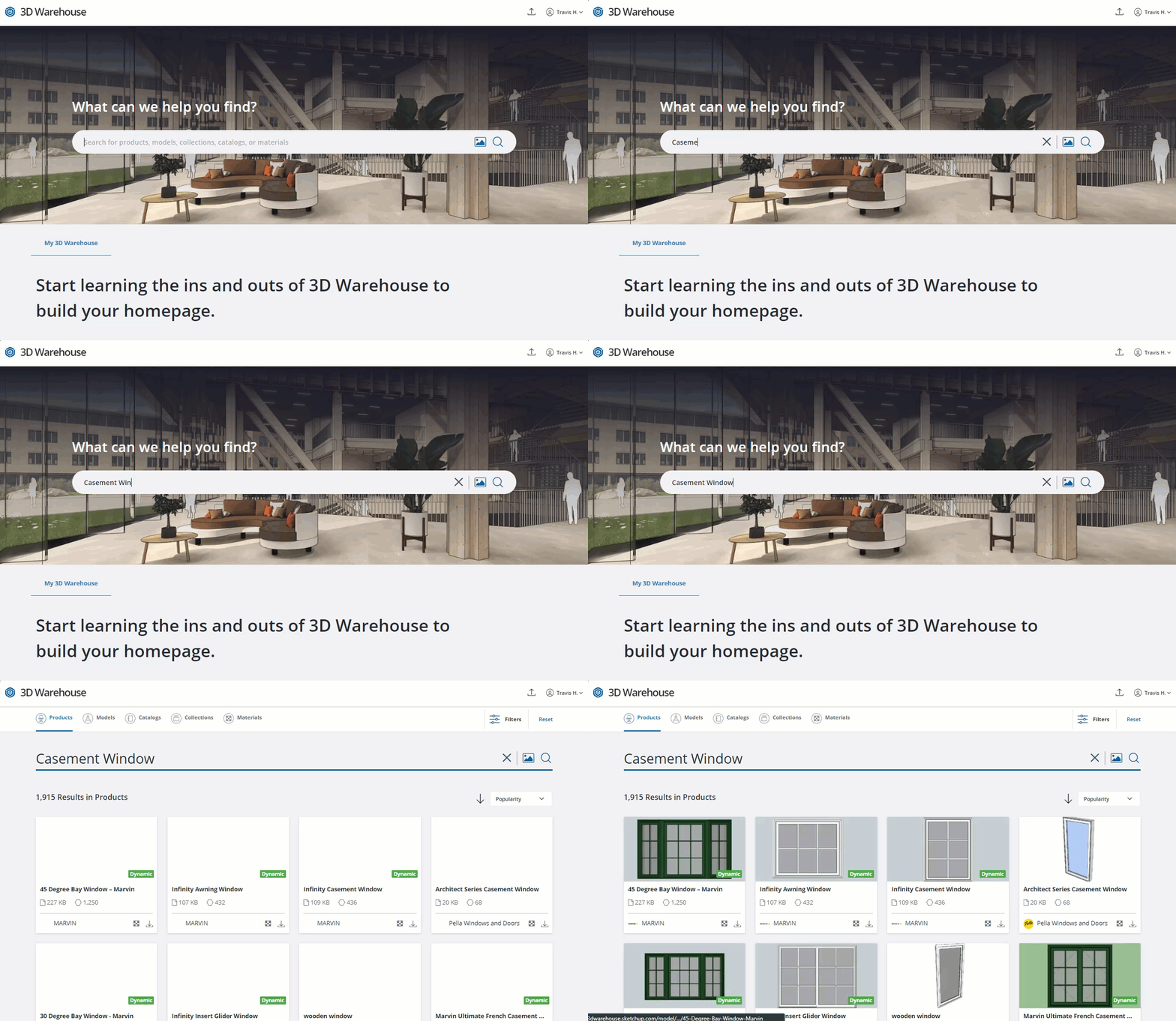
Image search
Use 3D Warehouse's image search to find models similar to a reference image.
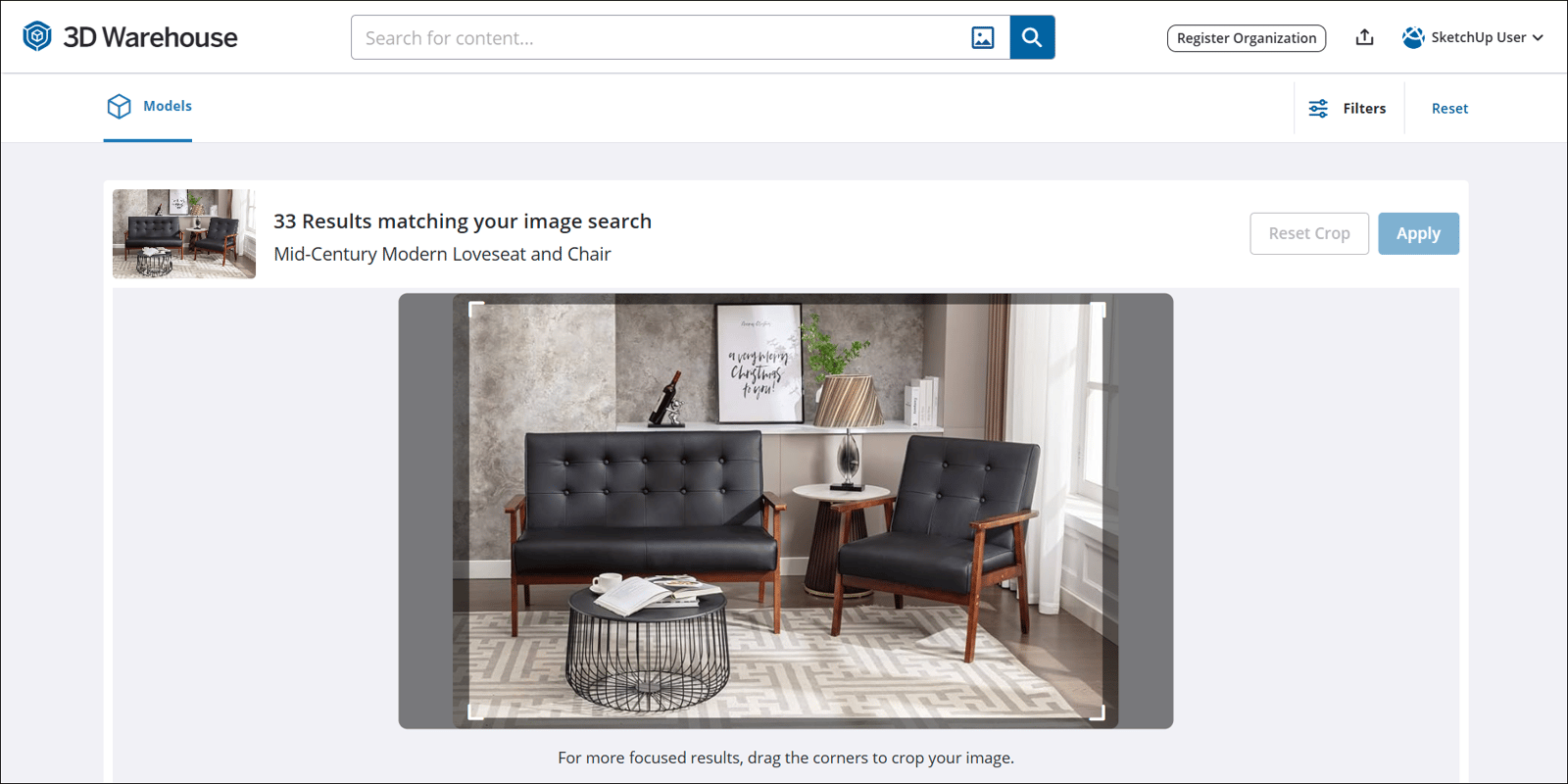
To search with an image:
- Click the image search icon (
 ) in the search box.
- In the 3D Warehouse Image Search dialogue, upload a reference image using one of these methods.
- Drag and drop an image.
- Browse your device for the image file.
- Paste an image from your clipboard.
- Enter a URL for an image.
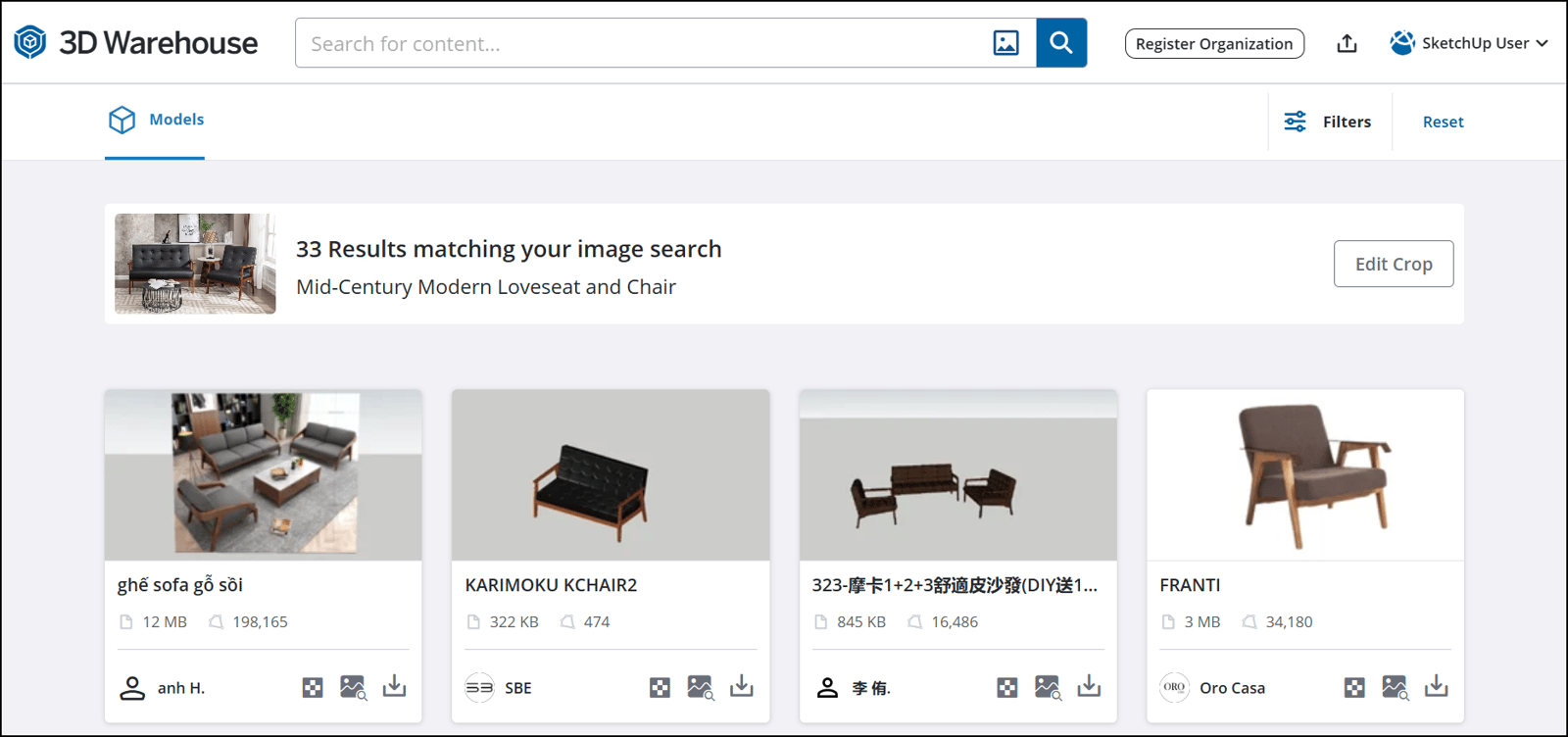
3D Warehouse finds the closest matches to your reference image.
- Scroll to view the current results.
After uploading an image file, you can crop it to refine the results. For example, if your image shows living room furniture, crop it so only the couch is visible to find matching couches.
To refine a search by cropping the reference image:
- After uploading an image, drag its corners on the results page to select the area you want to search for.
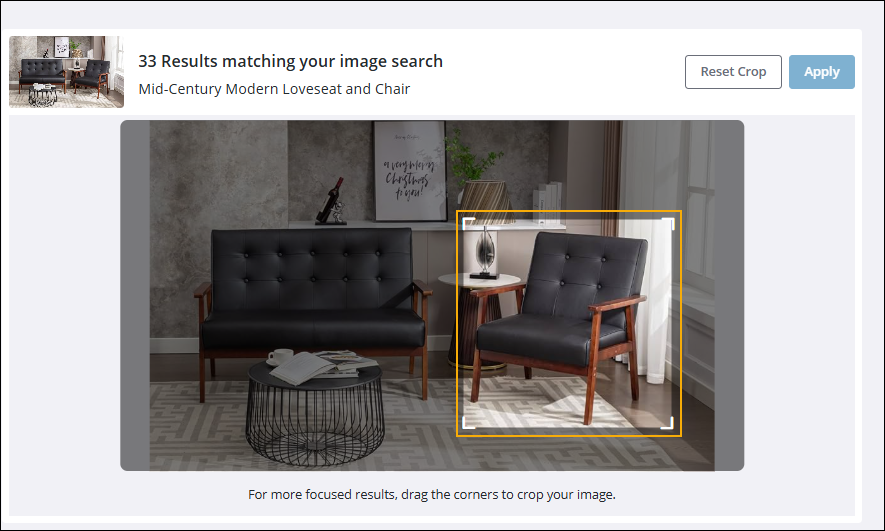
- Click Apply. Results appear for the cropped image.
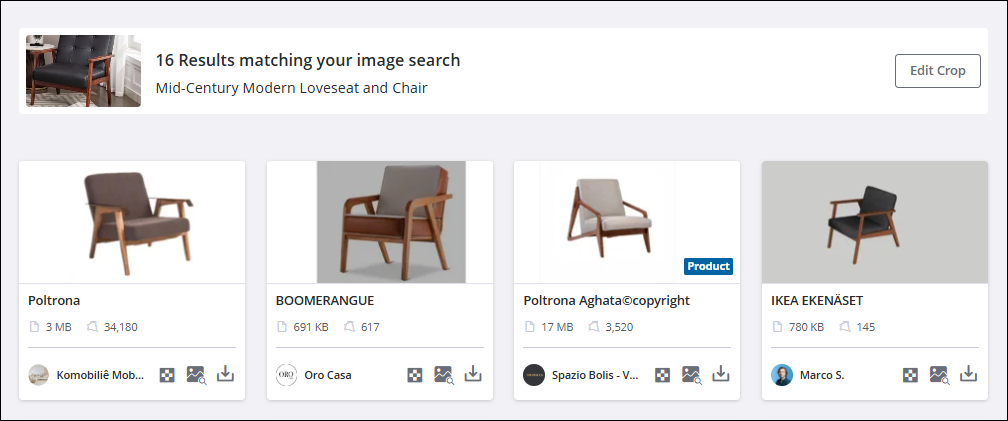
- Click Edit Crop to return to the reference image. You can change the crop, or click Reset Crop and Apply to see results for the whole image.
Filtering search results
After searching, use categories and filters to narrow your results.
Search by category
For text searches, you can filter by Models, Catalogs, Collections and Materials.
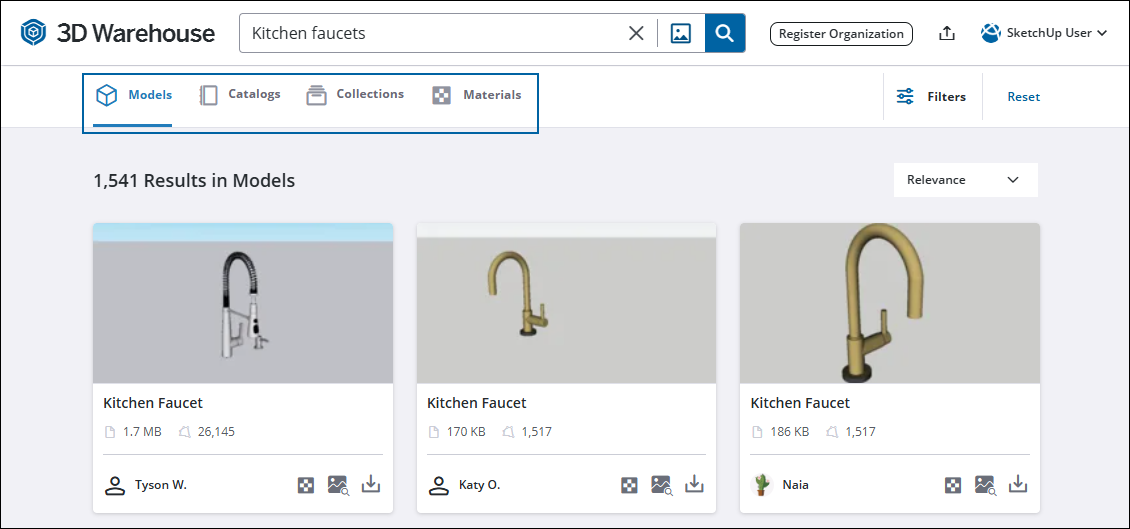
3D Warehouse has these search categories.
- Models match your search criteria.
- Catalogs are curated groups of manufacturer models related to your search criteria.
- Collections are curated groups of models related to your search criteria.
- Materials match your search criteria.
Search with filters
Each category has filters with more search criteria.
To view the available search filters:
- Click Filters at the top right of the page. The available filters for that search category appear in the left pane.
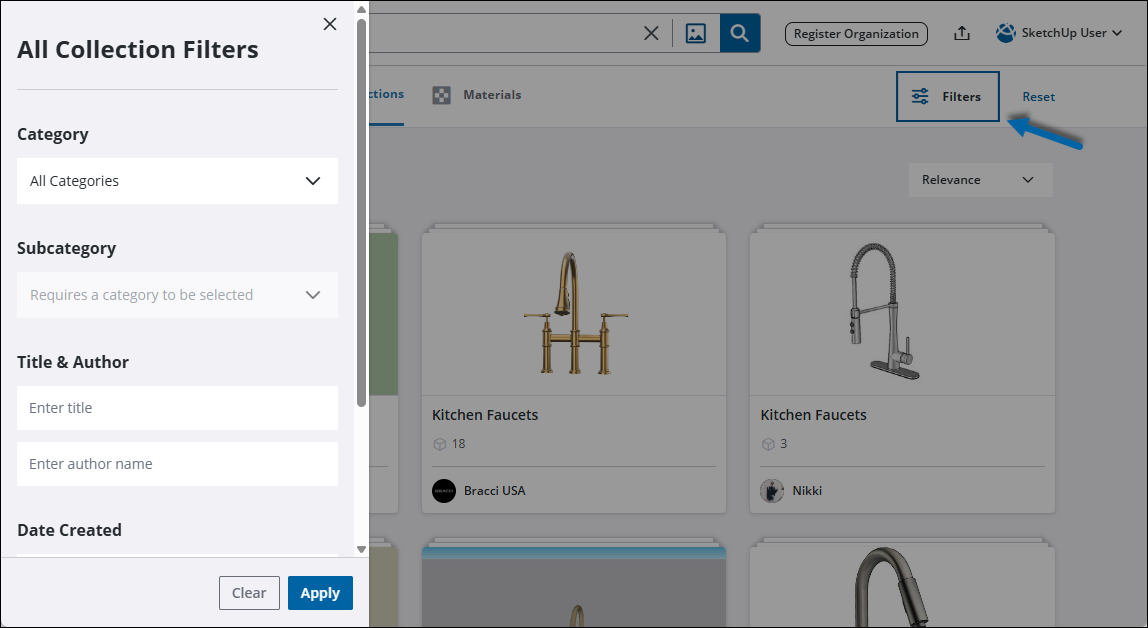
- Click Reset to clear all selected filters.
Models, Catalogs and Collections have these search criteria:
- Category
- Subcategory
- File Size
- Polygon Count
- Specialty Filters
- Certified Content
- Dynamic Component
- Live Component
- Geolocated
- Show Models with Photoreal Textures
- Title & Author
- Date Created
- Date Modified
Materials have these search criteria:
- Result Types
- All Results
- Products
- Materials
- Category
- Texture Map
- Metalness Map
- Roughness Map
- Normal Map
- Ambient Occlusion Map
- Title & Author
- Dated Created
- Date Modified
Sorting search results
Choose a sort option from the dropdown menu above the text search results. Then click the icon that appears ( ) to sort in descending or ascending order.
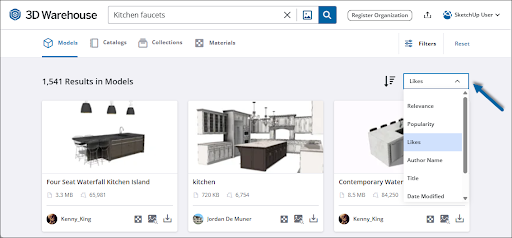
3D Warehouse has these sort options.
- Relevance
- Popularity
- Likes
- Author Name
- Title
- Date Modified
- Date Created