Uploading from a Browser
Don't have access to SketchUp but have a web browser handy? Follow these steps to upload a model using a web browser:
Last updated 17 July 2026
Upload models through an internet-connected browser without SketchUp.
To upload a model using a browser, follow these steps:
- Go to 3dwarehouse.sketchup.com and sign in using your Trimble ID.
- Click Upload (
 ) at the top of the page.
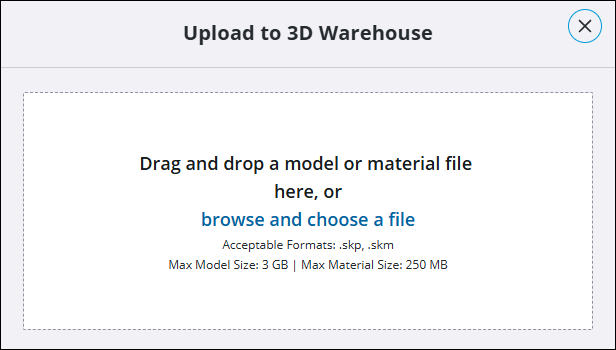
 - Drag-and-drop or choose the file to upload into the Upload to 3D Warehouse dialog.
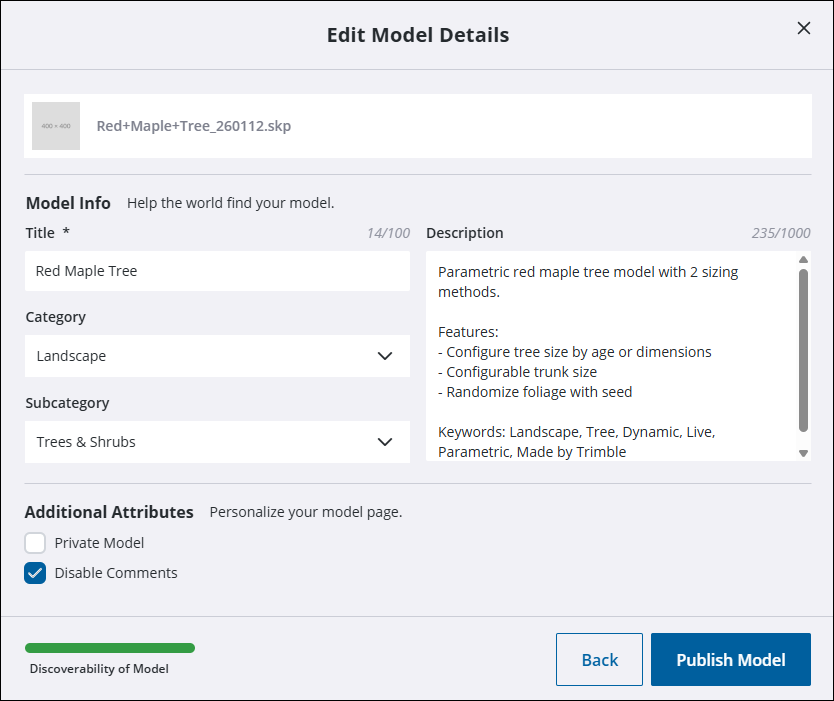
- On the Edit Model Details dialog, add a title and description for the model, select categories, and choose from the additional attributes available.
- When satisfied with all the details for your model, click Publish Model.
Model Details and Discoverability
Complete Edit Model Details to help users find your model. Track completion in Discovery of Model.

The Edit Model Details dialog contains the following options:
- Title – The title that will appear in search results and on the model’s description below its preview image. Good titles are specific but brief. For example, use “Windsor Style Wooden Chair” instead of “Wooden Chair.”
- Description – A detailed description that includes specific features of the model. For example, when uploading a model of a historic building, include a brief description of the building’s history, real world location, and construction details. Descriptions are limited to 1000 characters.
- Category – A dropdown list of categories. Because 3D Warehouse offers multiple categories, a search option appears at the top of the list to filter what options appear.
- Subcategory – A second dropdown list of categories. Add a subcategory to further improve how the model appears in search results.
- Private Model – Controls who can see your model. By default, this option is off, allowing other 3D Warehouse users to find and download the model. When selected, your model won’t appear in search results and won’t be accessible to other 3D Warehouse users.
- Disable Comments – Controls if other users can leave comments on the model’s page. By default, this option is off.
Still need help?
Technical support from our New Zealand team is available to customers with a current Procadsys SketchUp Plus subscription: Pro Plus, Pro Scan Plus, Pro Civil Contractor Plus, Advanced Workflows Plus or Studio Plus. Self-help articles are public.
Contact SketchUp support