Skip to content
07-848 2005

SketchUp, SketchUp for Web and iPad

Environments in SketchUp for Web

Add a 360° panoramic background and image-based lighting to your SketchUp models. Use the Environments panel in SketchUp for Web to adjust environments or create one from your own High Dynamic Range Image (HDRI) or OpenEXR file.

Environments add a 360° panoramic background and image-based lighting to your SketchUp models. In SketchUp for Web, use the Environments panel to add and adjust environments, or import your own High Dynamic Range Image (HDRI) or OpenEXR file to create one. Use environments with Photoreal Materials to visualise Photo Based Rendering (PBR) Materials in your model.
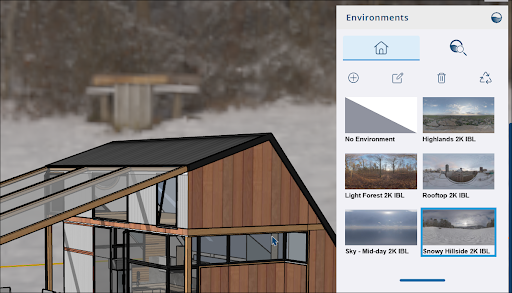
Environments panel with Snowy Hillside 2K IBL selected and a snowy background behind the SketchUp model.

To add an environment, open the Environments panel and click Library (Library icon.). Choose from the preloaded environments in the Library. To use your own HDRI or OpenEXR file, click Add (Add icon.).

To edit an environment, select it and click Edit (Edit icon.). You can adjust the sun's location, skydome rotation, exposure and other settings.
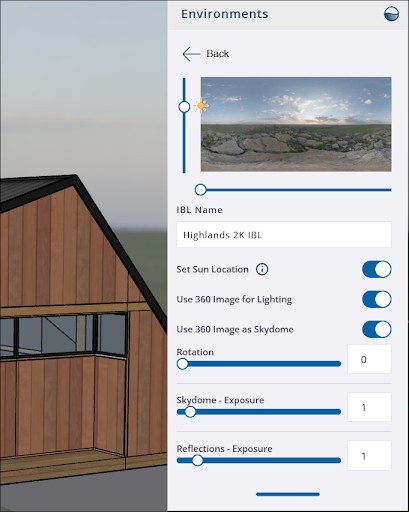
Environments panel showing Highlands 2K IBL settings for sun location, lighting, skydome, rotation and exposure.

For details on environments and their editing options, see Adding an Environment to a Model.

Procadsys customer support

Still need help?

Licences, renewals and billing

Our New Zealand team looks after your SketchUp licences, renewals and invoices.

Monday to Friday, 9:00 am to 4:30 pm NZ time, excluding New Zealand public holidays.

Technical problems

Technical support from our New Zealand team is available with a current Procadsys SketchUp Plus subscription: Pro Plus, Pro Scan Plus, Pro Civil Contractor Plus, Pro Advanced Workflows Plus or Studio Plus.

Initial response within one business day.

On another SketchUp plan? Technical problems go to Trimble support.