Performing an Analysis
After making sure your design is ready for analysis, and choosing which type of analysis you want to run, you’re ready to run your first analysis.
Last updated 17 July 2026
After making sure your design is ready for analysis, and choosing which type of analysis you want to run, you’re ready to run your first analysis.
To perform an analysis, follow these steps:
- Select your analysis type. You’ll be asked to create a model snapshot.
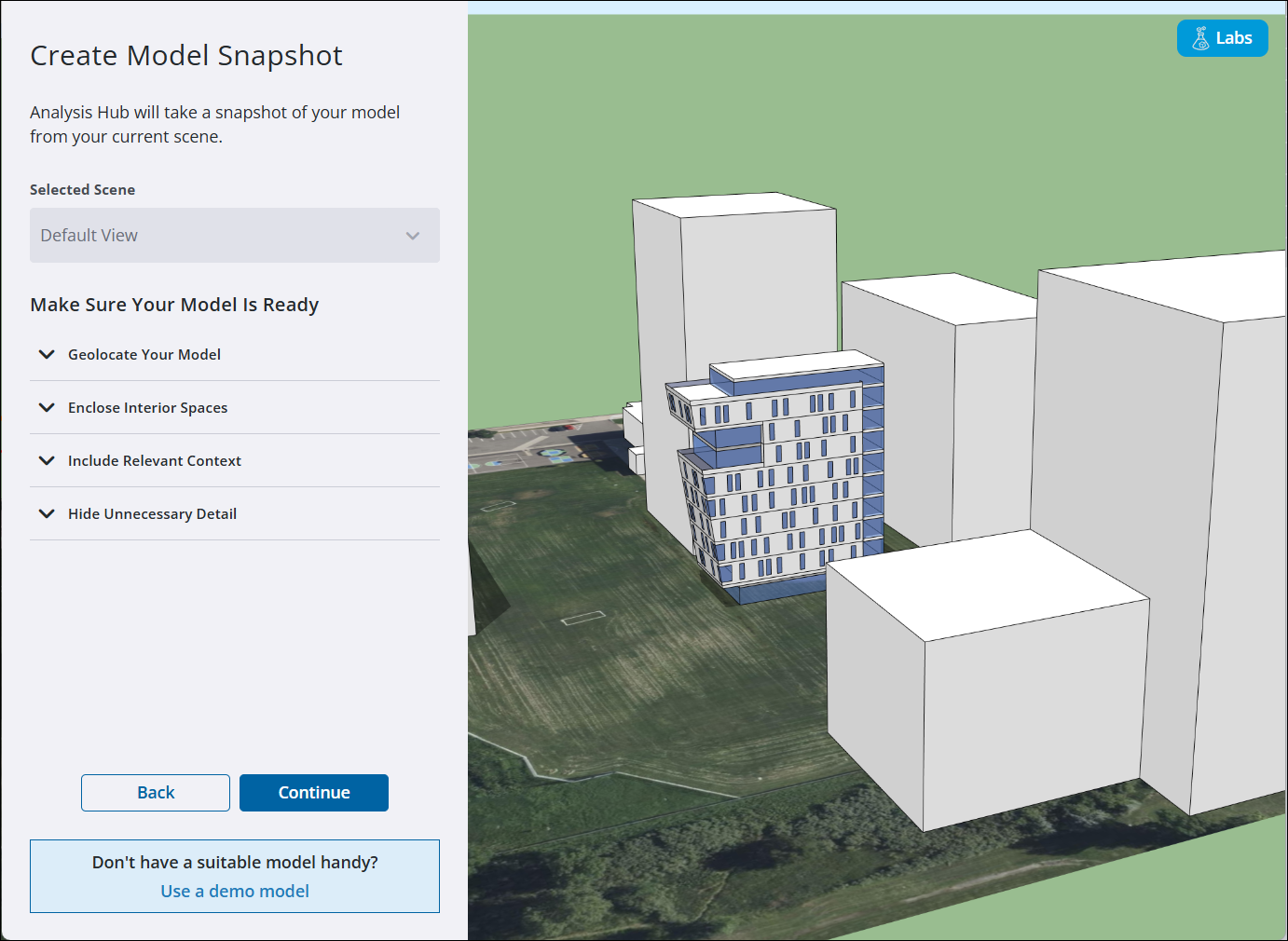
- Analysis Hub uses your model’s current Scene by default. If you want to use another Scene, select another one using the Selected Scene dropdown.
- Make sure your model is ready for analysis by reviewing the checklist under Make Sure Your Model is Ready. See Designing an Analysis Ready Model for more information on how to make your model ready for analysis.
- When you are ready, click Continue. The Analysis Hub will prepare your model and check to make sure your model is ready for analysis. For larger models, this can take a few minutes.
- After Analysis Hub prepares your model, click Finish. Your analysis will appear in the Analysis Viewer.
Still need help?
Technical support from our New Zealand team is available to customers with a current Procadsys SketchUp Plus subscription: Pro Plus, Pro Scan Plus, Pro Civil Contractor Plus, Advanced Workflows Plus or Studio Plus. Self-help articles are public.
Contact SketchUp support