Skip to content
07-848 2005

SketchUp, 3D Warehouse and Extension Warehouse

Loading policy preferences

Choose which extensions load when SketchUp starts. Click Settings in the Extension Manager to choose from three options.

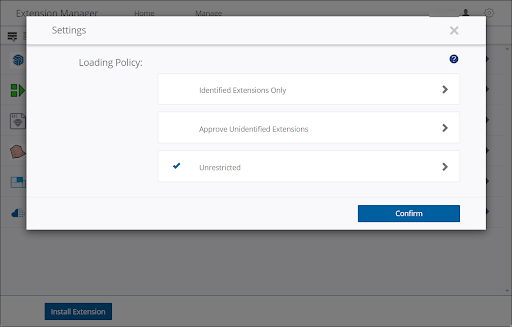
Choose which extensions load when SketchUp starts. Click Settings (Settings cog icon.) in the Extension Manager.

Extension Manager Settings dialog showing Loading Policy with Unrestricted selected and the Confirm button.

Choose from three options:

  • Identified Extensions Only – SketchUp only loads extensions digitally signed by a registered SketchUp Developer. Unidentified extensions cannot load in this mode.
  • Approve Unidentified Extensions – Each time SketchUp starts, it lists all installed extensions. Select which extensions to load from this list. SketchUp remembers your selections between sessions.
  • Unrestricted – All extensions load when SketchUp starts. This is the least secure mode. Select it only if you trust all installed extensions.

You can change policy modes at any time. After changing modes, you must restart SketchUp to remove loaded extensions that do not match the new policy.

Procadsys customer support

Still need help?

Licences, renewals and billing

Our New Zealand team looks after your SketchUp licences, renewals and invoices.

Monday to Friday, 9:00 am to 4:30 pm NZ time, excluding New Zealand public holidays.

Technical problems

Technical support from our New Zealand team is available with a current Procadsys SketchUp Plus subscription: Pro Plus, Pro Scan Plus, Pro Civil Contractor Plus, Pro Advanced Workflows Plus or Studio Plus.

Initial response within one business day.

On another SketchUp plan? Technical problems go to Trimble support.