Migrating After Updating
When updating SketchUp to a new version you can copy all Classifications, Components, Materials, Styles, and Templates. You can even migrate your extensions using the Extension Migrator extension.
Last updated 23 October 2026
When you update SketchUp to a new version, you can bring your files, extensions, preferences and classic material libraries across from your previous installation.
Migrating Files
SketchUp files (.skp) saved in a supported version of SketchUp are version-less. When you save a model from an older supported version to Trimble Connect, SketchUp keeps all of the Classifications, Components, Materials and Styles in that model.
To migrate each file type yourself, follow these steps.
Before installing the new version:
- In SketchUp, click Window > Preferences on Windows, or open SketchUp Preferences on macOS.
- Go to the Files section.
- Open each file type you want to migrate to the new version.
- In the File Explorer or Finder window, copy the files and save them somewhere easy to find.
After installing the new version:
- Locate the files you copied.
- Open the new version of SketchUp and open Preferences.
- Go to the Files section.
- Paste the copied files into the matching folders opened from the new version's Files section.
Extension Migrator
The Extension Migrator comes bundled with SketchUp and is also available in Extension Warehouse. It migrates your extensions from an older supported version to the new version of SketchUp. When you update SketchUp, it prompts you to migrate the first time you run the application. It also runs the Migrate Preferences utility, which transfers your preferences from the earlier version.
If you need to run the extension manually, follow these steps:
- Click Extensions > Migrate Extensions .
- In the window that appears, use the options to search your device for your extensions folder.
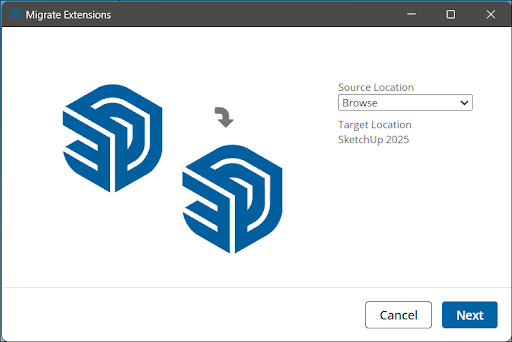
- Click Next .
- Extension Migrator will then import all of those extensions into the new version of SketchUp.
- Restart SketchUp.
Migrating Preferences
The Migrate Preferences utility transfers all of your customised Preferences settings. You can choose to migrate your preferences when you run Extension Migrator. If you have already migrated your extensions but not your preferences, click File > Migrate Preferences.
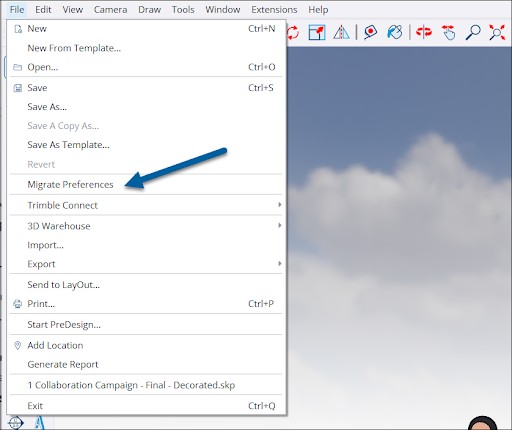
In the window that appears, select the version of SketchUp you want to migrate preferences from and click Migrate. Restart SketchUp after running Migrate Preferences.
Finding Older Material Libraries
SketchUp 2025 introduced a new set of default material libraries along with an expanded SketchUp material library in 3D Warehouse . To access the classic material libraries you used in older versions of SketchUp and save them as a collection, follow these steps:
Windows
- Open File Explorer.
- Navigate to
C:\ProgramData\SketchUp\SketchUp[Version Number]\SketchUp\Materials - Save the folders you want to keep in an easy-to-remember location.
- In the new version of SketchUp, open the Materials panel.
- Click Details (
 ).
). - Select Add collection to favorites .
- Locate the folder you saved with those classic materials and click Select Folder. The new collection will appear in the list of collections on an ongoing basis.
MacOS
- Open Finder. Navigate to a previously installed version of SketchUp.
- Right-click the SketchUp application in Finder and select Show Package Contents .
- Navigate to
~/SketchUp/Contents>Resources>Content>Materials - Copy any individual material collection folder you want to continue using in SketchUp.
- In the new version of SketchUp, click SketchUp > Settings to open SketchUp Preferences.
- In the Files section, click Open This Folder in Finder next to Materials.
- In the Finder window that appears, paste the folders you copied.
- SketchUp will now include those collections in the Colors panel.
Still need help?
Technical support from our New Zealand team is available to customers with a current Procadsys SketchUp Plus subscription: Pro Plus, Pro Scan Plus, Pro Civil Contractor Plus, Advanced Workflows Plus or Studio Plus. Self-help articles are public.
Contact SketchUp support