Skip to content
07-848 2005

SketchUp, 3D Warehouse and Extension Warehouse

Components in 3D Warehouse

Use the Components panel to find components in 3D Warehouse and add them to your model. Open the Select tab to search 3D Warehouse, or browse 3D Warehouse as usual.

You can add components from 3D Warehouse to your SketchUp model. Search 3D Warehouse from the Components panel, or browse 3D Warehouse as usual.

Open the Components panel and select the Select tab. Use one of the following methods to find components on 3D Warehouse:

Use the dropdown menu to select a premade SketchUp collection, such as Architecture, Landscape, People, or Transportation. These collections appear in every new model by default and are listed as favourites. When you select a collection, SketchUp searches 3D Warehouse for matching components.
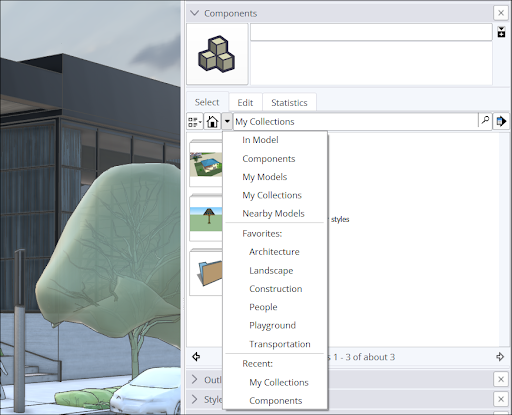
SketchUp Components panel collection menu showing the 'Nearby Models' option.

Use the 3D Warehouse search box to find components that match your search term.
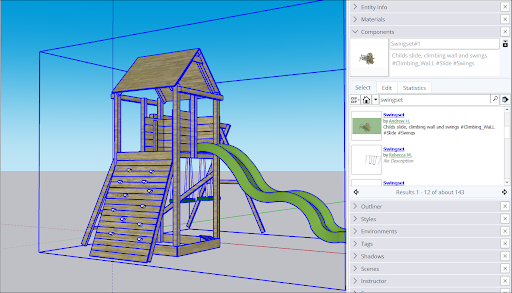
SketchUp Components panel showing 'swingset' search results and a selected playground component in the model.

You can also search 3D Warehouse as usual. When you find a component you want, click Download and place it in your model. For more information, see 3D Warehouse.

Procadsys customer support

Still need help?

Licences, renewals and billing

Our New Zealand team looks after your SketchUp licences, renewals and invoices.

Monday to Friday, 9:00 am to 4:30 pm NZ time, excluding New Zealand public holidays.

Technical problems

Technical support from our New Zealand team is available with a current Procadsys SketchUp Plus subscription: Pro Plus, Pro Scan Plus, Pro Civil Contractor Plus, Pro Advanced Workflows Plus or Studio Plus.

Initial response within one business day.

On another SketchUp plan? Technical problems go to Trimble support.