Use SketchUp's Sandbox tools to create terrain for your model.
Create terrain when:
- You want to turn imported or traced contour lines into a Triangulated Irregular Network (TIN).
- Real-world terrain would interfere with your design.
- You want to create an imagined landscape.
The easiest ways to create terrain are to build a TIN from contour lines or create a flat rectangular TIN and shape it.
Creating a TIN from contour lines
Draw or import the contour lines for your terrain. For best results, include as many contour lines as possible. If needed, simplify them by reducing the number of segments. For help drawing contour lines freehand, see Drawing Freehand Shapes.
After drawing and simplifying your contour lines, follow these steps to turn them into a TIN:
- Use the Move tool (
 ) and the Measurements box to place each contour line at the correct height relative to the ground plane.
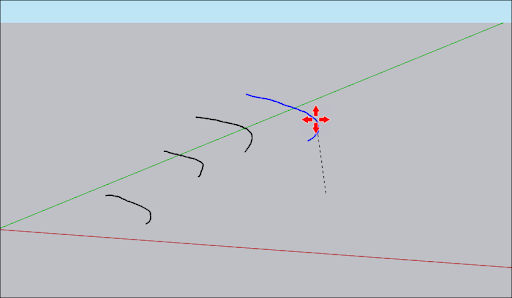
- Once all contour lines are in place, select them all with Lasso Select (
 ).
- Activate From Contours (
 ).
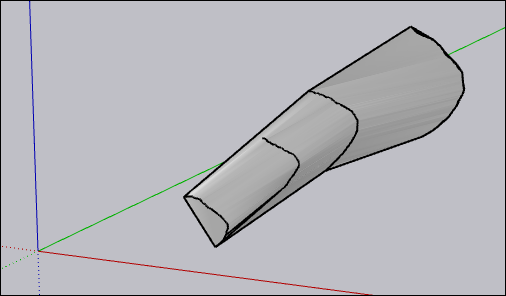
- SketchUp creates a TIN from the selected contour lines. The TIN is a group, so you can edit it like other grouped geometry.
Creating a flat rectangular TIN
Use SketchUp's Sandbox tools to create a flat rectangular TIN.
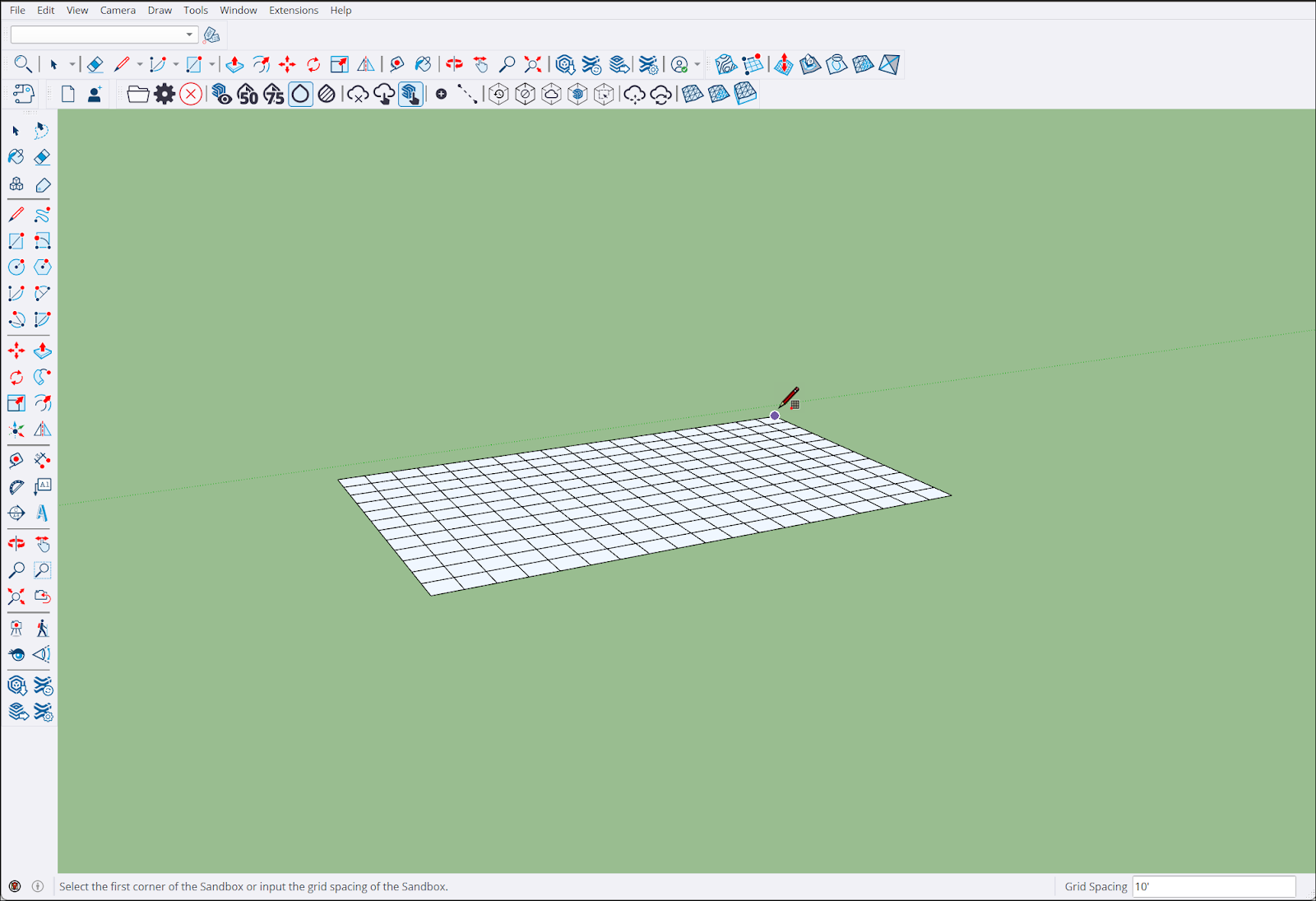
To create a TIN:
- Activate the From Scratch (
 ) tool.
- Click the starting point for the TIN.
- Set the length and width with your mouse or enter a value in the Measurements box, as you would for other geometry.
- The TIN appears in your model.
- To change the grid spacing, select the TIN and enter a value in the Measurements box.