Use SketchUp's Freehand tool (  ) to draw lines by hand. You can trace imported drawings, create a 2D sketch or decorate your model.
You can find the Freehand tool ( ) in these places:
- In the Getting Started toolbar. If you don't see the Freehand tool, click the drop-down arrow next to the Line tool.
- In the Drawing toolbar (Windows).
- The Freehand icon in the Large Tool Set.
- In the Draw menu, under the Lines submenu.
Lines you draw with the Freehand tool become curve entities. A curve entity contains multiple line segments and can define and divide a face like a single line. You select all its segments at once. SketchUp's inference engine displays point and edge inferences for each segment.
Drawing freehand curves or polylines
You can draw freehand curves on existing faces or separate from existing geometry. To draw a curve, follow these steps:
- Select the Freehand tool ( ). The cursor changes to a pencil with a curve.
- To draw on a specific axis plane, use the arrow keys to select it: Left Arrow for green, Up Arrow for blue and Right Arrow for red. A notification at the cursor confirms that the inference is locked.
- Click and hold to place the starting point of your curve.
- Drag the cursor to draw. The line's colour matches the axis perpendicular to your drawing plane. Release the mouse button to stop drawing. The line turns black.
- (Optional) Curves in SketchUp consist of line segments. More segments make a smoother curve. After drawing a curve, you can decrease its segments using modifier keys:
- On Windows, press Ctrl - to decrease segments and Ctrl + to increase segments.
- On macOS, press Command - to decrease segments and Command + to increase segments.
- You cannot add more segments than your initial freehand stroke created.
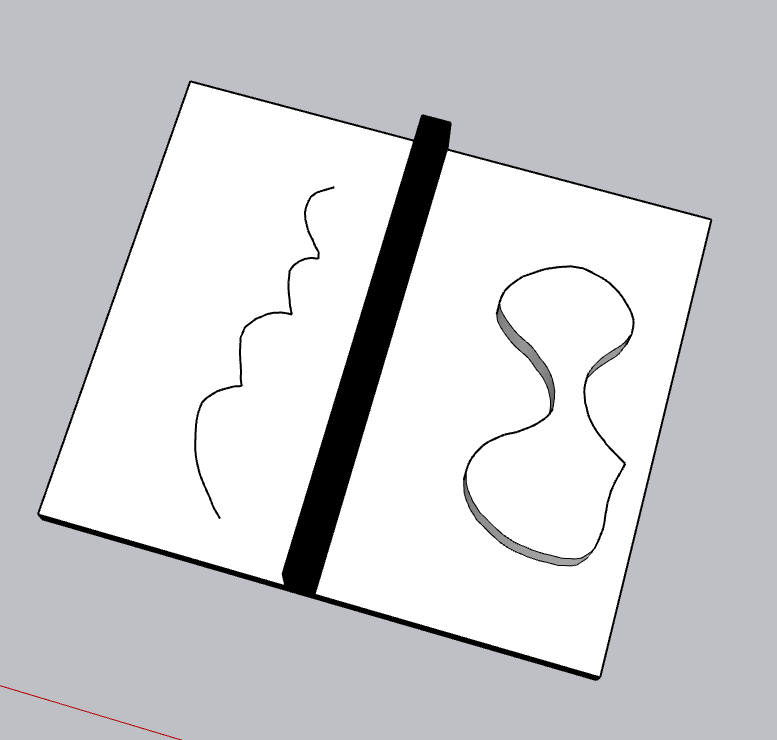
- (Optional) End your curve at its starting point to create a closed shape. The figure shows an open curve (left) and a closed curve (right).
Editing a freehand curve
You can change the length of a freehand curve entity if it doesn't bound a face. To edit a curve, follow these steps:
- Select the Move tool (
 ).
- Hover the cursor over the curve to find an end point.
- Click and drag the end point to adjust the curve. Release the mouse button when you're done.