Skip to content
07-848 2005

SketchUp, SketchUp desktop

Add fog to your SketchUp model

Use the Fog panel in SketchUp to add fog to your model. The model becomes clearer as you zoom in and less clear as you move away.

Use the Fog panel to add fog to your model. With Fog enabled, the model becomes clearer as you zoom in and less clear as you move away.
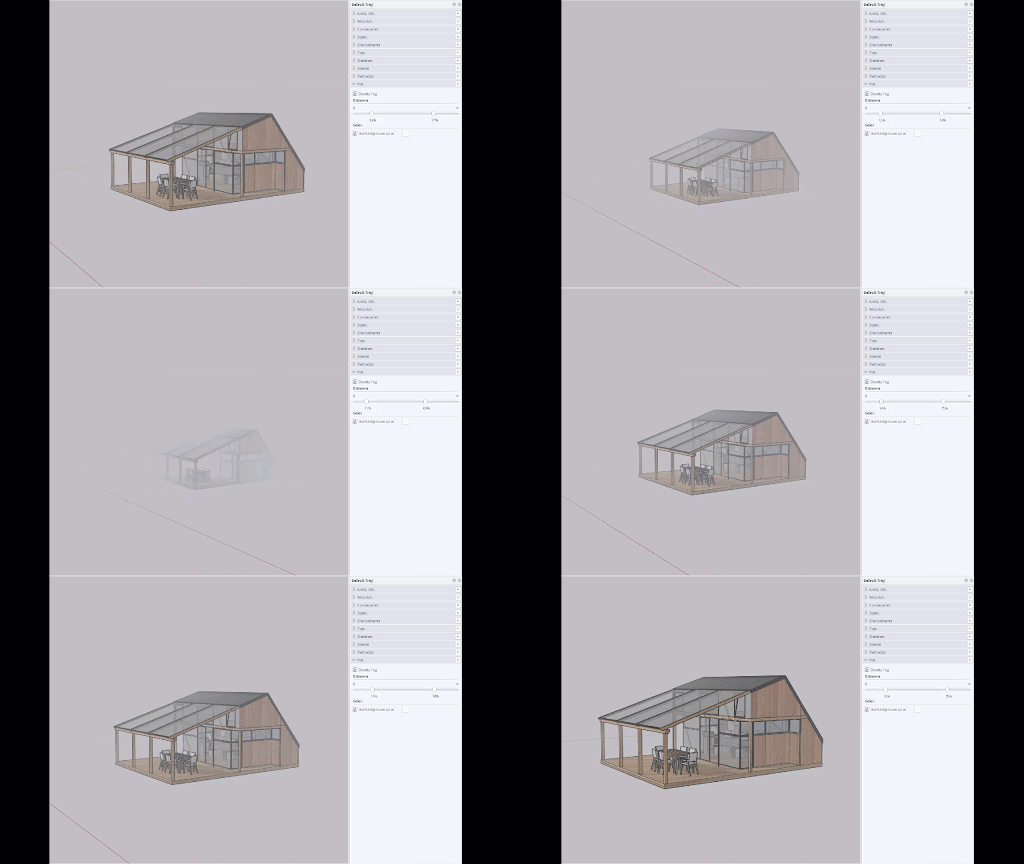
GIF fog.gif

Follow these steps to add fog to your model:

  1. Open the Fog panel.
  2. Select Display Fog.
  3. Use the Distance sliders to adjust the fog for your current view:
    • The leftmost fog slider sets where the fog starts. At zero, fog starts directly in front of the camera. Move the slider right to start the fog further from the camera.
    • The rightmost slider sets where fog reaches 100% strength, or zero visibility. Move it left to bring the point of 100% strength closer to the camera. Moving it all the way left removes all visibility.
  4. Select Use Background Color and choose a colour for the fog. Leave this blank to use the default grey.

Procadsys customer support

Still need help?

Licences, renewals and billing

Our New Zealand team looks after your SketchUp licences, renewals and invoices.

Monday to Friday, 9:00 am to 4:30 pm NZ time, excluding New Zealand public holidays.

Technical problems

Technical support from our New Zealand team is available with a current Procadsys SketchUp Plus subscription: Pro Plus, Pro Scan Plus, Pro Civil Contractor Plus, Pro Advanced Workflows Plus or Studio Plus.

Initial response within one business day.

On another SketchUp plan? Technical problems go to Trimble support.