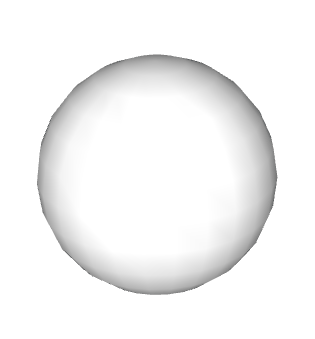
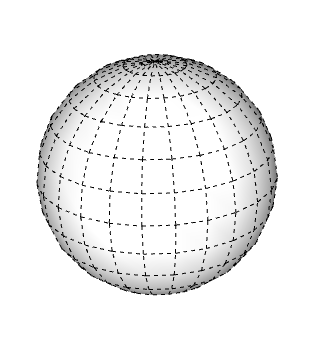
Use Soften Edges and the Smooth edge property in SketchUp to control edge visibility and make your model look more realistic with less geometry. This may also improve your computer's performance.
Understanding edge properties
Use these properties together or separately to control how edges appear in SketchUp:
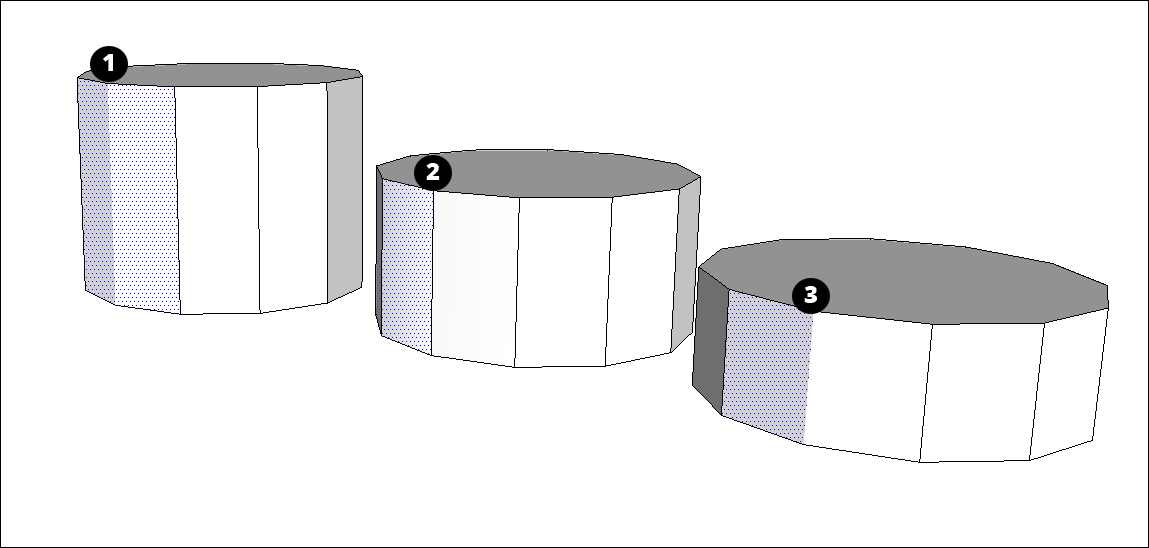
- Soft: Softening an edge hides it and joins the faces it bounds into a surface entity.
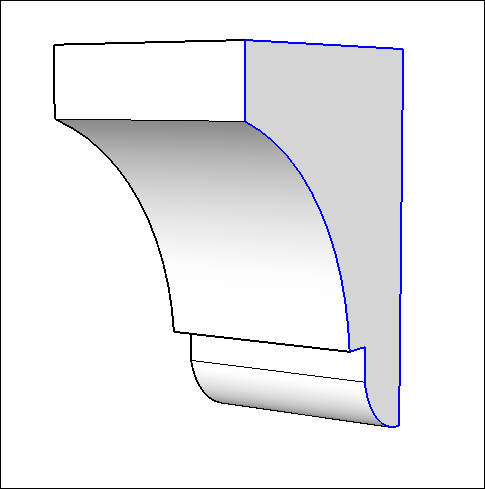
- Smooth: Smoothing an edge adds shading that makes the faces look smooth. Applying the Smooth property alone leaves the edge visible. See Edge 2 in the figure.
You can hide an edge or any other geometry. Hiding an edge makes it invisible without joining the adjoining faces into a surface entity. Edge 3 in the figure is hidden.
Softening and smoothing edges together
You usually soften and smooth edges together in SketchUp. Both the Eraser tool and the Soften Edges dialog box apply these properties together.
To soften and smooth edges with the Eraser tool:
- Select the Eraser tool (
 ) or press the E key.
- Tap the Ctrl key (Microsoft Windows) or the Option key (macOS) to toggle Smooth Edges. Then "erase" the lines as you would to delete them.
To undo softening and smoothing, tap the Alt key (Microsoft Windows) or the Command key (macOS), then click the edges.
To soften and smooth edges with the Soften Edges dialog box:
- Select the edges you want to soften and smooth. See Selecting geometry for selection tips and techniques.
- On macOS, select Window > Soften Edges. On Windows, select Window > Default Tray > Soften Edges. You can also context-click your selection and choose Soften/Smooth Edges. The Soften Edges dialog box opens.
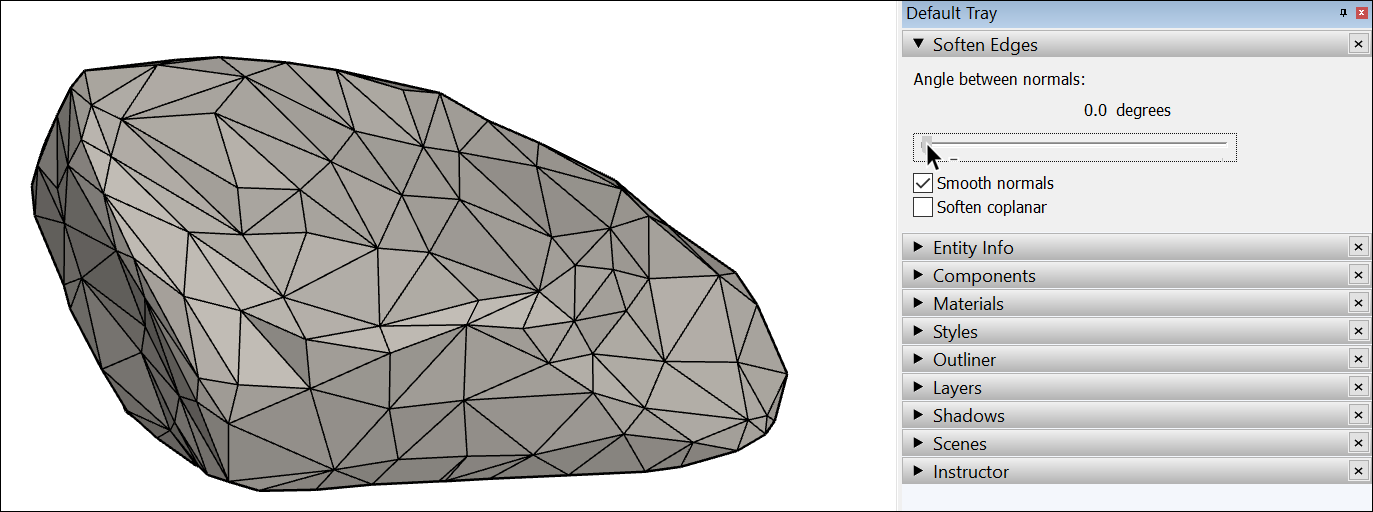
- Use the slider to set the maximum angle to smooth or soften. A higher setting includes more angles. In the example, the slider is set to 20 degrees, which smooths and softens most of the rock's surface.
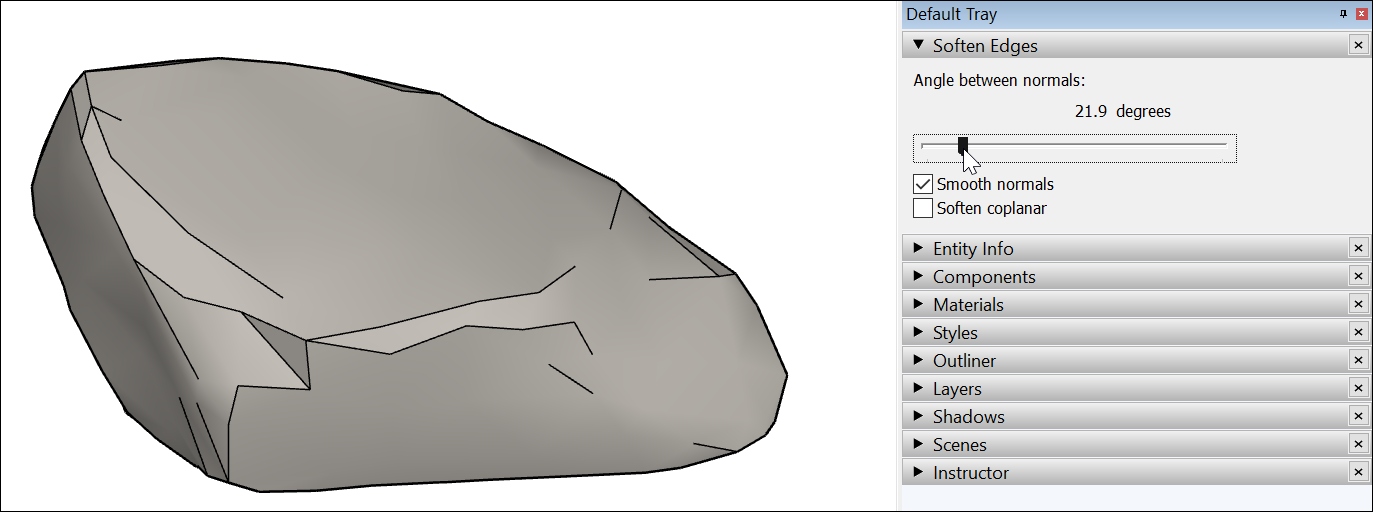
- (Optional) Clear the Smooth normals checkbox if you don't want the shading that makes edges look smooth. This checkbox is selected by default.
- (Optional) Select the Soften coplanar checkbox to soften edges between surfaces on the same plane, effectively removing those edges from view. This has little effect on the example rock because few, if any, of its faces are on the same plane.
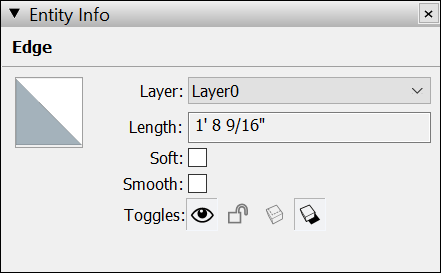
To check or change an edge's properties, context-click it and choose Entity Info. The entity type appears in the upper left of the Entity Info box. Select or clear the Soft and Smooth checkboxes to change the properties.
Hiding geometry
Use Hide to hide a line without creating a surface entity. Soften Edges hides the line and creates a surface entity. You can hide lines, faces or any other SketchUp entity.
To hide a line or other geometry:
- Select the geometry you want to hide.
- Context-click the selection.
- Choose Hide from the context menu.
- Alternatively, select Edit > Hide.
- The selected geometry disappears from view but stays in your model.
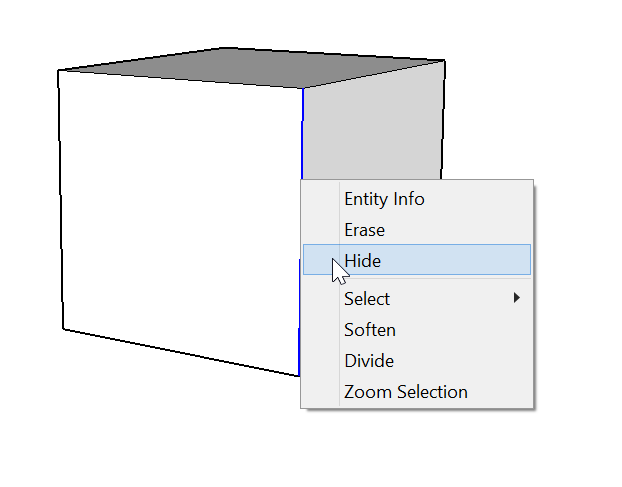
You can't select geometry while it is hidden from view. To select it, display hidden geometry or unhide it.
Viewing hidden geometry and objects
Hidden geometry stays in your SketchUp model, but you can't see or select it.
To view hidden geometry or objects without unhiding them:
- Choose View > Hidden Geometry or View > Hidden Objects.
- All hidden entities appear in a ghosted pattern.
- Choose View > Hidden Geometry or View > Hidden Objects again to hide them from view.
To unhide geometry and make it visible:
- Select the hidden geometry.
- Context-click the selection and choose Unhide.
- To hide it again, context-click it and select Hide.