Use the Undo command and Eraser tool to correct mistakes in SketchUp.
Using the Undo command
Undo reverses your most recent action. If you draw a line, Undo removes it. If you accidentally stretch complex geometry while trying to copy it, Undo restores it. You can use Undo repeatedly to reverse a series of actions.
The Edit menu shows Undo with a description of your last action. If you last used the Push/Pull tool, the menu shows Undo Push/Pull.
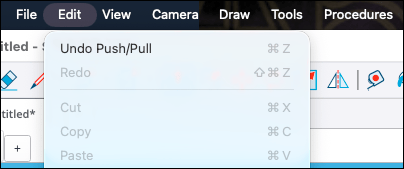
The default keyboard shortcut for Undo is Alt+Backspace. You can also use Ctrl+Z (Microsoft Windows) or Command+Z (macOS).
You can Redo any action you Undo. After you Undo an action, the Edit menu shows the option to Redo it.
Erasing geometry
Use the Eraser tool or Erase context command to remove geometry from your model.
You can find SketchUp's Eraser ( ) tool on these toolbars:
- Getting Started toolbar
- Drawing toolbar
- Large Tool Set toolbar
- Principal toolbar
Use the Eraser tool in these ways:
- Select the Eraser tool from a toolbar, then click an edge with its cursor. This erases the edge and any faces it bounds.
- Click and drag over multiple lines with the Eraser tool. When you release the mouse button, SketchUp erases every line highlighted in blue.
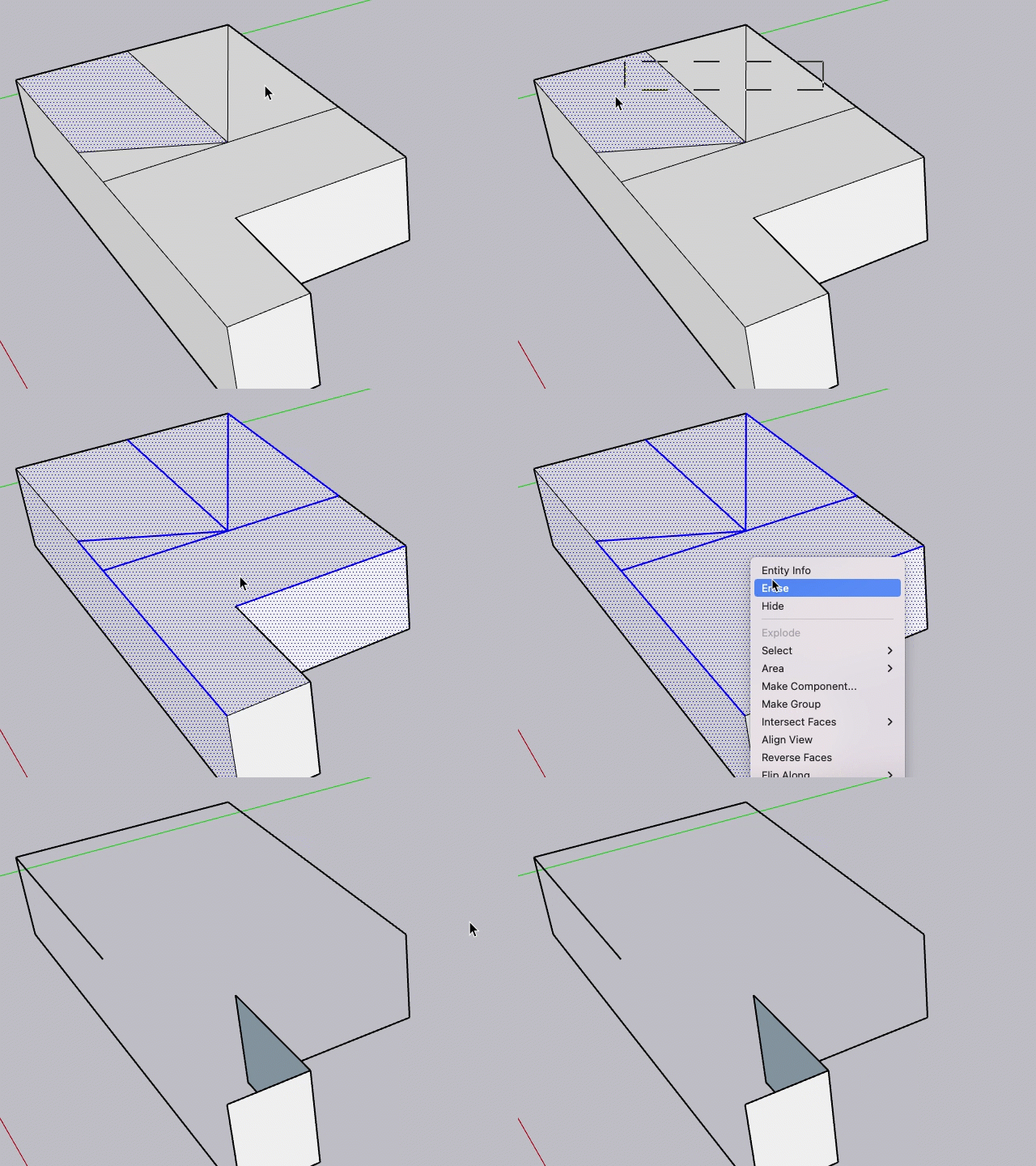
You can also erase a selected entity from its context menu. To erase an unselected face or edge, context-click it and select Erase. To remove multiple edges and faces at once, select the geometry, context-click the selection, then select Erase.