Use SketchUp's two selection tools, Select ( ) and Lasso (
 ), to choose the entities you want to change with other tools and commands. Find these tools in the following places:
- The Getting Started toolbar
- The Large Tool Set toolbar
- The Principal toolbar (Microsoft Windows)
- The Tool Palette (macOS)
- The Tools menu
Use the default keyboard shortcuts to activate these tools. Press Spacebar for the Select tool or Shift+Spacebar for the Lasso tool.
Selecting a single entity
Follow these steps to select a single entity:
- Activate the Select tool (). The cursor changes to an arrow.
- Click an entity, such as an edge, face or component. SketchUp highlights your selection, as shown by the sofa cushion.
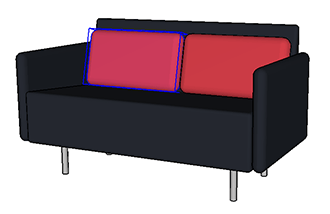
If you select the wrong entity, try again. Click an empty space in the drawing window to clear your selection.
Selecting multiple entities
You can select multiple entities using the options below.
To select everything in your model, use one of these options:
- Choose Select All from the Edit menu.
- On Microsoft Windows, press Ctrl+A.
- On macOS, press Command+A.
To clear your selection, use one of these options:
- Choose Deselect All from the Edit menu.
- On Microsoft Windows, press Ctrl+T.
- On macOS, press Shift+Command+A.
With the Select tool active, use these methods to select multiple entities:
- Click and drag to make a temporary selection box around the items you want to select . Release the mouse button to select the items. Drag to the left to select anything completely or partially inside the box. Drag to the right to select only items completely inside it. In the example below, dragging right selects only the first pillow. The second pillow is partially inside the box, so it stays unselected.
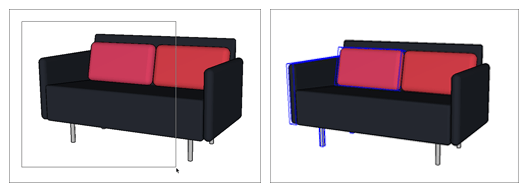
- Use the Lasso Tool . The Lasso tool () lets you draw a selection area in two ways:
- Freehand. Draw a temporary selection area, then release the mouse button to select entities. Your starting direction determines what you select. Begin clockwise to include all entities in the area. Begin counterclockwise to include only entities completely inside it.
- Segments. Click in empty modelling space to start a selection boundary made of line segments. Each click adds a segment. Double-click to complete the boundary and select the entities.
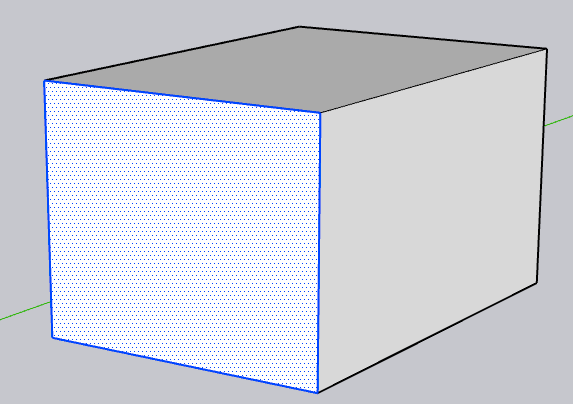
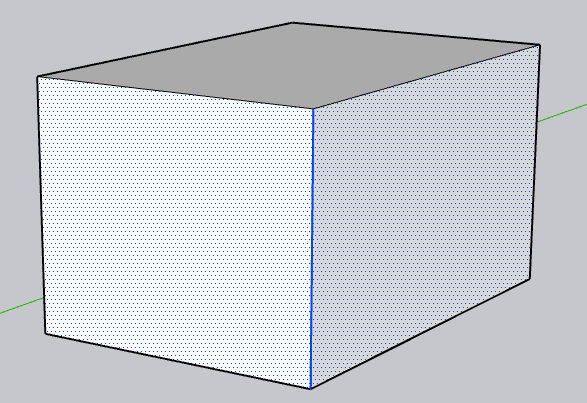
- Double- or triple-click . Where you click determines which combination of edges and faces you select:
Doing This... | ...Selects This... | >...And Looks Like This... |
Double-click a face. | Selects the face and all its bounding edges. |
|
Double-click an edge. | Selects the edge and each connected face. |
|
Triple-click anywhere on an entity. | Selects all connected entities. For example, triple-clicking a face in a cube selects the entire cube. |
|
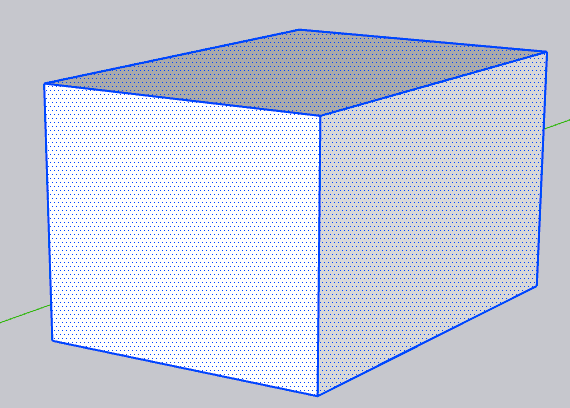
Context menu options
Right-click an entity, or use the equivalent action, to open its context menu. The options depend on your selection.
With one or more edges selected, choose Select from the context menu to see these options:
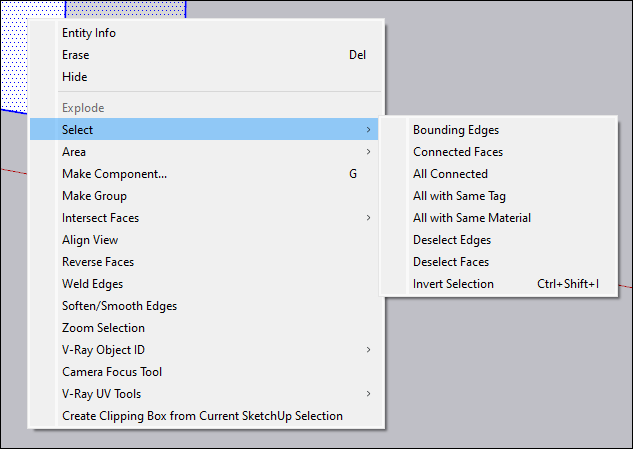
- Connected Faces selects all faces connected to the selected edge.
- All Connected selects all entities connected to the selected edges.
- All with Same Tag selects all entities in your model that share a tag with your selection.
- Deselect Edges removes edges from your selection, leaving only faces selected.
- Invert Selection selects all other entities in your model and deselects the selected edge.
When your selection contains faces and edges, the Select context menu also has these options:
- Bounding Edges selects all edges connected to the selected face.
- All with Same Material selects any entity in the selection set that uses the same material.
- Deselect Faces removes all faces from your selection, leaving only edges selected.
Adding and removing entities from a selection
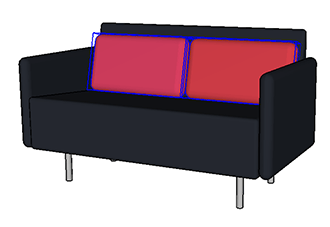
Use keyboard modifiers to add entities you missed or remove entities you selected by mistake. Activate the Select tool, then adjust your selection using the keys in the table below. For example, to select both red cushions shown here, select one and hold Ctrl while selecting the other.
To Do This... | Press and Hold This Key(s) | While Also... |
Add a single entity or a selected group of entities to your selection. | Ctrl (Microsoft Windows) or Option (macOS) | Select an entity or group of entities. |
Select an unselected entity or deselect a selected entity. | Shift | Click an entity. |
Remove entities from your selection. | Shift+Ctrl (Microsoft Windows) or Shift+Option (macOS) | Select an entity or group of entities. |