Use styles in SketchUp to change how your model looks and communicate its stage of development. A style is a collection of settings for edges, faces and backgrounds. Pencil-drawn edges and soft colours can suggest a work in progress. More formal colours and settings can make your model look more photorealistic.
Using the Styles panel
To choose a style:
- Find the Styles panel in the Default Tray. If the tray is hidden or the Styles panel is closed, click Window > Default Tray > Styles.
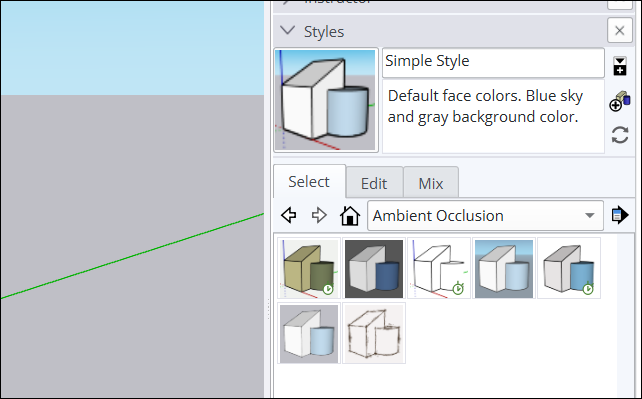
- If the Select tab is not already open, click the Select tab.
- Choose a predefined style type from the dropdown list. See Predefined Styles for all available predefined styles.
- Each style type can have several options, shown as thumbnails in the Styles panel. Hover over a thumbnail to see the style's name.
- Click the style you want to apply to your model.
More style options
Use these guides to create, edit, organise and share styles in the Styles panel:
- Read Customizing a Model's Background with Styles to change background colours or use foreground or background photos.
- Read Creating and Editing a Style to learn about SketchUp's edge and face options and combine them into a style.
- Read Managing In Model Styles and Collections to save multiple styles as In Model so you can switch between them, or organise predefined and custom styles into collections.
- Read Sharing Styles to give everyone working on your project access to the same styles.