SketchUp collections help you organise styles and find the ones you use often. You can use the default collections, create your own and save collections to your favourites list.
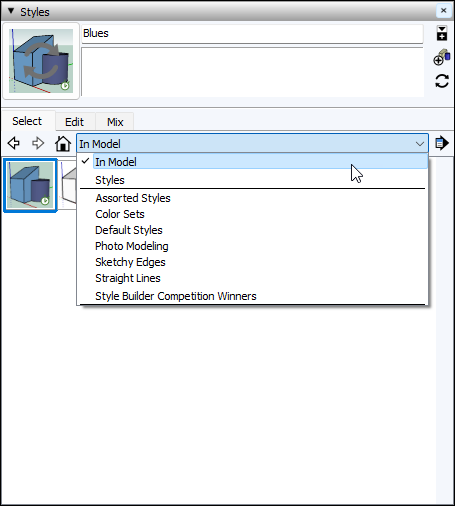
The In Model styles collection contains all the styles saved with your model file. Follow these steps to view them:
- Open the Styles panel by selecting Window > Styles or opening the Styles dialog box in the Default Tray.
- On the Select tab, click the In Model icon (
 ) or select In Model from the Styles Collections drop-down list, as shown in the figure.
Use a custom collection to group predefined styles you use often or styles you create or customise for a project. See Creating and Editing a Style for details. Follow these steps to create a collection:
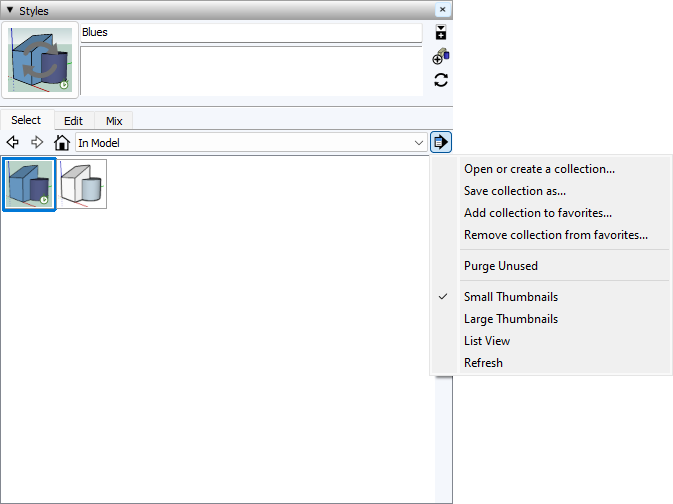
- In the Styles panel, click the Details arrow (
 ) and select Open or Create a Collection.
- Click New Folder to create a subfolder in your selected folder and give it a name.
- Click the Display Secondary Selection Pane icon (
 ) to open a pane below your new, empty collection.
- In the secondary selection pane, find a style you want to add to your collection.
- Drag the style from the secondary selection pane into your new collection. Repeat until you have added all the styles you want.
To use a custom collection in another model, open the collection. If you use it often, add it to your favourites.