Inserting Components
You can insert a component instance into your model by selecting an existing component in the Components panel, by importing a saved component file into your model, or by downloading the component from 3D Warehouse.To insert a component using the Components panel, follow these steps:
Last updated 17 July 2026
You can insert a component instance into your model by selecting an existing component in the Components panel, by importing a saved component file into your model, or by downloading the component from 3D Warehouse.
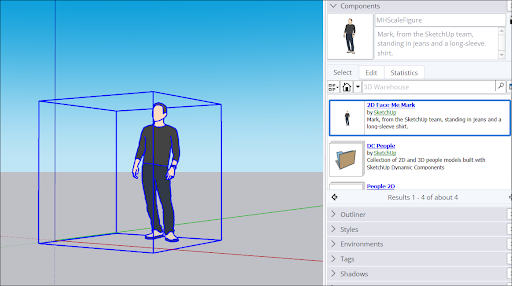
To insert a component using the Components panel, follow these steps:
- Open the Components panel.
- Navigate to the collection where your component is saved
- Select the component you want to add to your model.
- Click in the drawing area to place the component in your model.
If you have a SketchUp model or component saved to your hard drive, you can import them into your model by following these steps:
- Select File > Import .
- Locate the file you want to import.
- Select the file and click Open . SketchUp will load the component into your model with the Move tool activated.
- Click in the drawing area to place the component in your model.
To insert a component from 3D Warehouse, see Components in 3D Warehouse .
Still need help?
Technical support from our New Zealand team is available to customers with a current Procadsys SketchUp Plus subscription: Pro Plus, Pro Scan Plus, Pro Civil Contractor Plus, Advanced Workflows Plus or Studio Plus. Self-help articles are public.
Contact SketchUp support