Use the Flip tool ( ) to reorient geometry or create symmetrical copies. When you activate it, three semi-transparent planes appear, each matching a cardinal orientation of your selection. You can adjust these planes and use them to flip or copy the selected geometry.
In SketchUp for iPad, the Flip tool has these optional tool modes:
- Activate Copy (
 ) to create flipped copies of your selected geometry.
- Activate Global Axes (
 ) to flip geometry along the model's parent axes rather than the object's axes. This mode is unavailable when your selection's axes align with the parent axes.
You can select both optional tool modes at the same time.
iPad input methods for the Flip tool
When you activate the Flip tool, three semi-transparent planes appear, each matching a cardinal orientation of your selection. You can flip geometry using any iPad input method. The Flip tool works the same in Click-Move-Click and Just Draw modes.
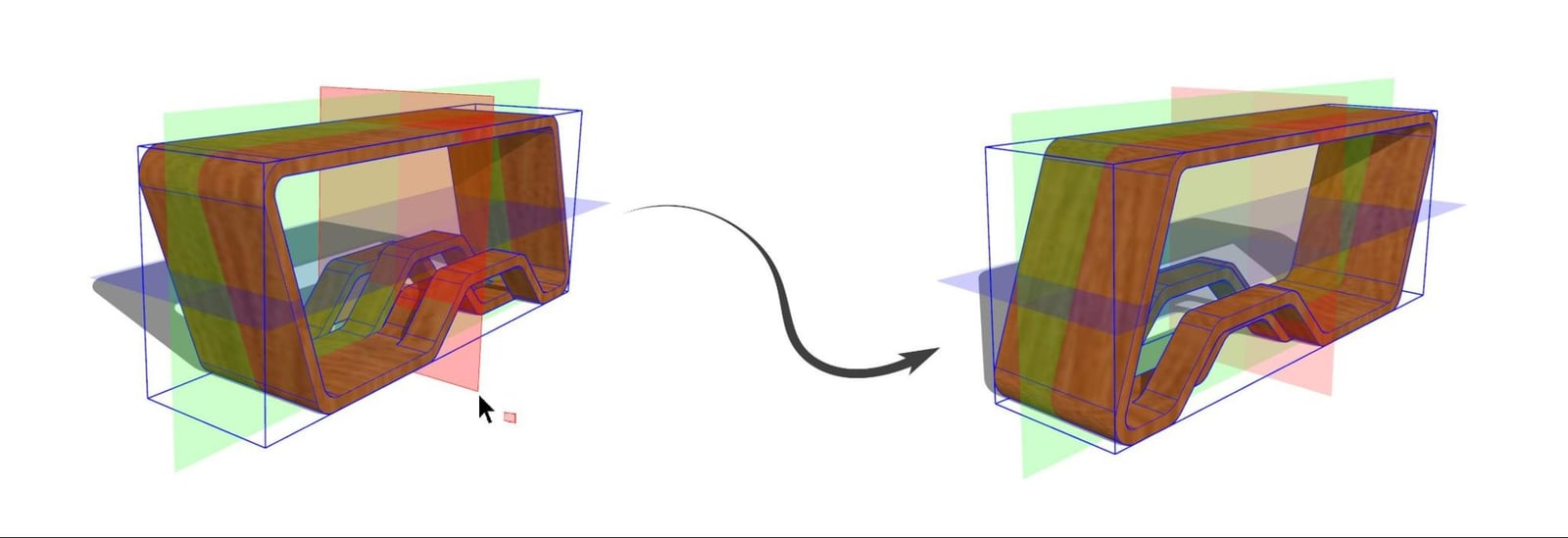
Mouse or Trackpad. Hover over a plane, then click it to flip your selection along that plane. With Copy mode selected, click and hold a plane, then drag it to where you want the flipped copy. Release the mouse button or trackpad to create a symmetrical copy based on the plane's position.
Pencil or Multitouch. Tap a plane to flip your selection along that plane. With Copy mode selected, tap and hold a plane, then drag it to where you want the flipped copy. Lift your pencil or finger to create a symmetrical copy based on the plane's position.
For more ways to use the Flip tool, see Flipping, Mirroring, Rotating, and Arrays.