Importing Files
Importing images and drawings into a SketchUp model is a great way to enhance it and give it that spark of life. SketchUp for iPad supports importing files created in the following formats:
- Image (
.jpg,.png,.tif,.bmp,.psd,.tga,.eps) - PDF (
.pdf) - SketchUp (
.skp) - Stereolithography (
.stl) - 3D AutoCAD Model (
.dwg,.dxf) - Other:
.dae,.kmz,.3ds,.dem,.ddf
To import a file, follow these steps:
- Select Import (
 ) from the Main Toolbar at the top left of your screen.
- In the file browser that appears, locate the file you wish to import.
- Select the file. The imported file becomes an entity within your model.
Exporting Files
SketchUp for iPad supports the ability to export your model using the following formats:
- Image (
.png) - Animation (
.mp4) - Pixar USDZ File (
.usdz) - Stereolithography (
.stl) - Object File (
.obj) - 3D AutoCAD Model or 2D AutoCAD Drawing (
.dwg,.dxf) - PDF (
.pdf)
To export a file from the Main Toolbar or Scenes panel, use the following steps:
- Select Export (
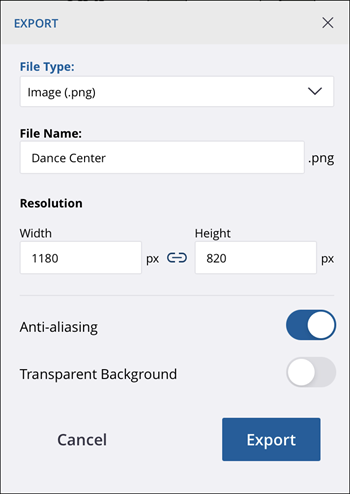
 ). The Export window will appear.
- Use the File Type dropdown menu to select the import format.
- Format specific options will appear. Make any additional changes as needed.
- Select Export.
To export a file from the Home screen:
- Select the Menu icon next to the model you want to export.
- Select Export.
- Select the desired export format from the list.
- Choose any format specific options and tap or click Export.