Use the Omnibar in SketchUp for iPad to find tools and features. Tap Search ( ) in the tool palette or open it from the right-hand Help menu.
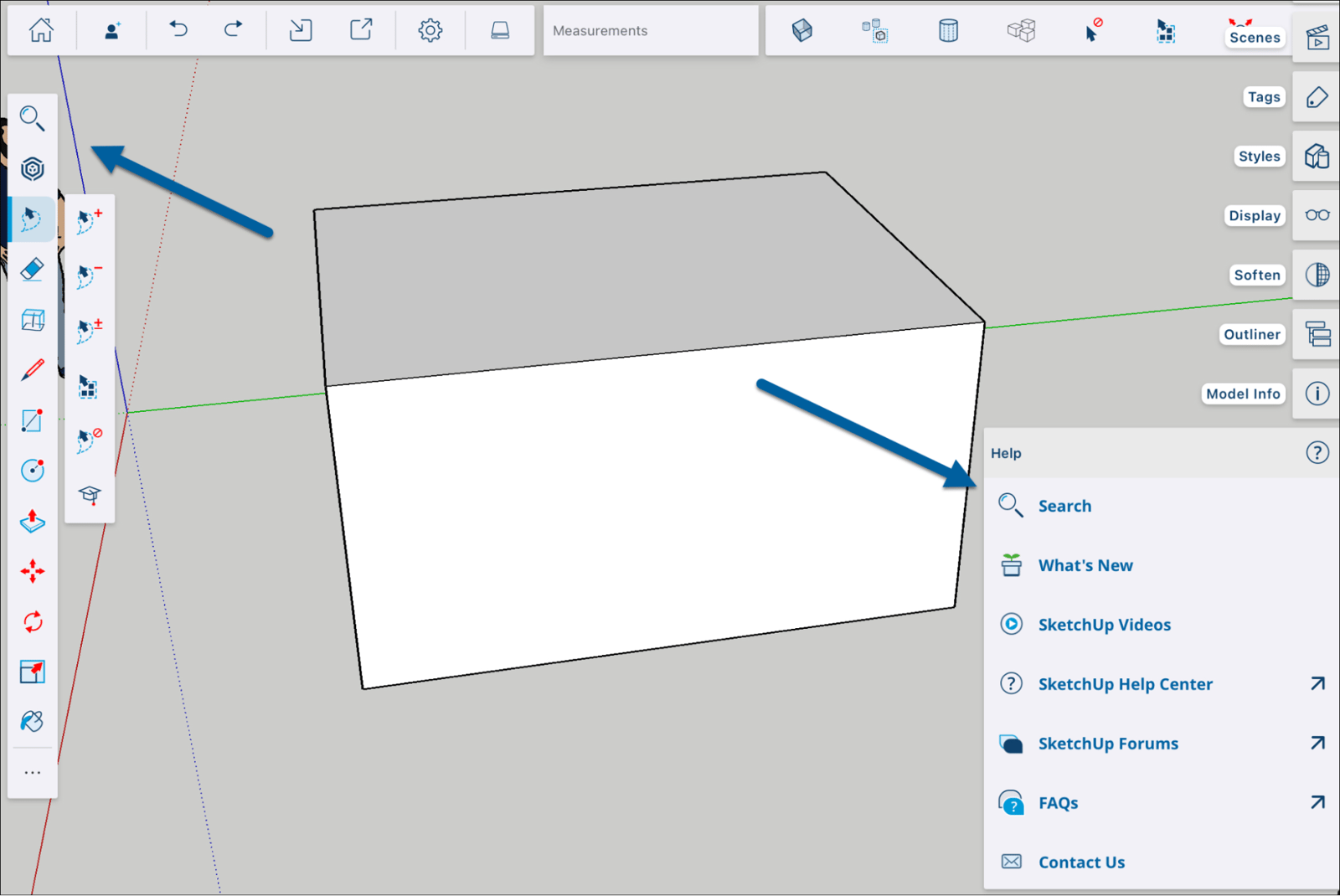
Tapping Search opens the Omnibar and keyboard. Type the term you want to search for.
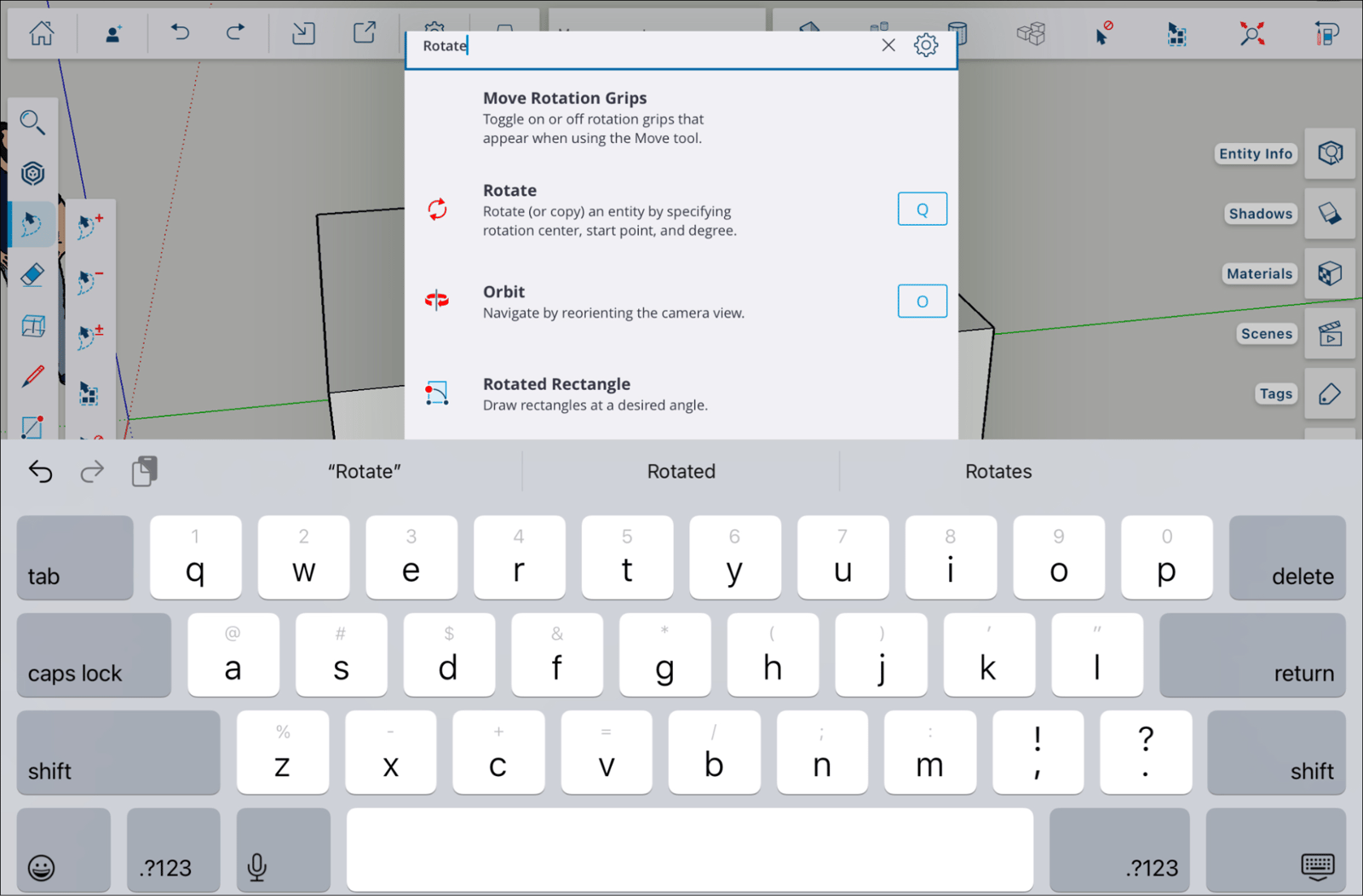
If you use an Apple Pencil, tapping Search opens the Omnibar with a toolbar of pencil settings. The toolbar includes options to open the keyboard or use voice commands. You can also write your search term with your pencil.
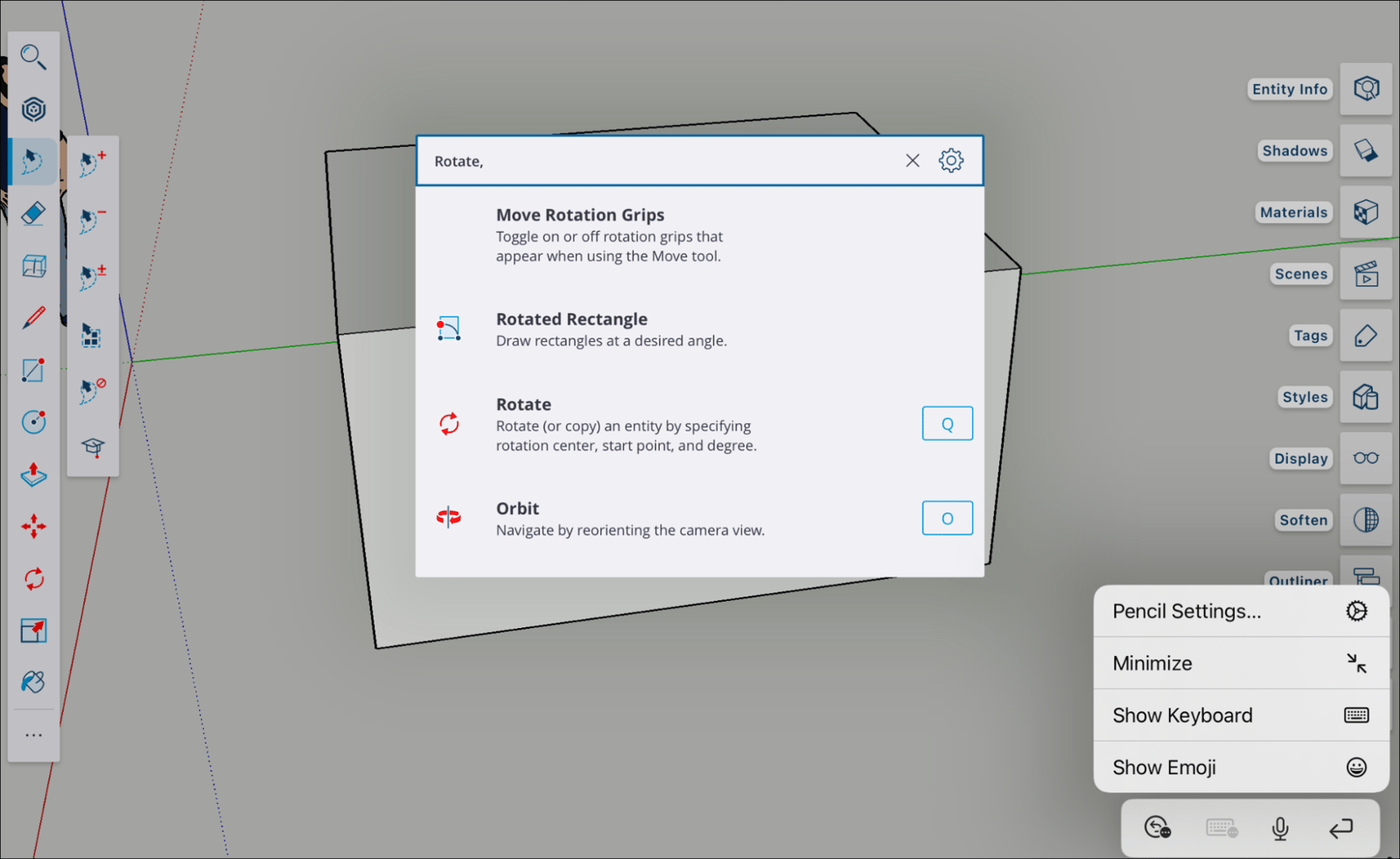
Enter industry-standard terms in the Omnibar to find matching SketchUp tools or functions. Add more detail to narrow your results. You can use the Omnibar to:
- Find and activate commands. Select a command in the search results to activate it.
- Find tools by describing what you want to do. SketchUp suggests a tool or feature that matches. For example, search for 'transparent' to find Toggle Transparency and X-ray, which can make an entity transparent.
- Find and customise keyboard shortcuts. Many SketchUp features have default shortcuts, which appear beside the tool or command in the search results. To change a shortcut, tap the box containing it and enter a new shortcut.
To reset all your shortcuts, tap the gear icon at the top right of the Omnibar window or use the General section of Settings.