Skip to content
07-848 2005

SketchUp, SketchUp for Web and iPad

Paint Bucket tool

Use the Paint Bucket tool to apply materials to your model. Selecting the tool opens the Materials panel, where you choose a colour or texture.

Use the Paint Bucket tool (Paint bucket cursor icon for applying sampled style settings.) to apply materials to your SketchUp model. Selecting the tool opens the Materials panel, where you choose a colour or texture. SketchUp's default materials include colours and textures with photobased rendering texture maps.
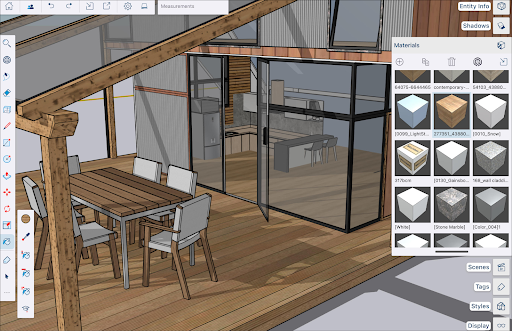
SketchUp model with timber materials applied to a deck and the Materials panel open.

The Paint Bucket tool has these optional tool modes:

  • Activate Sample (LayOut Style tool eyedropper icon.) and tap or click a material on a face in your model to sample it.
  • Object Faces (Object Faces icon for the Paint Bucket tool.) applies a material to all faces in a selected object.
  • Connected Faces (Connected Faces icon for the Paint Bucket tool.) applies a material to all connected faces in the selected area.
  • All Faces (All Faces icon for the Paint Bucket tool.) applies a material to all faces in the selected area, including faces that are not connected.

A swatch of the selected material appears above the optional tool modes in the toolbar.

iPad input methods for the Paint Bucket tool

Choose the Paint Bucket tool and activate any optional tool modes you need. You can then use your preferred iPad input method in either Click-Move-Click or Just Draw mode.

All Input Methods: Select a material from the Materials panel, then tap or click to apply it to your geometry.

Adapted from SketchUp Help Center documentation: Paint Bucket tool. © 2026 Trimble Inc.

Procadsys customer support

Still need help?

Licences, renewals and billing

Our New Zealand team looks after your SketchUp licences, renewals and invoices.

Monday to Friday, 9:00 am to 4:30 pm NZ time, excluding New Zealand public holidays.

Technical problems

Technical support from our New Zealand team is available with a current Procadsys SketchUp Plus subscription: Pro Plus, Pro Scan Plus, Pro Civil Contractor Plus, Pro Advanced Workflows Plus or Studio Plus.

Initial response within one business day.

On another SketchUp plan? Technical problems go to Trimble support.