Skip to content
07-848 2005

SketchUp, SketchUp for Web and iPad

Scenes panel

Use scenes to save model views and properties in SketchUp for iPad. Compare views with Markup annotations, create a slideshow of different textures, or view your model from different angles.

Use the Scenes panel to save model views and properties. You can compare the original model with a version annotated using the Markup tool, create a slideshow of different textures, or view your model from different angles.
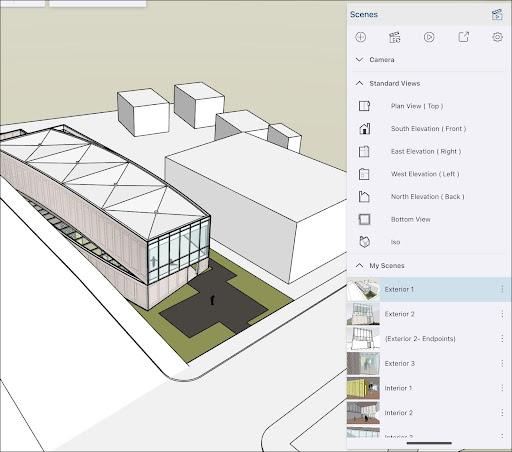
Scenes panel showing Standard Views and saved views under My Scenes, with Exterior 1 selected.

The Scenes panel in SketchUp for iPad lets you create and manage scenes. These icons appear at the top of the panel.

  • Add Scene (Add icon.) adds a new scene.
  • Update Scene (Update Scene icon.) opens the Update Scene options, where you can turn aspects of your scene on or off.
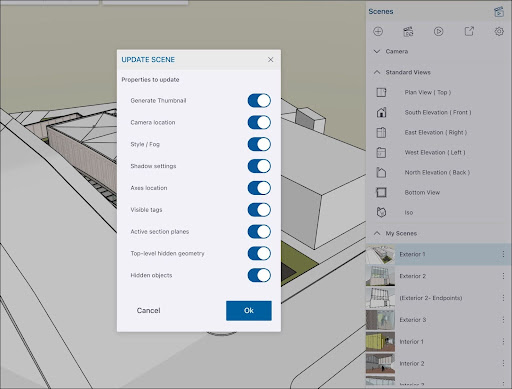
Update Scene dialog with switches for camera location, style, shadows, visible tags and other scene properties.
  • Play (Play icon.) plays your customised scene animation.
  • Export Image (icon export dark lines) opens the Export options. File Type options include .png, .mp4, .usdz, .stl, and .obj.
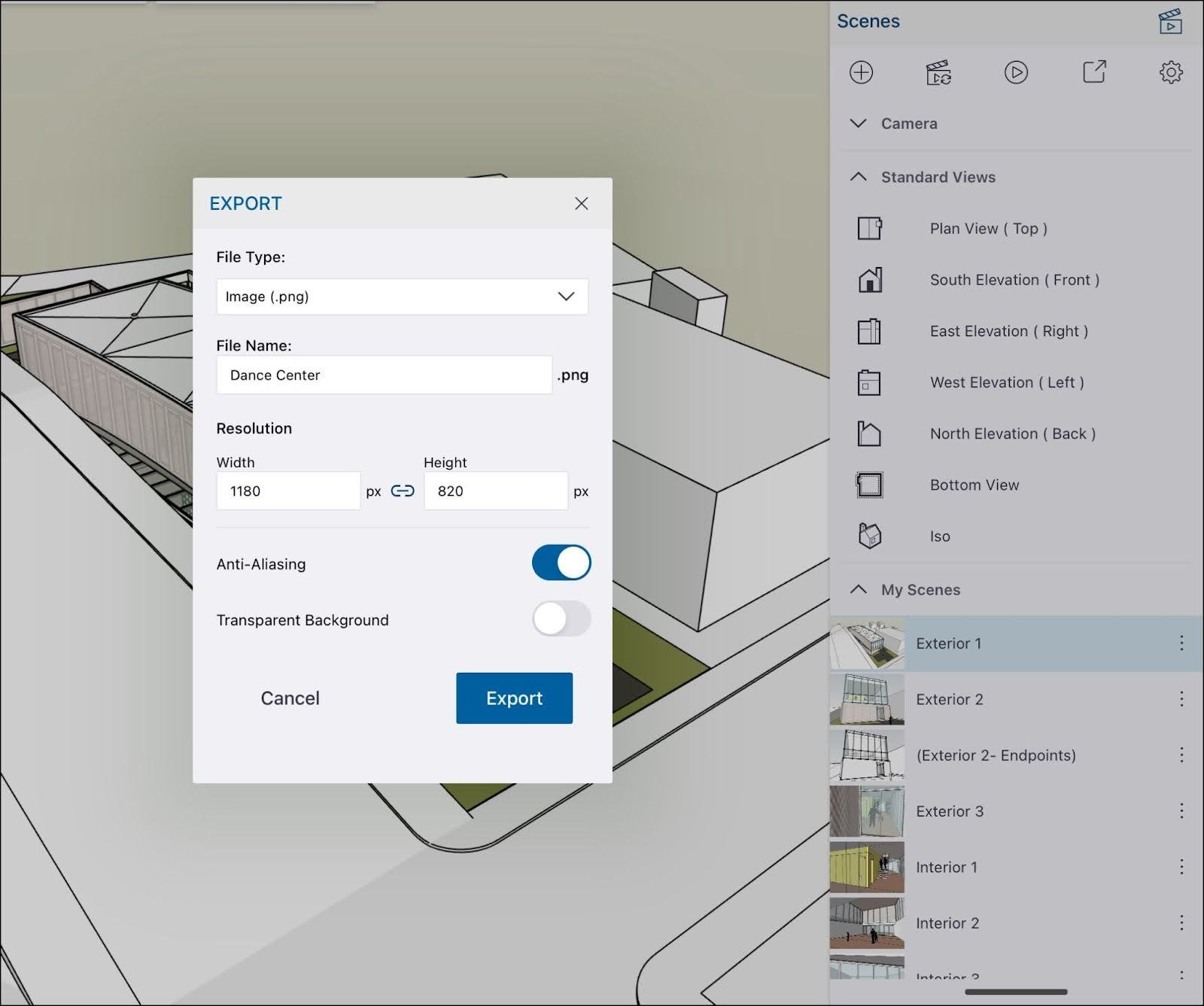
Export dialog set to Image (.png), with file name, resolution, Anti-Aliasing and Transparent Background options.
  • Animation Settings (Animation Settings icon.) opens the Animation Settings, where you can adjust animated scene transitions.
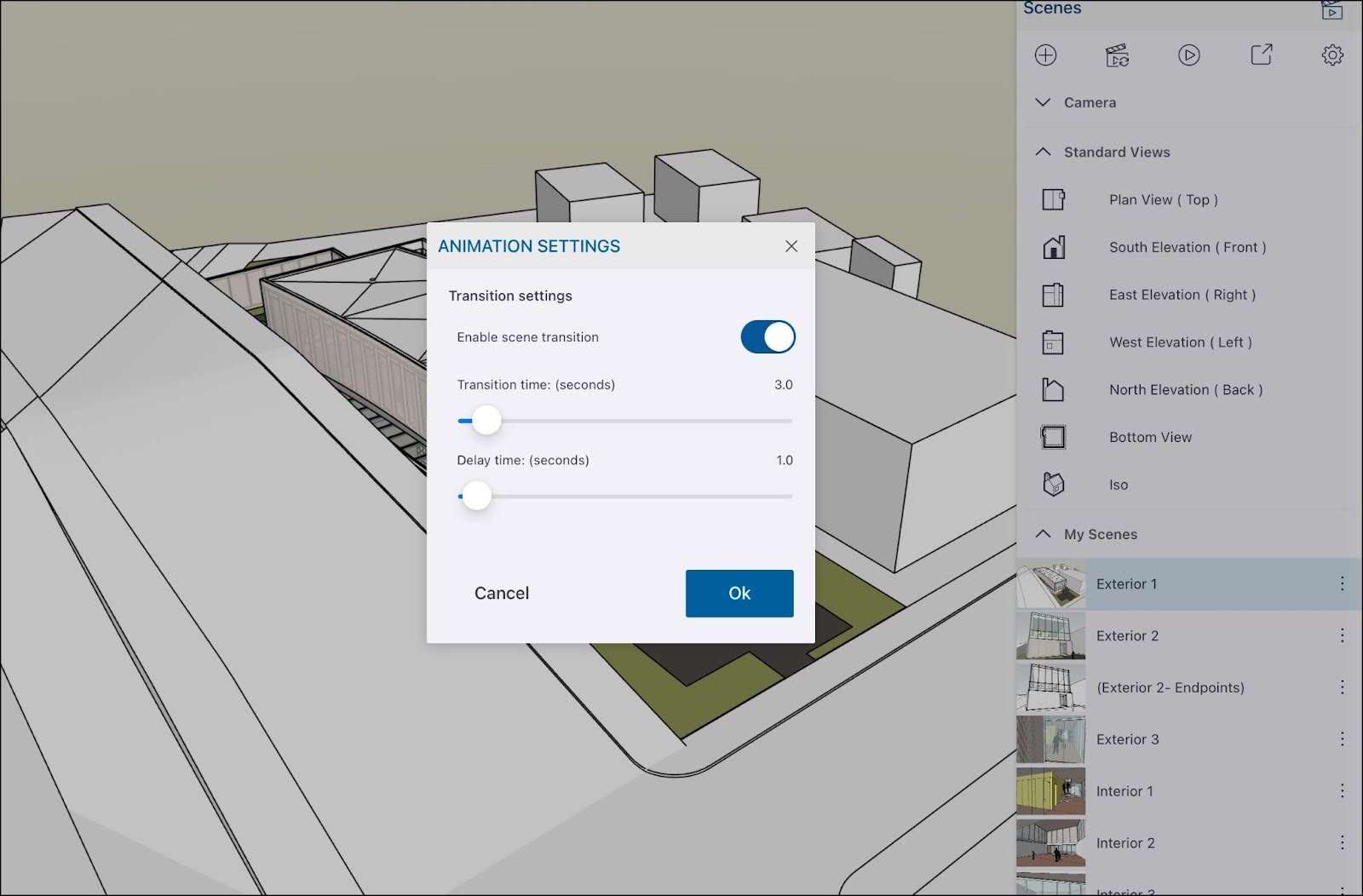
Animation Settings dialog with scene transitions enabled, transition time of 3.0 seconds and delay time of 1.0 second.

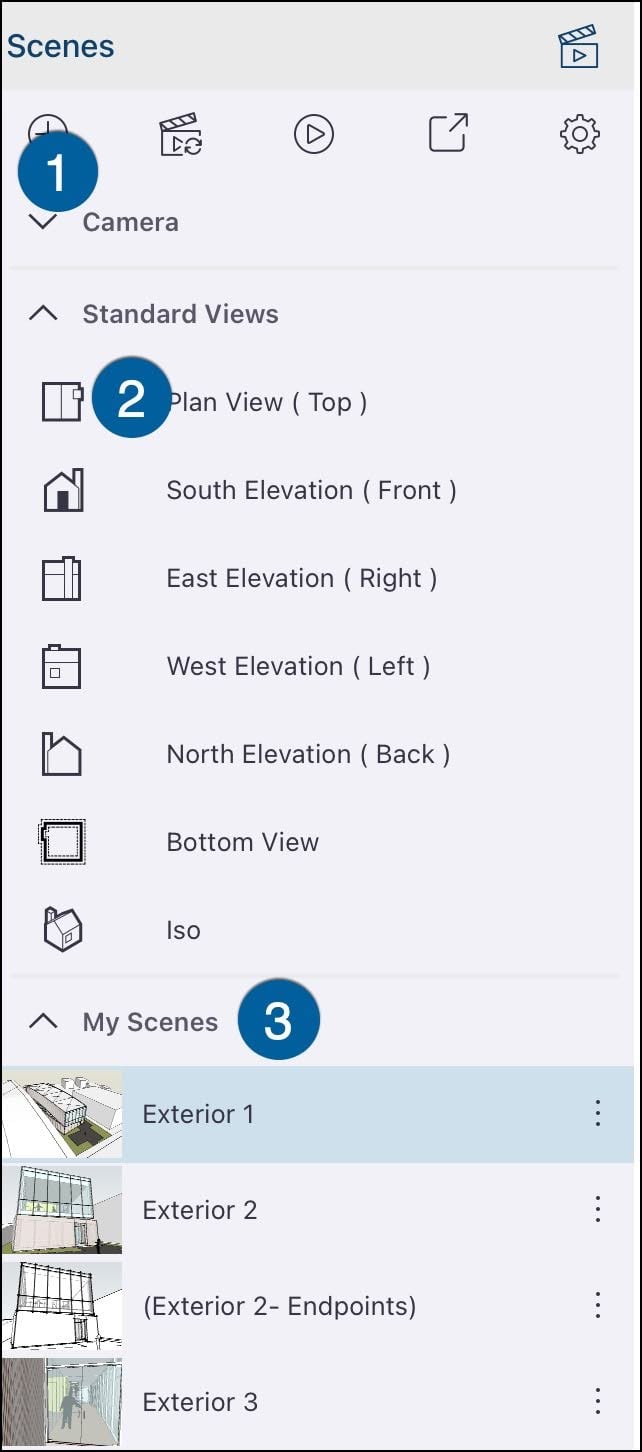
The rest of the Scenes panel has three collapsible sections:

Scenes panel with three collapsible sections: Camera (1), Standard Views (2) and My Scenes (3).

Camera has three camera angle options: Perspective, Parallel Projection, and Two-Point Perspective.

Plan View (Top)

South Elevation (Front)

East Elevation (Right)

North Elevation (Back)

West Elevation (Left)

Bottom View

Iso

Standard Views lists these view options for your model:

My Scenes lists all scenes created in the model.

See Creating Scenes for more about using scenes in your model.

Adapted from SketchUp Help Center documentation: Scenes panel. © 2026 Trimble Inc.

Procadsys customer support

Still need help?

Licences, renewals and billing

Our New Zealand team looks after your SketchUp licences, renewals and invoices.

Monday to Friday, 9:00 am to 4:30 pm NZ time, excluding New Zealand public holidays.

Technical problems

Technical support from our New Zealand team is available with a current Procadsys SketchUp Plus subscription: Pro Plus, Pro Scan Plus, Pro Civil Contractor Plus, Pro Advanced Workflows Plus or Studio Plus.

Initial response within one business day.

On another SketchUp plan? Technical problems go to Trimble support.