Use the Lasso tool (  ) or Select tool (
 ) in SketchUp for iPad to select parts of your model. You can then modify your selection with other tools and commands.
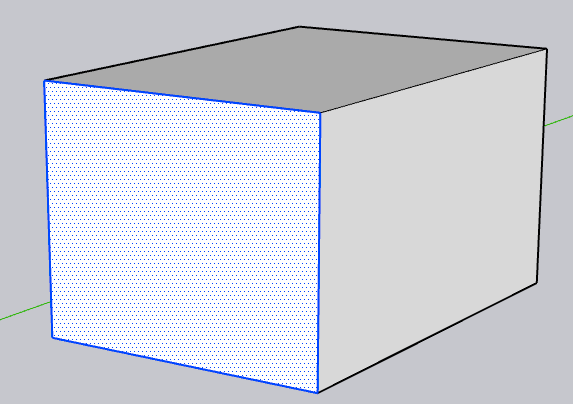
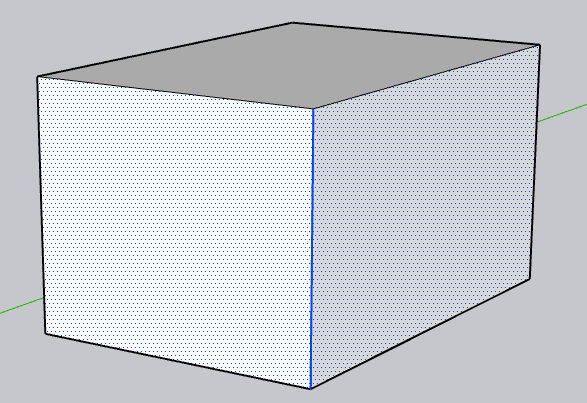
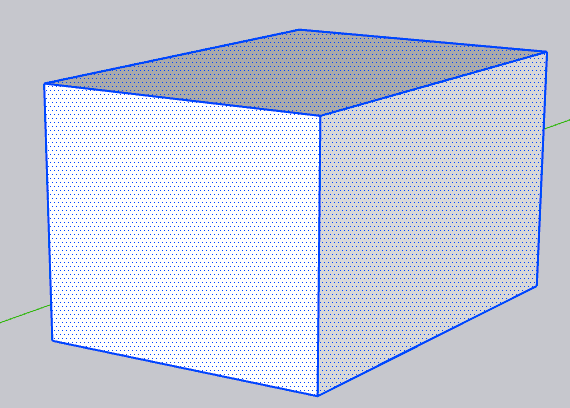
With either tool, you can select parts of your model with a single, double, or triple tap, touch, or click. A single tap, touch, or click selects a single edge or face. The table below shows what double and triple actions select.
Doing This... | ...Selects This... | ...And Looks Like This. |
Double-click a face. | Selects the face and all its bounding edges. |
|
Double-click an edge. | Selects the edge and each connected face. |
|
Triple-click anywhere on an entity. | Selects all connected entities. For example, triple-clicking a face in a cube selects the entire cube. |
|
Lasso tool
Use the Lasso tool to draw a selection boundary. The direction you start drawing determines what you select. Draw clockwise to select only items completely inside the boundary. Draw counterclockwise to also select items that the boundary partially overlaps.
The Lasso tool in SketchUp for iPad has 4 optional tool modes:
- Add (
 ) adds anything you lasso to your existing selection.
- Remove (
 ) removes anything you lasso from your existing selection.
- Inverse (
 ) adds unselected items you lasso to your selection and removes selected items you lasso.
- Select All (
 ) selects everything in your model.
- Select None (
 ) clears your selection.
iPad input methods for the Lasso tool
Choose the Lasso tool and activate any optional tool modes you need. Then use an applicable input method below to make your selection.
Pencil. Use the Lasso tool in Just Draw or Click-Move-Click mode. Draw around the items you want to select. Lift the Pencil to see the selected geometry.
Multitouch. Long press where you want to start drawing. Drag your finger to draw a shape. Lift your finger to see the selected geometry.
Touchpad. Press and hold the touchpad where you want to start drawing. Drag to draw a shape around the items you want to select. Release the touchpad to see the selected geometry.
Mouse. Click and hold the mouse button where you want to start drawing. Drag to draw a shape around the items you want to select. Release the mouse button to see the selected geometry.
Select tool
Use the Select tool to create a selection box. Create the box in a clockwise direction to select only items completely inside it. Create it in a counterclockwise direction to also select items that the boundary partially overlaps.
The Select tool in SketchUp for iPad has 4 optional tool modes:
- Add (
 ) adds items to your existing selection.
- Remove (
 ) removes items from your existing selection.
- Inverse (
 ) adds unselected items to your selection and removes selected items.
- Select None (
 ) clears your selection.
iPad input methods for the Select tool
Choose the Select tool and activate any optional tool modes you need. Then use an applicable input method below to make your selection.
Pencil. Use the Select tool in Just Draw or Click-Move-Click mode. Create a box around the items you want to select. Lift the Pencil to see the selected geometry.
Multitouch. Long press where you want to start drawing. Drag your finger to create a box. Lift your finger to see the selected geometry.
Touchpad. Press and hold the touchpad where you want to start drawing. Drag to create a box around the items you want to select. Release the touchpad to see the selected geometry.
Mouse. Click and hold the mouse button where you want to start drawing. Drag to create a box around the items you want to select. Release the mouse button to see the selected geometry.