Skip to content
07-848 2005

SketchUp, SketchUp for Web and iPad

Trim tool

Use the Trim tool in SketchUp for iPad to cut one solid entity with another overlapping solid entity. The solid used to make the cut stays in your model as a separate solid. The tool has no optional modes.

On this page
  1. iPad input methods for the Trim tool
  2. Click-Move-Click mode or Just Draw mode

Use the Trim tool ( Trim tool icon. ) to cut one solid entity with another overlapping solid entity. The solid used to make the cut stays in your model as a separate solid.
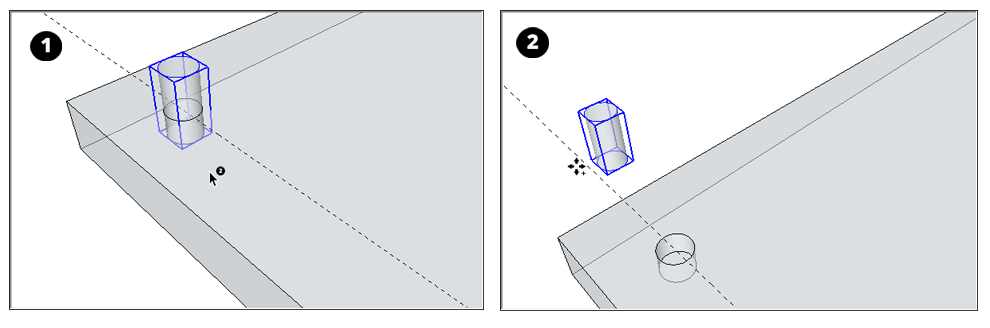
image trim steps

In SketchUp for iPad, the Trim tool has no optional tool modes.

iPad input methods for the Trim tool

You can use the Trim tool with any SketchUp for iPad input method in either Just Draw or Click-Move-Click mode.

Click-Move-Click mode or Just Draw mode

Mouse or Trackpad: Select the Trim tool. Click your first solid, then click your second solid.

Pencil or Multitouch: Select the Trim tool. Tap your first solid, then tap your second solid.

For more information, see Trimming one solid with another in Modelling complex 3D shapes with the Solid Tools.

Adapted from SketchUp Help Center documentation: Trim tool. © 2026 Trimble Inc.

Procadsys customer support

Still need help?

Licences, renewals and billing

Our New Zealand team looks after your SketchUp licences, renewals and invoices.

Monday to Friday, 9:00 am to 4:30 pm NZ time, excluding New Zealand public holidays.

Technical problems

Technical support from our New Zealand team is available with a current Procadsys SketchUp Plus subscription: Pro Plus, Pro Scan Plus, Pro Civil Contractor Plus, Pro Advanced Workflows Plus or Studio Plus.

Initial response within one business day.

On another SketchUp plan? Technical problems go to Trimble support.