In SketchUp, you can repeat a sub-component, such as a tile within a floor, as you scale a dynamic component in 2 dimensions, X and Y.
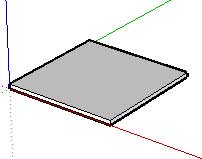
The image below shows the Floor component with 1 Tile sub-component. It looks like a single tile. The Tile sub-component repeats when you use the Scale tool to scale the Floor component in the X and Y directions.
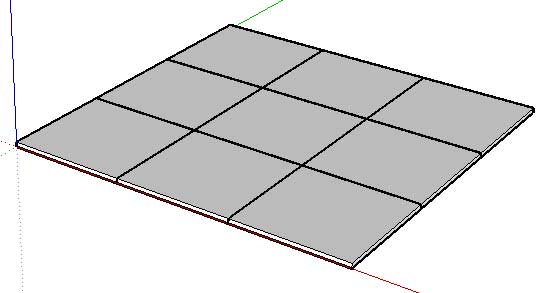
The image below shows the scaled Floor component with 8 copies of the Tile sub-component.
Follow these steps to repeat a sub-component within a parent component in two dimensions.
- Create a component with one sub-component, such as a floor with one tile.
- Context-click the component to open its context menu.
- Select Dynamic Components > Component Attributes to open the Component Attributes dialog box.
- Make sure the attributes for all components are visible.
- Create a 'Columns' attribute in the Floor component to hold the number of rows in your dynamic component.
- Create a 'Rows' attribute in the Floor component to hold the number of rows in your dynamic component.
- Create an attribute in the Floor component to hold the size of the repeating sub-component. This example uses 'TileSize'.
- Set 'TileSize' to a value, such as
12. - Set the Tile sub-component's 'LenX' and 'LenY' attributes to the size stored in the parent component. For the Floor Tile sub-component, set 'LenX' to
Floor!TileSizeand 'LenY' toFloor!TileSize. - Enter a formula beside the Floor component's 'Columns' attribute to calculate the number of columns. Base it on the Tile sub-component's size and the Floor component's overall size. For example:
=CEILING(LenX/TileSize)
- Enter a formula beside the Floor component's 'Rows' attribute to calculate the number of rows. Base it on the Tile sub-component's size and the Floor component's overall size. For example:
=CEILING(LenY/TileSize)
- Add the Copies attribute to the Tile sub-component.
- Enter a formula beside 'Copies' to calculate the number of copies. Multiply the rows by the columns, then subtract one for the original sub-component. For example:
=Floor!rows*Floor!columns-1
- Set the position of each repeating sub-component in its column and row. Calculate a multiplier for each row and column, then multiply it by the sub-component's size to find its X and Y position.
- Create an attribute in the Tile sub-component to hold the row multiplier, such as
myRow. - Enter a formula beside 'myRow' to work through each copy and calculate its row. For example:
- Use
=FLOOR(COPY/Floor!columns). If Copy equals 7 and the object has 3 columns,myRowequals 2. Rows start at 0, so 2 represents the 3rd row.
- Create an attribute in the Tile sub-component to hold the row multiplier, such as
- Enter a formula beside 'myColumn' to work through each copy and calculate its column. For example:
- Use
=COPY-(myRow*Floor!columns). If copy equals 7, myRow equals 2 from the previous calculation and the object has 3 columns,myColumnequals 1. Columns start at 0, so 1 represents the 2nd row.
- Enter a formula beside the Tile sub-component's 'X' attribute to calculate its position. For example:
X =myColumn*floor!tilesize Enter a formula beside the Tile sub-component's 'Y' attribute to calculate its position. For example:
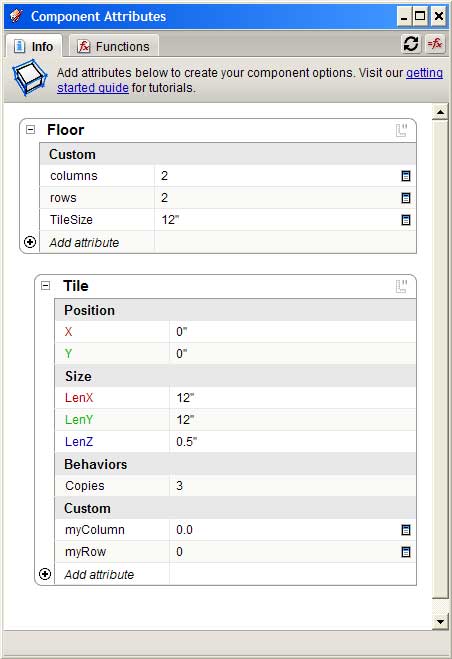
Y =myRow*floor!tilesize The image below shows the Component Attributes dialog box with all Floor and Title attributes.