Create a dynamic component in SketchUp that repeats a sub-component as you scale it. Examples include pickets in a fence and steps in a stair.
The fence shown below contains 4 sub-components: a top rail, a bottom rail, a picket and a post. In this example, you repeat the picket as you scale the fence in the X direction. You need to control the spacing between copies and their arrangement: in a line for a fence, diagonally for stairs or in a circle for circular stairs.
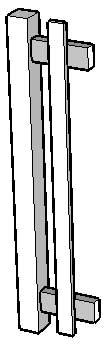
- Create the component with a single instance of the sub-component you want to repeat, such as a fence with one picket.
- Context-click the component to open its context menu.
- Select Dynamic Components > Component Attributes to open the Component Attributes dialog box.
- Click the plus (+) button next to the Fence component to show its attributes.
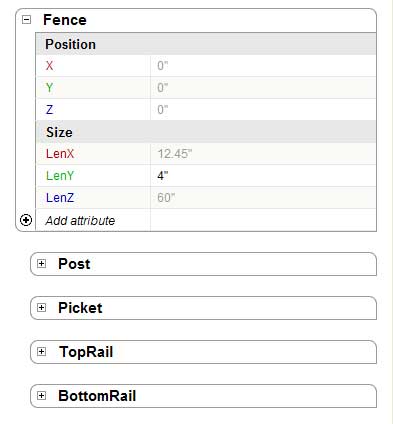
- Click Add attribute in the last row of the Fence component. A list of predefined attributes appears, and the field opens for editing.
- Type
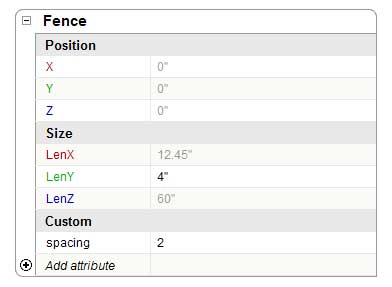
spacingand press Enter (Microsoft Windows) or Return (Mac OS X). The 'spacing' attribute appears under 'Custom', and the field next to it opens for editing. - Type
2. - Press Tab to accept the value and set the spacing between pickets to 2".
- Click the plus (+) button next to the Picket component to show its attributes.
- Click add attribute in the last row of the Picket component. A list of predefined attributes appears, and the field opens for editing.
- Click 'Copies' in the list. The field displays 'Copies', and the field next to it opens for editing. The formula you enter here calculates the number of copies from the length of the
TopRail (or BottomRail)component. - Type
=(TopRail!LenX)/(Picket!LenX+Fence!spacing)-1. - Press Tab to accept the value. The formula divides the TopRail component's length in the X direction,
TopRail!LenX, by the picket width plus the spacing,Picket!LenX+Fence!spacing. It then subtracts 1 to calculate the number of copies. The copies share the original Picket component's X and Z coordinates, so they overlap. The next formula positions each copy along the X direction.
- Double-click the value field for the 'X' attribute.
- Press Backspace (Microsoft Windows) or Delete (Mac OS X) to delete the current value for the 'X' attribute.
- Type
=5+COPY*(Fence!spacing+LenX). - Press Tab to accept the value. This formula uses the predefined 'Copy' attribute to set each picket's X position. Copy starts at 0 for the original Picket and increases by one for each copy. Its value is 1 for the first copy, 2 for the second copy and 3 for the third copy, and so on. The Component Attributes dialog box shows only the original Picket component's X value.
- Click the close button.
- Use the Scale tool to scale the component in the X direction. The component should add pickets as you scale it.
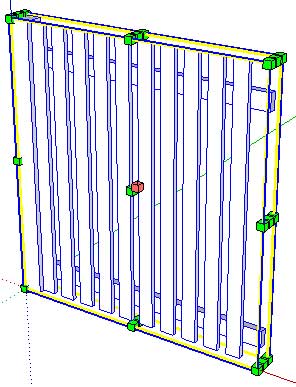
You can hide the other scale handles so only those in the X direction appear when you use the Scale tool. See Hiding scale handles.