Use App Settings to adjust SketchUp for Web. To open the window, click Menu (  ), then click App Settings.
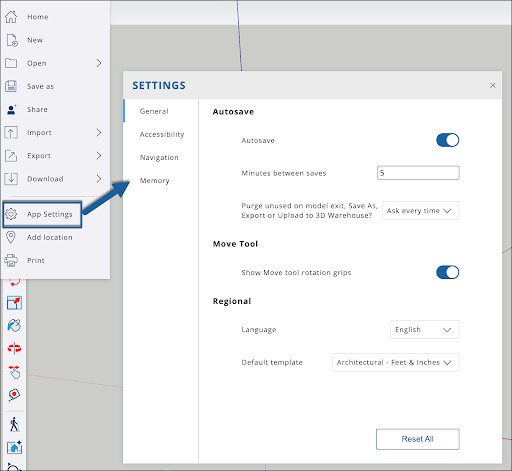
App Settings has General, Accessibility, Navigation and Memory sections. To undo changes to these settings, click Reset All at the bottom of the window.
The General section has these options:
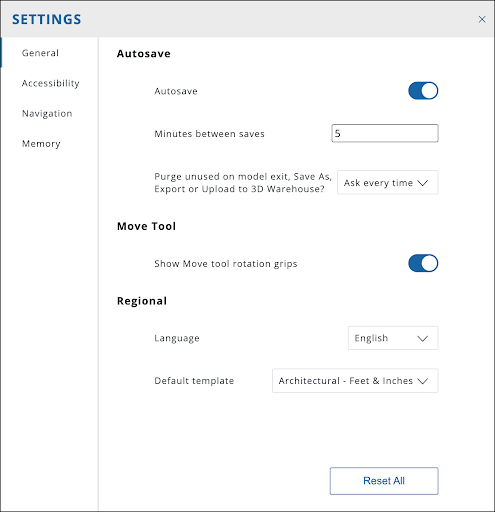
- Use Autosave to turn autosave on or off and set how often it saves your model. You can also set how often SketchUp for Web asks you to purge unused assets when you exit, save or export your model.
- Use Move Tool to show or hide rotation grips when you use the Move tool.
- Use Regional to set the language and template for SketchUp for Web.
Use Accessibility to set colours for the axes or inferences.
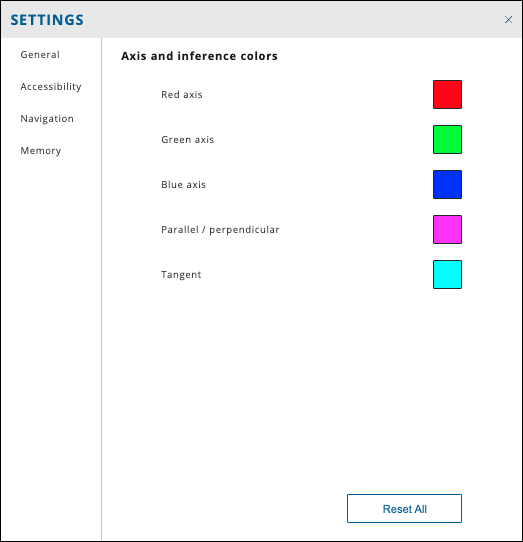
The Navigation section has these options:
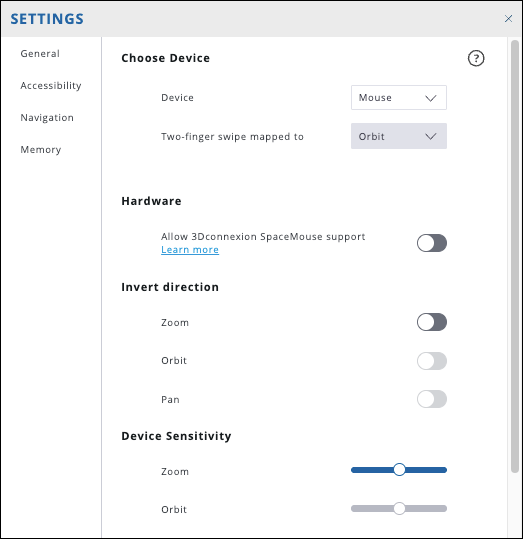
- Use Choose Device to select a mouse or trackpad. If you select a trackpad, you can also choose which tool a two-finger swipe uses.
- Use Hardware to turn 3Dconnexion SpaceMouse support on or off. It is on by default.
- Use the Invert Direction toggles to reverse the navigation direction for the Zoom, Orbit or Pan tools.
- Use the Device Sensitivity sliders to adjust how responsive the Zoom, Orbit and Pan tools are.
The Memory section has these options:
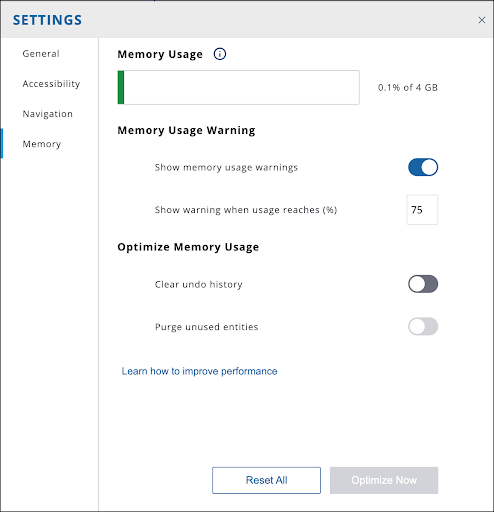
- The Memory Usage meter shows how much memory SketchUp for Web is using.
- Use Memory Usage Warnings to turn memory usage warnings on or off. You can also set the memory usage percentage at which warnings appear.
- Under Optimize Memory Usage, Purge Unused Entries is available only when Clear Undo History is on. When one or both options are on, click Optimize Now to free up memory.