Use Chaos Cosmos Browser to browse the Chaos Content Library, download assets and add them to your scenes. This article covers installation, account options, updates and removal.
Installing Chaos Cosmos
Chaos Cosmos Browser installs with all Chaos renderers: V-Ray, Corona, Vantage and Enscape. No separate installation is needed. Once the renderer is installed, you can access downloadable Chaos Cosmos Platform content from your host platform.
Using Chaos Cosmos
Click the Chaos Cosmos icon in your host platform to open the library. See Chaos Cosmos in Host Platforms below for supported platforms.
The first time you open Chaos Cosmos Browser, sign in with your Chaos credentials. Click Sign-in and enter your credentials.
You can download 3D models, materials and HDRIs in Chaos Cosmos Browser. Use the search bar to find a specific asset.
Browse 3D models by category or space. The available categories are Furniture, Accessories, Lighting, Vegetation, Vehicles, People, Architecture, Presets and Enmesh patterns. The available spaces are Living room, Kitchen & Dining, Bedroom, Office, Restaurant & Cafe, Retail, Urban and Country.
Download an asset before using it. Hover over the asset and click the blue Download icon, or click the asset to view its creator, category/space/color and other details. Click any tag to see related assets.
Downloaded assets can be reused across host platforms. They are saved locally in C:\Users\[User]\Documents\Chaos Cosmos\Packages. To change this directory, see Configuring the Asset Download Directory.
When the download finishes, click Import to add the asset to your host platform, then place it in the scene.
Options
Click the login icon to open the context menu.
My account | Opens your Chaos personal account information page. |
My account | Opens your Chaos personal account information page. |
My products | Opens the Chaos Products page to manage your products and check their status. |
Submit an idea | Opens the Chaos Cosmos Ideas Portal in a new browser window. |
Settings | Opens the Settings window. |
About | Opens About Chaos Cosmos in a new pop-up window. |
Cookie Preferences | Opens the Privacy Preference Center in a new pop-up window. |
Resources | Expands the resource links, including Forums and Privacy Policy. |
Forums | Opens the Chaos Cosmos Forum in a new browser window. |
Help Docs | Opens Chaos Cosmos Documentation in a new browser window. |
Get Support | Opens the Chaos Help Center in a new browser window. |
Terms of use | Opens the Terms of Use in a new browser window. |
Privacy policy | Opens the Privacy Policy in a new browser window. |
EN.CN | Changes the language from English to Chinese. |
Light theme | Changes the Chaos Cosmos Browser theme from dark to light. |
Sign out | Signs you out of the current account. |
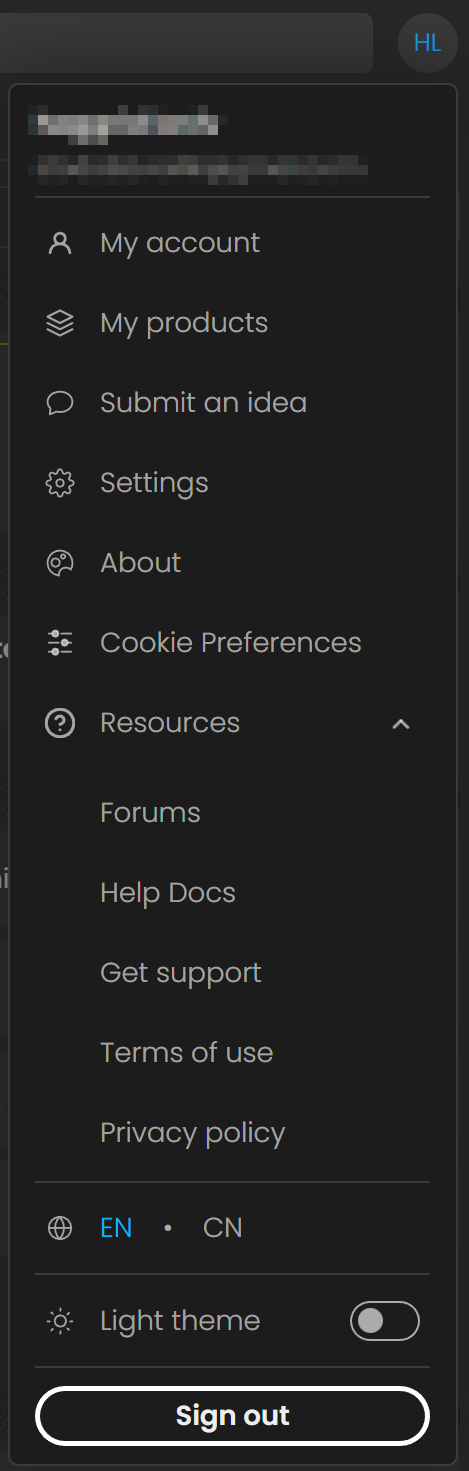
Chaos Cosmos Browser (plugin)
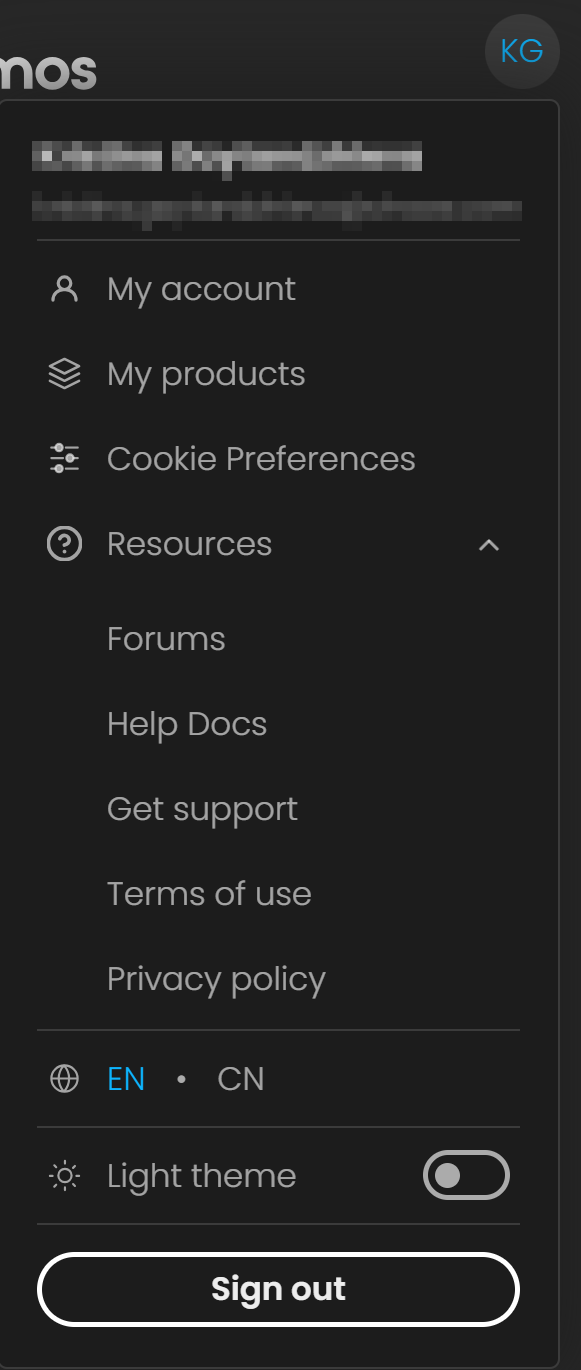
Chaos Cosmos Browser (website)
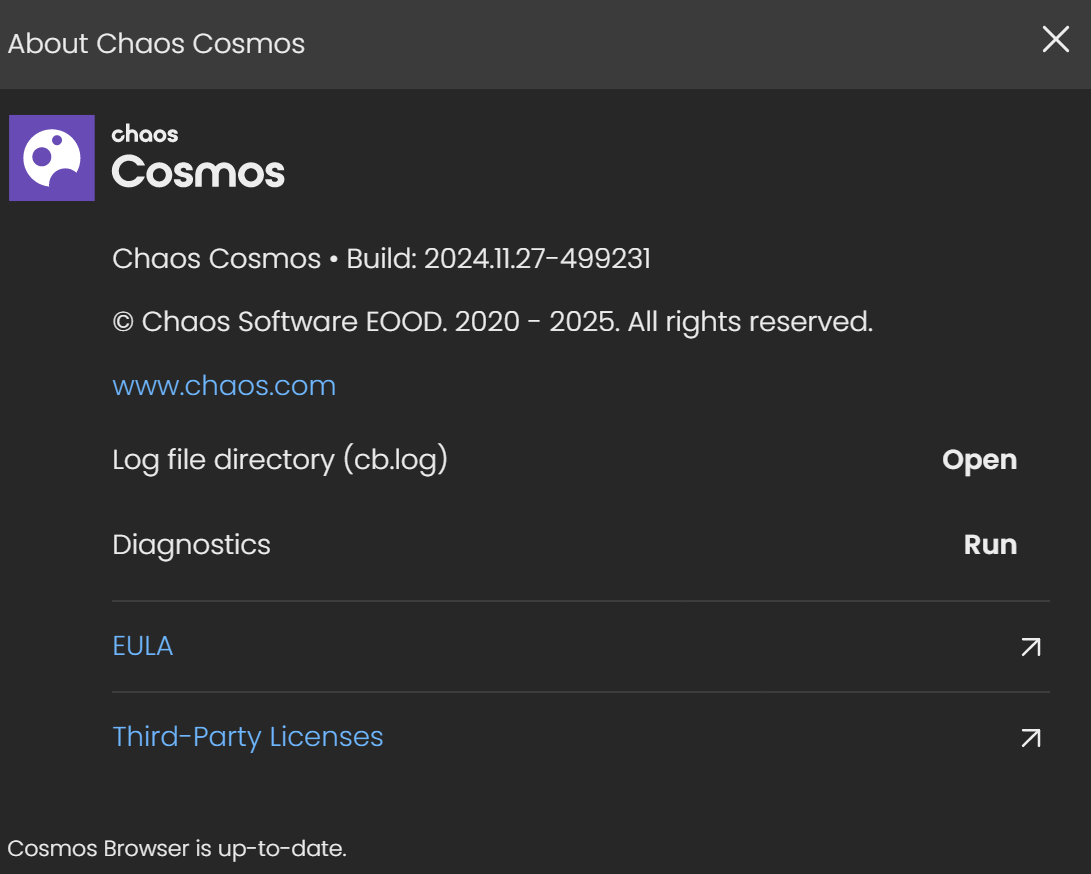
About Chaos Cosmos window
In the Cosmos Browser plugin, click the login icon and select About to open the About Chaos Cosmos window.
The window shows your Chaos Cosmos version and links to:
- Chaos website
- Log file directory
- End-User License Agreement
- Third-Party Licenses
You can also run diagnostics from the About Chaos Cosmos window.
Updates
Check for asset updates and download the latest version in Chaos Cosmos Browser. Some host platforms also let you do this in the host app. See the host app documentation below for details.
You can check for Cosmos Browser updates and install the latest version without restarting the app.
Uninstall
To uninstall Chaos Cosmos Browser, run the Uninstallation file at the location for your operating system:
Windows OS: C:\Program Files\Chaos\Cosmos\uninstall
macOS: /Applications/Chaos/Cosmos/uninstall/Uninstall
Linux OS: ~/.Chaos/Cosmos/uninstall/Uninstall
On Windows, you can also uninstall Chaos Cosmos through Windows Control Panel or Settings > Apps > Installed apps > Chaos Cosmos Browser.


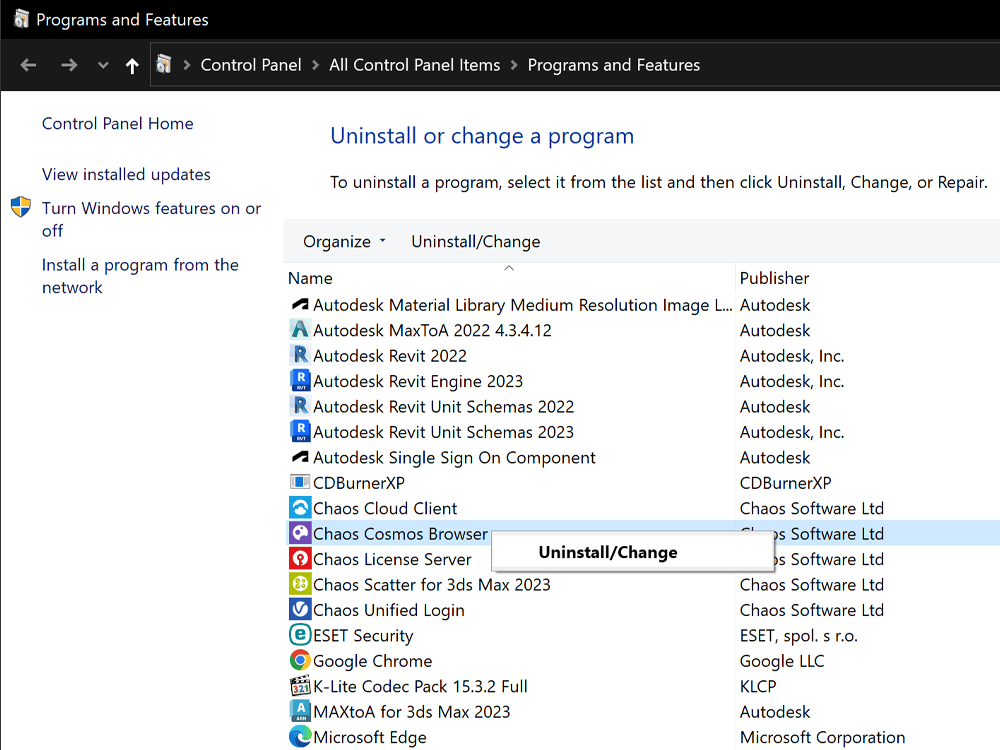
Deleting these directories removes files from previous installations. If you need to remove those files, delete the following directories if they exist:
C:\Program Files\Chaos\Content
C:\Program Files\Chaos\Cosmos
C:\Program Files\Common Files\Chaos\Content
C:\Program Files\Common Files\Chaos\Cosmos
C:\Users\<YourUserName>\Documents\Chaos Cosmos
%APPDATA%\vrayneui (delete the cookie files here)
This cleanup applies only to Windows.
Chaos Cosmos in host platforms
Find the Chaos Cosmos icon in your host app's toolbar alongside the other Chaos tools. The following host platforms support Chaos Cosmos.