Change your organisation's primary admin in My Chaos. The transfer changes ownership without affecting users, subscriptions or licence assignments.
When to change the admin
You may need to change the admin in these situations:
- The person who purchased the licences changes jobs, so ownership needs to transfer to someone else.
- Procurement purchased the licences, but the administrator needs to manage them.
- You made a purchase using the wrong email address.
- A user purchased a subscription with their personal email address and needs to transfer it to their company email address.
When to contact support
Contact Chaos support to change the admin in these situations:
- The current admin has lost access to their email.
- Two organisations or accounts need to merge, or the corporate entity changes, for example after company restructuring.
Before you begin
- You must be the organisation's current admin to start the transfer.
- The new admin must already be a user in your organisation.
- If they are not listed, invite them to the organisation and ask them to complete their account.
Step 1: Start the transfer (current admin)
Follow these steps to start the admin transfer:
Log in to your account and open the Organization page. Find the Users card at the top. Click the three-dot menu (...) and select Change admin.
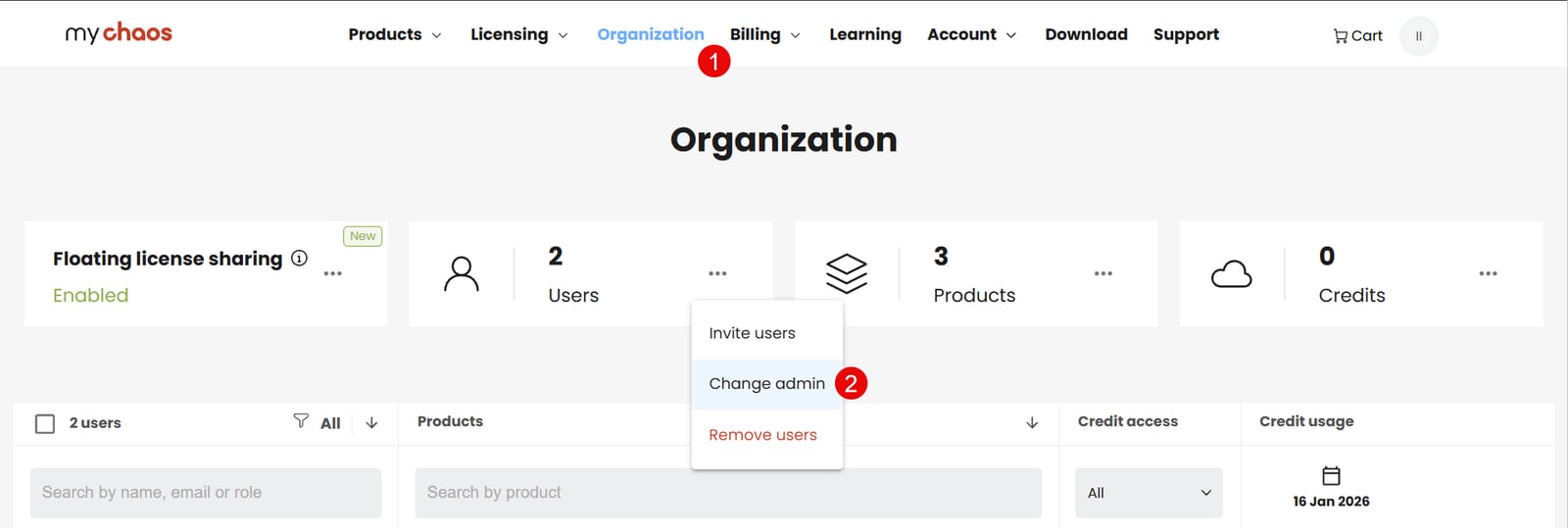
The Request Admin Change wizard opens so you can select the new administrator.
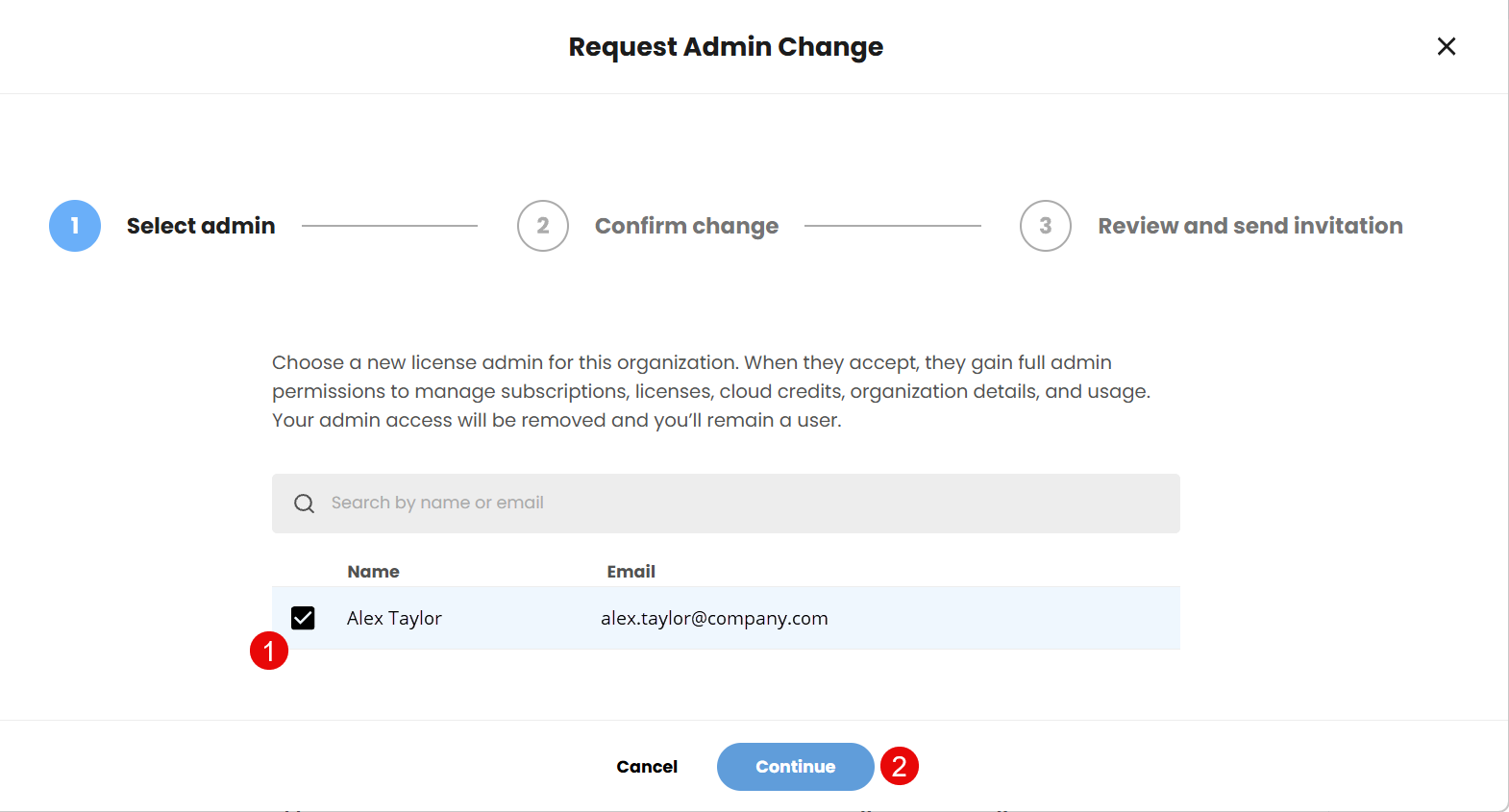
- Search the list and select the user you want to make the new admin.
- Click Continue.
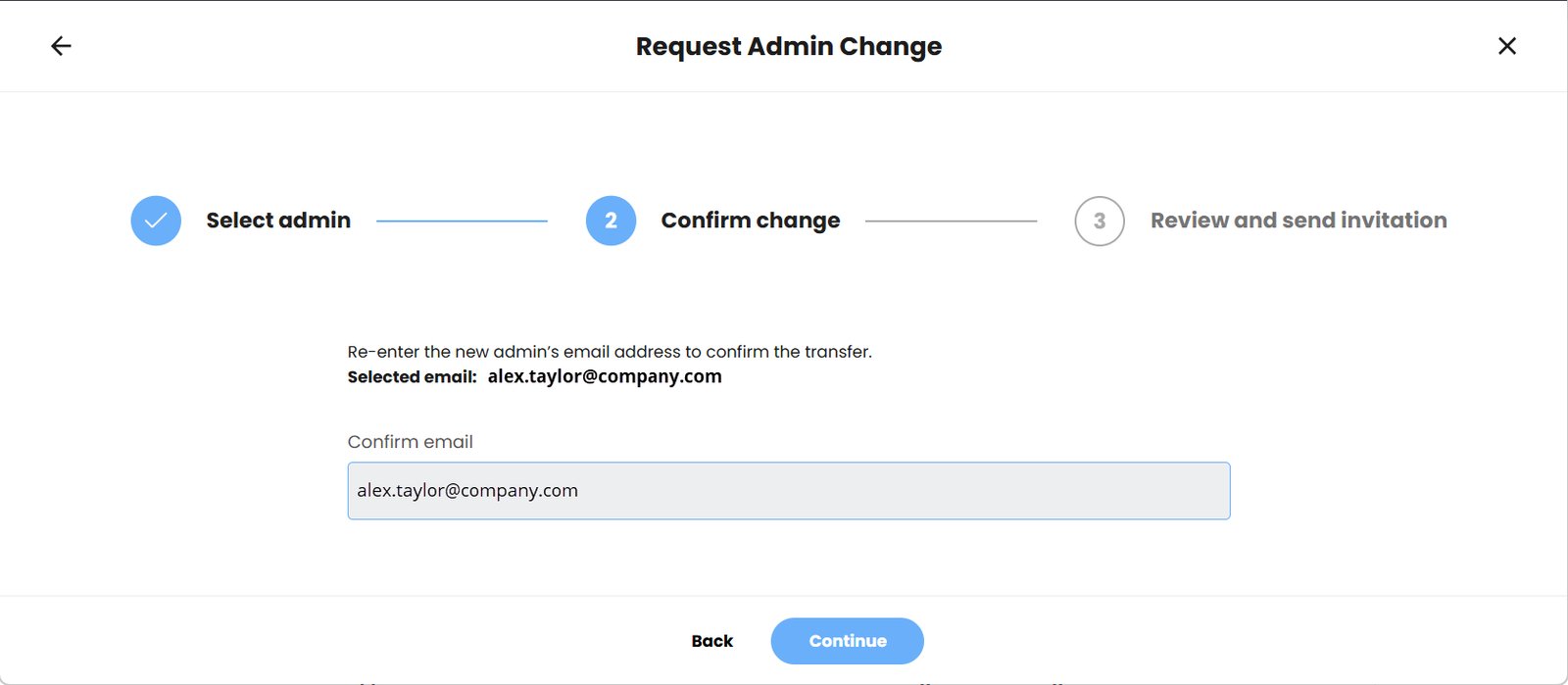
Confirm the email address
- Re-enter the selected user's email address to prevent mistakes, then confirm the transfer.
- Click Continue.
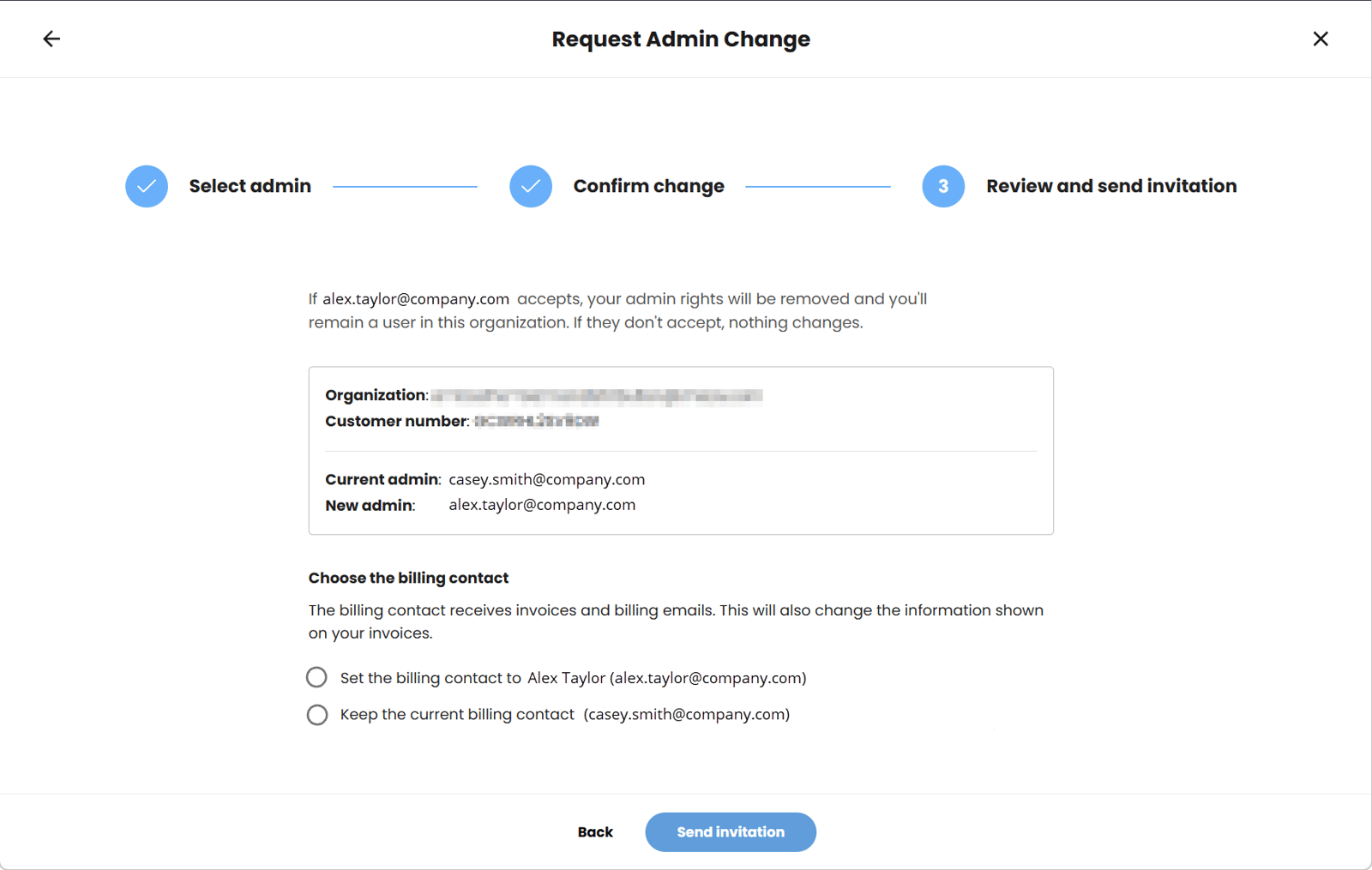
- Review the changes and choose the billing contact.
- Review the summary of the changes.
- Choose who receives future invoices:
- Set the billing contact to [New admin] so the new admin receives invoices.
- Keep the current billing contact so you, or the current billing contact, continue to receive invoices after you give up admin rights.
- Click Send invitation.
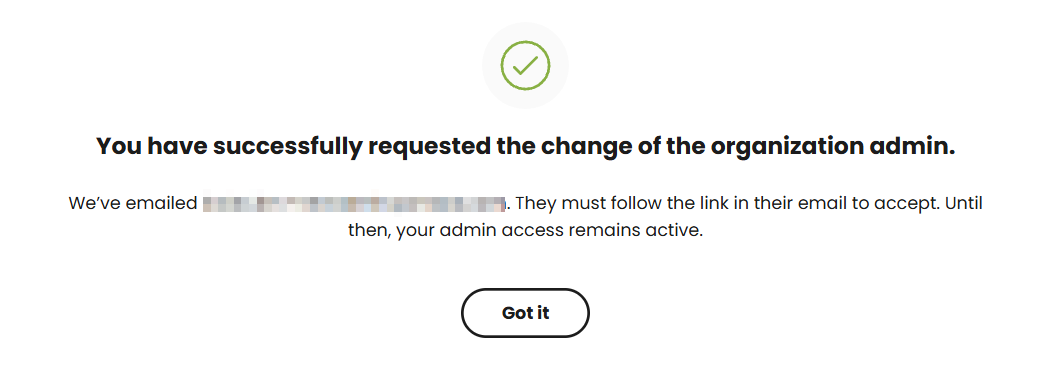
- Request sent
A confirmation screen shows that the request has been sent. You keep your admin access until the new admin accepts the invitation.
Step 2: Accept the transfer (new admin)
The new admin must accept the role before the transfer takes effect.
- The new admin receives an email with the subject "You have been invited to become the licence admin...". Click Review and respond in the email.
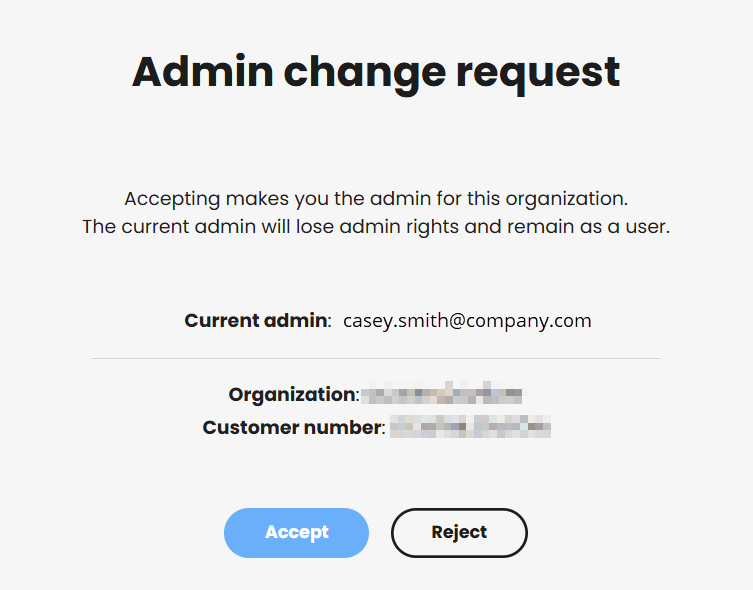
- The link opens the Admin change request page, which confirms the Organization name and Customer number.
- Click Accept to complete the transfer.
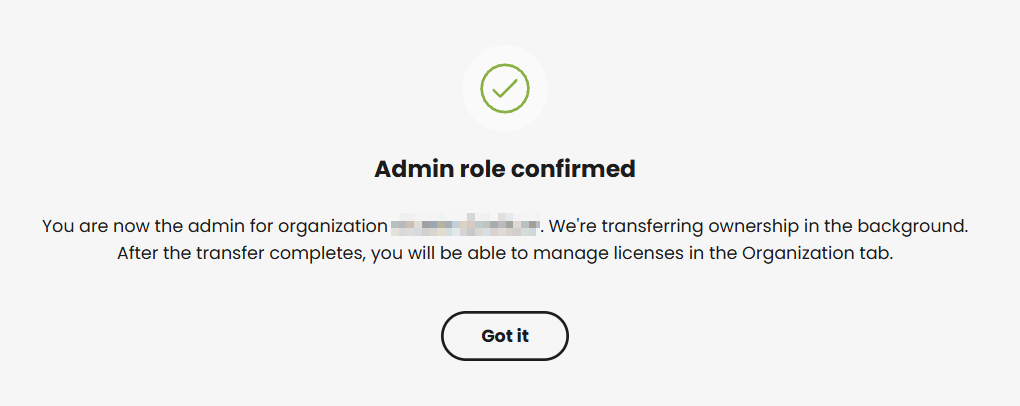
- The message "Admin role confirmed" confirms that the ownership transfer is complete. The new admin can now manage licences, users and subscriptions in the organisation tab.
Frequently asked questions
What happens to my account after I transfer the admin role?
You remain a member of the organisation as a standard User. You can no longer manage subscriptions or licences. You keep access to products unless the new admin changes your access.
Can I cancel a transfer request?
Yes, while the request is "Pending". The new admin must not have accepted it, and no changes must have been made.
Who receives the invoices?
During the transfer (Step 4), you choose whether the Billing Contact changes to the new admin or stays the same. The License administrator and the person paying the bills can be different people.