Use your Chaos account to manage subscriptions, download products and check billing details. Contact Procadsys for purchases, upgrades and renewals.
Products
Open the Active Products tab to view your active subscriptions. Filter them by product family, expiry date and currency. You can also:
- View the product offering
- Change the seat quantity
- Cancel or reactivate a subscription
- View activation and expiry dates
- Copy License Key (for versions older than 4.1)
- View payment details
Upgrade a subscription
Contact Procadsys to arrange an upgrade. If your subscription's product has an upgrade option, you can open the subscription and click Upgrade.
Review the order and change the quantity you want to upgrade. Click Upgrade to upgrade the subscription.

Available upgrade
Add seats to a subscription
Contact Procadsys to arrange additional seats. In the account portal, click + Add seats to increase the subscription's seat quantity.
Change the seat quantity and click Add to confirm the order. The price for the new seats is prorated for the days remaining until your next renewal date.

Cancel or reactivate a subscription
Select Cancel Subscription to turn off automatic renewal.
You can reactivate your subscription while the licence period is active. Renewal billing then happens automatically.

Turn off automatic renewal
Downloads
Open the Downloads tab to go to Chaos Downloads. You can also click Download beside the product's active subscription, as shown below.

Download an active product
Expired products
Open the Expired Products tab to view your expired subscriptions. Filter them by product family, expiry date and currency. Contact Procadsys to buy a new subscription for an expired product. In the portal, clicking Buy Again opens the shopping cart.

The shopping cart lets you change the quantity, update billing and payment information if needed, and confirm the order. Completing these steps creates a new subscription on the Active Products page. Arrange your purchase through Procadsys.

Shopping cart
Cloud credits
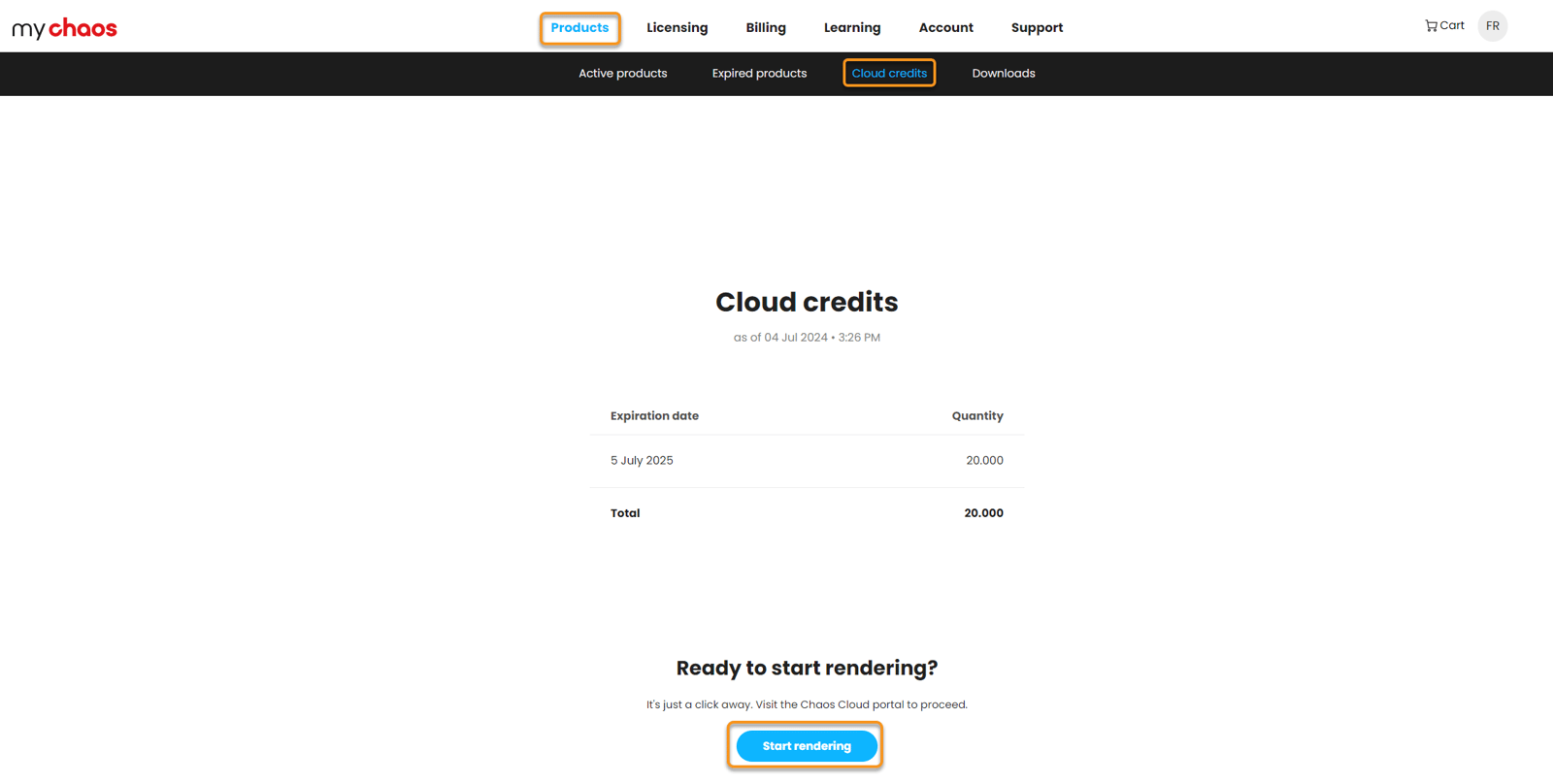
Open the Cloud Credits tab to view your available cloud credits. Click Start rendering at the bottom of the page to open Chaos Cloud.
Billing
Check your billing status, invoices and billing information here. You can also save and change payment methods.
Invoices
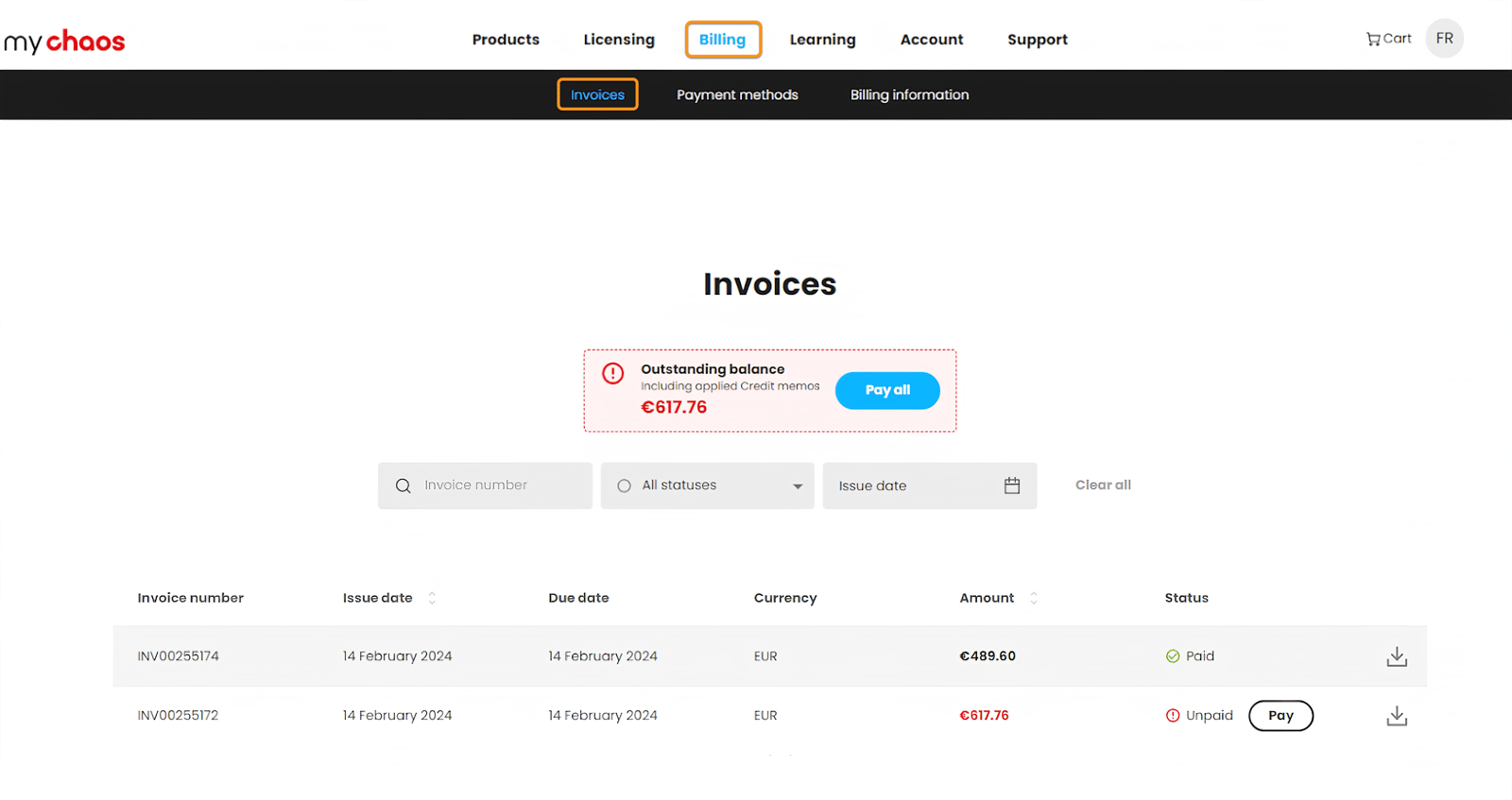
Open Invoices under Billing to view your account overview and the payment status of current and past invoices. Search by Invoice number, or filter by payment status and issue date.
Click the arrow beside an invoice to download it as a PDF. You can also check your total outstanding amount, pay it all at once and view any unapplied credits.
You can select any number of outstanding invoices to include in a payment.
The Outstanding balance field shows the total of all unpaid invoices. Alongside automatic invoice payments, you can pay all invoices or individual invoices manually.
Click Pay all to pay the full outstanding amount.
Click Pay beside an invoice to pay that invoice.
After you click Pay, Chaos processes your payment, shows a confirmation message and sends your receipt. Click Got it to return to Invoices and check that the paid invoice's balance is settled.
Payment methods
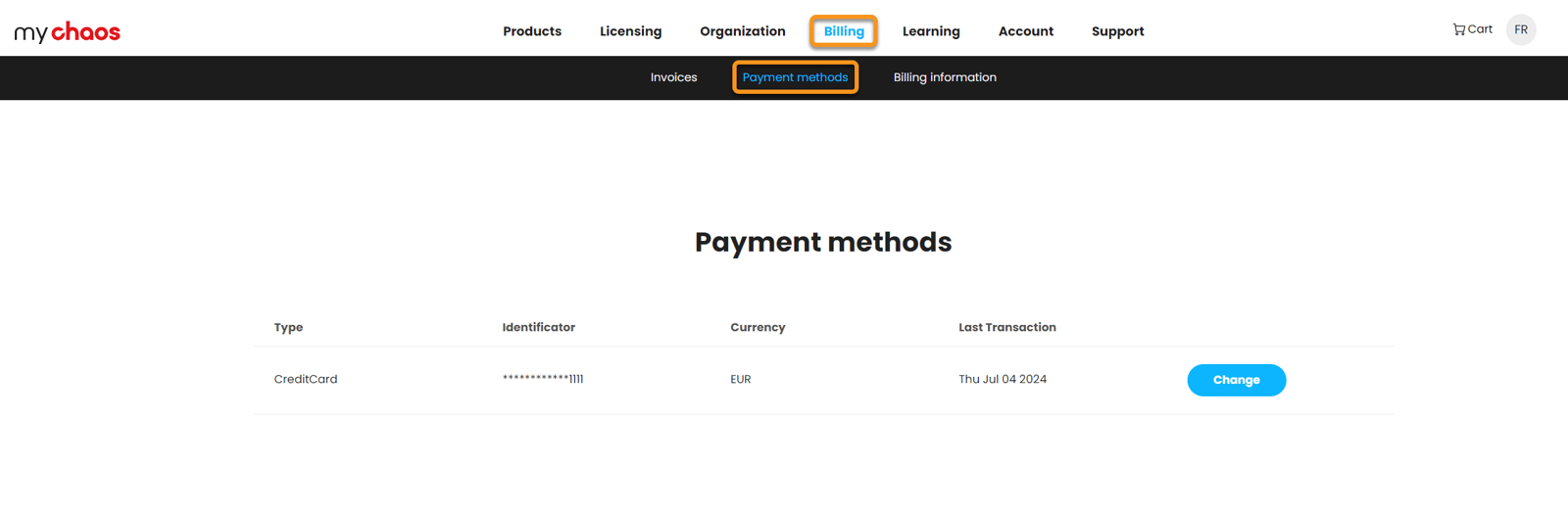
Open the Payment methods tab under Billing to view and update your active payment methods.
Click Change to update your existing payment method.
Billing information
Open the Billing information tab to view or edit your billing details. Add your VAT ID if needed. Updated details appear on all future invoices, including automatic renewal orders.