Secure your Chaos account with Two-Factor Authentication (2FA).
Overview
Two-factor authentication (2FA) adds optional protection to your Chaos account. When enabled, you need two forms of identification to sign in: your password and a one-time code from a smartphone authenticator app, such as Google Authenticator or Microsoft Authenticator.
Enable 2FA
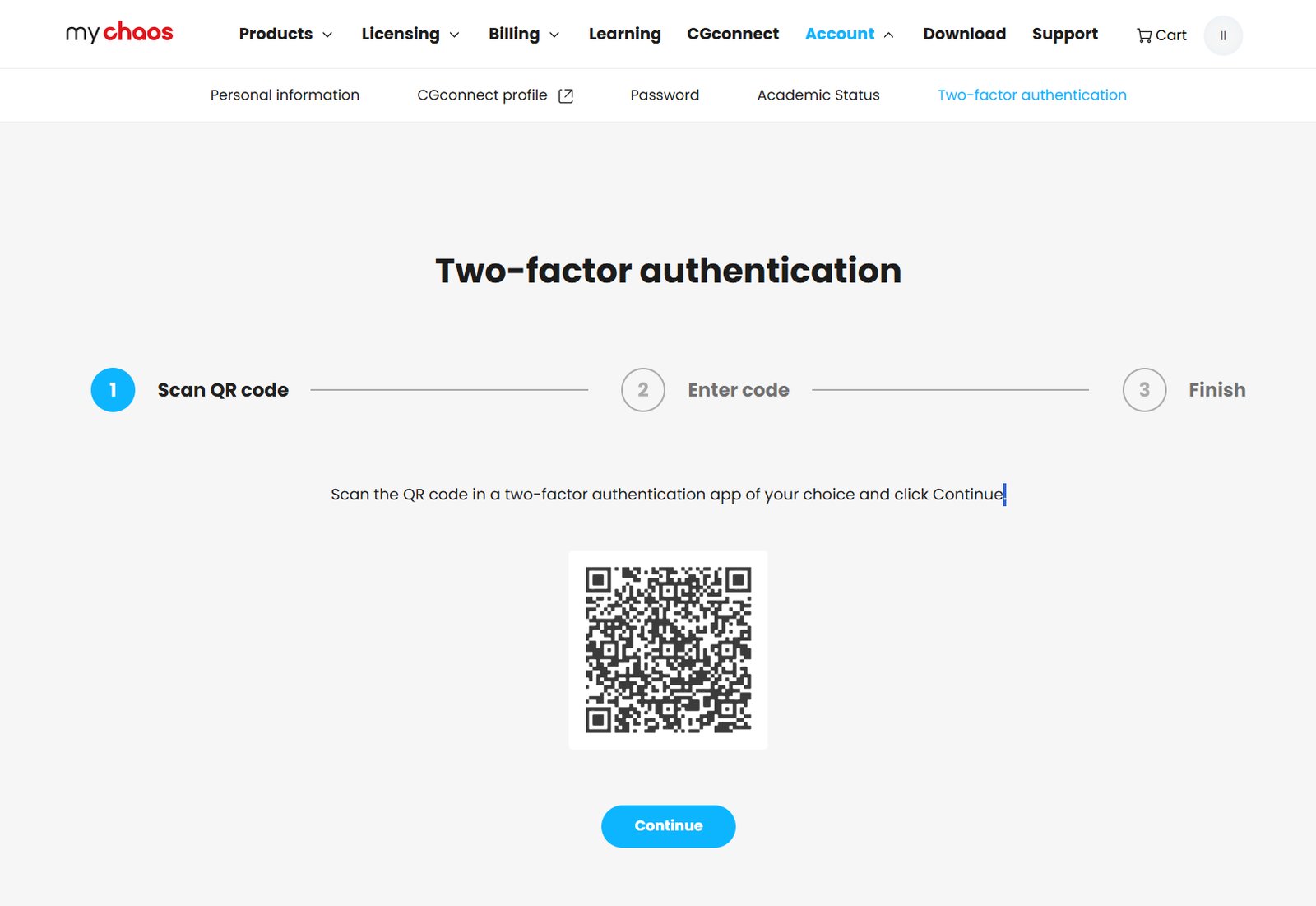
In My Chaos, open the Account page and choose Two-factor authentication from the main menu. Click Enable 2FA to start the setup wizard.
- Step 1 (Scan QR Code). Open your authenticator app on your smartphone and scan the QR code on your screen. The app adds your Chaos account to its list and starts generating time-based codes.
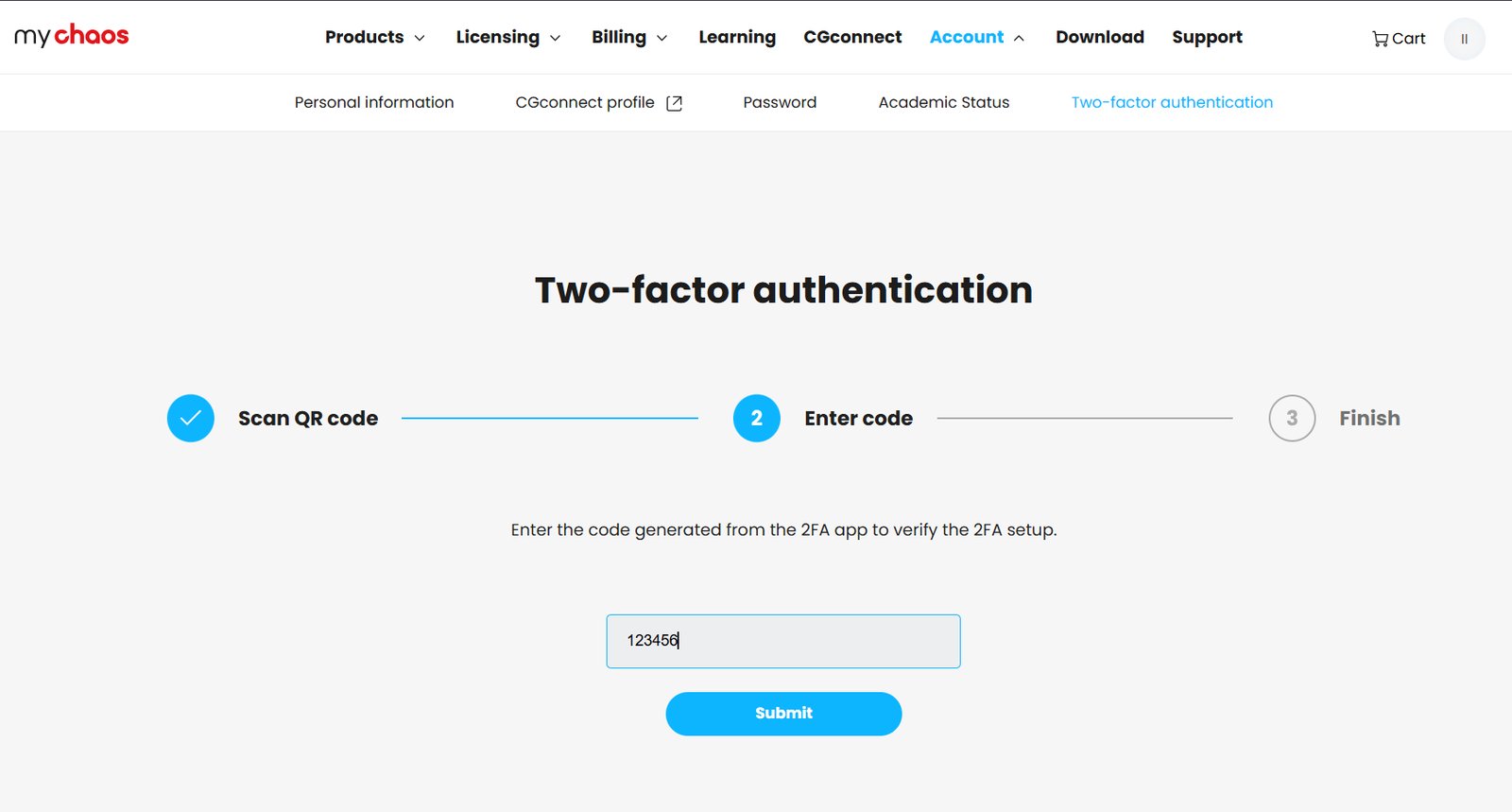
- Step 2 (Enter Code). Enter the 6-digit code from the app into the input field to verify the connection.
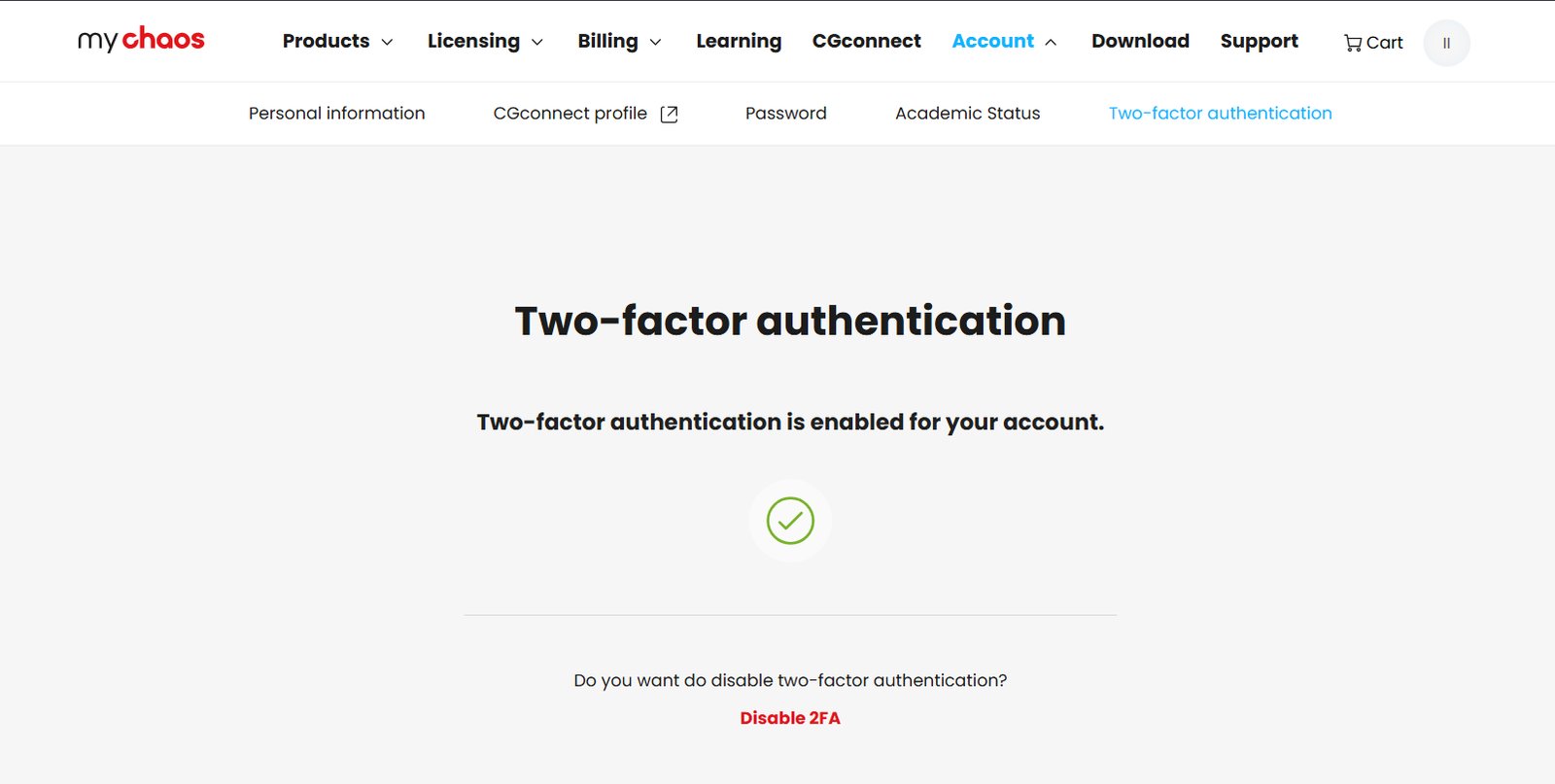
- Step 3 (Success). A valid code completes the setup. A confirmation screen appears, and you receive an email confirming activation.
Log in with 2FA
Once 2FA is active, follow these steps to log in.
- Go to the sign-in page, enter your email and password, and click Continue.
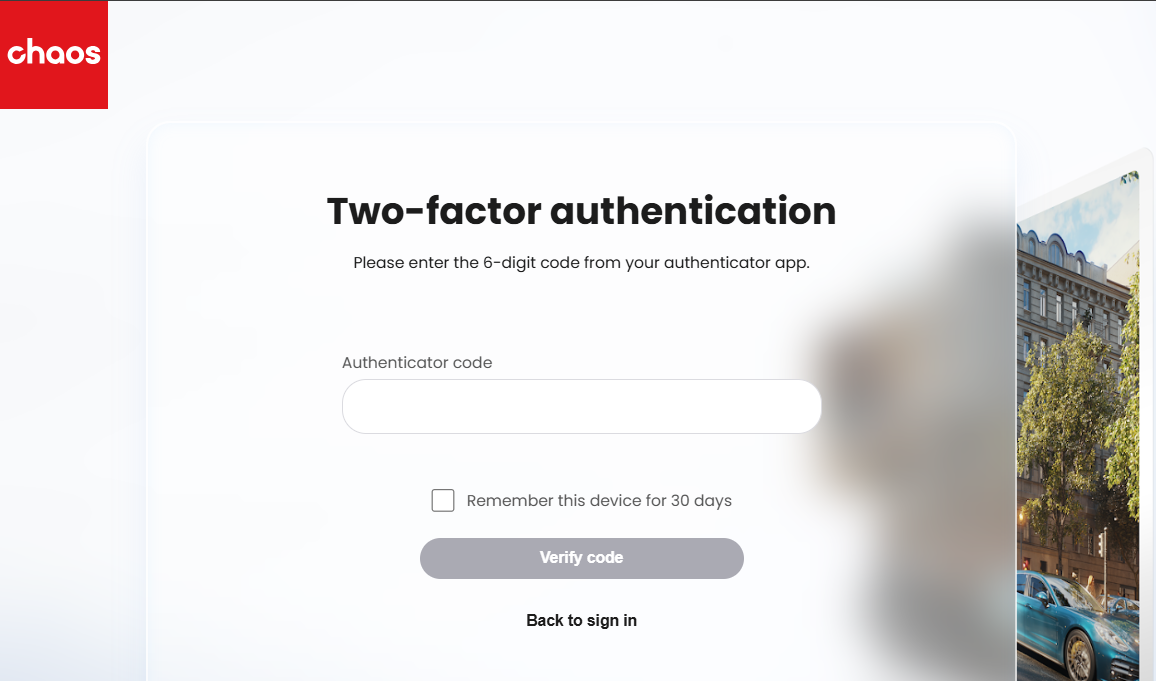
- The Two-factor authentication page appears.
- Open your authenticator app and enter the current 6-digit code into the Authenticator code field.
- On a personal device you trust, you can skip the 2FA prompt for future logins by selecting Remember this device for 30 days.
- After you select this box and authenticate successfully, you will not need a 2FA code in the same browser on the same device for 30 days. A different browser or device still requires a 2FA code.
- Click Verify code to log in to your account.
Disable 2FA
You can disable 2FA at any time, including when switching phones or if you no longer want to use it.
- Open the Two-factor authentication page in your account settings.
- The page shows "Two-factor authentication is enabled for your account."
- Click Disable 2FA to turn it off.
- You receive an email when it is disabled. If you did not authorise this change, follow the email's instructions to contact Support immediately and secure your account.
Recover your account
If you lose access to your mobile device or authenticator app, you cannot complete two-factor authentication to log in. Submit a support ticket to Chaos Support. The team will verify your identity through a secure process to help you regain access to your account.