Set per-user limits in Chaos Credits and respond when users request more credits.
Floating credit limit
When your organisation starts using Chaos Credits, every user has Unlimited access to the Floating pool.
This also applies to users whose access moved from the previous credit systems on May 27, 2026.
A Credit Limit caps how much a user can spend from the Shared pool within a cycle.
Keep these points in mind:
- A limit does not reserve credits. A 500-credit limit does not set aside 500 credits for that user. If the pool has only 50 credits left, the user can spend at most 50, regardless of their limit.
- Subscription changes do not change per-user limits. If a subscription expires and the pool shrinks, you need to update the limits yourself.
- Limits apply only to the shared pool. Named credits have a separate per-user allowance.
How limits reset
A credit limit resets one month after you set it. For example, if you set a 500-credit limit on the 15th of March, the user's usage resets on the 15th of April. They can then spend another 500 credits. The limit resets monthly on the 15th after that.
Each user's cycle starts on the date you create their limit. It does not follow your subscription billing dates or the calendar month. Limits set on different days reset on different days.
If you change a user's limit, the new cap applies immediately. The current cycle continues, and the reset date stays the same.
When to set a limit
Set per-user credit limits to:
- Prevent users from unintentionally spending shared pool credits.
- Give roles such as interns, contractors and occasional users a smaller share.
- Plan project budgets, such as a fixed monthly cap for a department.
How to set a limit
You can set limits for multiple users at once or for an individual user. Both methods open the Set credit limit dialog.
Set a limit for all users
- Open the Organization tab, then the Chaos Credits Management sub-tab.
- Click Set credit limit on the Shared pool score card.
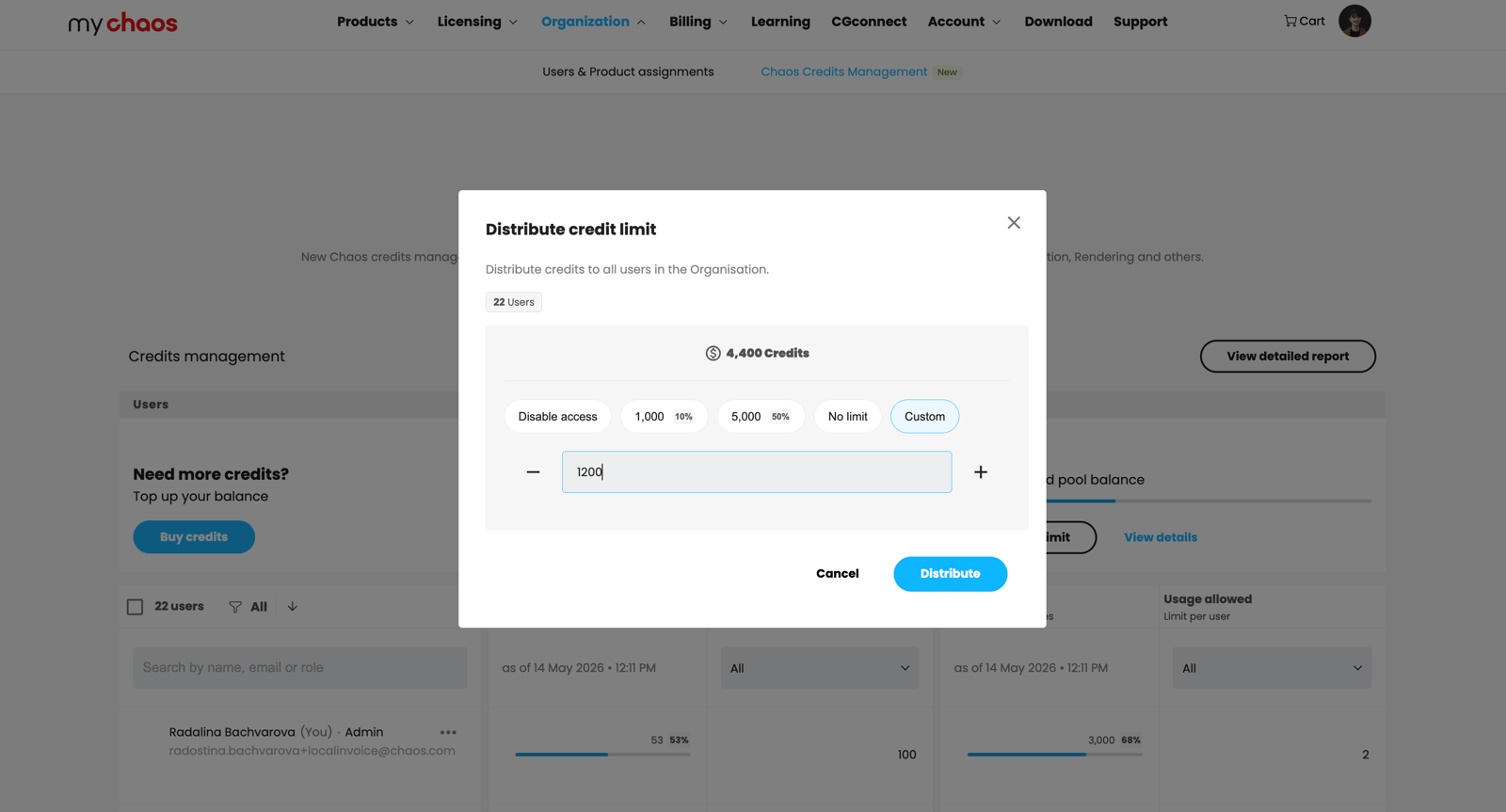
- The dialog header shows the total credits available in the pool and the number of users the limit applies to. The subtitle reads "Distribute credits to all users in the Organization."
- Choose a quick-pick chip or enter a custom number:
- Disable access blocks all users from using the Floating pool.
- 1,000 sets a small cap for tight budgets.
- 5,000 sets a moderate cap for typical teams.
- No limit removes all per-user caps. This is the default for new organisations.
- Custom lets you enter a number of credits.
- Click Set to apply the same credit limit to everyone.
Set a limit for multiple users
- Open the Organization tab, then the Chaos Credits Management sub-tab.
- Select one or more users using the checkboxes in the left column. A menu opens at the bottom of the screen. Click Set credit limit on the horizontal menu bar.
- The dialog header shows the total credits available in the pool and the number of users the limit applies to. The subtitle reads "Distribute credits to selected users in the Organization."
- Choose a quick-pick chip or enter a custom number:
- Disable access blocks all users from using the Floating pool.
- 1,000 sets a small cap for tight budgets.
- 5,000 sets a moderate cap for typical teams.
- No limit removes all per-user caps. This is the default for new organisations.
- Custom lets you enter a number of credits.
- Click Set to apply the same credit limit to all selected users.
Set a limit for a single user
- Find the user in the user table.
- Click the ⋯ (more) menu on their row.
- Choose Set credit limit.
- The Set credit limit dialog opens for that user only.
- Choose a quick-pick chip or enter a custom number.
- Click Set.
The new limit applies immediately. Credits the user has already spent in the current cycle count towards it.
Reading the user table
The dashboard's Usage allowed column shows each user's limit:
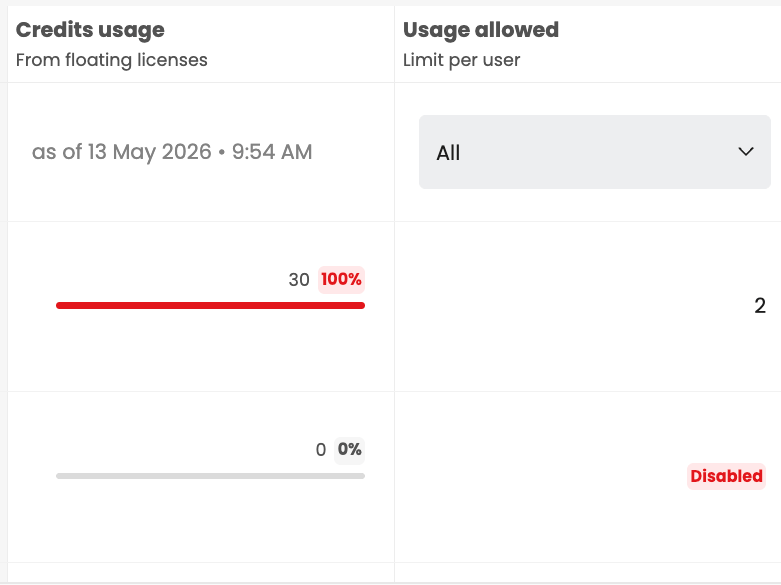
- A number shows how many Floating credits the user can spend per monthly cycle.
- Unlimited appears in a teal badge. The user has no limit and can spend credits until the pool is empty. This is the default for every user.
- Disabled appears in a red badge. The user cannot spend Shared pool credits.
The Credits usage column shows current usage with a coloured progress bar. It turns orange at 80% and red at 99% so you can see who is approaching their cap.
When a user requests more credits
If the pool is empty or a user reaches their limit, they can click Request credits on their Credits page or inside their product. The button immediately changes to Requested, and you receive an email.
You have three options:
- Raise their limit. Open the ⋯ menu on their row, choose Set credit limit and enter a higher number.
- Buy a credit pack through PCS. If the pool is empty, a top-up restores credits for everyone.
- Deny the request by taking no action. If you set the cap intentionally, the user waits until the next reset or refresh.
The user cannot override their limit.
Notifications
At launch on May 27, 2026, the credit system includes one built-in notification. Admins automatically receive an email when a user clicks Request credits. You do not need to configure it.
Check the dashboard's colour-coded usage indicators or the Usage overview chart on the Credits page to monitor the pool.
Admin and User permissions
Capability | Admin | User |
|---|
Capability | Admin | User |
|---|---|---|
View the pool balance summary | ||
View the Shared pool breakdown across all sources | ||
View their own Usage overview chart | ||
View other users' usage | ||
Set, edit or remove per-user credit limits | ||
Allocate Named licences to users | ||
Export a usage report as CSV | ||
Request more credits using Request credits | Sees Buy credits instead |
Tips for managing usage
- Keep the default Unlimited access unless you have a specific reason to cap a user. You do not need to set limits in advance.
- Watch for orange and red usage indicators in the user table. They help you act before a user reaches their limit and loses access.
- Click View usage report at the top right of the dashboard to see which features and users consume the most credits. Use this data to adjust limits and plan top-ups.
- Tell users when you lower their floating credit limit. Otherwise, they may see a "credit limit reached" message without warning.