Use the Chaos Credits Usage page to check your balance, see where your credits come from and request more credits.
Find your Credits Usage page
- Sign in to your Chaos account.
- Open the Products tab.
- Select the Chaos Credits sub-tab.
The Credits Usage page opens. Most Chaos products also show a small credits indicator beside AI or cloud features, so you can check your balance within the app.
What's on the Credits Usage page
The page has three sections showing your current credit balance.
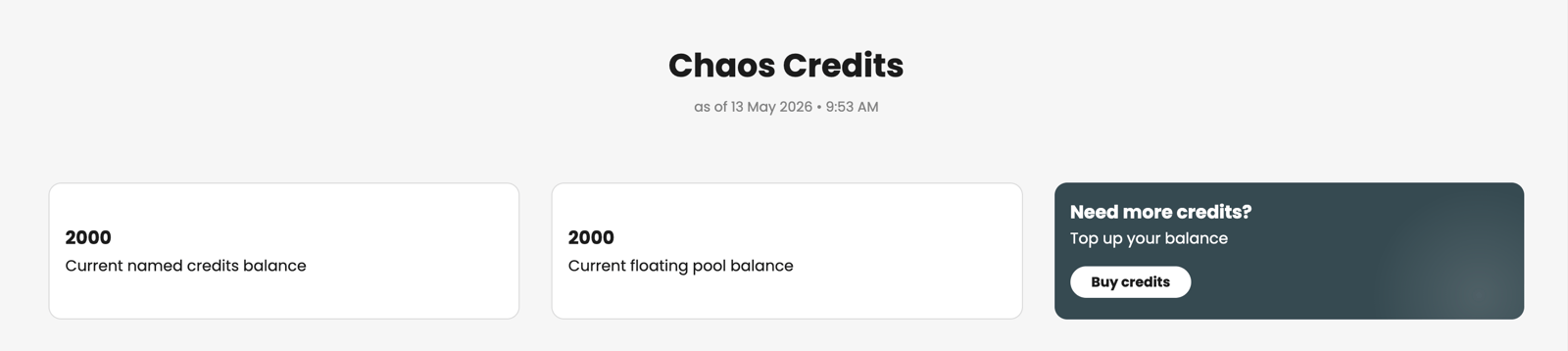
1. Credits Overview (your own balance)
- Remaining credits from assigned seats shows all credits from Named subscriptions. If you don't have a Named licence, this shows 0 or does not appear.
- Remaining credits from the shared pool shows the floating credits available to you. You can use these once your Named credits run out, if you have any. Users have unlimited access to the Shared pool unless the admin sets a limit for each user.
- Select Request Credits to email your organisation's admin. They decide whether to raise your limit, buy more credits or decline the request.
2. Named credits details
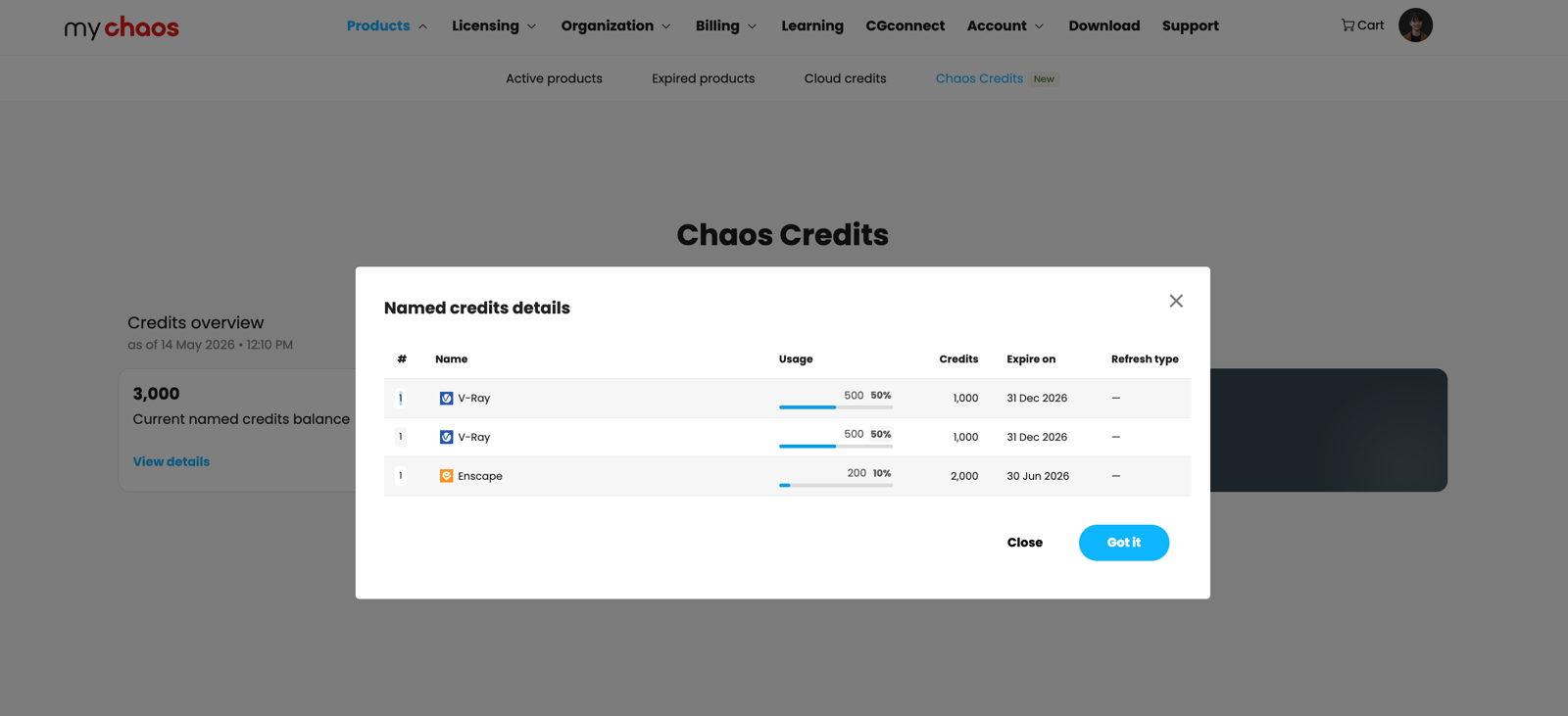
This table lists every named seat that provides your credits. It has these columns:
Column | What it shows |
|---|
Column | What it shows |
|---|---|
# | The number of seats from this source. |
Name | The subscription or pack that provides the credits. |
Usage | How many credits you've used from this source during the current cycle, with a percentage badge. |
Credits | The total credits this source provides. |
Expire on | When these credits expire. |
Refresh type | Monthly, Annual, or none |
The usage percentage badge uses colour to show your status:
- Grey means normal usage, under 80%.
- Orange (80–98%) means you are approaching the limit.
- Red (99%+) means your remaining credits are at or near zero.
3. Floating credits details
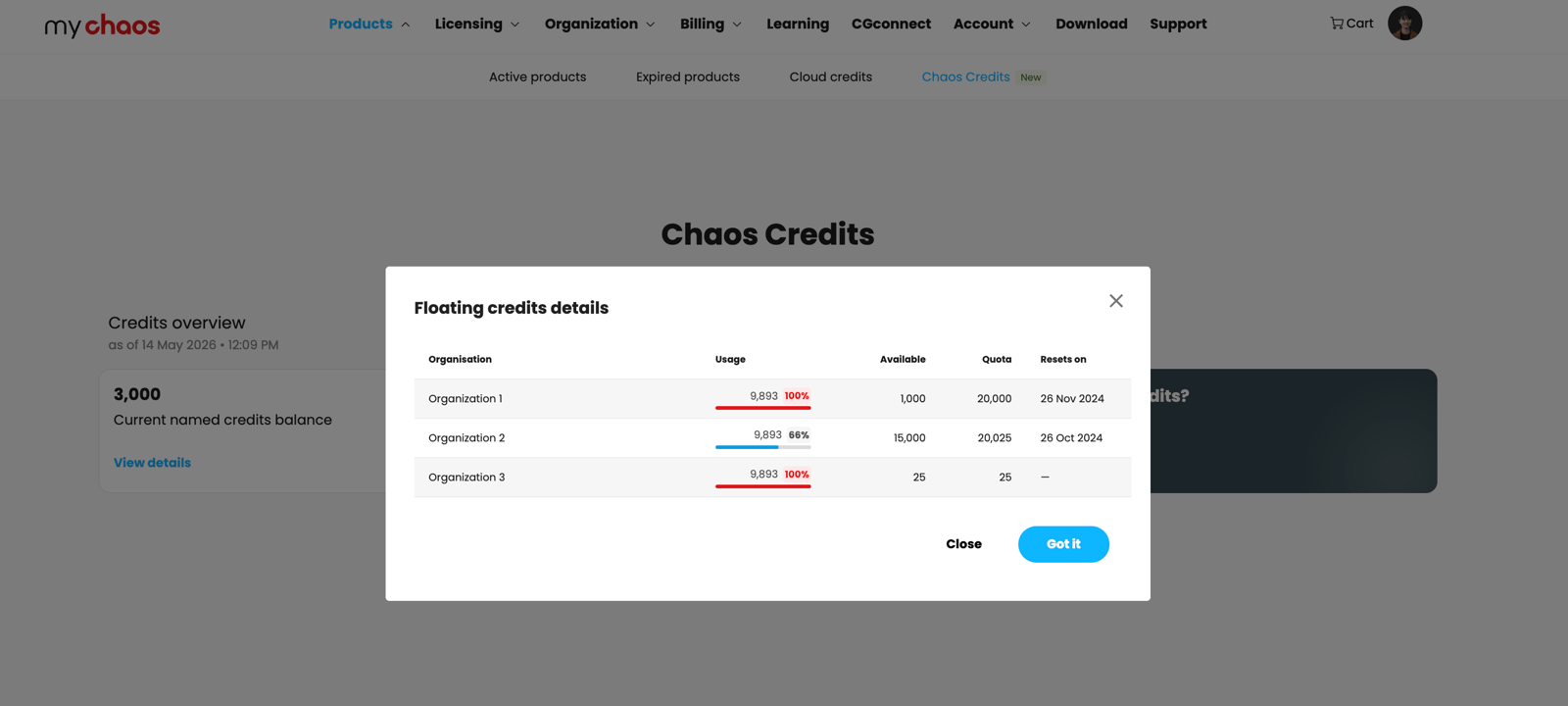
This table lists the floating credit pools available to you, grouped by organisation. If you belong to multiple Chaos organisations, each has a separate row.
Column | What it shows |
|---|
Column | What it shows |
|---|---|
Organisation | The Chaos organisation that owns the floating pool. |
Usage | How many credits you've used from this pool during the current cycle, with a percentage badge. |
Available | The remaining credits you can use from this pool. |
Quota | Your total floating credit limit, set by the organisation's admin. |
Resets on | When your usage against this quota resets. |
The usage percentage badge uses colour to show your status:
- Grey means normal usage, under 80%.
- Orange (80–98%) means you are approaching the limit.
- Red (99%+) means your remaining credits are at or near zero.
Understand your balance display
Your balance shows your remaining credits, rather than credits used. When your balance is low, Chaos products may show a small message such as "80% credit balance reached" with a Request credits link. If you reach your limit and try an action that uses credits, you may see a pop-up.
Select Request credits to email your admin, just as you would with the button on the Credits page.
When credits run out
If you reach your shared pool limit or the pool is empty, Chaos blocks any action that needs credits. A message gives you the option to request more credits.
You have two options:
- Request credits to email your admin. Your admin can raise your limit, buy a credit pack or decline the request by taking no action.
- Wait for the next refresh. Credits refresh on each subscription's billing date. The Named credits details and Floating credits details windows show refresh and reset dates.
If an operation stops before it finishes
Tips for managing usage
- Check the credit details before requesting more credits. They show where your credits come from and which subscription or pool you use most.
- Check costs before using features that need more credits. Higher-resolution Veras images use more credits than lower-resolution images. Use lower resolutions for drafts and higher resolutions for final images. See the Chaos pricing page for current costs for each feature.
- Choose Cloud Rendering settings to suit the task. Charges depend on scene complexity and resolution. Lighter sampling and lower resolutions use fewer credits.
- Check expiry dates in the Named credits details window. It shows when each named credit pack expires. The system automatically uses credits from the sources that expire soonest.