Chaos Vantage
Sphere Light Details
This page offers information about the Light Sphere rollout in Chaos Vantage.
Last updated 20 March 2026
This page offers information about the Light Sphere rollout in Chaos Vantage.
Overview
The Light Sphere rollout contains the settings for a Sphere light created in Chaos Vantage. Imported Sphere lights have the same settings in the Object tab. The settings are divided into three tabs: Basic settings, Advanced settings, and Include/Exclude (see the table below).

You can separate the Light Sphere settings into their own column via the Splitter () button. An * next to a parameter name indicates that the parameter value has been modified.

Basic settings tab – Contains basic settings for controlling the Sphere light’s shape, color, intensity, size, visibility, etc. |
Basic settings tab – Contains basic settings for controlling the Sphere light’s shape, color, intensity, size, visibility, etc. | |
Advanced settings tab – Contains settings for controlling whether the light casts shadows and affects specific components of the material, such as diffuse and specular. | |
Excelude/Include lists tab – Contains a list of objects that are included in or excluded from illumination. |
UI Path
||Top toolbar|| > Create new Light object > Sphere
||Right side panel|| > Objects tab > Create new Light object > Sphere
Basic settings
Enabled – Turns on and off the sphere light.
Color – Changes the color of the sphere light. See the Color example below.
Intensity – Specifies the intensity of the light's brightness. See the Intensity example below.
Invisible – When enabled, makes the light invisible, both to the camera and to refractions. This is useful to prevent bright speckles on glossy surfaces where a ray with low probability hits the extremely bright sphere. See the Invisible example below.
Radius – Specifies the radius of the sphere light. See the Radius example below.

Advanced settings
Shadows – When enabled (the default), the light casts shadows. Turn this option off to disable shadow casting for the light. The value moves the shadow toward or away from the shadow-casting object(s). Higher values move the shadow toward the object(s), while lower values move it away. If this value is too extreme, shadows can "leak" through places they shouldn't or "detach" from an object. Other effects from extreme values include Moire patterns, out-of-place dark areas on surfaces, and shadows not appearing at all in the rendering. See the Shadows example below.
Affect diffuse – Determines whether the light affects the diffuse portion of the materials. The value controls the light's contribution to the diffuse portion of the materials. See the Affect Diffuse example below.
Affect specular – Determines whether the light affects the specular portion of the materials. The value controls the light's contribution to specular reflections. See the Affect Specular example below.
Affect reflections – Specifies whether the light source appears in reflections.
Use global mult. – When enabled, uses the Enable Lights value (Render tab > Advanced mode > Lighting rollout) as a multiplier to Intensity value. When disabled, the light is independent from the global multiplier.

Include/Exclude
Light include/exclude – Specifies a list of objects to be included in or excluded from illumination. Objects are added to the list using the Pick scene object(s) tool.
Shadow include/exclude – Specifies a list of objects to be included in or excluded from shadow-casting. Objects are added to the list using the Pick scene object(s) tool.

Pick scene object(s) () – Selects objects and adds them to the include/exclude list.

Delete selected object(s) from the list () – Removes the selected objects from the include/exclude list.

Examples
The following examples demonstrate the effect that individual Sphere Light parameters have on the scene. Click on any image to view it at a higher resolution.
Color
This example shows the effect of the Color parameter.

Color is red

Color is green

Color is blue
Intensity
This example shows the effect of the Intensity parameter.
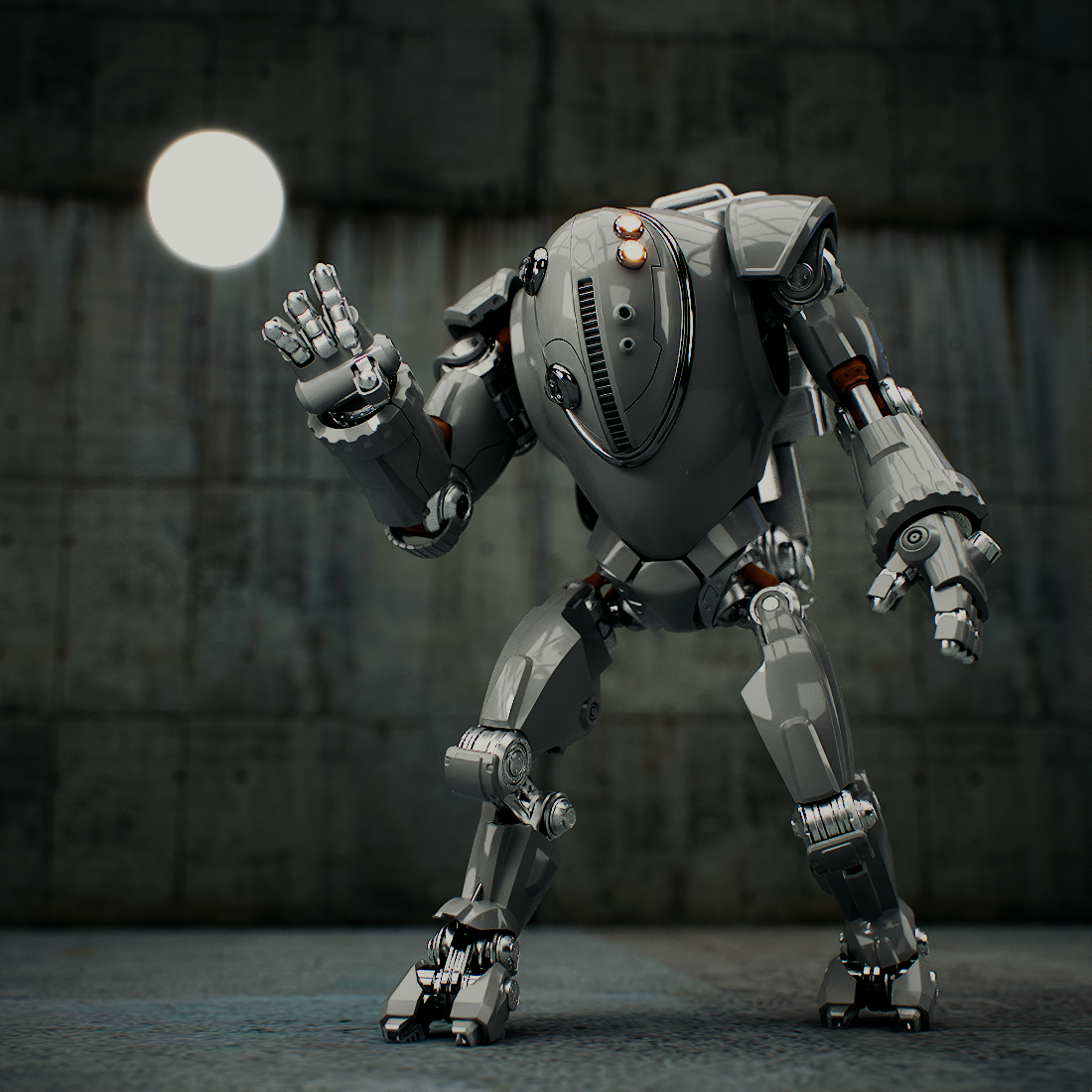
Intensity = 5

Intensity = 10

Intensity = 20
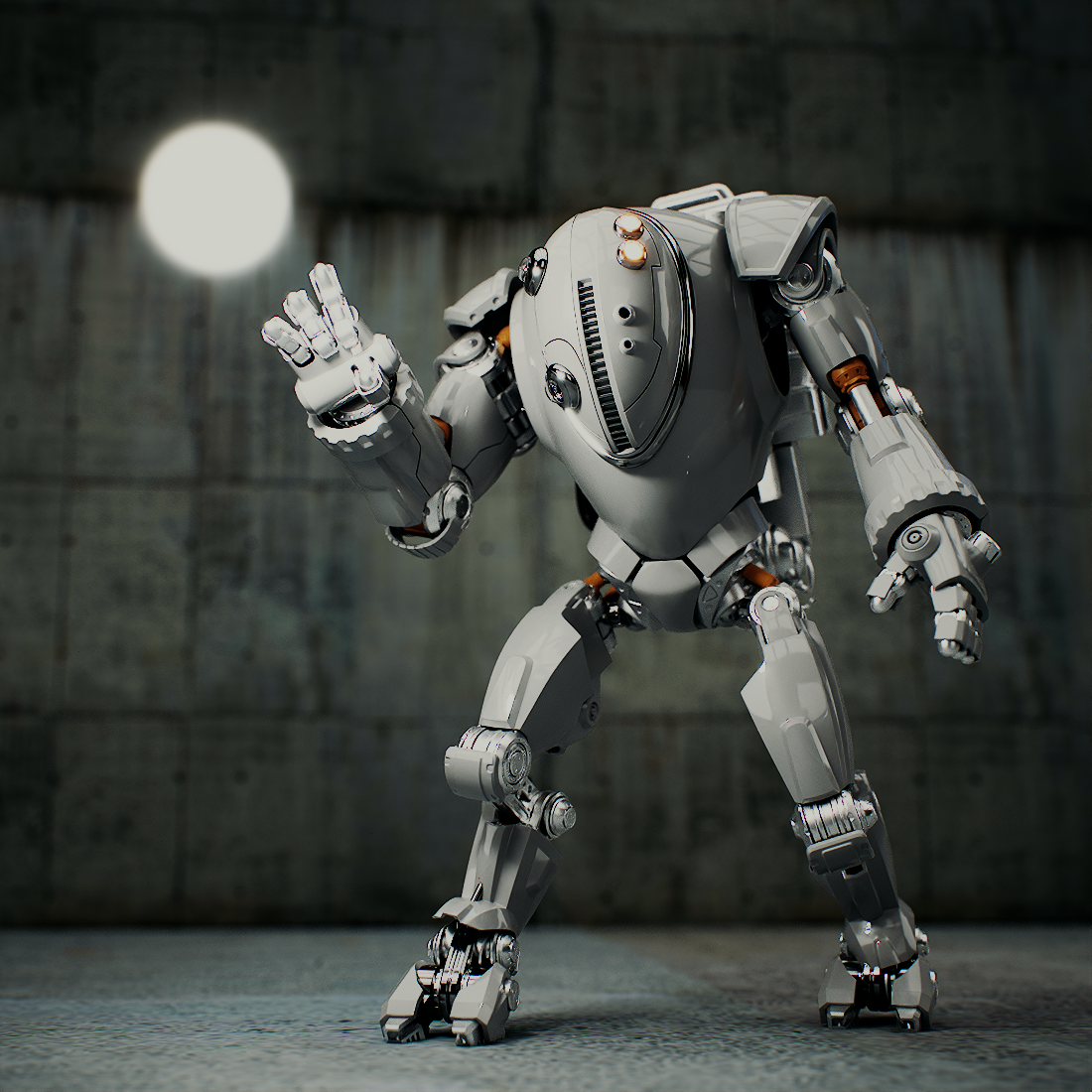
Intensity = 30

Intensity = 50
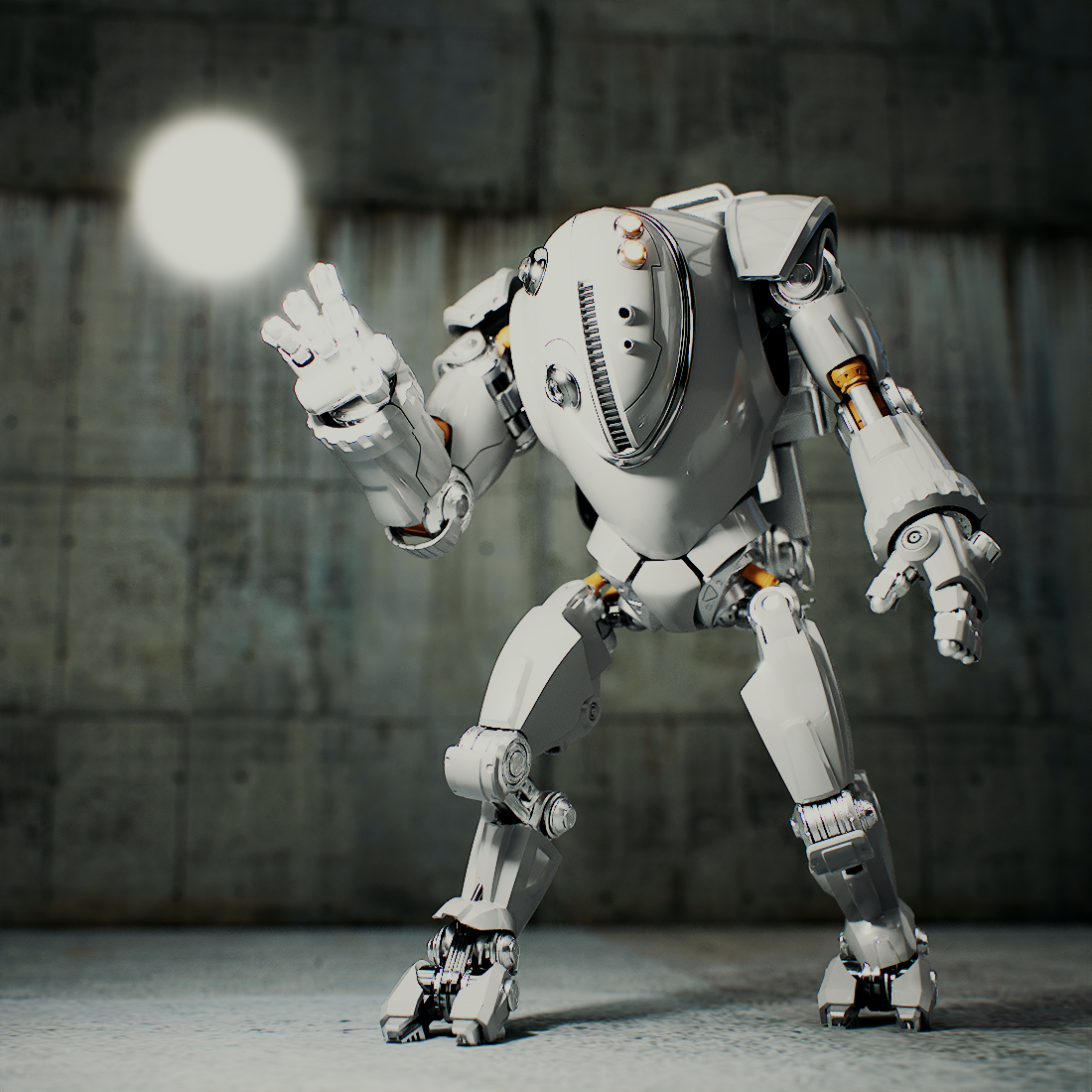
Intensity = 100
Radius
This example shows the effect of the Radius parameter.
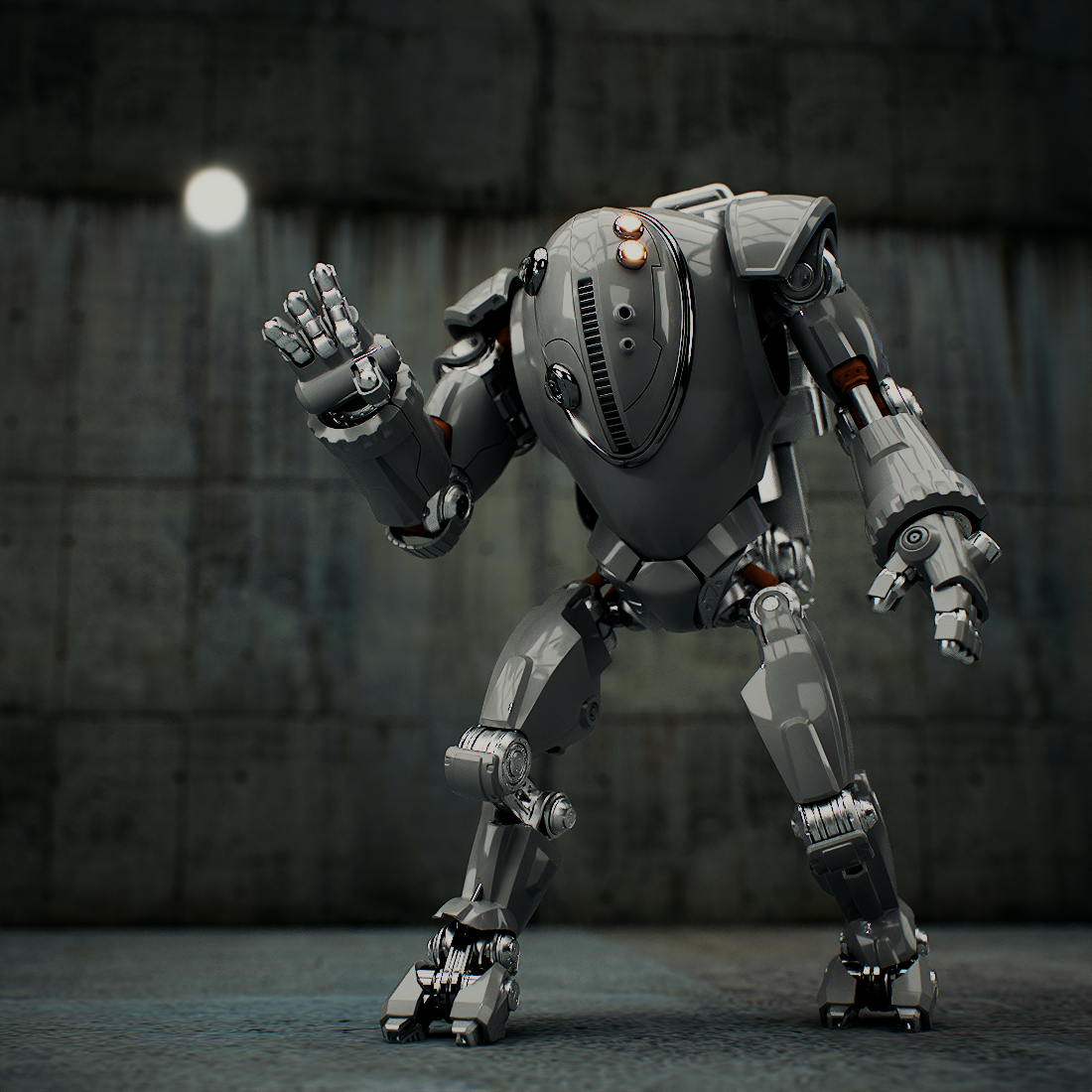
Radius = 1

Radius = 3

Radius = 5
Invisible
This example shows the effect of the Invisible parameter.

Invisible is disabled.

Invisible is enabled.
Shadows
This example shows the effect of the Shadows parameter.

Shadows is disabled.

Shadows is enabled.
Affect Diffuse
This example shows the effect of the Affect diffuse parameter.

Affect diffuse is disabled.
Affect diffuse is enabled.
Affect Specular
This example shows the effect of the Affect specular parameter.
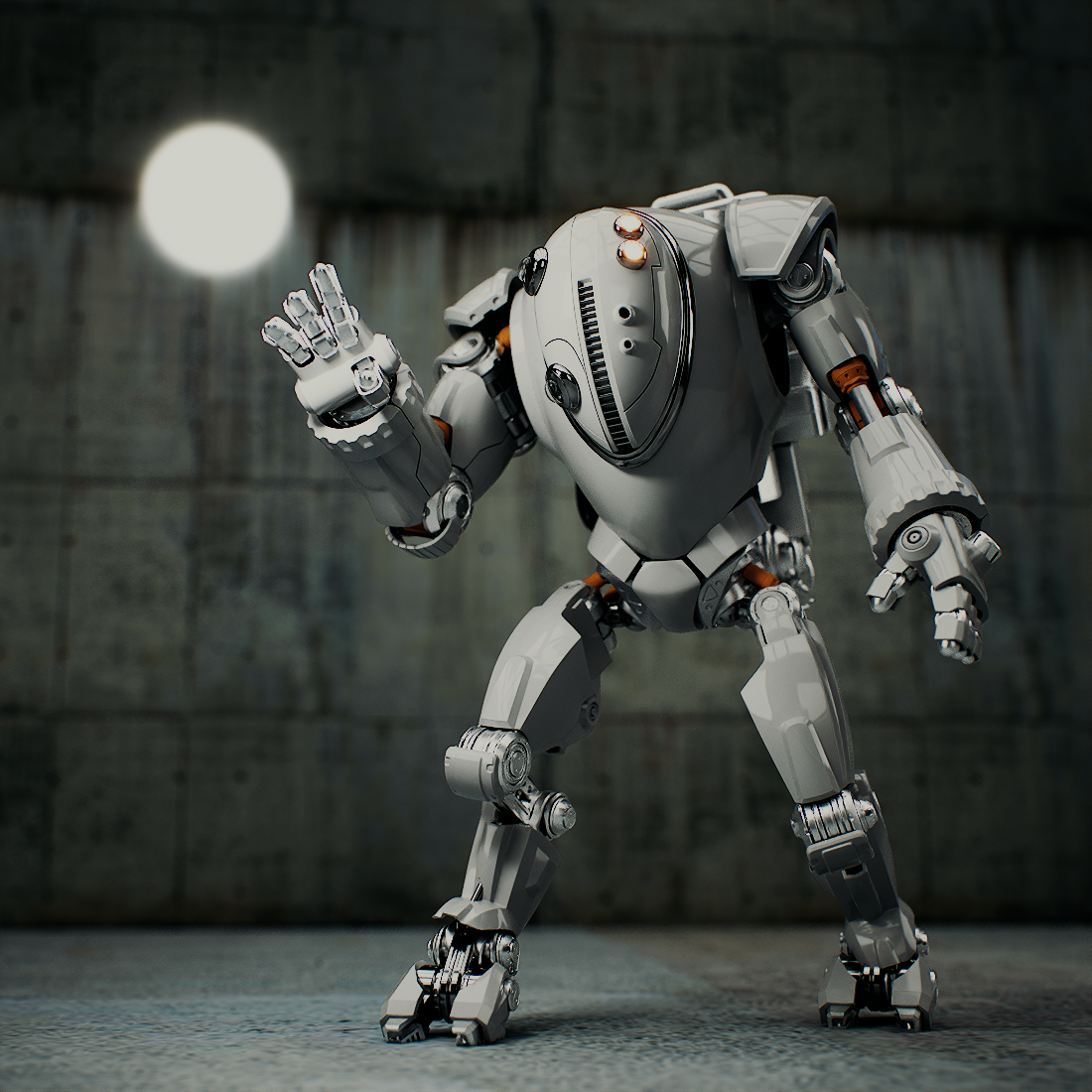
Affect specular is disabled.
Affect specular is enabled.