Corona for Cinema 4D
Corona Preferences
This page provides information about the settings in the Corona Preferences window.
Last updated 1 September 2026
This page provides information about the settings in the Corona Preferences window.
Overview
The Corona Preferences include settings that affect the behavior of the render engine.
UI Path: ||C4D Preferences window|| > Renderer > Corona

General Preferences
Show – This setting allows to choose error and/or warning messages that are shown during rendering.
Use external Web Browser – When disabled, Cosmos Browser and all Help messages (context help message and Chaos help messages) open in an integrated Cinema 4D web browser that is dockable within the Cinema 4D layout. When enabled, they open in the standard system web browser (Chrome, Firefox etc).
Enable tooltips – Enables the render settings tooltips.
Enable logging – Enables logging actions to the C4D's console dialog.
Suppress logging in interactive rendering – Disables the actions logging if the Interactive Rendering is active and running.
Number of threads – Number of cores to use for rendering. Positive values work in a straightforward way, a value of 0 uses all system cores, a value of -1 uses all cores but 1, and a value of -2 uses all but 2, etc.
Default bitmap in node editor – Specifies whether the default bitmap type in the Corona node material editor is Cinema 4D native bitmap or Corona Bitmap.

Preview quality – This value allows to adjust the quality of the material previews in the material editor (a value of 1 means the preview is displayed faster, but with less quality, while a value of 7 requires additional computation to create a more detailed preview in the material editor).
Use checker texture – When enabled, a checker texture is used for the background of the material preview. Note that this setting only influences newly created materials.
Use original Cinema 4D scene – When enabled, Cinema 4D's default sample scene is used instead to create/display the material preview. Note that this setting only influences newly created materials.

Physical Material Defaults
Normals filtering – Determines how normal and bump maps are filtered:
None – No filtering is applied to normal and bump maps, providing high accuracy but potential noise and flickering.
Linear – Normal and bump maps are filtered linearly, just like other map types, potentially affecting material appearance with varying camera distance and render resolution.
Roughness Modulation – Utilizes linear filtering for normal and bump maps while also adjusting material roughness to maintain consistent material appearance regardless of camera distance and render resolution. Default filtering method in Corona 11 and newer.
Roughness mode – Determines whether roughness or glossiness mode is used as a default one in the Corona Physical Material. Note that this setting only influences newly created materials.
IOR mode – Determines whether IOR (Index Of Refraction) or Disney Specular mode is used as a default one in the Corona Physical Material. Note that this setting only influences newly created materials.

Interactive Rendering (IR)
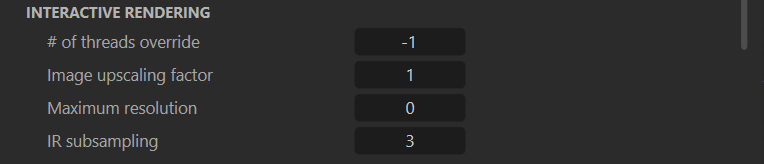
# of threads override – Number of cores to use for interactive rendering. Positive values work in a straightforward way, a value of 0 uses all system cores, a value of -1 uses all cores but 1, a value of -2 uses all but 2, etc.
Image upscaling factor – Specifies upscaling factor for the image rendered during interactive rendering. By increasing this value, render resolution gets reduced, which makes the interactive rendering more responsive. This might be useful for High-DPI displays.
Maximum resolution – This value sets the size limit for the rendered image when using the IR; e.g., If the image output size is set to 3,000 x 1,500 (W x H) and this value is set to 1,000, then IR uses an image output size of 1,000 x 500 as it takes into consideration the Film aspect ratio. A value of 0 means there is no limit at all.
IR subsampling – Values higher than 0 make the interactive mode render in a lower resolution for the first few passes. This makes it faster and more responsive but also "pixelated" for a few seconds until more passes are added.
Output Autosave
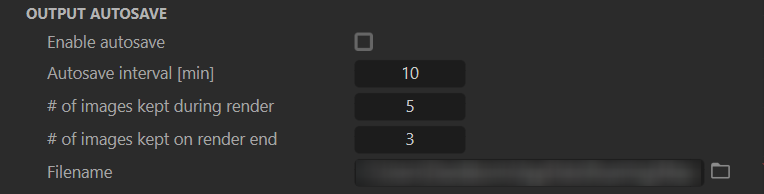
Enable autosave – When enabled, automatic saving of rendering output is used. Useful for comparisons and for backups in case Cinema 4D crashes.
Autosave interval [ min ] – The interval with which the render output is autosaved during rendering. The value is in minutes.
# of images kept during render – Number of most recent (auto)saved image files kept on the hard drive. After reaching this number of files, older images start to get replaced with newer ones. This value applies to the number of images which are being kept during rendering.
# of images kept on render end – Number of most recent (auto)saved image files kept on the hard drive. After reaching this number of files, older images start to get replaced with newer ones. This value applies to the final number of images after the rendering has finished.
Filename – Path and file name for the autosave file.
VFB Settings
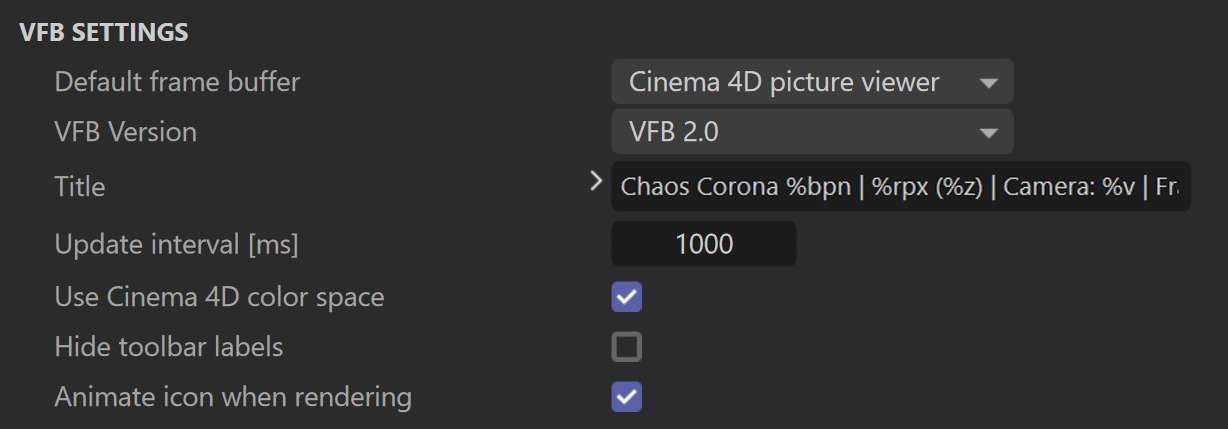
Default Frame Buffer – Sets the frame buffer type used for rendering. The available options are:
- Corona VFB - Uses Corona's own customized frame buffer with extra functionality (recommended).
- Cinema 4D Picture Viewer - Uses the Cinema 4D's default "Picture Viewer".
VFB version – Sets the default VFB version (VFB 2.0 or Legacy VFB)
Title – Window title of the Corona VFB. Using the little dropdown arrow next to the setting shows a list of variables that can be used in the VFB title to include various statistics and information (for example: current noise level, total elapsed time, number of rendered passes, current date and time):
Click here to see the available variables for the VFB title window...
Update interval [ms] – The interval (in milliseconds) at which the VFB is periodically updated. Decreasing this value gives more fluid feedback at the expense of processing power that could otherwise be spent on the rendering itself. When the VFB refreshing takes too much of the rendering time, Corona adaptively lengthens this interval to up to 5 times of the set value to maintain adequate rendering speed.
Use Cinema 4D color space – Enabling this parameter uses the native Cinema 4D color space for the active VFB.
Hide toolbar labels – When checked, this option hides the descriptive text labels that appear under the VFB toolbar icons, providing a more compact UI.
Animate icon when rendering – If checked, the Corona icon in the VFB title bar is animated to indicate that a render is in progress.
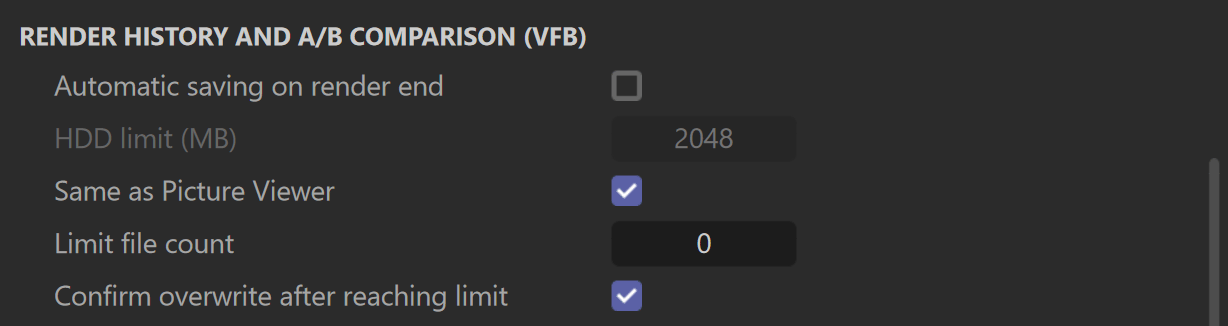
Render History and A/B comparison (VFB)
Automatic saving on render end – If enabled, then a new item is added to the render history in the Corona VFB after each render ends. If disabled, items are only added manually via the button in the VFB.
HDD limit (MB) – Maximum size in megabytes of the folder that holds the render history. If the size of all stored items exceeds this limit, then the oldest renders get automatically removed.
Same as Picture Viewer –When enabled, Corona uses the same memory limit for the Render History as it is set for the default Picture Viewer in Cinema 4D's Memory Preferences.
Limit file count – Sets a limit on the maximum number of renders that can be stored in the history folder. If this number is exceeded, the oldest renders are overwritten. A value of 0 means there is no limit on the number of files.
Confirm overwrite after reaching limit – When enabled, Corona displays a confirmation dialog before overwriting the oldest history image once the HDD or file count limit is reached.
Out-of-Core Textures
Enable size limit – When enabled, you can limit how much HDD space is used by out-of-core textures by specifying the exact amount of space taken in GB.
Cache size (GB) – This is the limit of the cache used for the Out-of-Core textures feature (in GB).
Keep minimum free space – When enabled, you can limit how much HDD space is used by out-of-core textures by specifying the percentage of total HDD space that must remain free.
Free space – This is the value of how much HDD total space is kept free when the Out-of-Core textures feature is enabled (in percentage).
Cache location – Specified the folder in which to store the out-of-core textures.

Product Usage & Licensing
Product licensing – Allows you to manage how Corona verifies its license.
Cloud licensing – When selected, Corona connects to the Chaos servers via the internet to validate your license. This is the default and most common licensing method.
Configure... – Opens a dialog for advanced license settings, such as connecting to a local license server.
Locate configuration file... – Opens the license configuration file location for use in specific network environments.
About & license activation... – Opens the Chaos Corona About window.
Chaos Corona About window

Send product usage data – Controls whether anonymous data about your use of the software is sent to the developers to help improve Corona.
Anonymized – Sends anonymous, non-personally identifiable data about software and feature usage.
Adjust shared data... – Opens the Chaos Telemetry window, where information about the telemetry program is displayed.
Save preview of collected data... – Saves the telemetry data onto a specified .txt file.
Automatically check for updates – Determines if and how Corona checks for new versions.
Official and Preview builds – Notifies you about both stable official releases and experimental preview (beta) builds. Beta versions include the latest features and fixes but may not be as stable as official releases. This option is ideal if you wish to test upcoming features.
Official builds only – This is the default setting. It checks for new, stable, production-ready Corona releases. This option is recommended if you want to be up to date with the latest releases.
Disabled – Corona does not automatically check for updates.
Re-check updates – Manually triggers a one-time check for available updates based on your selected preference (Official or Official and Preview builds).

Advanced
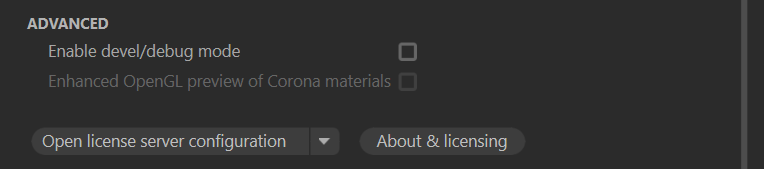
Enable devel/debug mode – Enabling this checkbox shows a new tab in the Render Settings with truly experimental, unfinished, and debug features. Only enable this if the Chaos staff requests it.
Enhanced OpenGL preview of Corona materials – Enabling this checkbox improves the material previews in the material editor. This checkbox is currently disabled as it is a legacy feature and it is no longer required in recent host app versions.
Open license server configuration – Launches the Chaos license settings dialog to manually set specific parameters in case the License server is installed on a different computer.
About & licensing – Launches the About dialog that shows the installed Corona version, installed Cinema 4D version and additional information.