Skip to content
07-848 2005

Enscape Envision, Cosmos Asset Library

AI Assets Generator

Use the Chaos Cosmos AI Assets Generator to create models and materials.

On this page
  1. Access the AI Assets Generator
  2. 3D Models
  3. Materials

Use the Chaos Cosmos AI Assets Generator to create models and materials.

Access the AI Assets Generator

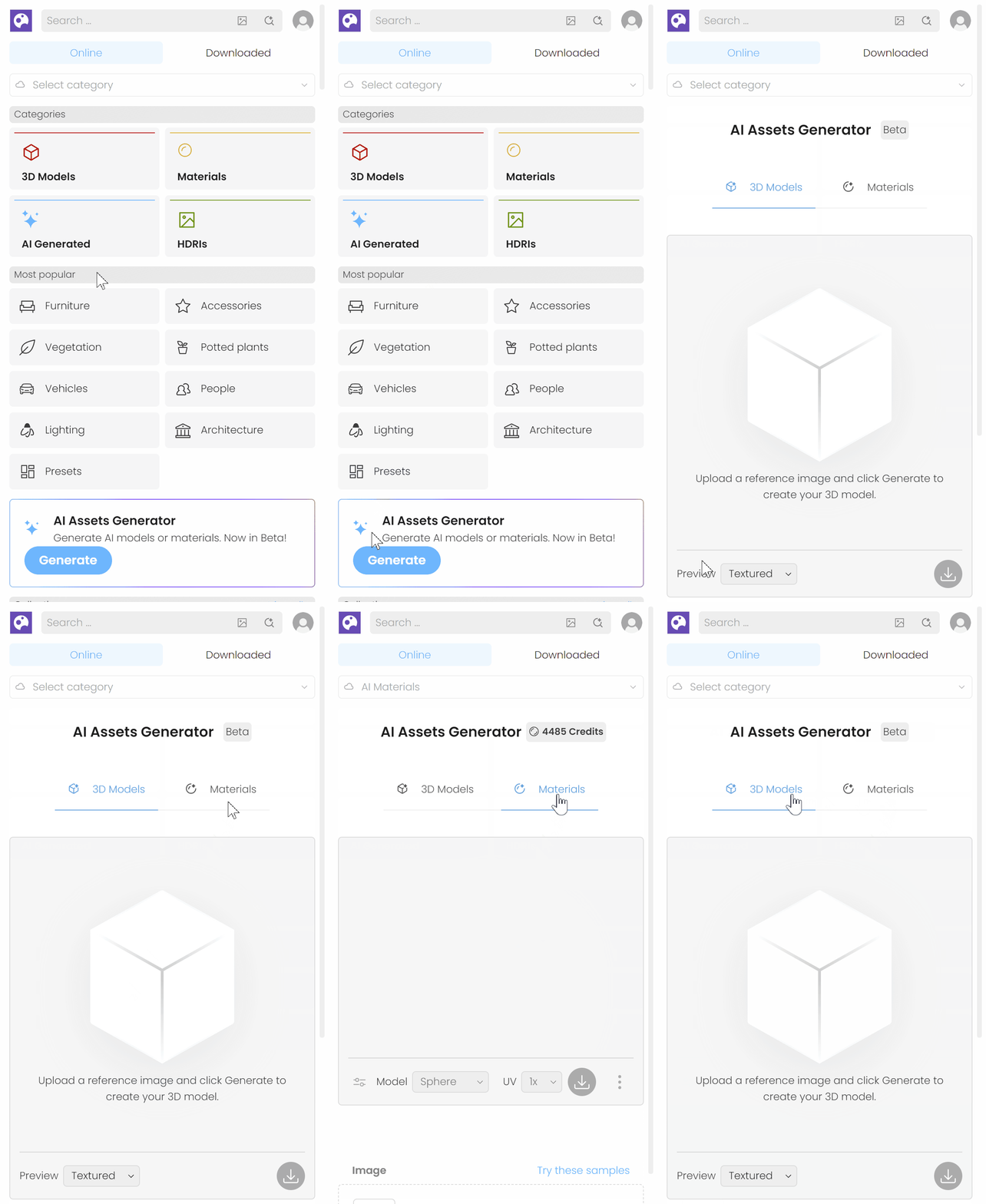
Open the Chaos Cosmos Browser / Cosmos Asset Library in your host platform. Make sure you are signed in to your account and have the latest version of Cosmos installed. From the Cosmos home screen, open the AI Assets Generator. Choose whether to create 3D Models or Materials.

3D Models

Materials
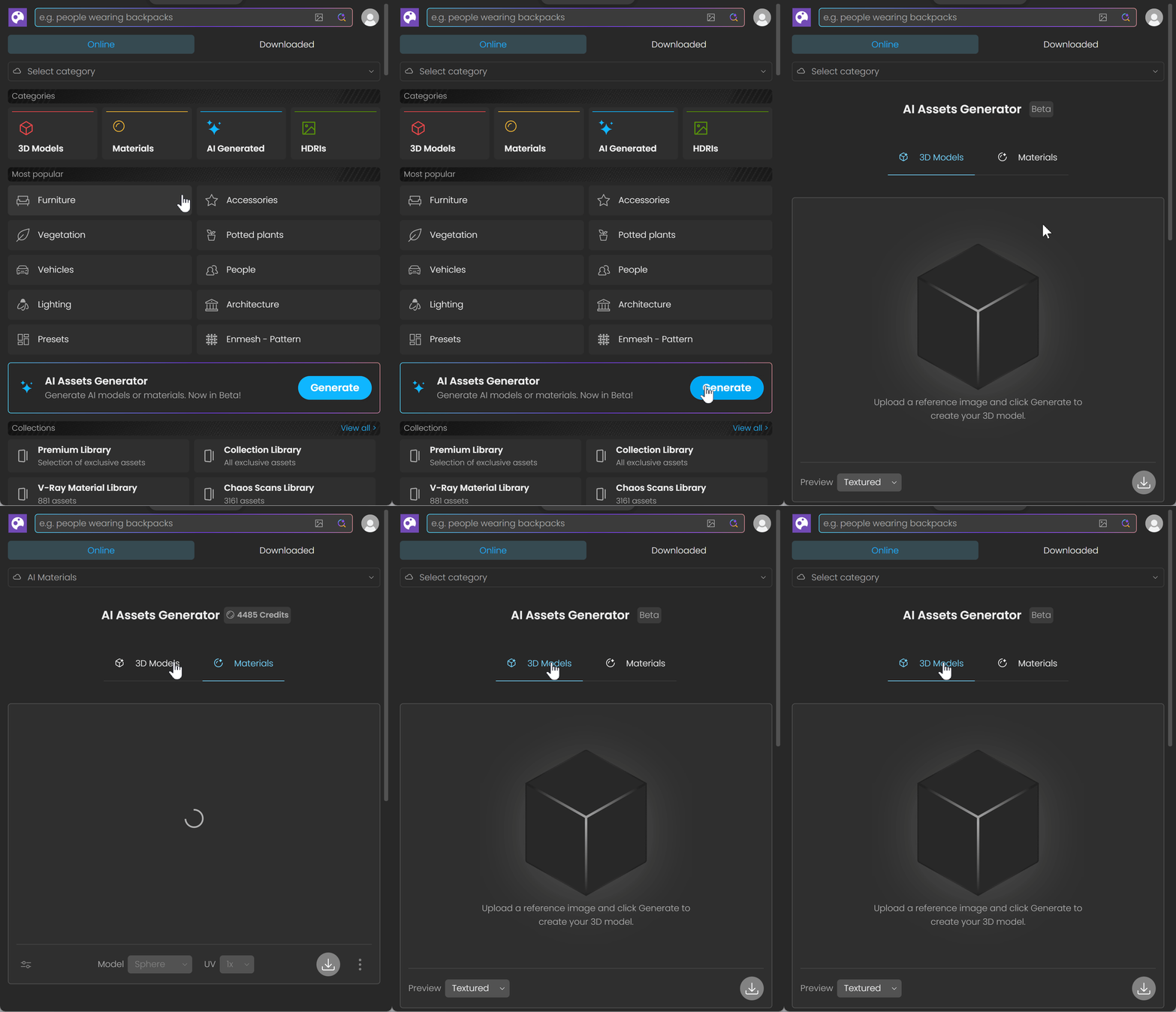
Chaos Cosmos Browser with 3D Models and Materials categories and the AI Assets Generator's Generate button.

Access the AI Assets Generator.

Cosmos Asset Library home screen with the AI Assets Generator panel and blue Generate button.

Access the AI Assets Generator in Envision.
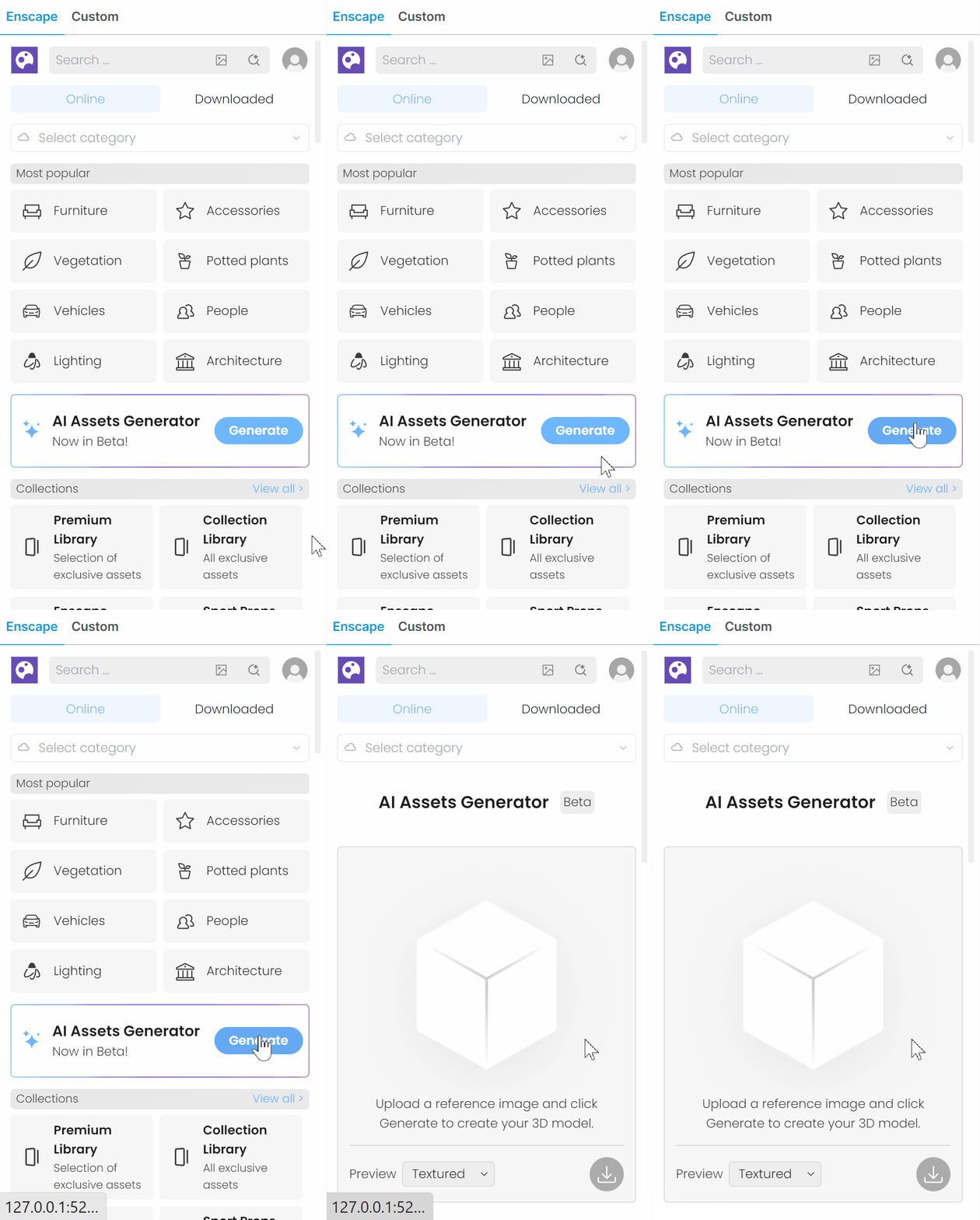
Envision asset library with the Enscape tab selected and the AI Assets Generator's Generate button.

Access the AI Assets Generator in Enscape.
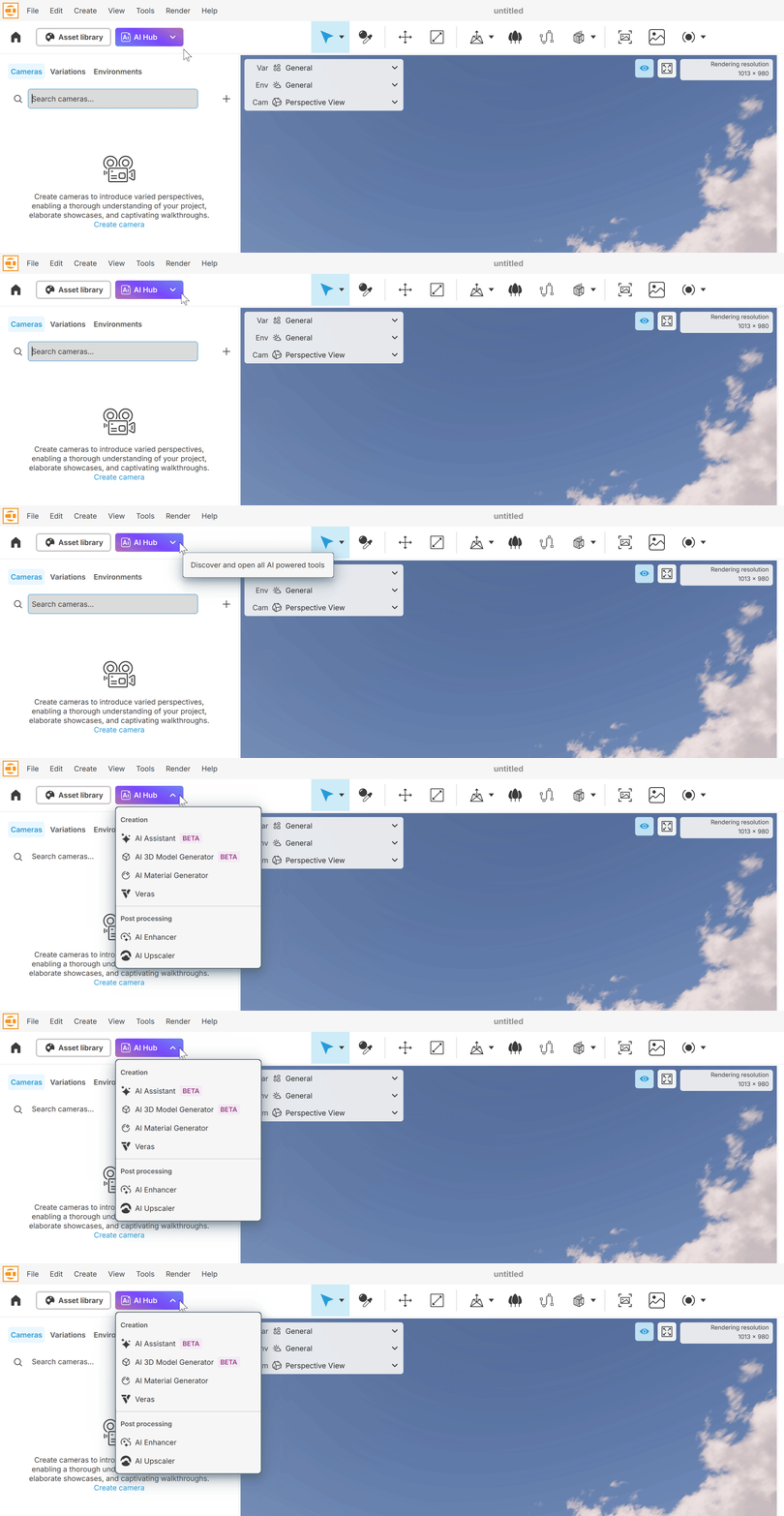
AI Hub button in the top toolbar for accessing AI Material and 3D Assets generation.
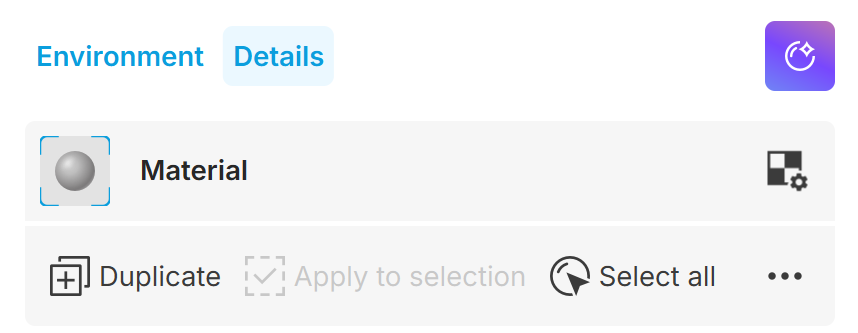
Material Editor Details panel with the purple AI Material Generator button at the top right.

Procadsys customer support

Still need help?

Licences, renewals and billing

Our New Zealand team looks after your Enscape licences, renewals and invoices.

Monday to Friday, 9:00 am to 4:30 pm NZ time, excluding New Zealand public holidays.

Technical problems

Installation errors, crashes and other technical problems with Enscape are handled by Chaos support.