Choose a UI theme and UI mode when you first open Enscape Envision.
Overview
When you first open Envision, the Envision Home welcome screen guides you through two steps: choosing an interface theme and choosing a workflow mode. Your settings apply immediately across the app, including in Cosmos, and stay in place between sessions.
The personalisation screen appears each time you open Envision unless you disable Show this screen on startup.
Start personalisation
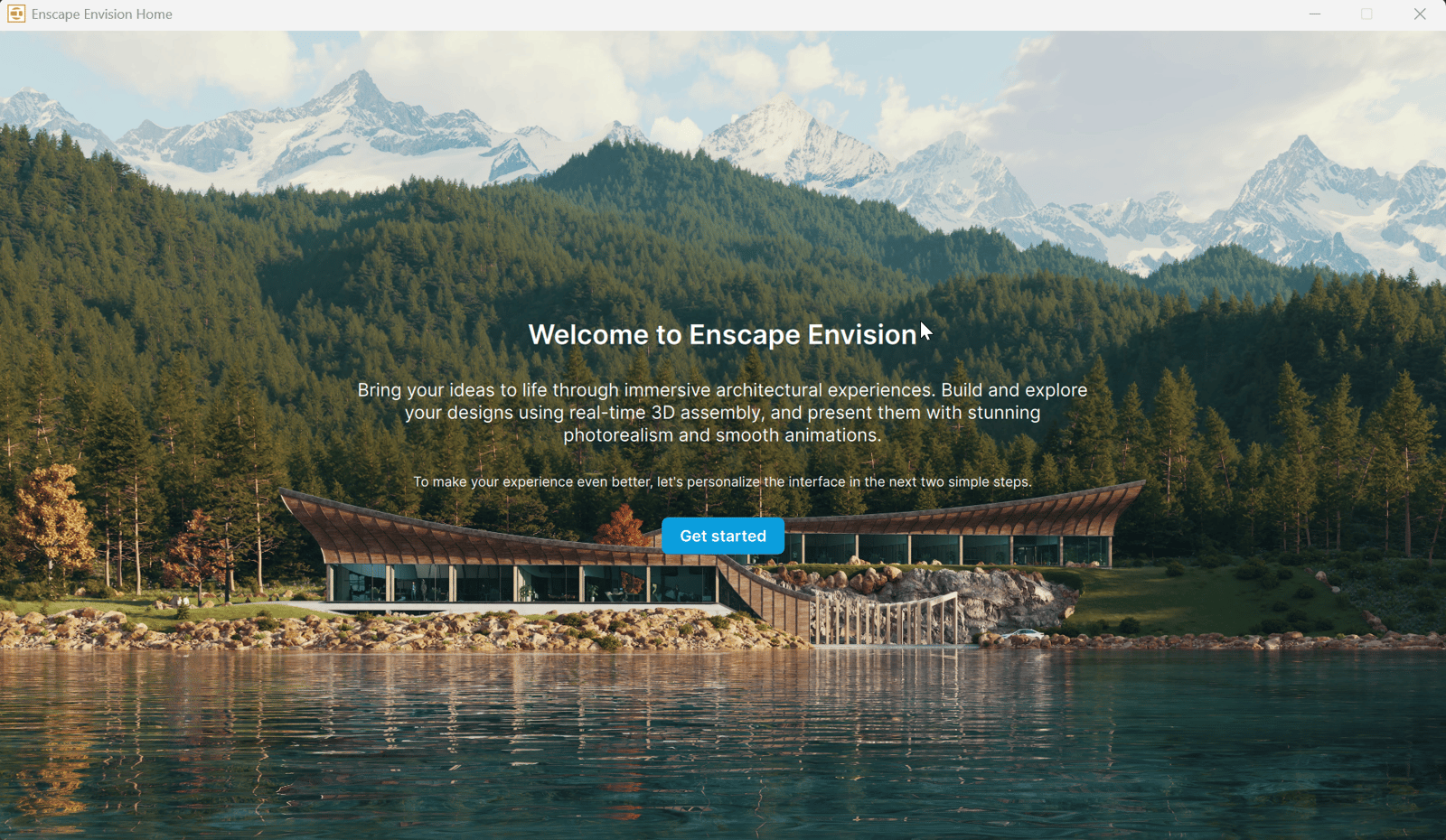
The welcome screen introduces Envision and guides you through two setup steps. Click Get started to begin.
Step 1: Select your UI theme
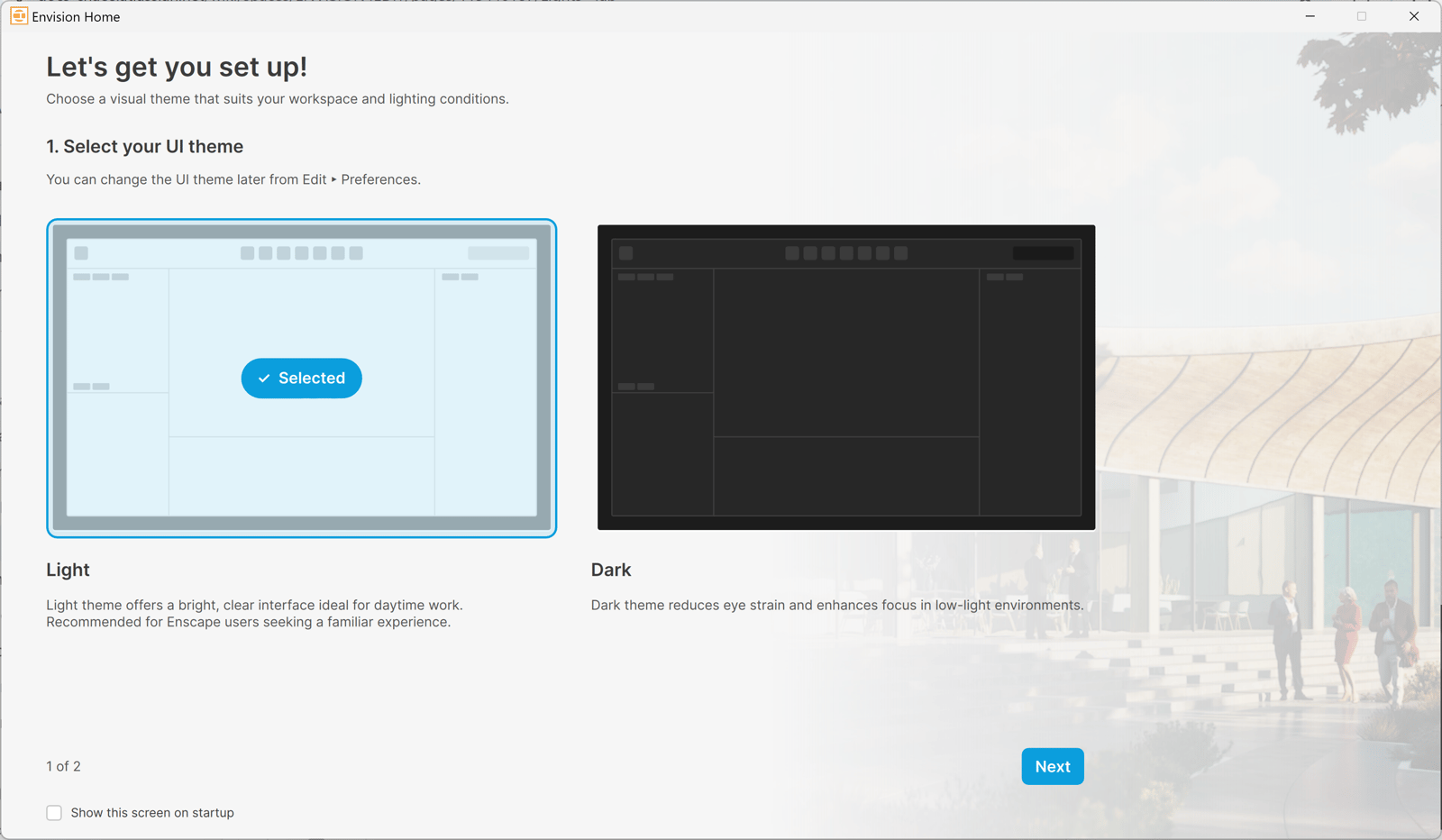
Choose between two interface themes to set how Envision looks.
Light is a bright interface for daytime work. It is recommended if you are familiar with the Enscape interface.
Dark is a darker interface that reduces eye strain in low-light environments.
Click a theme card to preview it. The card is highlighted and shows the Selected label. Only one theme is active at a time.
Click Next to choose your UI mode.
Step 2: Select your UI mode
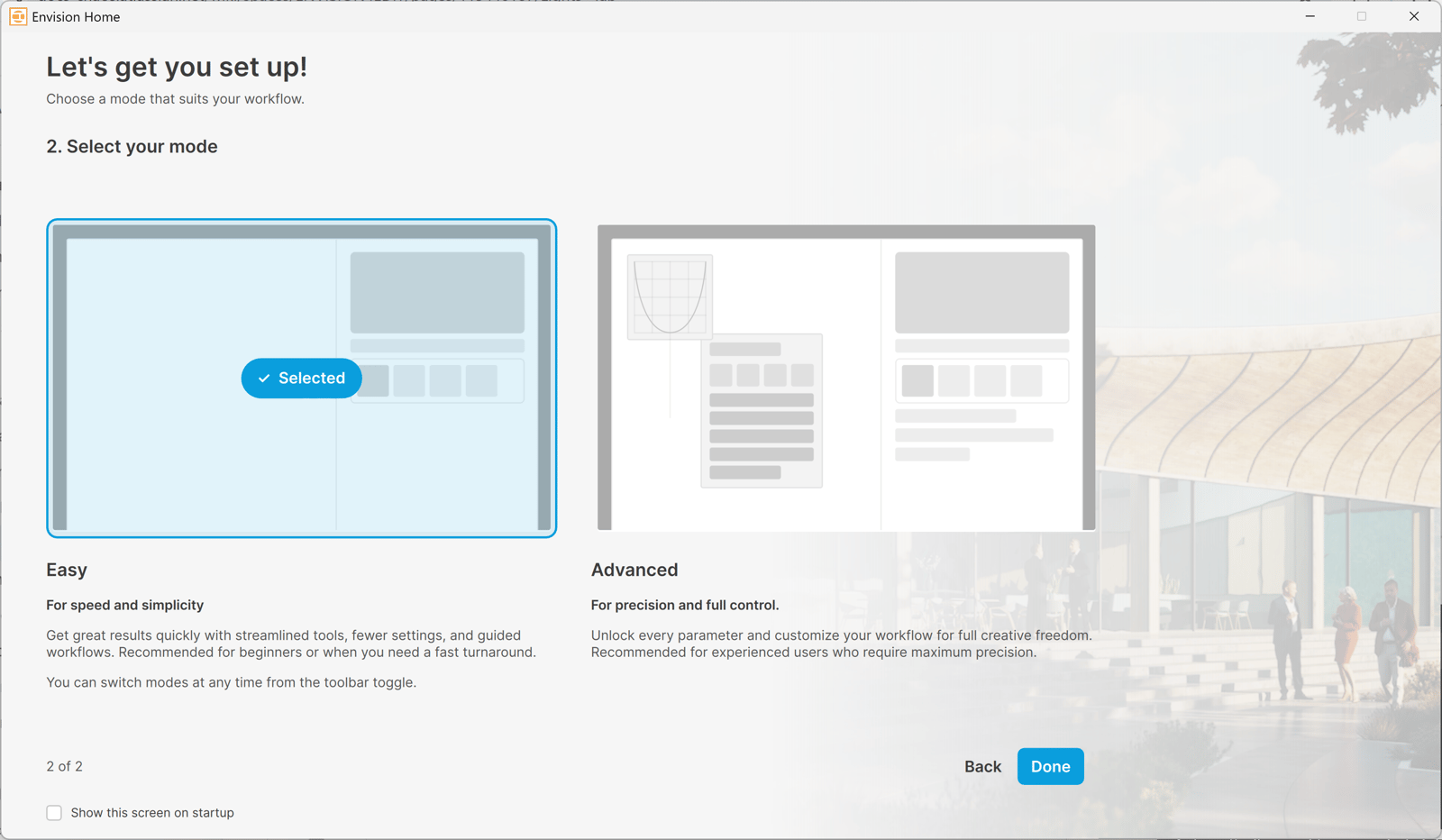
Choose between two UI modes to set which tools and settings you see.
Easy has fewer settings and guided workflows. It is recommended for beginners and projects with a short turnaround.
Advanced shows every parameter for full control over your workflow. It is recommended for experienced users who need maximum precision.
Click a mode card to preview it. The card is highlighted and shows the Selected label. Only one mode is active at a time.
Click Back to return to theme selection. Click Done to apply both selections.
Keep Show this screen on startup disabled to hide the personalisation screen next time you open Envision. The option is in the bottom-left corner of the personalisation screen.
With the option disabled, Envision opens directly with your most recently selected theme and mode next time. To enable the screen again, open Edit > Preferences.