V-Ray for 3ds Max
V-Ray IPR
This page provides information on V-Ray IPR within 3ds Max.
Last updated 21 May 2026
This page provides information on V-Ray IPR within 3ds Max.
Overview
V-Ray Interactive Production Rendering (IPR) provides interactive rendering using the V-Ray and V-Ray GPU renderers.
Settings for the behavior of the VFB when using IPR rendering can be found in the IPR options rollout (Render Setup window > V-Ray tab) for the V-Ray renderer and in the Render Settings rollout (Render setup window > V-Ray tab) for the V-Ray GPU renderer.
Using V-Ray IPR
The IPR option is accessible from the V-Ray Frame Buffer (VFB).
To use V-Ray IPR:
In the Render Setup window, make sure the render engine is set to V-Ray. To open the VFB, click the Last VFB button on the Toolbar, or go to the respective Render Setup rollout for V-Ray or V-Ray GPU engine.

When the Renderer is V-Ray, the IPR options rollout appears under the V-Ray tab.
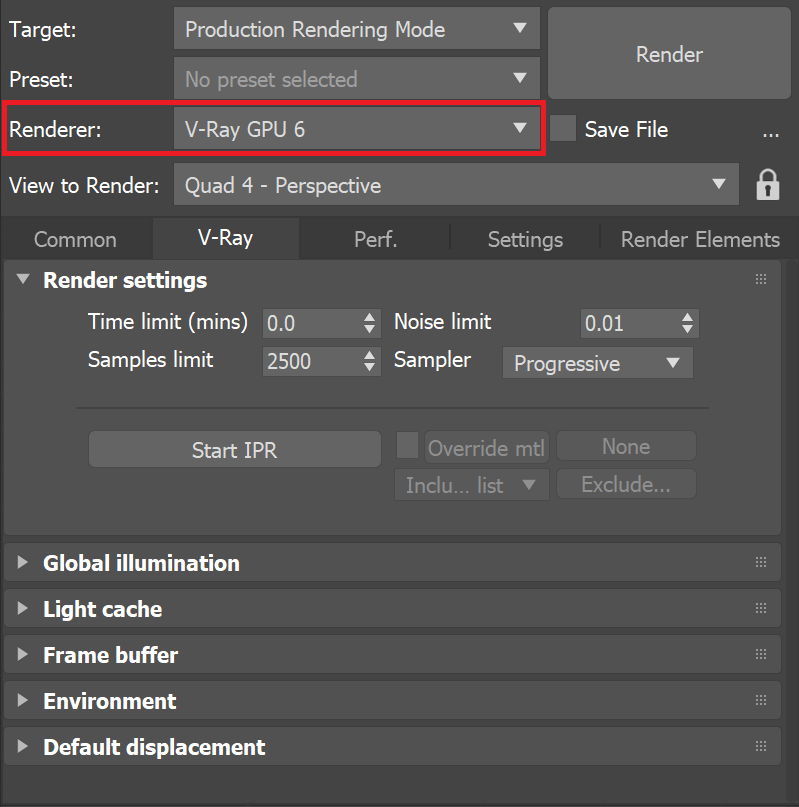
When the Renderer is V-Ray GPU, the IPR options appear under the Render settings rollout of the V-Ray tab.
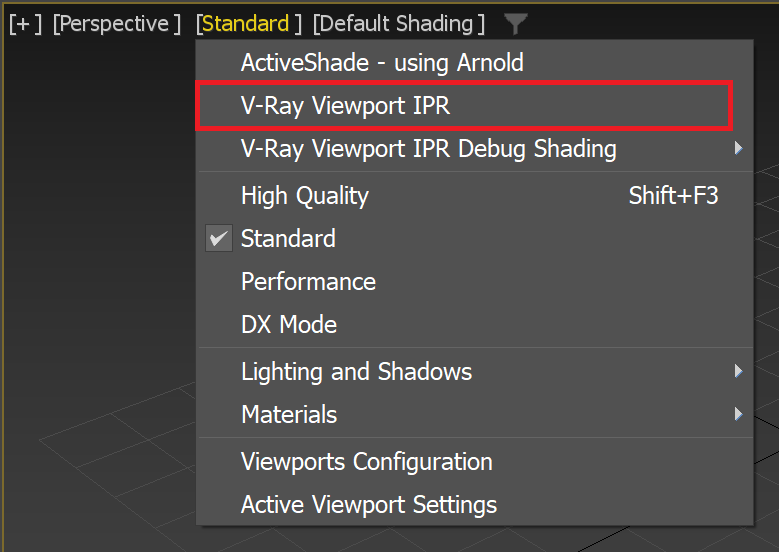
V-Ray Viewport IPR is accessible through the Shading menu of the Viewport
- To start IPR, click the Start interactive rendering button on the VFB toolbar. You can make changes to the scene while rendering continues, and the changes are rendered automatically.

Click on the image to view it in full size
Make sure you've selected the right camera to render from. If you have more than one camera in the scene, hold the left mouse button on the Start interactive rendering button to display the list of cameras.

Click on the image to view it in full size
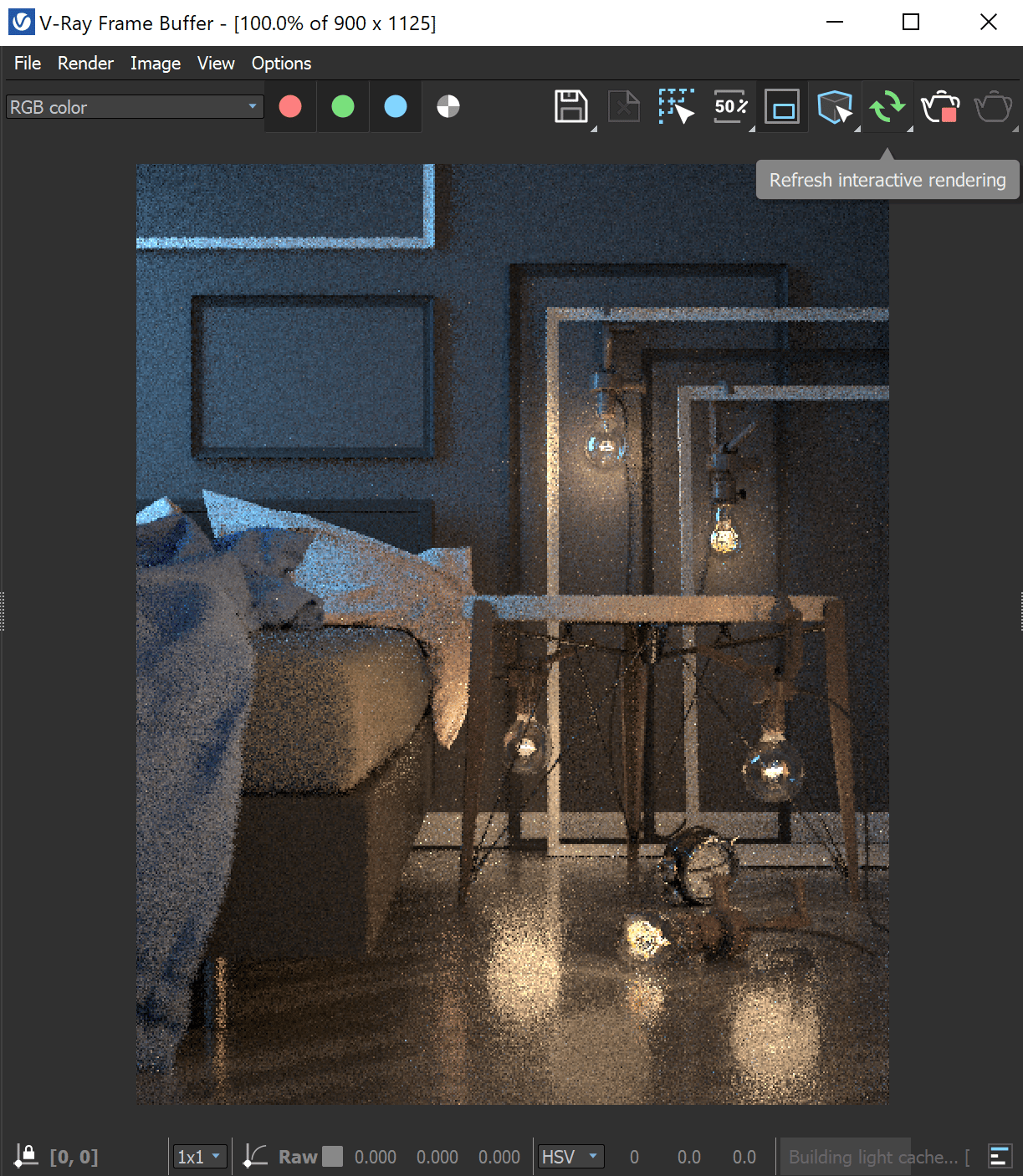
2. When the scene is rendering, the Start interactive rendering button changes to the Refresh interactive rendering button. Click this button to restart the rendering at any time. The progress bar at the bottom of the V-Ray Frame Buffer tracks the rendering progress of the current scene.
Click on the image to view it in full size
3. Use the Stop rendering button to stop V-Ray IPR. After stopping, you can click Start interactive rendering again to restart IPR.

Additional Features
While IPR is running, if the Fit resolution to VFB option is enabled in the IPR options rollout, the render refreshes to fill the VFB when the VFB window is resized. The render output size also changes accordingly. The same setting for V-Ray GPU can be found in the V-Ray tab > Frame buffer rollout > Fit IPR resolution to VFB.

Rendering at Original Size (926 x 1158)

Rendering with VFB Resized (791 x 989)
In addition, the IPR rendering refreshes whenever the Region Render area is redrawn.

Original Region Render

IPR refreshes as the Region Render area is altered.
Viewport IPR
Viewport IPR rendering offers a number of benefits to the production process.
It is accessible from the ||Viewport menu|| > Shading > V-Ray IPR.
Viewport IPR uses the currently set render engine (V-Ray or V-Ray GPU).
You can stop the interactive rendering from the same menu. It also gives access to the Debug Shading options.
Viewport Parameters
These settings control the way IPR works in the Max viewport.
Isolate Selected – Renders only the selected object(s), while the rest of the scene is rendered black. You can also select materials/textures nodes and all of the objects with the shader are isolated.
Isolate Locked Selection – Renders only the locked object for shading.
Lighting – Renders only the light contribution in the scene.
Ambient Occlusion – Shows only the ambient occlusion in the scene.
Wireframe – Shows the rendered objects in wireframe.
Normals – Shows the normals of the rendered objects.
UVs – Displays the UV coordinates of the rendered objects in color grade.
Barycentric coordinates – Displays the Barycentric coordinates of the rendered objects.

Notes
- V-Ray IPR renders V-Ray Render Elements, although it does not track changes to the render elements and the render needs to be refreshed.
- V-Ray IPR doesn't support 3ds Max default lights.
- If V-Ray Viewport IPR option is not showing in the Shading menu, see the Registers the V-Ray menus function on the Toolbar page.
- VFB Color Corrections are now applied to the Viewport IPR. Note that the control panel resides in the VFB.
- V-Ray IPR can be paused from the Pause icon in VFB when the render engine is set to V-Ray GPU.