V-Ray for 3ds Max
VRayGaussiansGeom
This page provides information on the V-Ray Gaussian splatting models.
Last updated 22 May 2026
This page provides information on the V-Ray Gaussian splatting models.
Overview
3D Gaussian Splatting is a method used to create a 3D scene from images or videos. It requires several different pictures of an object, each taken from a different angle. With Gaussian Splatting, the images are blended together to produce a detailed, three-dimensional representation of the object. Instead of depicting the scene as a collection of meshes, a Gaussian splat represents the scene as a type of point cloud, where each point is a 3D Gaussian.
UI Paths


Gaussian Splat Usage
Used as an Extended Environment
One use of Gaussian splats is to represent an environment generated from photos or videos of the scene.
There are advantages over the traditional environment maps, including proper parallax and view-dependent effects and the ability for Gaussian splats to occlude other objects in the scene.
For Gaussian splats to work as environments in V-Ray, the Affect matte surfaces option should be enabled, and the Affect shadows option should usually be disabled.
See the example.
On Other Matte Surfaces
To render the Gaussian Splats as part of the background, i.e., visible on other matte objects even if they are behind them, enable the Affect matte surfaces option from the Gaussian splats parameters.
See the example.
Used as Individual Objects
Gaussian splats can also be used to represent smaller individual objects in the scene. In that case, the Affect matte surfaces option is turned off, and the Affect shadows option is enabled. The latter is needed so that the Gaussian splats can cast proper shadows on other objects in the scene.
Note that the lighting and reflections are baked into the Gaussian splats object, and therefore, these objects are not affected by the scene lighting.
See the examples.
General
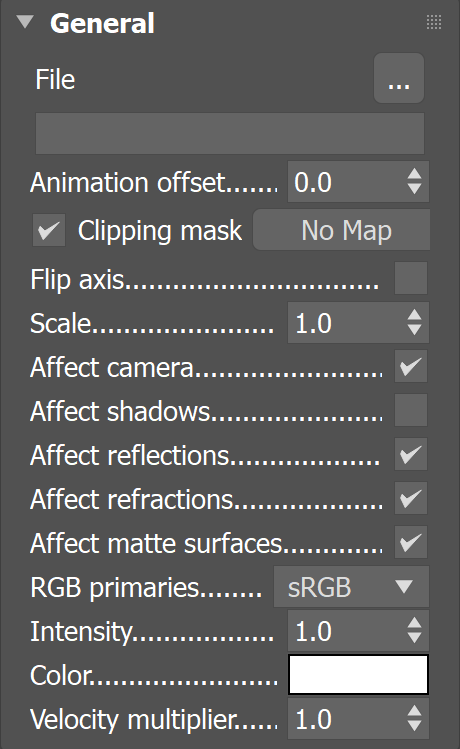
File – Specifies a .ply file.
Clipping mask – The Clipping mask can be used to include or exclude areas of a splat or blend between two or more splats with the help of additional objects (primitives) added in VRayDistanceTex. 3D procedural textures are also supported as clipping masks. See the Clipping mask example for more information.
Clipping Mask Workflow


Flip axis – Flips the axis, which is a rotation to -90 degrees around the X axis.
Scale – Allows the Gaussian splat to be scaled up or down.
Affect camera – Specifies if the Gaussian splat is visible to camera rays.
Affect shadows – Specifies if the Gaussian splat affects shadow rays.
Affect reflections – Specifies whether the Gaussian splat is rendered in reflections.
Affect refractions – Specifies whether the Gaussian splat is rendered in refractions.
Affect matte surfaces – Computes Gaussian splats behind matte objects as part of the background.
RGB Primaries – Specifies the color space of the Gaussian splat's data.
Intensity – Multiplies the Color parameter. Increasing the value boosts the effect.
Color – Specifies the main color tint for the Gaussian splat - white color makes no changes.
Velocity Multiplier – Multiplies the original velocity by the specified value.
Example: Clipping Masks
This example shows how to blend a Gaussian splat with a modelled scene in 3ds Max using a clipping mask to remove some unwanted objects from the render.

This is the Gaussian splat that we want to use as a natural environment for the scene.
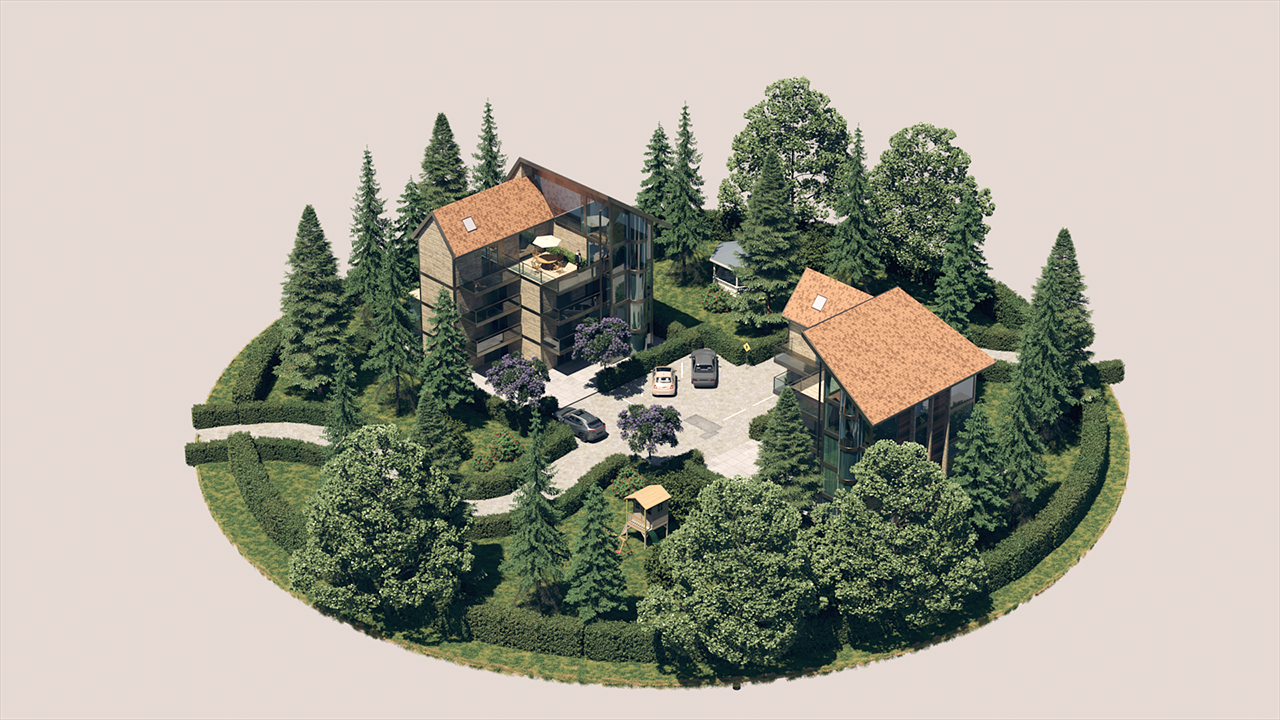
The image shows the geometry we want to blend in with the Gaussian splat.
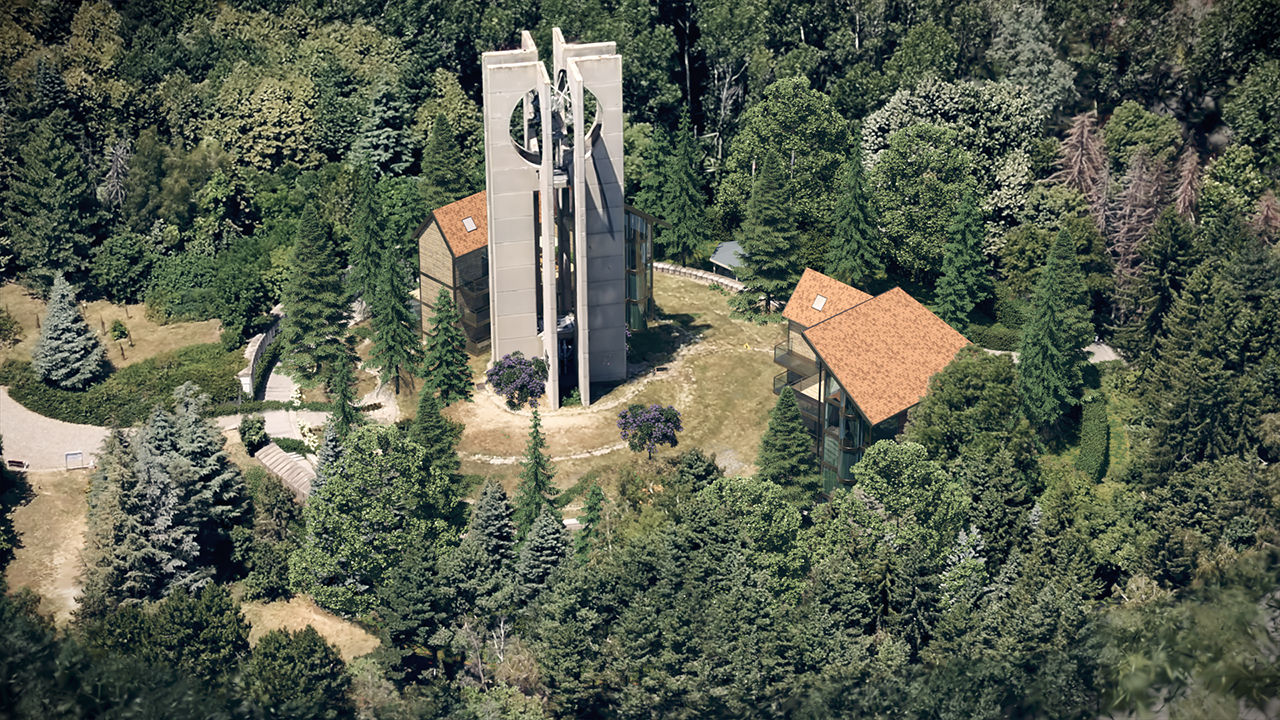
This render shows the Gaussian splat and the modelled geometry that are set to form a new scene. No further adjustment is done here.

This image shows a cylinder that is used as an object in the VRayDistanceTex. The VRayDistanceTex Inside options are used to make the cylinder cut out the bell tower from the scene.
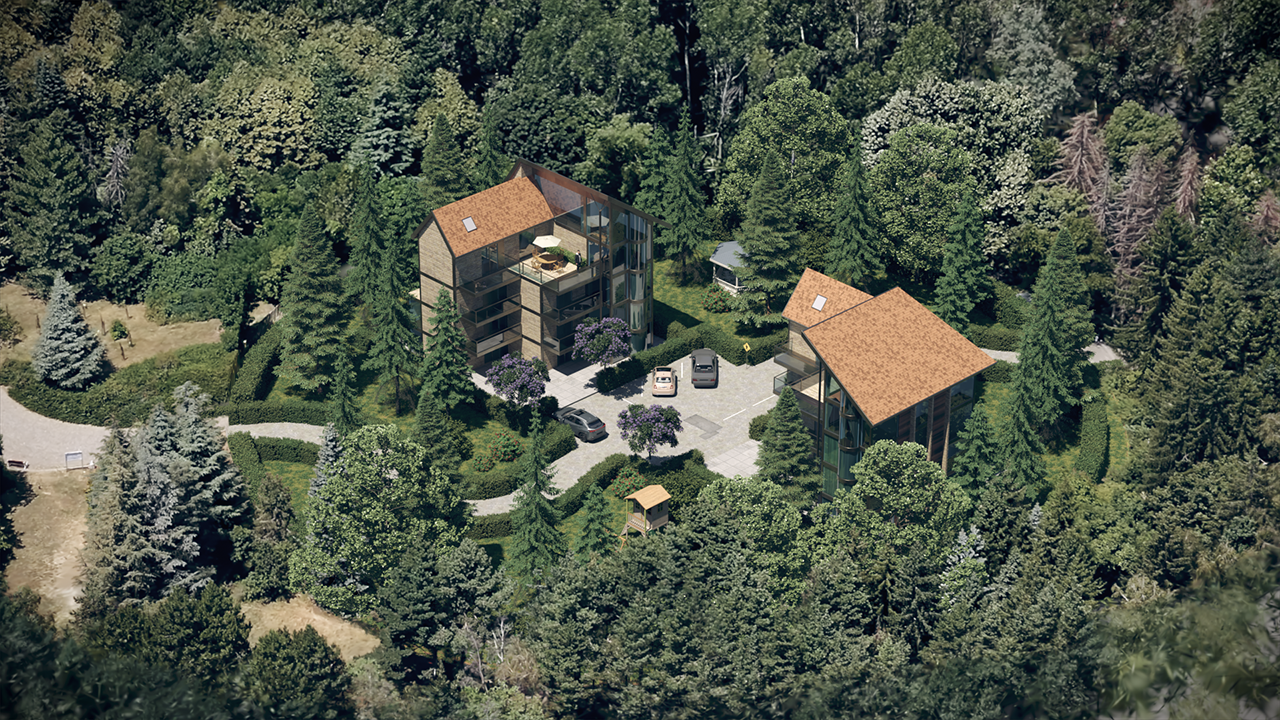
This image shows the final render with the Gaussian splat parts clipped out from the scene.
Example: Scale
This example shows Gaussian Splat used as an individual object - the pink flamingo floatable in this scene. It can be scaled as any other object in the scene, using the Scale parameter.

Scale
= 0.5

Scale
= 1

Scale
= 1.5
Example: Primary Visibility
The Gaussian Splat object can be hidden from the camera, like any other geometry object in the scene, by using the Primary Visibility option.

On

Off
Example: Affect reflections
The Affect reflections option controls if the Gaussian Splat object is reflected in other objects in the scene.

On

Off
Example: Affect refractions
The Affect refractions option makes the Gaussian Splat object seen by other objects in the scene that exhibit refractive properties.

On

Off
Example: Affect shadows
This example shows how the pink flamingo can produce shadows when the Affect shadows option is enabled and doesn't block light when it's not.

On

Off
Example: Affect matte surfaces
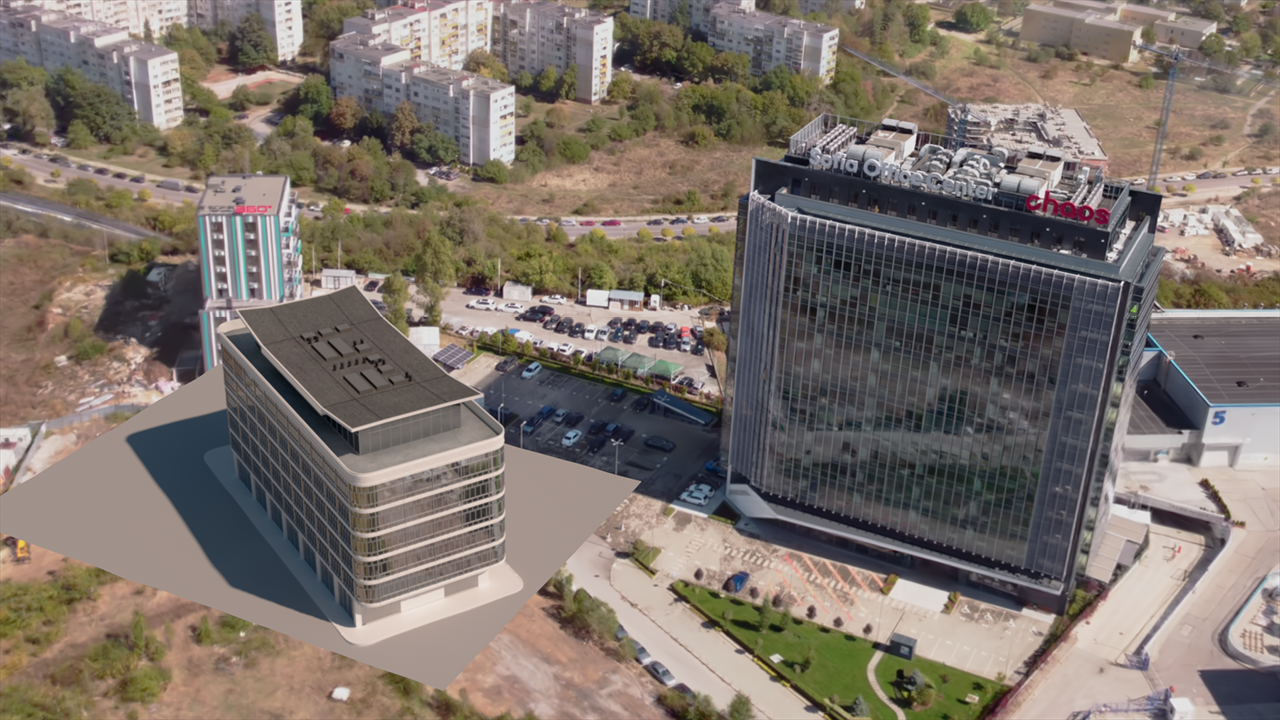
In this example, the Gaussian Splat is used as an environment. The left building in the rendering that Affect shadows over the plane, is a Cosmos asset (mesh).
When Affect matte surfaces option is enabled, the Gaussian Splat is considered as background and receives shadows from the casting object.
On

Off
Example: Color
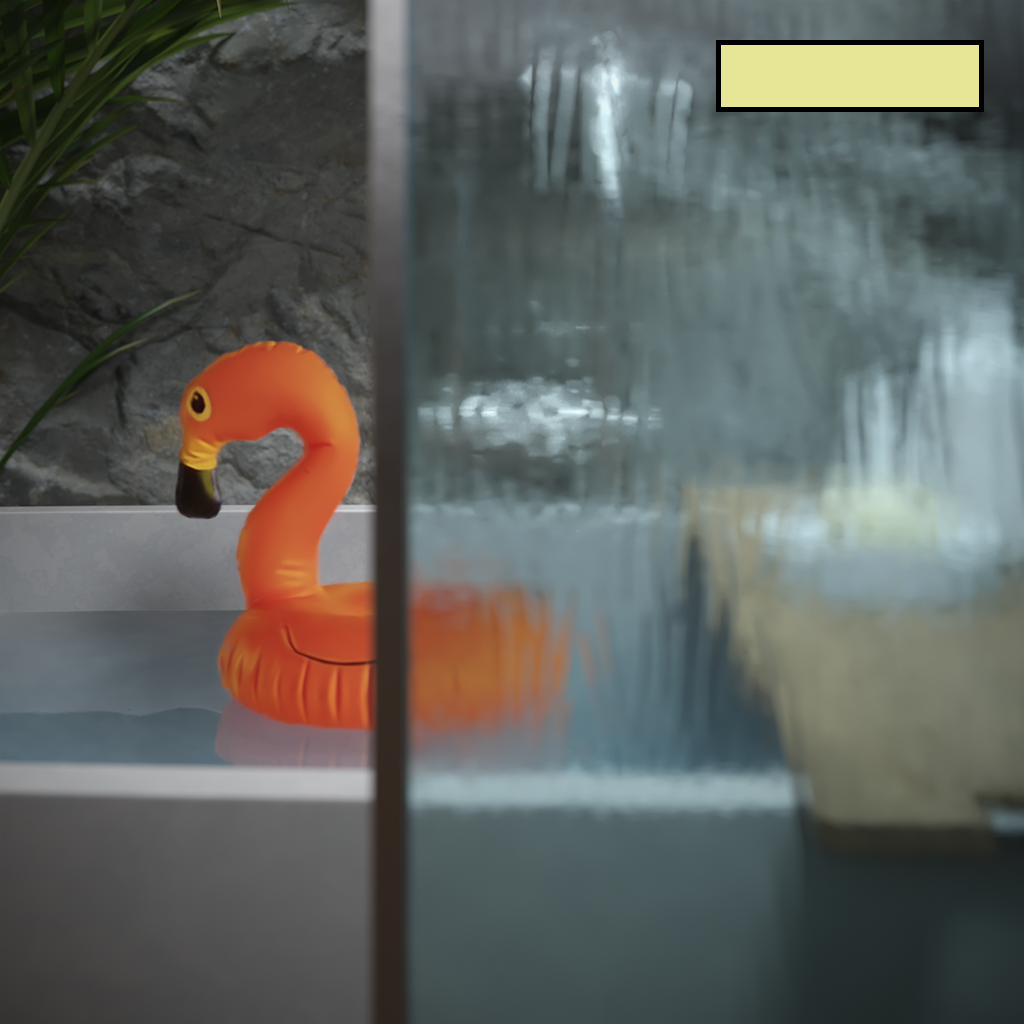
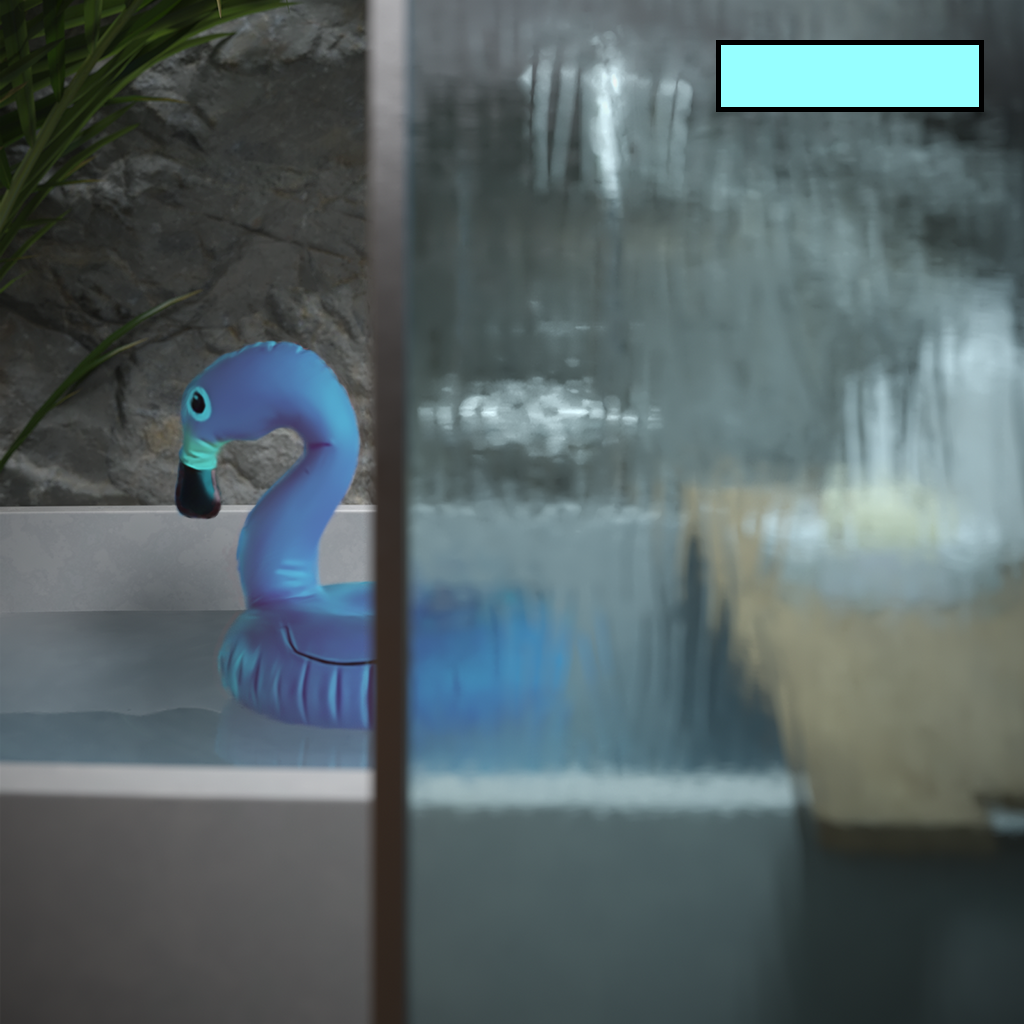
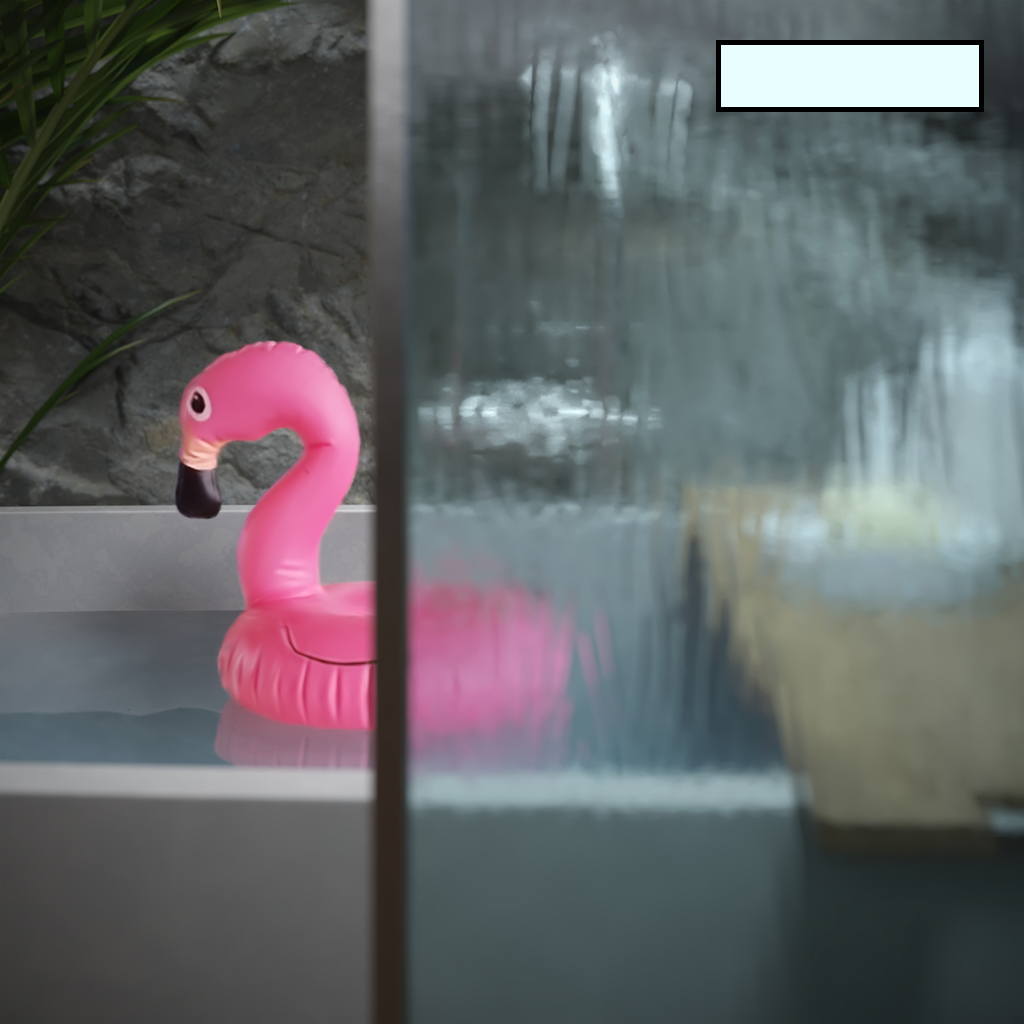
The Color shown on each render as a box is used as a filter for the original Gaussian Splat diffuse color.


Viewport
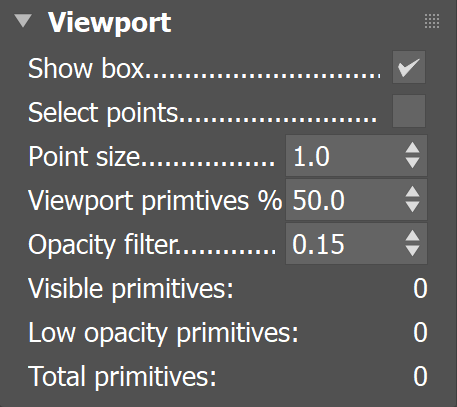
Show box – Displays a bounding box in the viewport.
Select points – When this option is off (default), click on the box or the splat name in the viewport to select the splat. When it is on, click directly on the point cloud in the viewport to select the splat.
Point size – Displays the size of the points forming the splat cloud.
Viewport primitives % – Determines what percentage of the cloud points is visible in the viewport.
Opacity filter – Controls the opacity of the Gaussian Splat viewport preview.
Visible primitives – Displays all visible primitives in the Viewport after they were filtered by opacity.
Low opacity primitives – Displays primitives that were hidden and excluded from the bounding box calculation due to their low opacity. Most of the time, these are primitives that do not directly form a solid shape.
Total primitives – Displays all the primitives when the object is loaded.
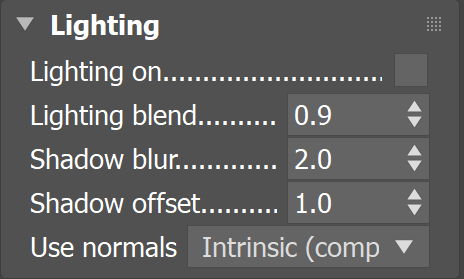
Lighting
Lighting On – Enables the lighting for this instance.
Lighting Blend – Specifies the blending ratio between the splats' original color and the illuminated result.
Shadow Blur – Specifies the blur distance of the illumination in world units.
Shadow Offset – Offset for computing the illumination in world units.
UseNormals
Disable – Disables normals when computing the lighting.
Intrinsic (compute if needed) – Forces the usage of computed normals, ignoring any intrinsic normals.
Computed (force calculation) – Uses intrinsic normals, if they are present. Otherwise, computes normals from scratch.