V-Ray for Maya
Bifrost and V-Ray in Maya
This page describes how to use the Bifrost feature in V-Ray for Maya.
Last updated 1 September 2026
This page describes how to use the Bifrost feature in V-Ray for Maya.
Overview
Bifrost in Maya is a procedural framework for simulating liquid effects using a FLIP (fluid implicit particle) solver. This page discusses using Bifrost in conjunction with V-Ray for Maya.
See the Maya Supported Versions page for information on the compatibility between V-Ray and Bifrost.
Bifrost and V-Ray 7.4 or Newer
V-Ray 7, update 4, and newer versions (Maya 2024 and newer) support direct rendering of Bifrost Graphs. This requires Bifrost 2.14.1 or later. The results of the output node in the graph can be exported and rendered by V-Ray. No additional steps are required.
Here is a list of the currently fully supported features:
- Output Types:
- Meshes
- Strands
- Instances
- Assigning an existing V-Ray material through the assign_material node in the graph
- Rendering animations
- Detecting graph changes in V-Ray IPR rendering

Bifrost and Maya 2016 and Newer Versions
Direct rendering of the Bifrost iso-surface
To render the Bifrost iso-surface directly, disable the meshing and make sure you don't turn off Export Voxels in the Bifrost Options Extra attributes.
Rendering Bifrost as VRayMetaball
To render a Bifrost liquid or foam shape as a VRayMetaball iso-surface, add Bifrost Options Extra attributes and turn on Export Particles. Then hide the shape, so you don't render it twice. In the VRayMetaball node, select the bifrostShape node as Positive Particle System. You can also use the preview to adjust the settings.
Rendering using Alembic Cache
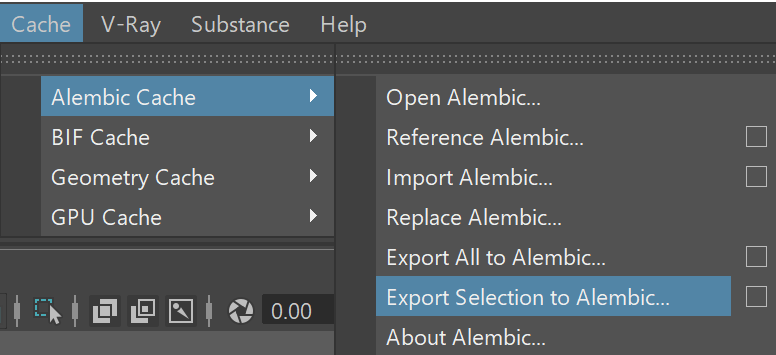
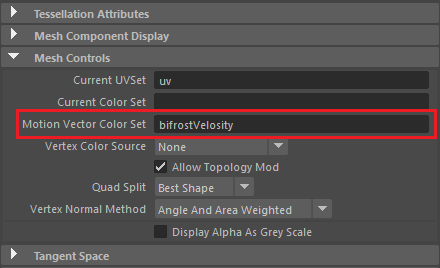
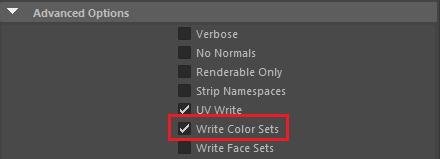
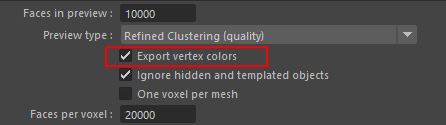
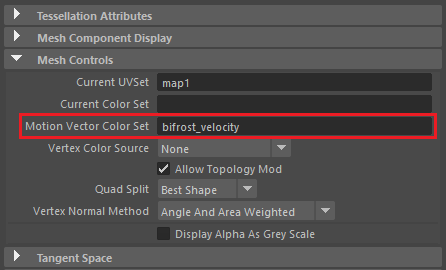
This is the preferred way to render Biforst with V-Ray. Select the Bifrost mesh (not the bifrostShape node), and from the Cache menu, export the selection to Alembic. Don't forget to turn on the color set export from the options dialog. After the import, set the Motion Vector Color Set attribute of the mesh node to bifrostVelocity.
Rendering using VRayMesh
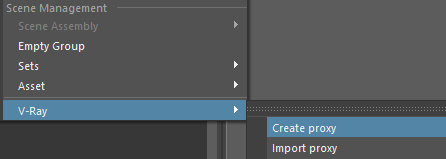
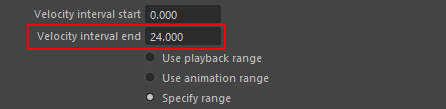
Alternatively, the Bifrost mesh can be exported to a V-Ray proxy mesh which provides more flexible rendering. Because Bifrost exports its velocity information per second, not per frame as expected, the velocity interval must be tweaked slightly in case you need motion blur. Velocity interval end should be changed to the number of frames per second, e.g., 24.
Direct rendering of the Bifrost mesh
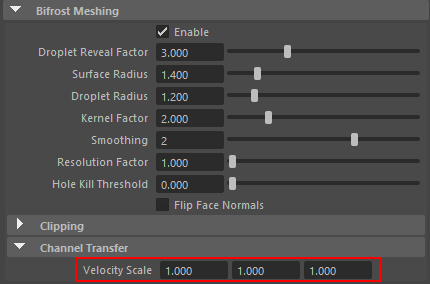
It's also possible to directly render the Bifrost mesh, but this may be slower, especially with motion blur. Because Bifrost exports it's velocity information per seconds, not per frame as expected, you must scale it using the Velocity Scale attribute of the bifrostShape node. The value must be 1/ frames per second, which for the default 24 is roughly 0.042. All three components must be set to this value.
Rendering Bifrost USD Graphs
Since V-Ray 5, update 2 (version 5.20.02), V-Ray supports rendering of Bifrost USD graphs. To render them, you need to have these minimum versions:
- Maya 2020
- Bifrost 2.4.0.0
- MayaUSD 0.16.0 (USD 21.11)
Bifrost and Maya 2015
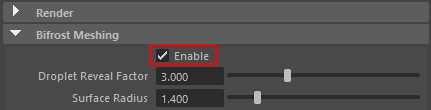
To render Bifrost in Maya 2015, start by turning on the meshing in the BifrostShape node AE. V-Ray does not support direct rendering of Bifrost geometry in this Maya version (Maya 2016 or later is required).
Additional Notes
Support for bifrostLiquidMaterial
V-Ray has limited support for the Bifrost Liquid Material, and the foam component of the material is not fully supported.
The reflection highlights are calculated according the Blinn shading model, not the one used in Mental Ray.
Only Fresnel reflections are supported; unchecking this option causes full reflections to be calculated.
Tips for working with Bifrost meshes
If you can't get Bifrost to properly load each frame from the cache, try disabling the Enable Background Processing property from the Bifrost options and go to the first frame of the cache.