V-Ray for Maya
Shadow Select
This page offers information on the Shadow Select types of the Light Select Render Element in V-Ray for Maya.
Last updated 17 December 2025
This page offers information on the Shadow Select types of the Light Select Render Element in V-Ray for Maya.
Overview
The Light Select Render Element represents the lighting contribution from one or more user-selected lights in the scene. The shadow modes (Direct diffuse shadow and Direct specular shadow) render a color image that works as a reverse mask for shadows caused by a specific light(s). It can lighten, darken, or tint the shadows in post-production.
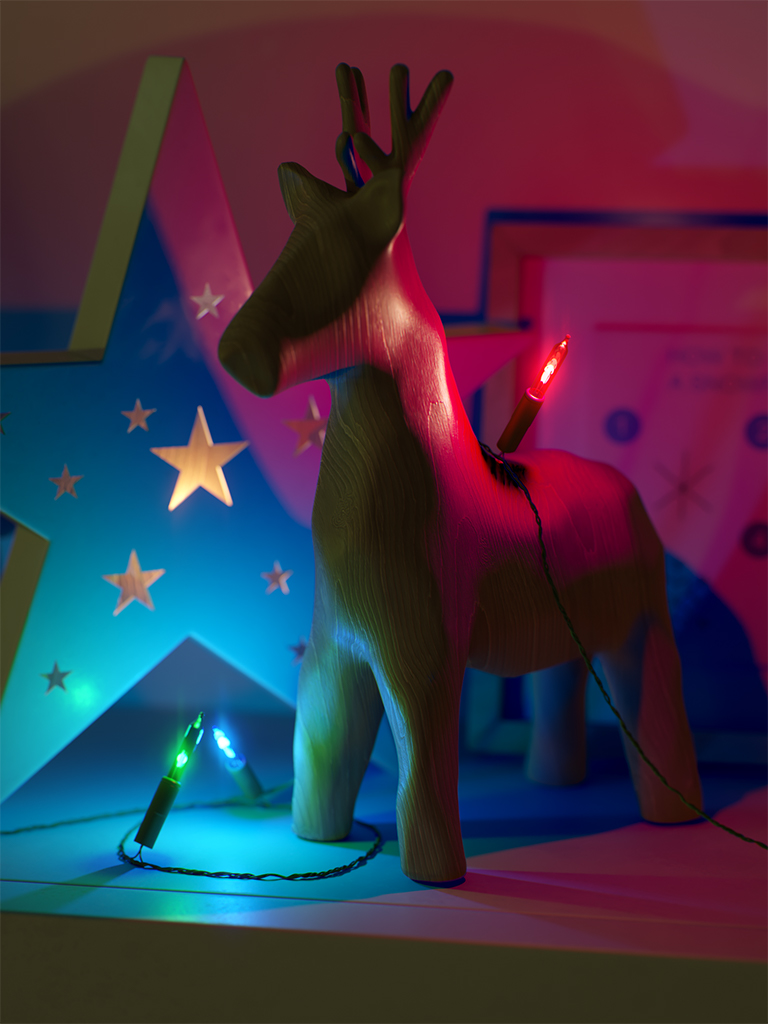
The example scene here has three lights only - red, blue, and green to show compositing use cases for the Shadow select options.
Direct Diffuse Shadows
The Direct Diffuse Shadows channel outputs only the shadows cast by objects illuminated by pre-selected lights. This option has the same output as the Shadow render element. Works with all V-Ray materials that have diffuse (which excludes Stochastic Flakes and V-Ray Flakes 2).
V-Ray Toon material is not supported.

Example: Direct Diffuse Shadow
For this example, we render three Direct Diffuse Shadow channels - one for the green light, one for the red light, and another for the blue light.

Direct Diffuse Shadow Green Light

Direct Diffuse Shadow Red Light

Direct Diffuse Shadow Blue Light

RGB Color
Matte Objects Only
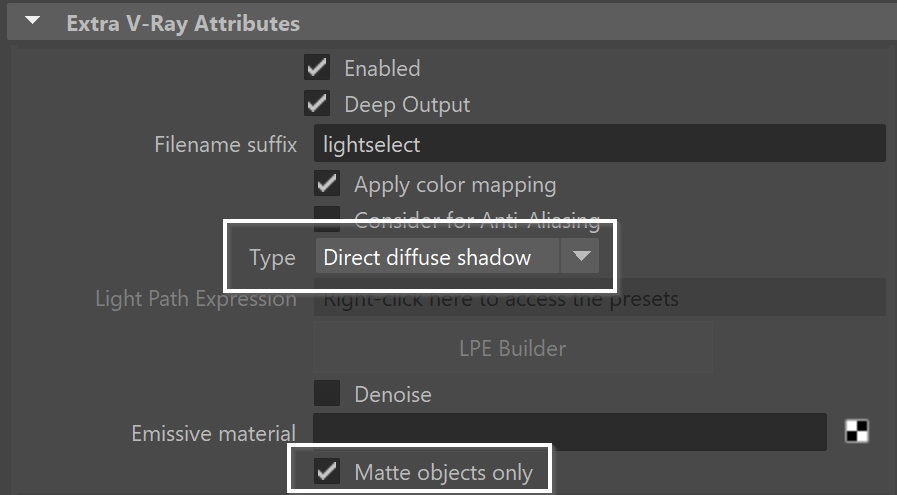
The Matte Objects Only option renders object shadows, which are generated by a predetermined light source, onto a matte surface (object with VRayObjectProperties' matte properties assigned). It is available for the Direct diffuse shadow Type only. It can be used to add 3D elements to a background image or footage in the composite.
Example: Matte Objects Only
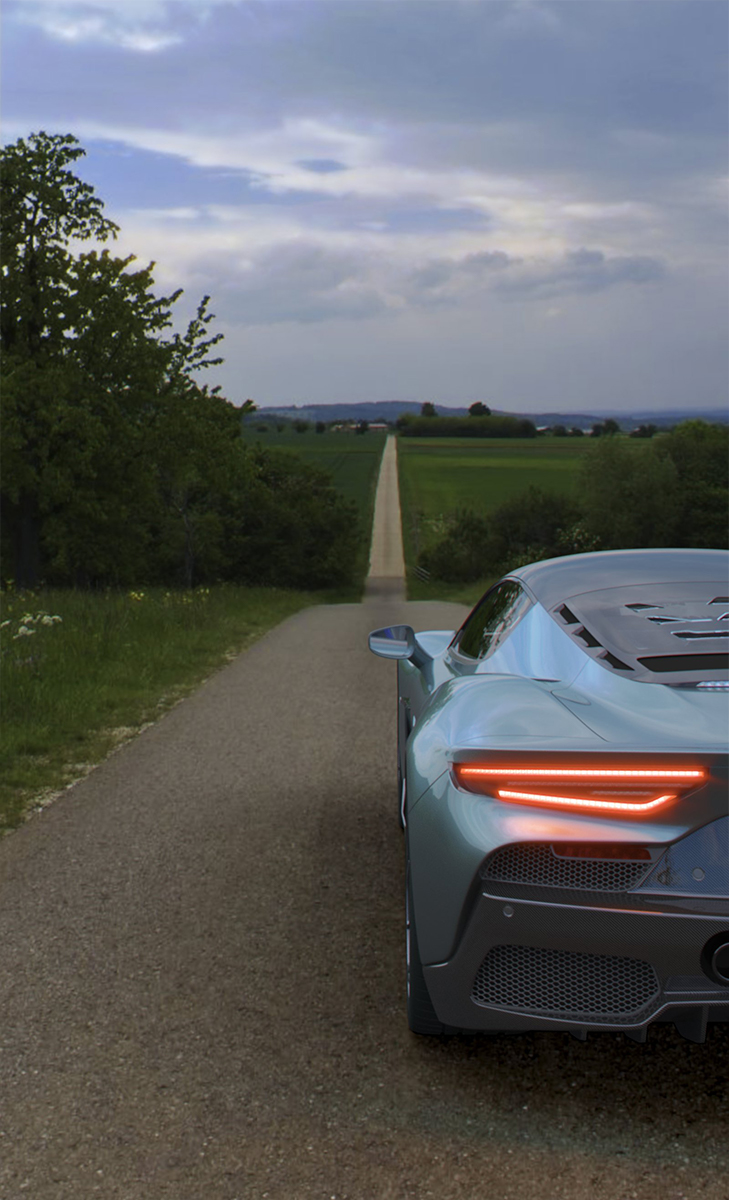
For this example, there is a matte object (plane) where the car's shadow is cast on. VRayLightRect and an HDR map are used for lighting and environment.
A Light select render element is added with Direct Diffuse Shadow type selected and Matte objects only option enabled. Color corrections are done to the shadows. See the compositing equation at the bottom for more information.

Light Select render element, Direct Diffuse Shadow with Matte objects only option on

RGB image
Color corrected shadow
Compositing Equation: Matte Objects Only

Direct Specular Shadows
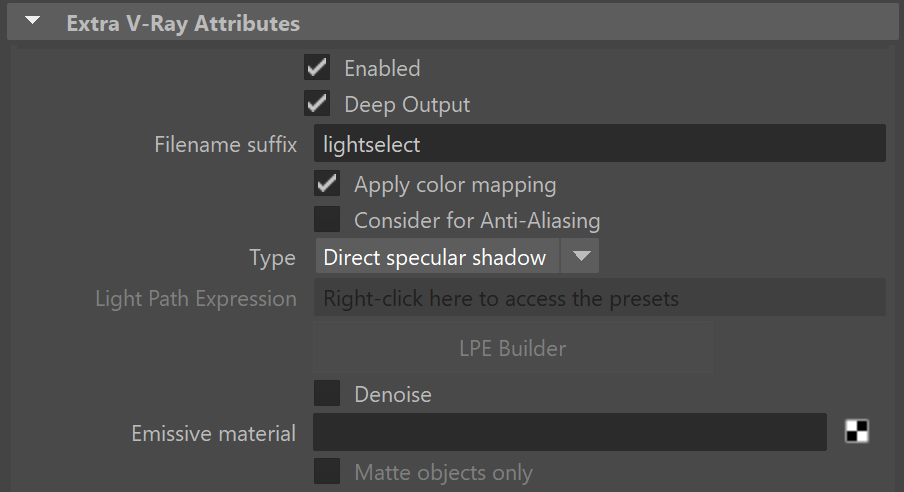
The Direct Specular Shadows channel outputs the specular information from the shadows cast by objects illuminated by a pre-selected light. The objects that the shadows are cast on must have reflective material for this channel to be visible. It works with all V-Ray materials that have reflection and glossiness values less than 1.
Maya's Ambient light and V-Ray Toon material are not supported.
Example: Direct Specular Shadow
For this example, we render three Direct Specular Shadow channels - one for the green light, one for the red light, and another for the blue light.

Direct Specular Shadow red light

Direct Specular Shadow green light

Direct Specular Shadow blue light
RGB color
Compositing Example: Color Correction
For this example, the following color-correcting steps are done:
- First, switch the source to Composite.
- Then, add a new render element layer and leave it to RGB color.
- Add a new render element layer and re-name it to Direct_Diffuse_Shadow_Red. Change the Blending to Subtract.
- Add a new render element layer, re-name it to Direct_Diffuse_Shadow_Red. Change its Blending to Add. Tweak this layer with color corrections to your liking. Here, exposure and colors (with a Bezier curve) are tweaked.
- Do the same for the Direct Specular Shadow. For ease of use, you can sort them in folders.
RGB color

Direct Diffuse Shadow red light
Direct Specular Shadow red light
Composite result

Compositing Equation
For this compositing example, we render an RGB color and Shadow Select (both Direct Diffuse and Direct Specular Shadow types) render elements. Then, we subtract Shadow Select from RGB in compositing, grade the Shadow Select, and add it back to the composite.
