V-Ray for Rhino
Cosmos 3D Models
This page gives information on how to import 3D models from Chaos Cosmos Browser in Rhino.
Last updated 1 September 2026
This page gives information on how to import 3D models from Chaos Cosmos Browser in Rhino.
Parameters
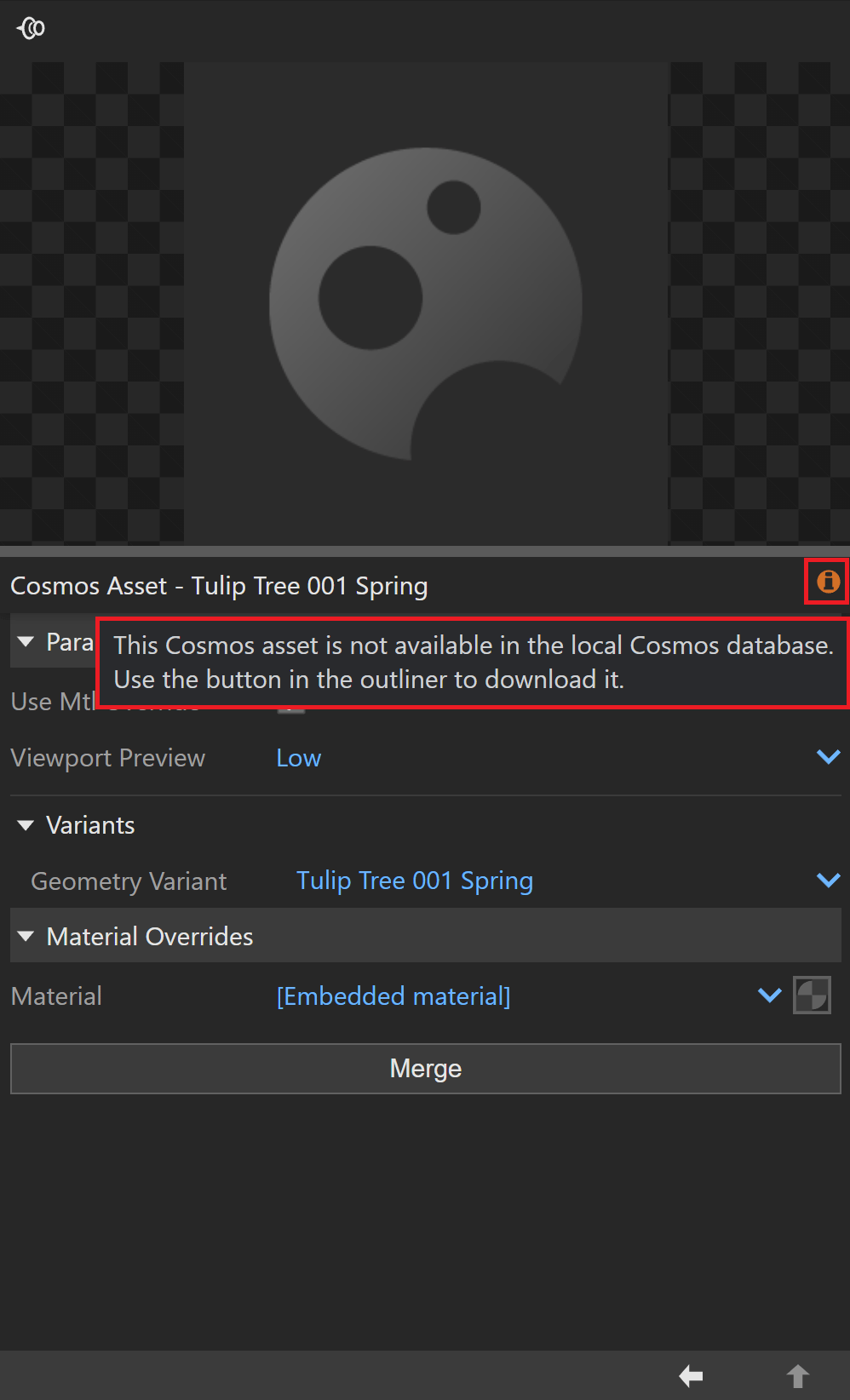
Downloaded Cosmos assets are listed in the Asset Editor under the Geometry section. They can be identified by the Cosmos icon. They can be renamed, deleted, used as replacements, moved, and merged.

The status icon () indicates whether the paths to the textures and other external reference files used by the asset are valid. Hover over the icon for more detailed information.
Use Mtl Override - When enabled, the global Material Override option in the Render Settings overrides the asset. When disabled, the asset in the referenced scene is not affected by the Material Override option in the Render Settings.
Viewport Preview - Offers different viewport preview representations of the Chaos Cosmos assets.
High - Displays the original mesh in the viewport. Using this option with heavy meshes and scenes might take longer before the mesh is displayed in the viewport and might slow down Rhino significantly. The process is dependent on the poly-count and the representation is quite detailed.
Medium
Low
Bounding Box – Previews are shown as bounding boxes.
Point (Origin) – Previews the mesh with its own point of origin.

Merge
Converts the Chaos Cosmos asset to a standard proxy mesh with material assignments and populates the scene with materials and lights. That way, you can edit the asset's materials or IES Light’s parameters. The merge process is irreversible. For more information on proxy meshes, refer to the Proxy Mesh page.

Lights
Find all light sources, including IES lights in the Chaos Cosmos browser Lighting section.
Lights – Enables the Cosmos Light asset.
Intensity Multiplier – Multiplies the intensity of all instances of the Cosmos asset.
Color Multiplier – Multiplies the color of all instances of the Cosmos asset. For more information regarding the color swatch, refer to the V-Ray Asset Editor page.
Luminaires Enabled – When enabled, Luminaires included in this asset are used for light emission when rendering. When disabled, the original light source is used.

Material Overrides
The Material Overrides section displays all materials of Chaos Cosmos 3D Assets, allowing you to replace materials without merging the asset.
Left-click on any Embedded material to open a dropdown list of materials available in the scene. Select one of the available materials to override the current one.
Variants
Asset Variants are Cosmos assets that have more than one variations regarding to materials and geometry. Each variation parameter has a label that cannot be changed, taken directly from the Cosmos asset. Some variant choices may show additional options, called sub-variants.
When you select a variant from the dropdown, it will update the Cosmos asset’s viewport, render output, and asset preview. If you change one variant to another, all values in the Lights or Material Overrides sections will reset to their default settings.

Updates

Cosmos assets with newer versions on the server have an "update" button in the Asset Editor. Press the update button () to start the update.
Note that the update can change the appearance of the object and the rendered result.

If the asset files are missing, a Download button () is present instead.
The download progress is present next to the button ().

A Refresh button appears when the Cosmos Asset was imported with an older V-Ray version. Perform this action once to update the UI and unlock new features like Material Overrides and Variants. ()

3D Models Presets
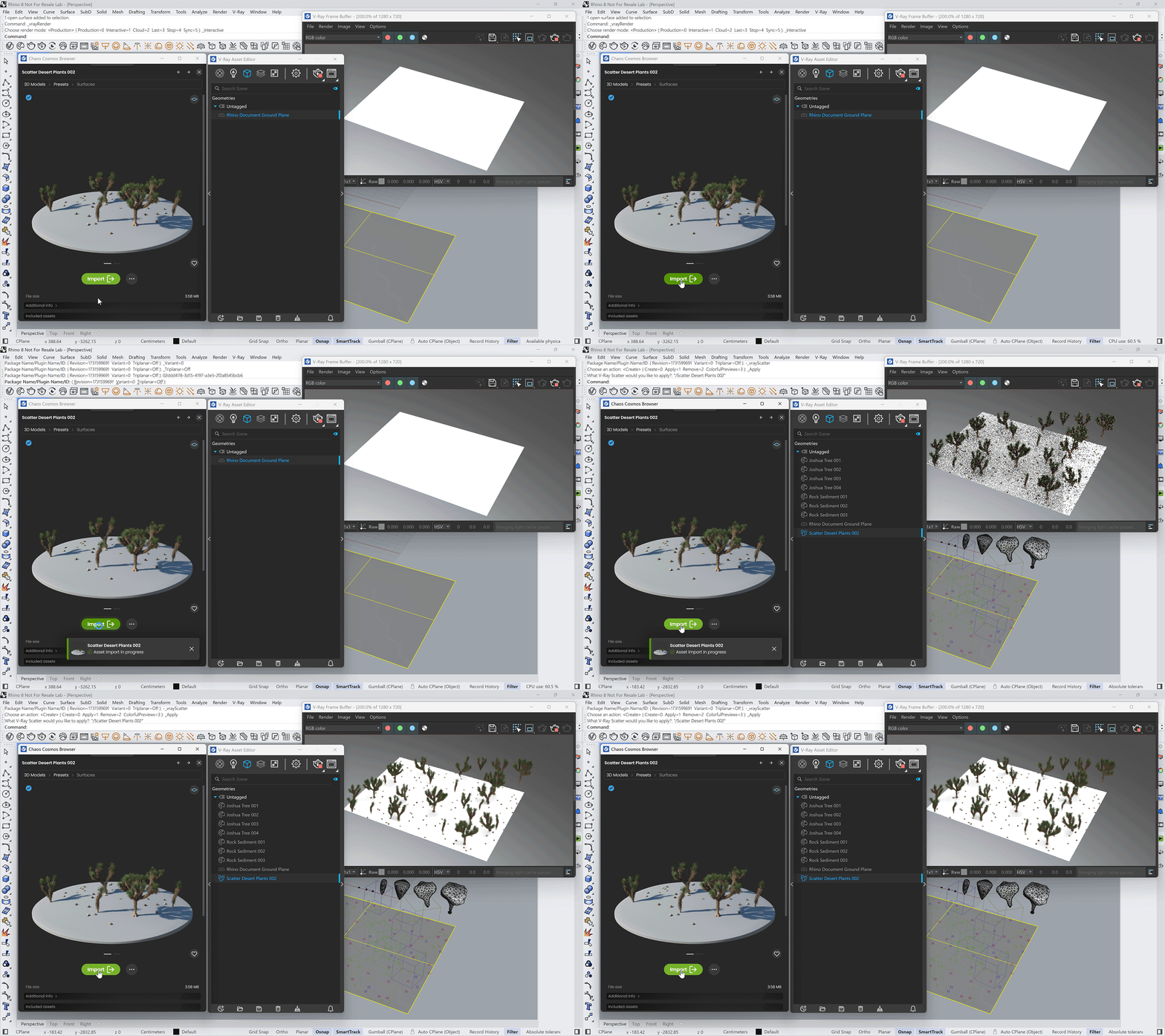
The 3D Models category includes some Presets that work with Chaos Scatter.
Scatter presets are available in Cosmos > 3D Models > Presets, and come in two types: Surfaces and Splines.
No Selection – When no host object is selected, both Surface and Spline presets can be imported directly. The Scatter assets are arranged in a grid in the viewport and added to the scene without creating a dummy host. These are visible in the Asset Editor, and can be manually applied to a host later.
With Selection – If a valid host object is selected, the imported preset is automatically applied to it.
Multi-Selection Support – You can select multiple host objects, and the preset will be applied to all compatible items.

Example: Surfaces
Example: Splines
3D Models Ready Sets
The Ready sets category provides sets of multiple 3D Assets. They are available in Cosmos > 3D Models > Ready Sets.
Ready Sets are imported as a Group in Rhino. Ungroup the set via the Ungroup command to move assets separately. All Assets from the sets are imported under a tag with the Ready Set’s name in Asset Editor.

Parallax Interiors
Import Parallax interiors from 3D Models > Parallax Interiors.
The Parallax Interior assets are found in the 3D models category. They import as native plane geometry shaded with self-illuminated material, where Parallax texture is used to create the illusion of an interior with depth at the plane surface.

Example: Self-Illumination
This example shows how changing the Self-Illumination intensity affects the scene's lighting.