Use the Diffuse render element in V-Ray for SketchUp to view material colours and textures without lighting.
Overview
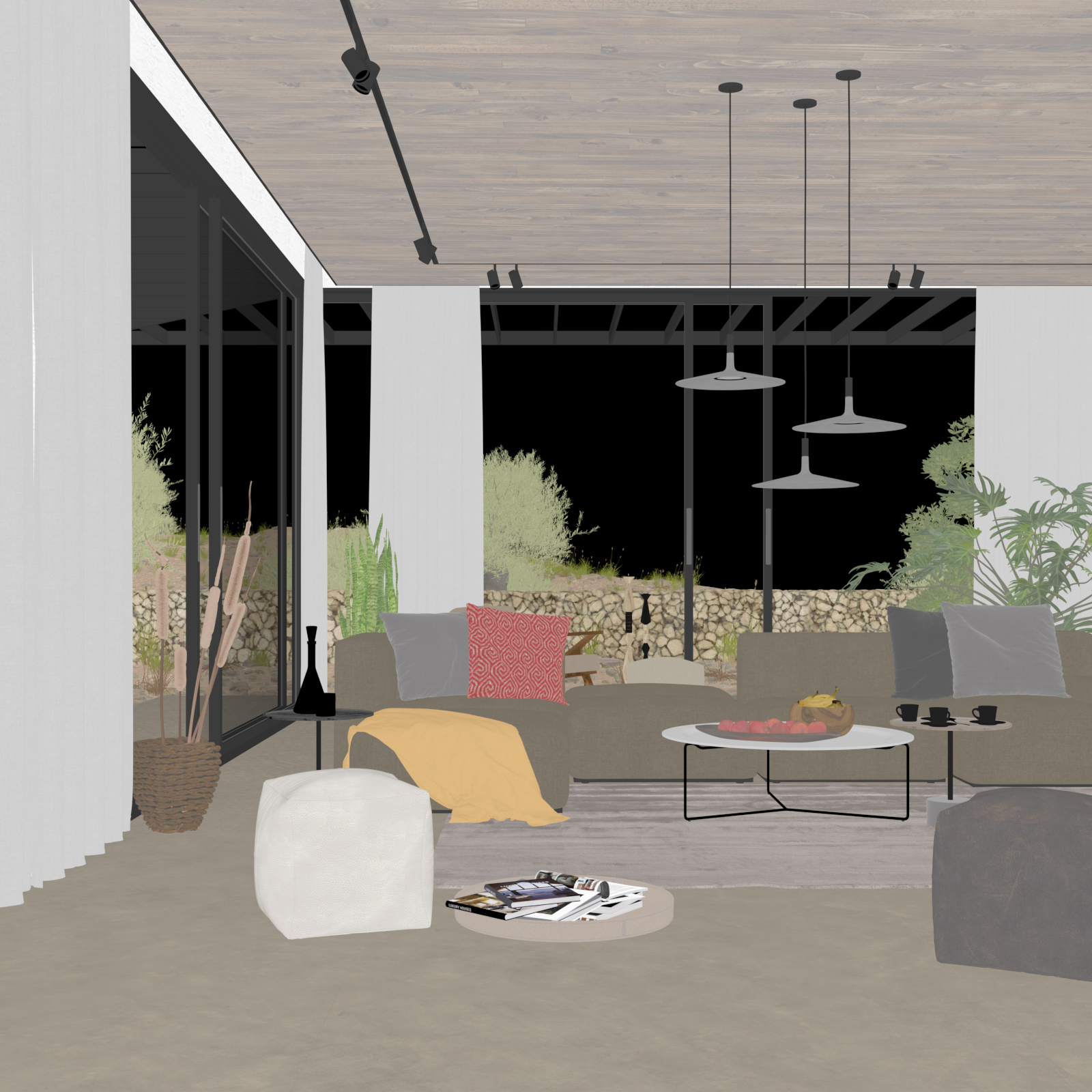
This element shows the colour or texture in a material's Diffuse slot. Scene objects appear flat because it contains no lighting information. Colours match the material definition, and textures appear as they do in the texture file.

UI paths
||V-Ray Asset Editor|| > Render Elements (right-click) > Diffuse
||V-Ray Asset Editor|| > Create Asset (left-click) > Render Elements > Diffuse
Parameters
Denoise controls whether to denoise this render element.

Common uses
You can combine the Diffuse render element with raw passes to adjust parts of the render when compositing. You can also colour-correct the Diffuse pass on its own. In this example, a render element isolates the cloth on the sofa. The Diffuse render element changes the cloth's colour from yellow to blue without tinting the scene's lighting or shadows.
Diffuse Render Element
Original Beauty Render Element
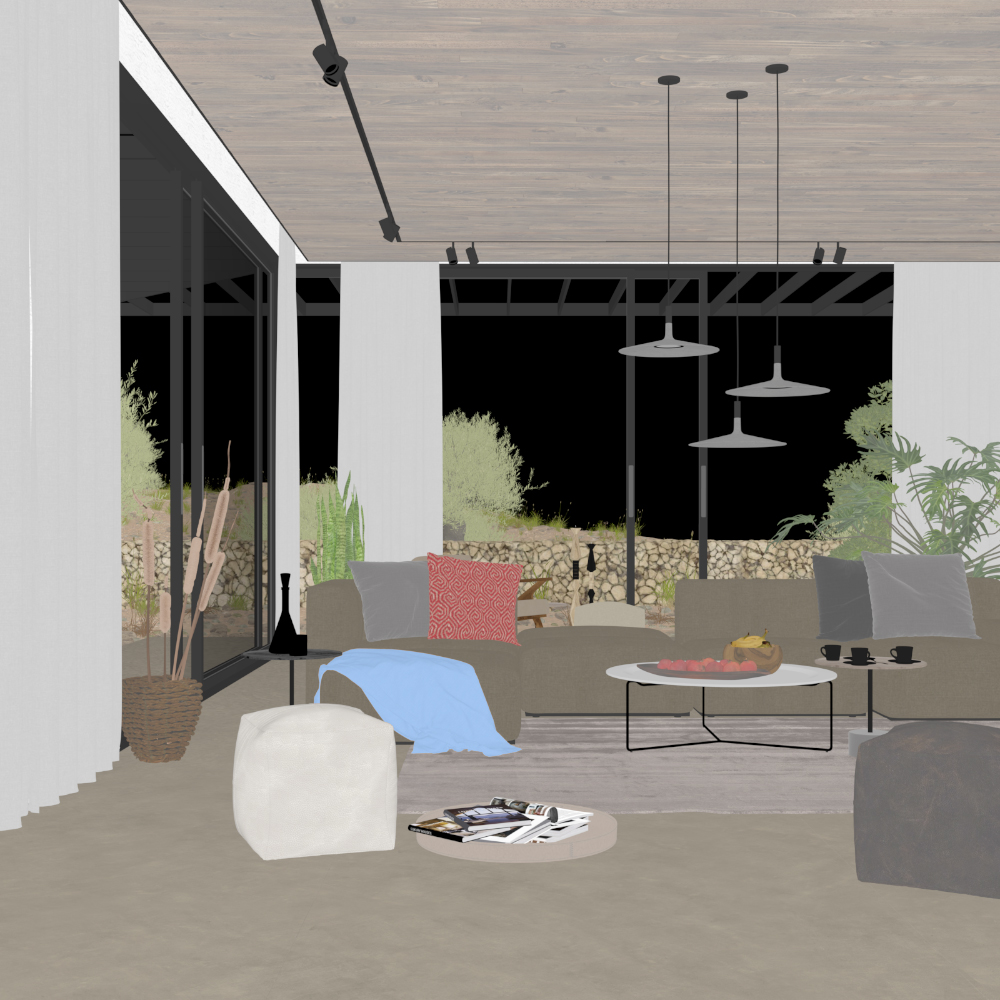
Diffuse Render Element with colour corrections

Resulting composite with colour corrections
Compositing
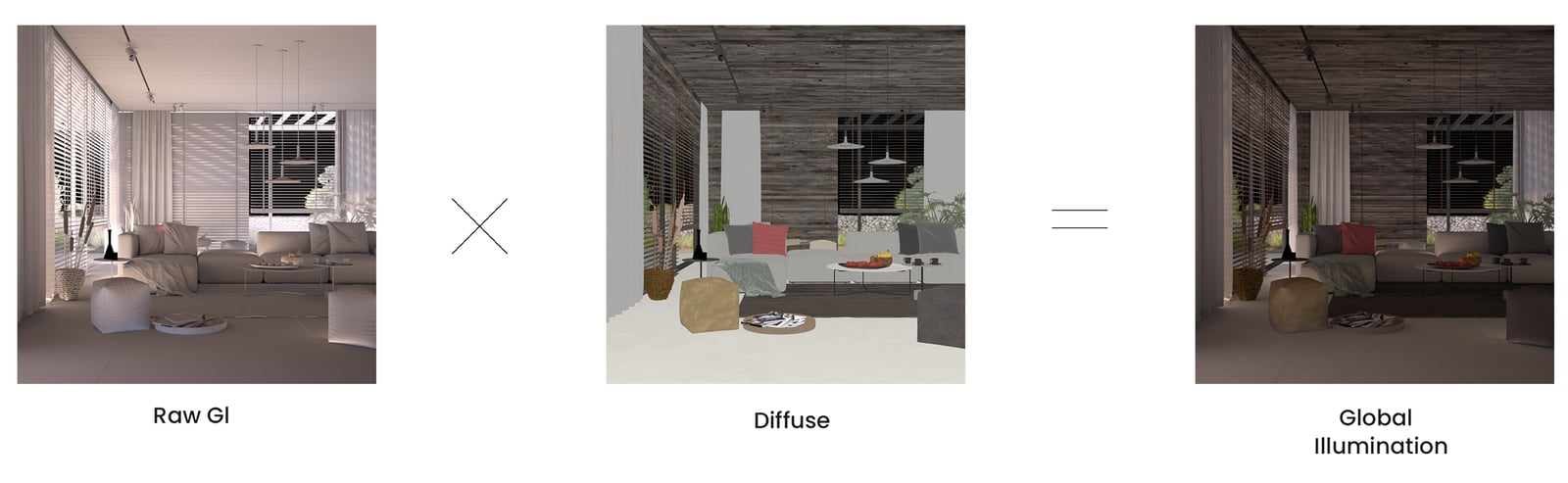
Combine the Diffuse Render Element with Raw render passes, such as Raw GI and Raw Light, to change their appearance.
In this example, the Diffuse Filter blends with the Raw GI render element in Multiply mode to produce the Global Illumination element. You can then colour-correct the raw pass without changing the diffuse colours. This lets you tint the pass realistically without re-rendering.