Use the V-Ray Grid Texture to create and adjust a procedural grid texture.
Overview
The V-Ray Grid texture map generates a procedural grid texture.


UI paths
||V-Ray Asset Editor|| > Textures (right-click) > Grid
||V-Ray Asset Editor|| > Create Asset (left-click) > Textures > Grid
Parameters
Color Line sets the grid line's colour or texture. A selected texture overrides the colour while the texture checkbox is enabled.
Color Fill sets the grid fill's colour or texture. A selected texture overrides the colour while the texture checkbox is enabled.
U Width controls the horizontal line width.
V Width controls the vertical line width. See the U Width and V Width example below.
Color Manipulation
Invert Texture inverts the texture's RGB values.
Alpha from Intensity uses the texture's RGB intensity or luminance as the alpha channel.
Color Gain adjusts the texture's colour by multiplying its RGB values by the RGB values you set here. You can also assign a texture map.
Color Offset adjusts the texture's colour by adding the RGB values you set here to the texture's RGB values. You can also assign a texture map.
Default Color sets the colour for polygons with no valid UVs. If the map is not tiled, this colour also appears outside the texture square.

Example: U Width and V Width

U Width
= 1
V Width
= 1

U Width
= 1
V Width
= 3

U Width
= 3
V Width
= 1

U Width
= 3
V Width
= 3
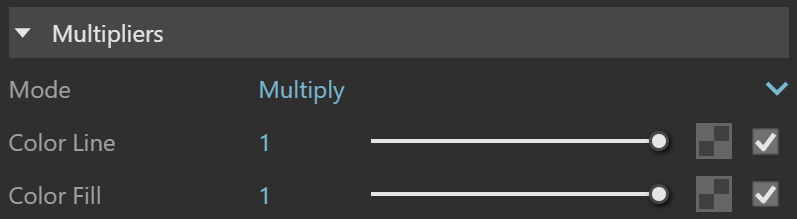
Multipliers
Mode sets the multiplication mode for the colours.
Multiply uses black as the blending colour.
Blend Amount uses the colour set in the colour slot.
Color Line controls the blend between a colour and an assigned texture.
Color Fill controls the blend between a colour and an assigned texture.
Texture placement
Type controls how the texture is positioned on the geometry.
2D (UV Channel) uses the object's UV coordinates.
Environment applies when the map is connected to an Environment slot or a Dome light.
Texture Remapping uses UVW values from a colour texture or separate greyscale textures.
Mapping Source uses an external UV placement source.
2D (UV Channel)
UV Channel/Set sets the index of the mapping channel data to use. A value of 1 uses the first available channel.
Repeat U/V sets how many times the texture repeats in the 0 to 1 UV square.
Lock U/V Repeat locks the U/V Repeat.
Offset U/V controls the texture offset in the U and V directions.
Rotate rotates the texture in degrees.
Tile U/V tiles the texture in the U and V directions. If disabled, the Default texture colour appears outside the 0 to 1 UV square. Find the Default colour in Parameters > Color Manipulation.
Mirror U/V mirrors the texture separately in the U and V directions. It cuts the texture in half and flips one side vertically or horizontally. Use it to avoid seams between repeated textures that are not tileable.

2D (UV Channel) parameters
Environment
Mapping sets the texture's type and shape.
Angular
Cubic
Spherical
Spherical Inverted
Mirror Ball
Screen
Rotate H rotates the environment sphere horizontally.
Flip H flips the environment sphere horizontally.
Rotate V rotates the environment sphere vertically.
Flip V flips the environment sphere vertically. It is available only in Spherical Mapping.
Ground enables ground projection of the texture.
Position X/Y/Z offsets the ground projection along the X/Y/Z axis.
Radius sets the projection radius. Use it to control the projection's scale.
For 2d Transformation, see the 2D (UV channel) parameters.

Environment parameters
Texture Remapping
Mode sets whether to use a single texture or multiple textures to remap the U and V texture coordinates.
UV uses the input texture's Red channel for the U sampling coordinate. It uses the Green channel for the V coordinate.
U uses this texture's value to set the U sampling coordinate.
V uses this texture's value to set the V sampling coordinate.

Texture Remapping parameters
Mapping Source
UV Placement Source sets the external UV placement source for the texture.

Mapping placement parameters