Use the Lighting Analysis Render Element in V-Ray for SketchUp to view lighting intensity in a rendered frame.
Overview
The Light Analysis Render Element shows lighting intensity in the rendered frame. It maps Illuminance and Luminance onto the frame as a colour gradient or a grid of measured values.
V-Ray creates the Illuminance and Luminance channels internally during rendering.
During rendering, Lighting Analysis may show an approximate false-colour image. This is not the final result. Once rendering finishes, each parameter change you make in the Asset Editor updates the render result in the VFB.


UI paths
||V-Ray Asset Editor|| > Render Elements (right-click) > Lighting Analysis
||V-Ray Asset Editor|| > Create Asset (left-click) > Render Elements > Lighting Analysis
Parameters
Quantity selects the lighting information to analyse.
Illuminance (lx) uses the rendered frame's Illuminance in lux.
Luminance (cd) uses the rendered frame's Luminance in candelas.
Minimum Value sets which values map to blue.
Maximum Value sets which values map to red.
Scale sets how values map to colours on the frame.
Linear maps colours on a linear scale.
Logarithmic maps colours on a logarithmic scale.
Display Mode sets how the analysed data appears.
False colours fills the frame with a gradient from blue (low values) to red (high values). Values below the range appear black. Values above the range appear white.
Grid overlay shows values at distinct grid points over the frame, using the same colour scale.
Draw Legend shows a legend of the false colours at the bottom of the render when enabled.

Lighting Analysis examples
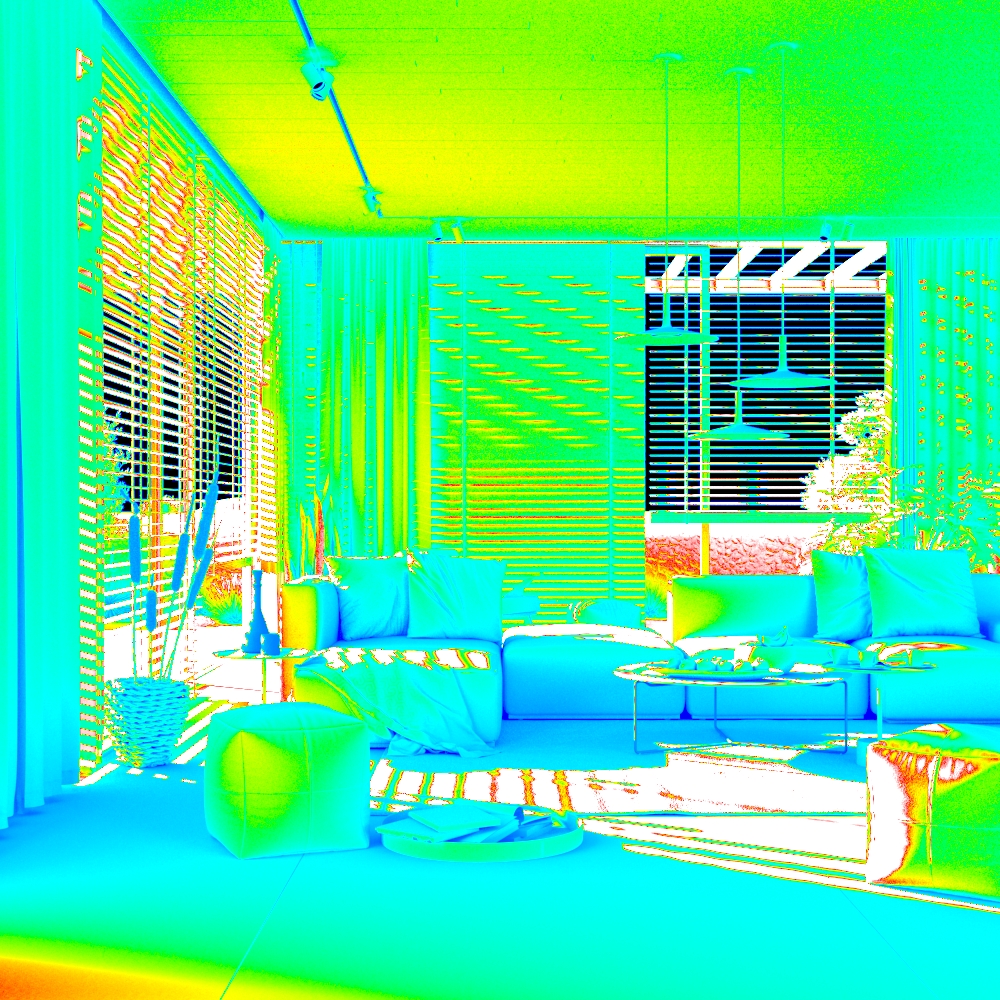
Light Analysis Render showing Illuminance with the False Colors display

Light Analysis Render showing Luminance with the False Colors display
Light Analysis Render showing Illuminance with the Grid Overlay display
Notes
- When you use the Progressive image sampler, Update effects in the Render rollout of the Settings menu controls how often the Lighting Analysis channel updates.
- To restore the Input Number Slider's default value, right-click the slider and select Reset from the context menu.