Use the MultiMatte Objects Render Element in V-Ray to create object selection masks for compositing.
Overview
The MultiMatte Objects Render Element creates selection masks based on each object's Object ID. It uses only three colours: red, green and blue. At render time, it analyses the scene and creates enough channels for the unique IDs you specify. Each channel holds up to 3 unique IDs. Its name shows which IDs it represents.
You can use a single R, G or B channel directly as a matte. You do not need to select the colour in your compositing software.
The MultiMatte Objects Render Element has an antialiasing option.
V-Ray also supports the MultiMatte Materials channel, which uses Material ID numbers.

UI paths
||V-Ray Asset Editor|| > Render Elements (right-click) > MultiMatte Objects
||V-Ray Asset Editor|| > Create Asset (left-click) > Render Elements > MultiMatte Objects
Set Object IDs
To set an Object ID, right-click a selected object and choose V-Ray Object ID > Selection > Set from the context menu.
Give a group of objects the same Object ID to create a shared mask with the MultiMatte Objects Render Element.
In this example, the three chandeliers share the same Object ID. They receive the same colour in the MultiMatte Objects channel, so you can treat them as one object in compositing.
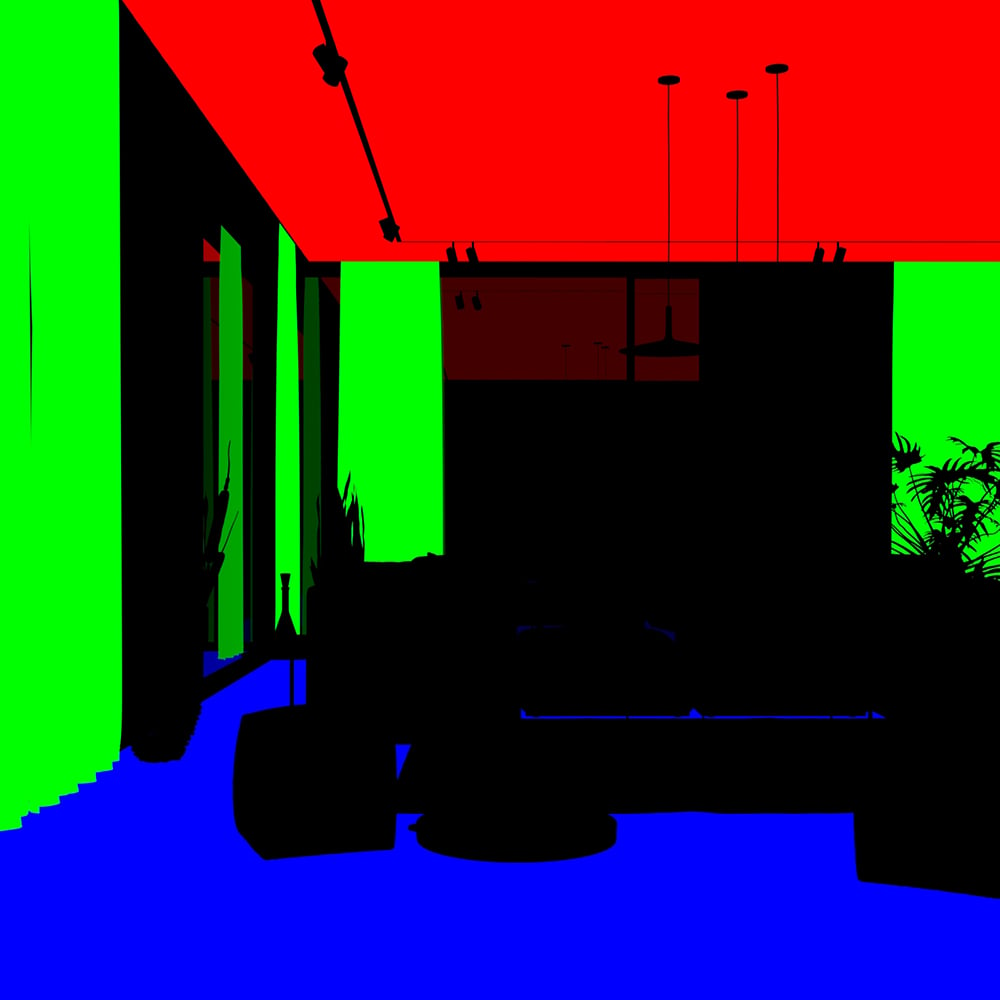
The rendered result is shown below.
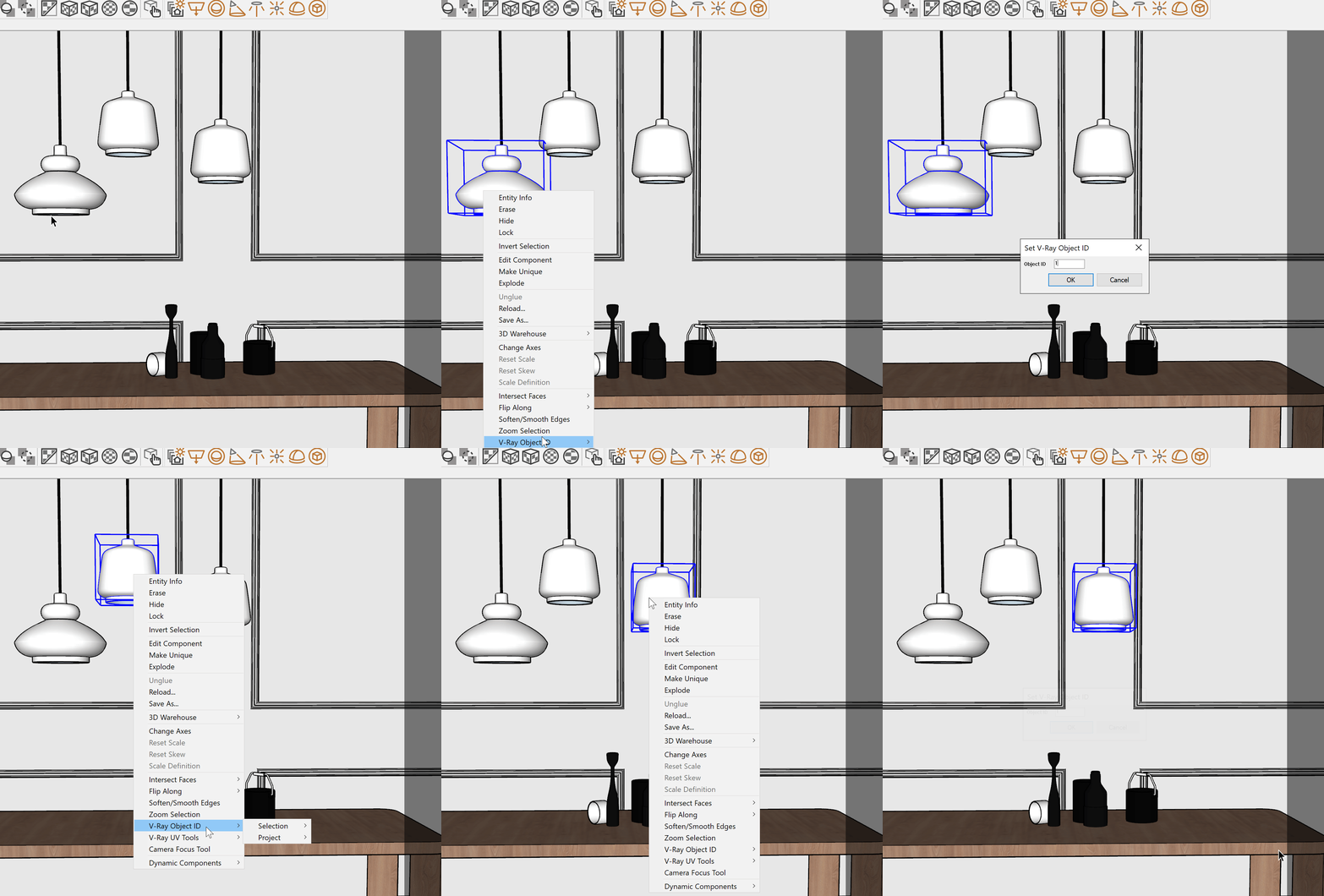
Setting Object IDs in the viewport

Result in the MultiMatte Objects channel
Common uses
Use the MultiMatte Objects Render Element to isolate geometry in a scene. Other matte render elements do similar tasks, but MultiMatte can be quicker to use in compositing because it can represent objects with pure red, green or blue channels. Compositing software often lets you select these channels directly as mattes.
In this example, the ceiling has Object ID 1, the stone curtains have Object ID 2, and the floor has Object ID 3. You can use the resulting masks in compositing to modify each isolated part of the geometry. The renders show the result before and after compositing.
