Use the V-Ray Multi-Sub Texture to assign textures to objects by ID or at random.
Overview
The V-Ray Multi-Sub texture assigns multiple textures to objects through a single material. It uses specified IDs or distributes the textures at random.
In this image, Multi-Sub's Get ID from parameter is set to Object ID. Each part of the ball has a texture assigned. Multi-Sub is then assigned to the diffuse channel of a single VRay Material.


Where to find Multi-Sub
||V-Ray Asset Editor|| > Textures (right-click) > Multi-Sub
||V-Ray Asset Editor|| > Create Asset (left-click) > Textures > Multi-Sub
Parameters
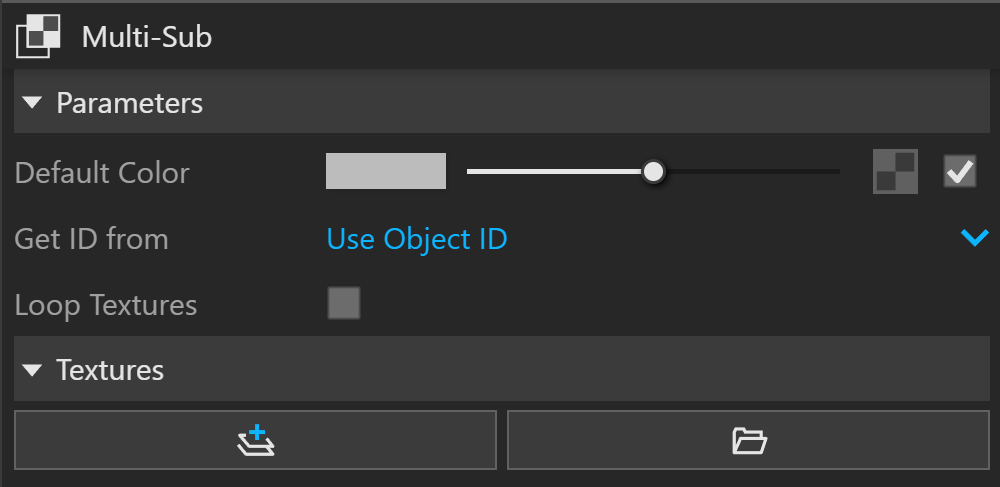
Default Color lets you assign a colour or texture. A selected texture overrides the colour while the texture checkbox is enabled.
Get ID from determines how the ID parameters are used.
Use Face Material ID uses the face IDs that SketchUp creates when you apply different materials to faces of the same object. If those materials share the same Multi-Sub texture, V-Ray uses the face IDs to assign colours or textures to the materials.
Faces that inherit the material from a group use ID 0. Faces whose IDs have no matching sub-colour or texture use Default Color.
Use Object ID uses the object's Object IDs to assign colours or textures to the material.
Loop Textures wraps geometry IDs to the available range when enabled and the number of shaded IDs exceeds the number of IDs in this texture.

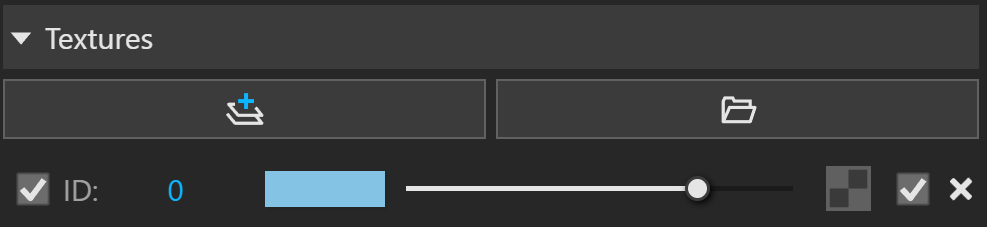
Adds a new texture.

Adds multiple new textures at once.
Random:
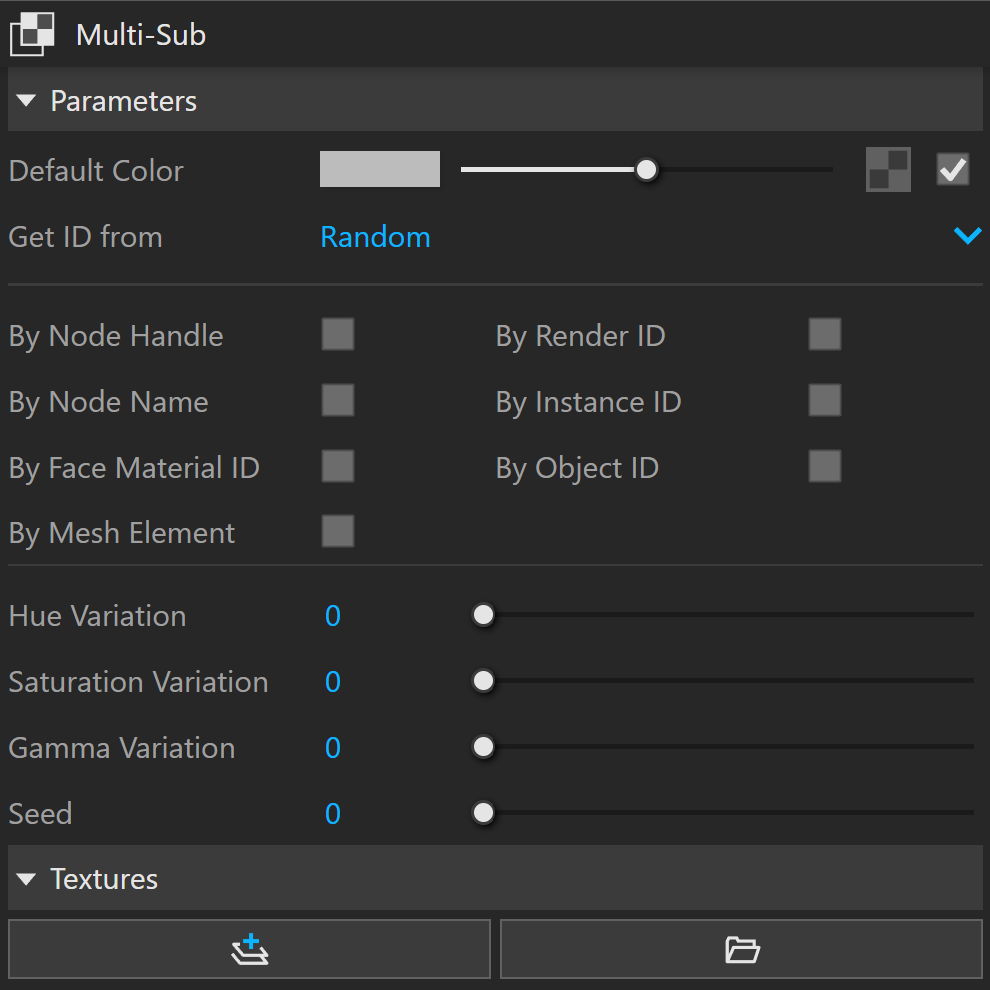
By Node Handle generates the colour index from the unique number, or "handle", assigned when a node is created. The handle stays the same during scene editing. Adding, removing or renaming an object does not change the colours.
By Node Name generates a colour index from the name of the node to which the texture is applied.
By Face Material ID distinguishes Face Material IDs when multiple materials are assigned to faces of a single mesh.
By Mesh Element treats each island of connected mesh faces as a mesh element.
By Render ID uses the object identifier assigned during rendering.
By Instance ID treats objects copied by V-Ray Scatter, or instances from a referenced alembic abc file loaded as a Mesh Proxy, as instances.
By Object ID uses Object IDs that you can define manually for each scene object.
Hue/Saturation/Gamma Variation is available when Get ID from is set to some of the Random options. These three parameters randomise the output colour during post-processing. Each value sets the maximum random deviation from the original value within its scale. See the Random Hue/Sat/Gamma example below.
Hue Variation randomises the output colour's hue within [-180°, 180°]. See the Hue Variation example below.
Saturation Variation randomises the output colour's saturation with an offset within [-0.5, 0.5]. Values outside [0, 1] are clamped to that range. See the Saturation Variation example below.
Gamma Variation applies gamma correction to the output colour using a random gamma value (or 1/gamma) within [0..1].
Seed changes the randomisation pattern.
Textures
Used enables the subtexture for rendering.
ID sets the ID that corresponds to each texture in modes that use IDs.
Probability sets the relative chance of a texture appearing. It is available when Get ID from is set to Random.
Get ID from
is set to
Use Object ID
/
Face Material
ID
.

Get ID from
is set to
Random
.
Example: Hue Variation
This example shows how Hue Variation changes the scene.
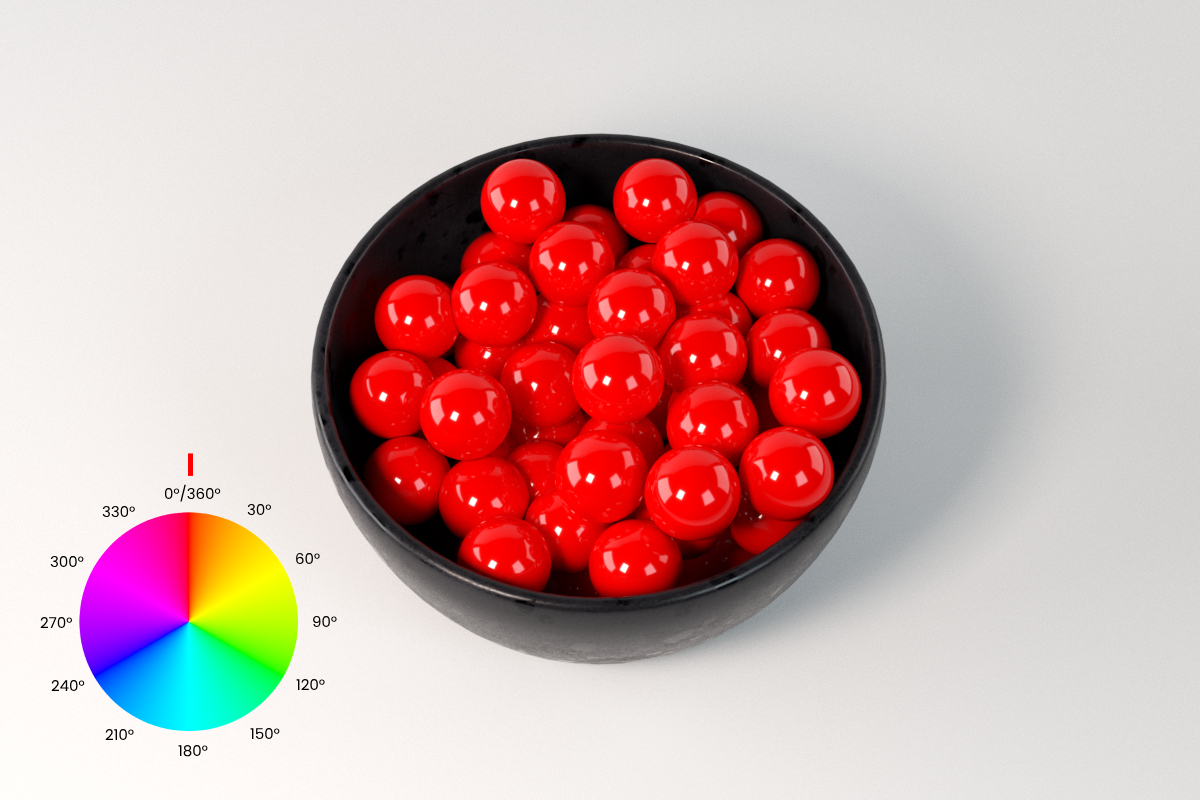
Hue Variation is set to 0.
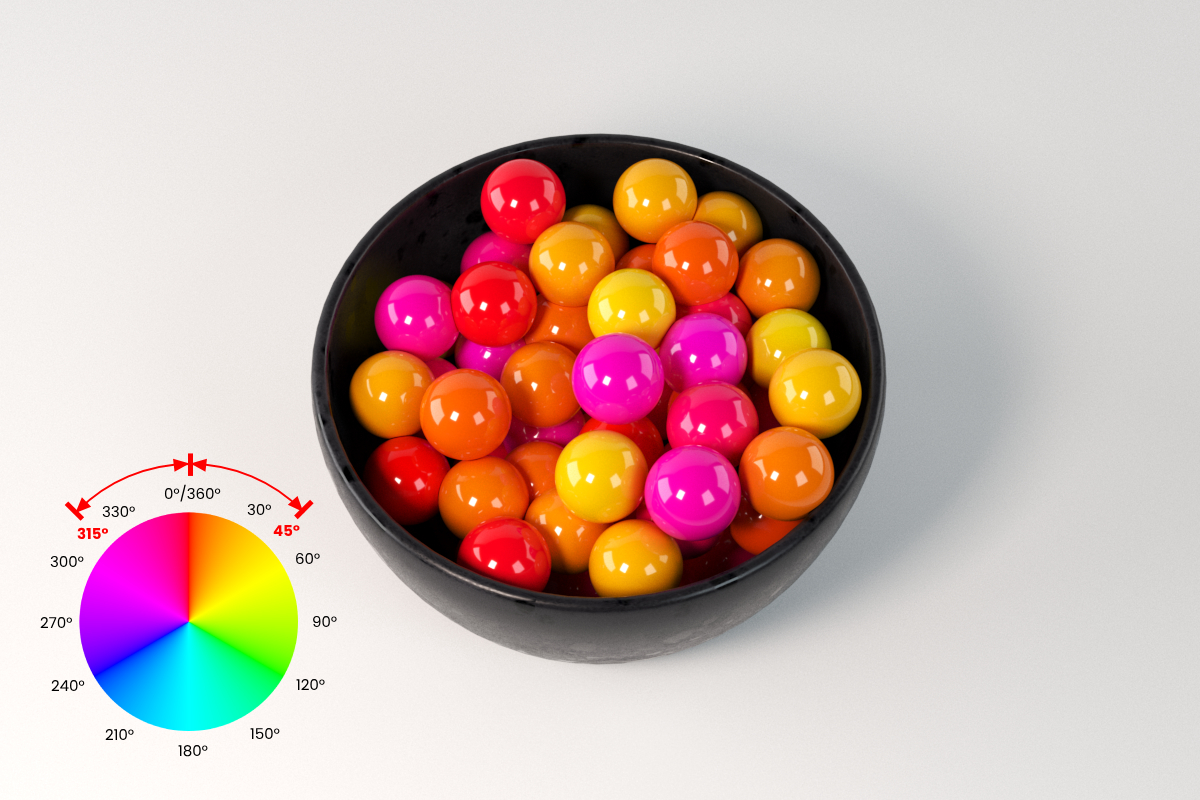
Hue Variation is set to 0.25. The hue changes at random within [-45° and +45°] of the spheres' original red colour.

Hue Variation is set to 0.5. The hue changes at random within [-90° and +90°] of the spheres' original red colour.
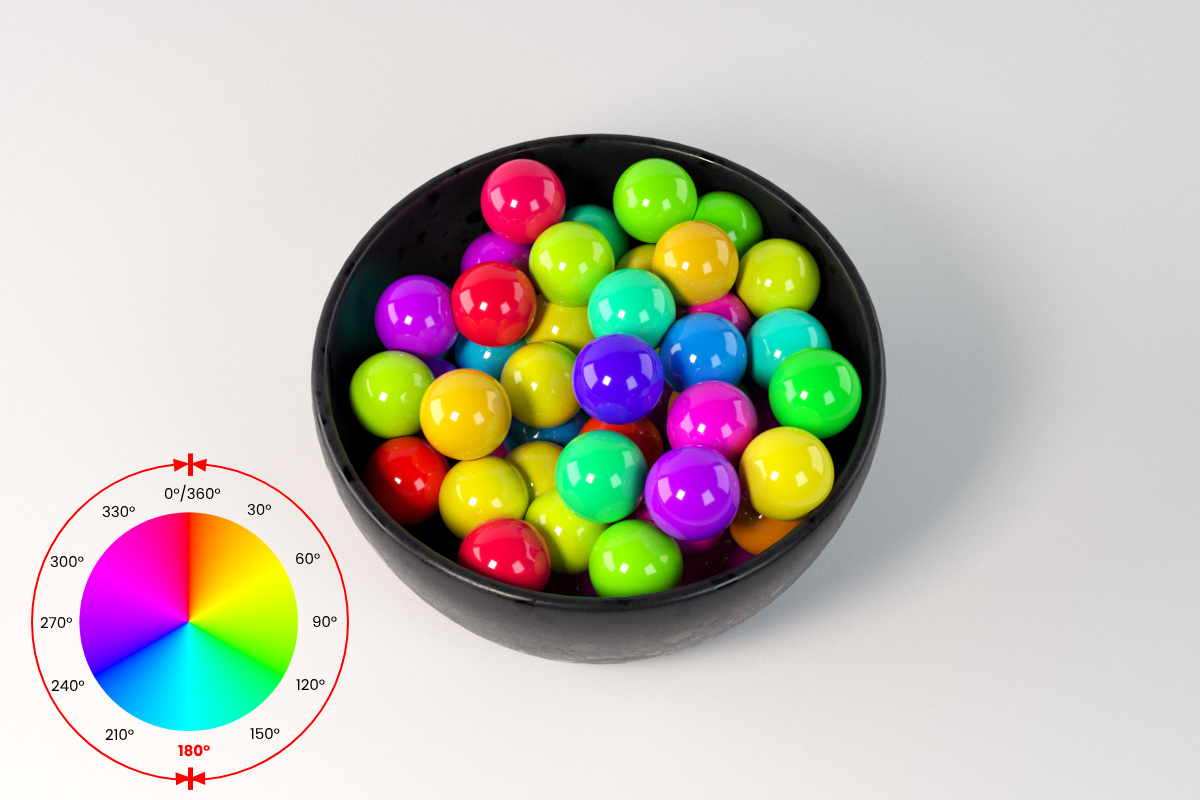
Hue Variation is set to 1. The hue changes at random within [-180° and +180°] of the spheres' original red colour.
Example: Saturation Variation
This example shows how Saturation Variation changes the scene.

Saturation Variation is set to 0.
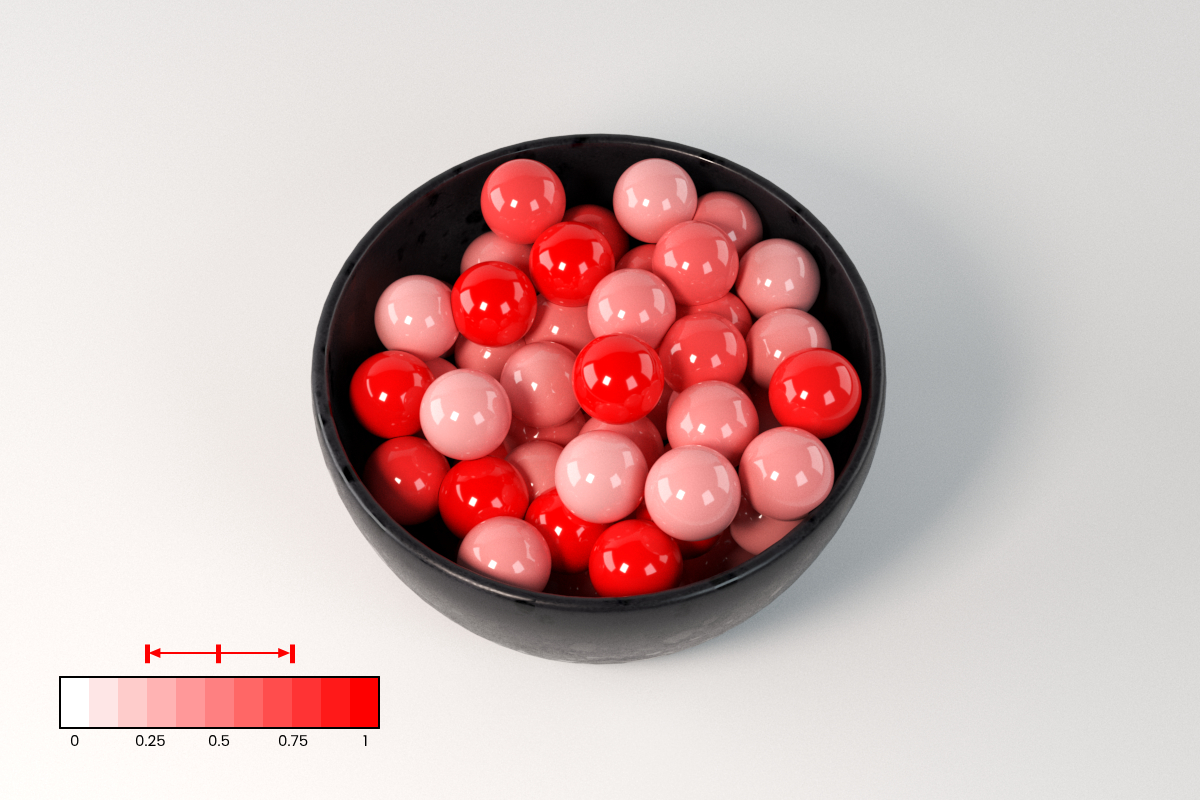
Saturation Variation is set to 0.5. The saturation changes at random within [-0.25 and +0.25] of the spheres' original colour.

Saturation Variation is set to 1. The saturation changes at random within [-0.5 and +0.5] of the spheres' original colour.
Example: Random Hue/Sat/Gamma by Use Object ID
This example shows how Random Hue/Saturation/Gamma changes the scene. Each object has a separate Object ID set, and Get ID from is set to Use Object ID.

No Random Hue/Sat/Gamma is applied.

Hue = 1

Saturation = 1

Gamma = 1
Example: Hue/Sat/Gamma Random by Face Material ID
This example shows how Random Hue/Saturation/Gamma changes the scene when Get ID from is set to Random by Face Material ID.

Hue = 1
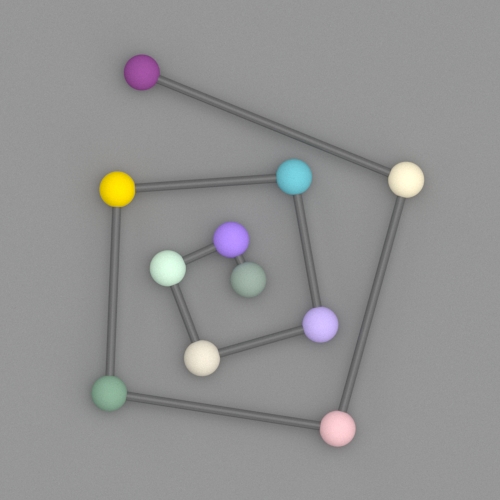
Saturation = 1
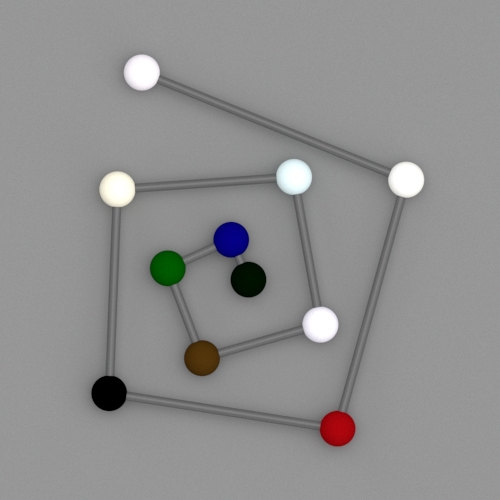
Gamma = 1
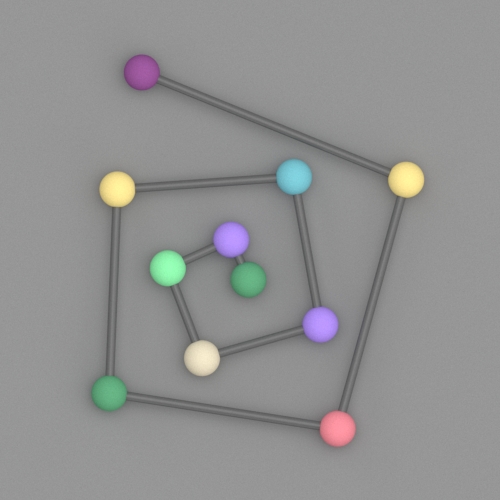
No Hue/Saturation/Gamma; Seed = 0
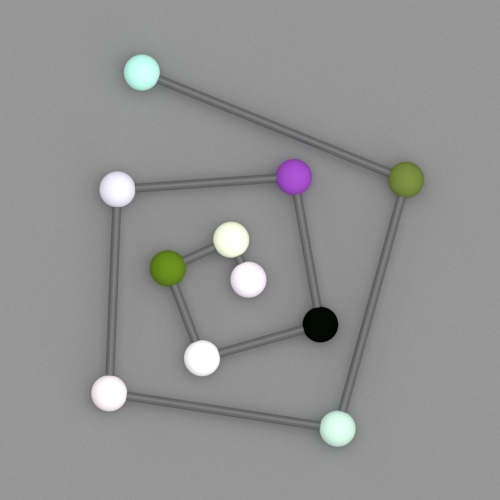
Hue = 0.7, Saturation = 0.3, Gamma = 0.5, Seed = 5
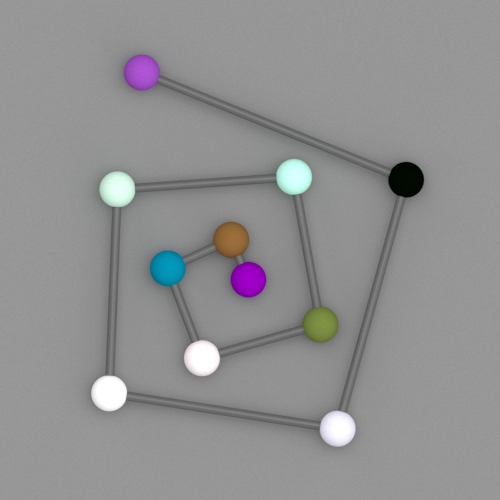
Hue = 0.7, Saturation = 0.3, Gamma = 0.5, Seed = 1
Example: Hue/Sat/Gamma Random by Node Name
This example shows how Random Hue/Saturation/Gamma changes the scene when Get ID from is set to Random by Node Name.
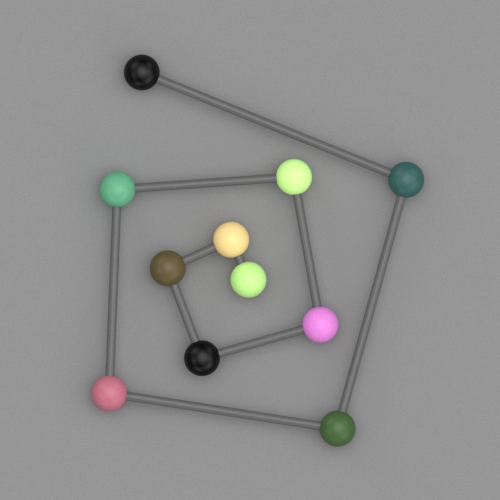
Hue = 1

Saturation = 1
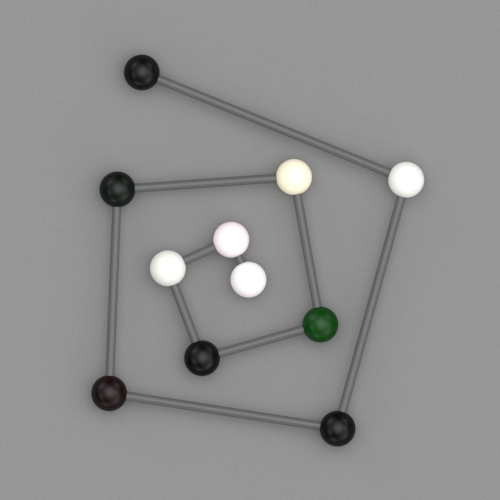
Gamma = 1
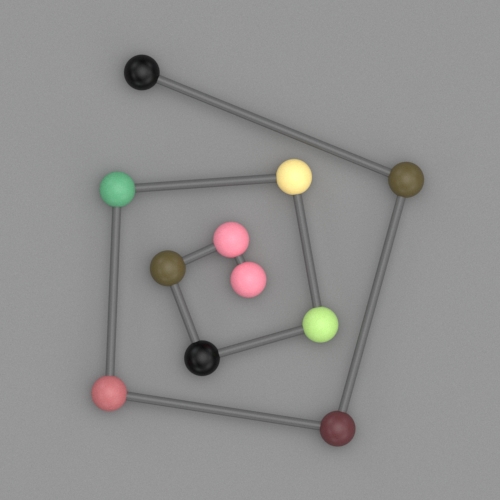
No Hue/Saturation/Gamma; Seed = 0
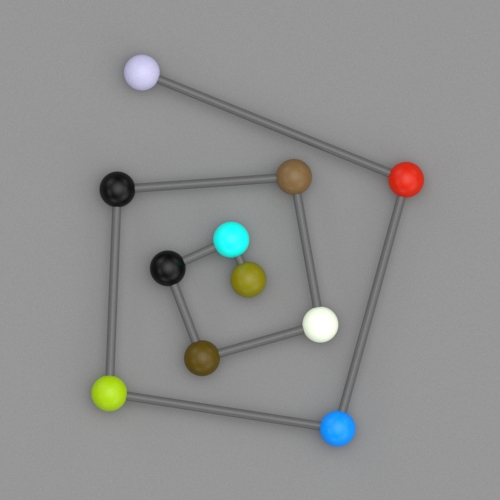
Hue = 0.7, Saturation = 0.3, Gamma = 0.5, Seed = 5

Hue = 0.7, Saturation = 0.3, Gamma = 0.5, Seed = 1
Notes
- You cannot currently set Face ID manually in SketchUp.