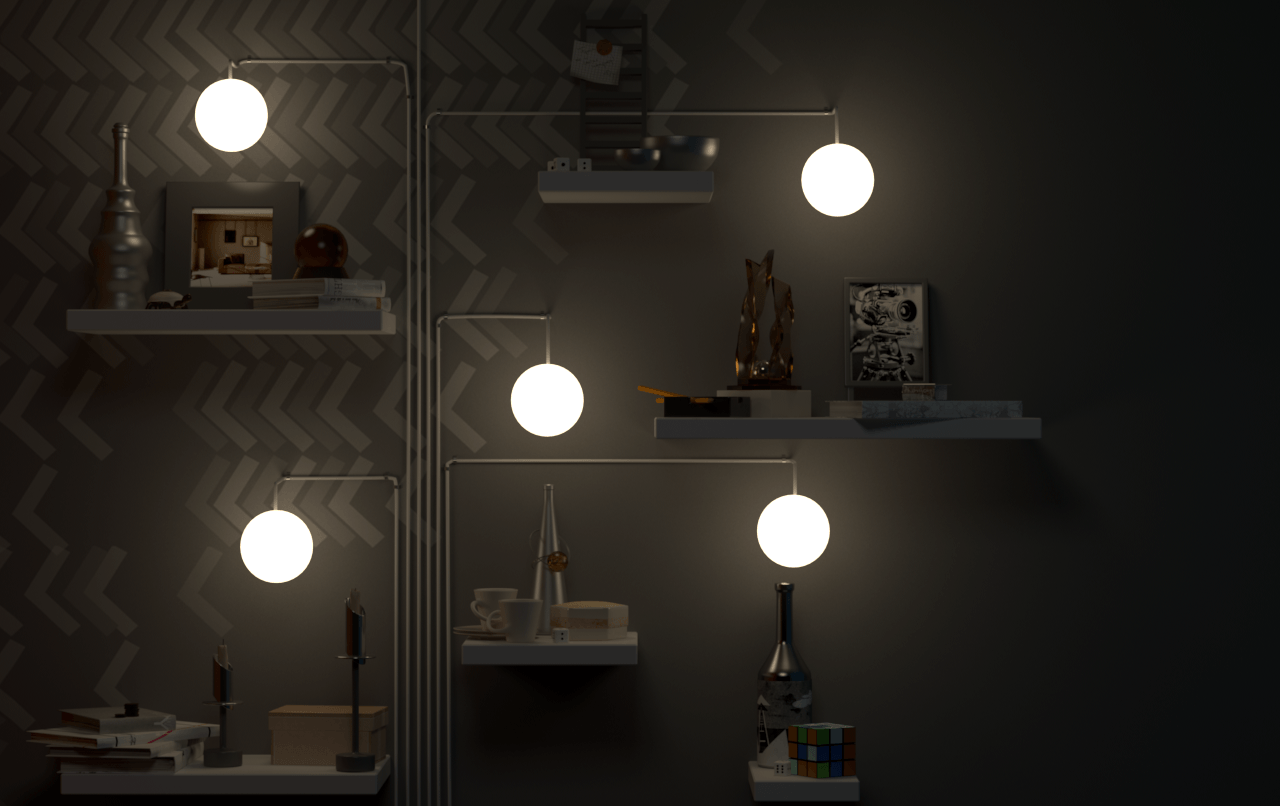
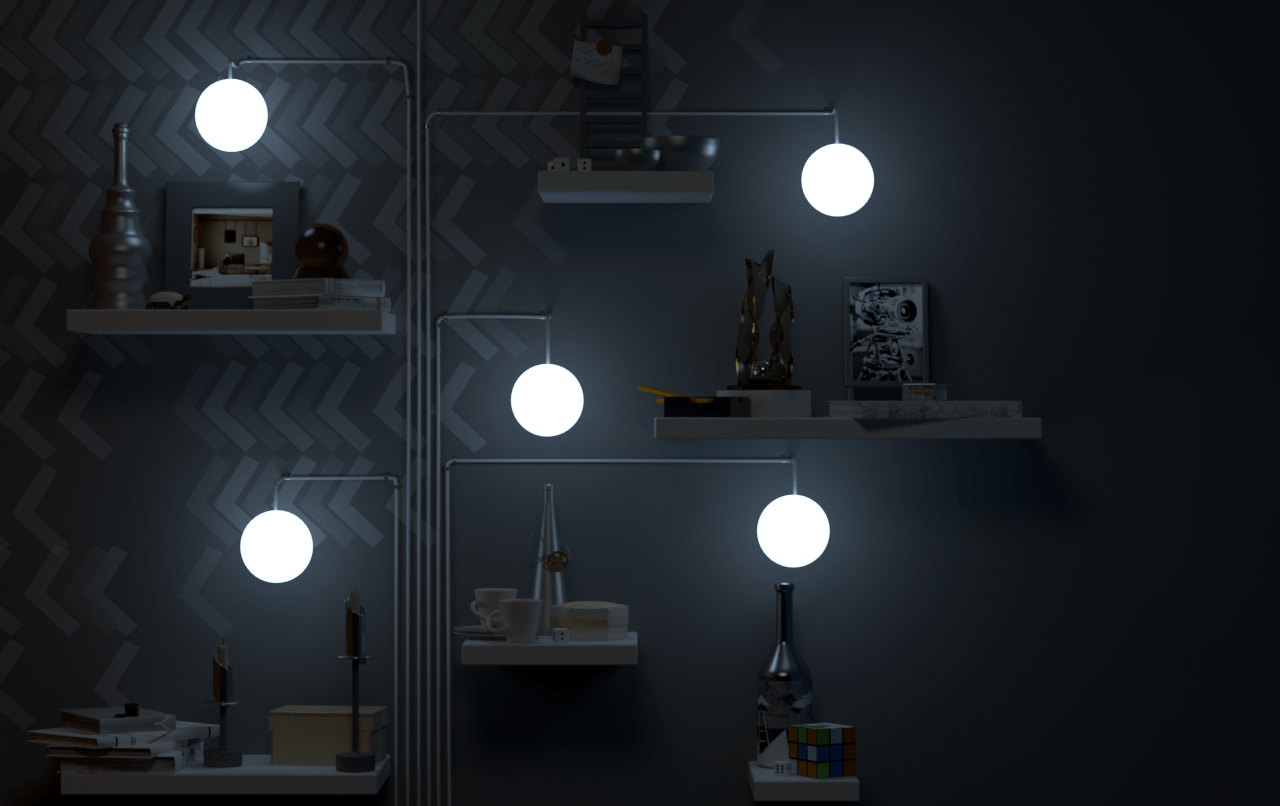
Use the V-Ray Temperature Map to set colours by temperature, such as warm or cool lighting.
Overview
Use the Temperature texture with light sources to set a colour from a value such as a Kelvin temperature. You can use it to change the colour of an Emissive Material from warm to cool.


UI paths
||V-Ray Asset Editor|| > Textures (right-click) > Temperature
||V-Ray Asset Editor|| > Create Asset (left-click) > Textures > Temperature
Temperature
Mode sets how the colour is determined:
RGB Color uses the colour you specify with the Color parameter.
Temperature uses the colour temperature you specify in Kelvin with the Temperature parameter.
Colour shows the resulting colour in a swatch. Double-click the swatch to open the Color Picker.
Temperature (K) sets the temperature in Kelvin.
Color Multiplier sets a multiplier for the colour strength.
Color Gamma sets the gamma correction applied during rendering. It does not affect the Color swatch.

Common uses
In the examples below, the sphere lights use the same V-Ray Emissive Material. A Temperature texture map applied to the Emissive Material shows a different colour temperature in each example. The Temperature texture has Color mode set to Temperature.
The final image below uses five separate Temperature texture maps, each with a different colour temperature. No other changes were made to the Emissive Material.